A TPM reservation locks dedicated inference capacity for a specified model, ensuring that your services are not affected by public rate limits during peak business hours. This topic describes how to create, integrate, and manage TPM reservations.
Overview
With a TPM (Tokens Per Minute) reservation, you can lock dedicated inference throughput for a specified model. Calls within the reserved capacity are not subject to the rate limits of the public resource pool.
- Capacity guarantee: The reserved TPM capacity is dedicated to your workload and is not shared with other users.
- Dedicated model code: After you create a throughput reservation, the system automatically generates a dedicated model code. You must replace the
modelparameter in your API requests with this code. - Overflow strategy: When creating a reservation, you can choose how to handle excess traffic — automatically overflow to pay-as-you-go (default, no service interruption) or use reserved capacity only (excess requests return 429, no additional charges incurred).
- Add-on capacity package: Purchase additional capacity instances on top of an existing reservation. New instances share the same dedicated model code, and the total reserved capacity increases accordingly after the add-on. For more information, see Management operations.
- 8-hour time-window reservation: In Standard mode, you can choose a prepaid plan (by 8-hour time window) with a fixed 8-hour duration and immediate effect, suitable for scenarios where load is concentrated in specific time windows. For more information, see Throughput Reservation billing.
Compare and select a plan
Model Studio offers multiple capacity and billing plans for inference calls, including pay-as-you-go, resource plans and savings plans, throughput reservations, and PTU dedicated deployments. Each plan has different characteristics regarding billing unit, capacity guarantee level, overflow handling, and integration changes. This section helps you choose the appropriate plan based on your business needs.
Plan | Billing unit | Capacity guarantee | Use cases | Overflow handling | Code changes |
|---|---|---|---|---|---|
Pay-as-you-go | Per token | None (shared public pool) | Highly variable/short-term traffic | Served automatically, subject to public rate limits | No changes required |
Resource plan/Savings plan | Prepaid quota | Committed-use discount (not dedicated capacity) | Cost optimization | Excess traffic switches to pay-as-you-go | No changes required |
Throughput reservation | Prepaid per kTPM | Dedicated capacity with a firm guarantee | Predictable traffic, no tolerance for rate limiting | Optional: auto-overflow to pay-as-you-go (default) / reserved-capacity-only returns 429 | Replace the model parameter |
PTU (Model deployment) | Prepaid per kTPM | Dedicated deployment instance | High throughput and high performance | Optional: auto-overflow to pay-as-you-go (default) / PTU-capacity-only returns 429 | Replace the model parameter |
Supported models
For prices, see Throughput Reservation billing.
China (Beijing)
- Qwen3.8-Max
- Qwen3.7-Flash-2026-07-15
- Qwen3.7-Max-2026-05-20
- Qwen3.7-Plus-2026-05-26
- Qwen3.6-Flash-2026-04-16
- GLM-5.3
- GLM-5.2
- GLM-5.1
- DeepSeek-v4-Flash
- DeepSeek-v4-Flash-0731
- DeepSeek-v4-Pro
- DeepSeek-v4-Pro-0813
- Kimi-K2.6
Singapore
- Qwen3.8-Max
- Qwen3.7-Flash-2026-07-15
- Qwen3.7-Max-2026-05-20
- Qwen3.7-Plus-2026-05-26
- Qwen3.6-Flash-2026-04-16
- GLM-5.3
- GLM-5.2
- GLM-5.1
- DeepSeek-v4-Flash
- DeepSeek-v4-Flash-0731
- DeepSeek-v4-Pro
- DeepSeek-v4-Pro-0813
Billing and usage notes
ImportantFor complete billing rules, pricing, scaling and unsubscribe refunds, auto-renewal, capacity conversion, and more, see Throughput Reservation billing.
- Billing starts once deployment succeeds. Calls within the reserved capacity incur no additional charges; prepaid fees are paid in a one-off upfront payment and remain in effect from the moment of purchase. Refer to the Bailian console for the actual charges.
- For the billing rules and sales constraints of 8-hour time-window reservations (billed by 8-hour time window), see Throughput Reservation billing.
- When the overflow policy is "Auto overflow": requests exceeding the quota degrade to standard pay-as-you-go billing without service interruption. You can view the degradation count on the detail page at Overflow degradation statistics. When set to "Reserved capacity only": requests exceeding the quota return 429 and incur no additional charges.
- Within 2 hours after the service expires, the instance can still be called and renewed; from 2 to 14 hours after expiry, it is stopped, cannot be called, but can still be renewed; after 14 hours, it is released and cannot be recovered. (Applies to daily reservations; 8-hour time-window reservations are not eligible for this grace period. See 8-hour time-window reservation billing)
Create a throughput reservation
Prerequisites: Bailian model service is activated and a workspace has been created. Sign in to the Bailian console and click Create throughput reservation.
On the Create throughput reservation page, fill in parameters such as reservation name, model, billing cycle, input TPM, output TPM, purchase duration, auto-renewal on expiry, and overflow policy in turn. The right side of the page provides a TPM capacity calculator to help with estimation.
ImportantCreating a throughput reservation requires a one-off upfront payment. We recommend using the TPM capacity calculator to estimate the required TPM and confirm the cost before submitting.
-
Fill in the following parameters:
Parameter
Description
Required
Value description
Reservation name
Custom name for identification.
Yes
≤ 50 characters
Select model
Select the model for which to reserve capacity. A dedicated model code is generated automatically upon submission.
Yes
Only models that support throughput reservation are available; refer to the console display.
Performance mode
Inference performance tier, determining the throughput capacity of a single instance.
Yes
Standard mode (same TPS as the standard API) / High-speed mode (equivalent to PTU model deployment, with a 1.5-2x TPS improvement over the standard API)
Billing cycle
Billing cycle.
Yes
By day; by 8-hour time window (Standard mode only, fixed 8 hours, immediate effect; for more information, see Throughput Reservation billing)
Input TPM
Reserved input throughput, in kTPM (1 kTPM = 1,000 tokens/minute).
Yes
The starting value and step vary by model; refer to the console display.
Output TPM
Reserved output throughput, in kTPM.
Yes
The starting value and step vary by model; refer to the console display.
Purchase duration
Valid duration of the reservation.
Yes
Enter the number of days in the input box. Supported values: 1-30, 60, 90, 120, 365 days.
Auto-renewal on expiry
Automatically deducts payment and renews one day before expiry (for execution rules, see Throughput Reservation billing). Enabled by default. By 8-hour time window does not support renewal; this parameter does not apply.
No
On / Off
Single renewal duration
Duration of each automatic renewal.
No
Enter the number of days in the input box. The value range is the same as the purchase duration.
Overflow policy
How requests exceeding the reserved capacity are handled when it is exhausted.
Yes
Auto overflow to per-token pay-as-you-go (default; overflow switches to pay-as-you-go, no service interruption) / Reserved capacity only (overflow returns 429, no additional charges)
-
After confirming the parameters, click Buy now. In the fee confirmation dialog, verify the charges and click Confirm payment.
-
On the Overview tab of the throughput reservation detail page, find the Dedicated model code and click copy.
-
Replace the
modelparameter in your API request with the copied dedicated model code:Prerequisite: a throughput reservation instance has been created and its status is Running.
NoteThe
thinking_budgetparameter of GLM-5.2 (which limits thinking length) does not take effect when called.
# When the request volume surges within a short period, the system needs a brief warm-up to match the required compute.
# During warm-up, some requests may experience latency fluctuations. Stability recovers after warm-up completes.
# Ensure you have request queuing or retry mechanisms in place.

import dashscope

response = dashscope.Generation.call(
    api_key="your-api-key",
    model="your-dedicated-model-code",   # Replace with your dedicated model code
    messages=[{"role": "user", "content": "Hello"}],
)
print(response.output.text)
# When the request volume surges within a short period, the system needs a brief warm-up to match the required compute.
# During warm-up, some requests may experience latency fluctuations. Stability recovers after warm-up completes.
# Ensure you have request queuing or retry mechanisms in place.
curl -X POST https://dashscope.aliyuncs.com/compatible-mode/v1/chat/completions \
  -H "Authorization: Bearer $DASHSCOPE_API_KEY" \
  -H "Content-Type: application/json" \
  -d '{"model":"your-dedicated-model-code","messages":[{"role":"user","content":"Hello"}]}'
After selecting the by-8-hour-time-window billing cycle, the creation page expands the 8-hour time-window capacity configuration area: the effective window is displayed read-only (the start point is rounded down to the current whole hour based on the purchase moment, not customizable, fixed at 8 hours, and can cross natural days; less than 1 hour is counted as 1 hour), and the supply status is displayed in real time. Orders can be placed only between 20:00 and 04:00 the next day (orders cannot be placed between 04:00 and 20:00). After the time window expires, the capacity automatically becomes invalid and the 2h/14h grace period does not apply. See 8-hour time-window reservation billing.
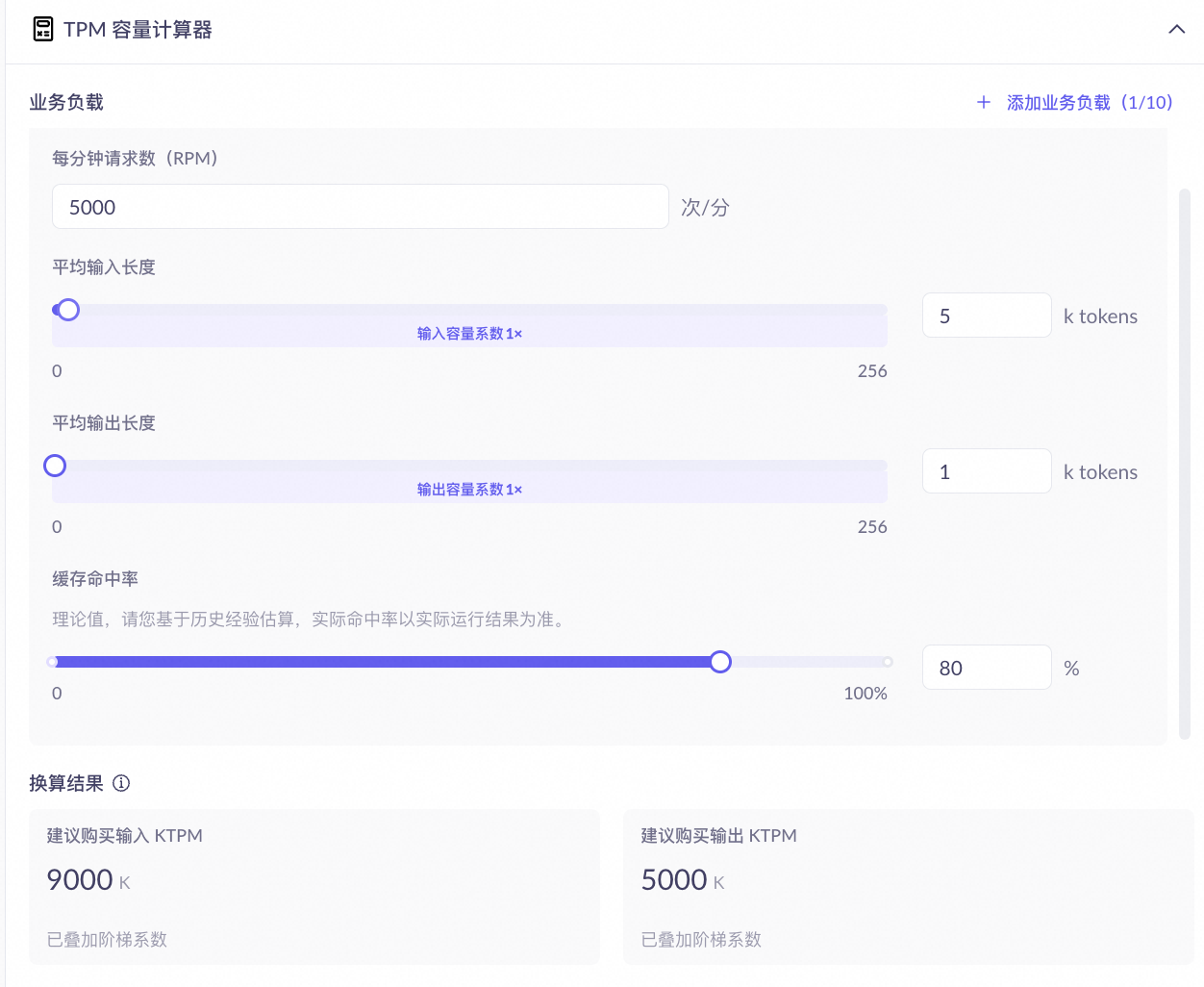
TPM capacity calculator
The TPM capacity calculator on the right side of the creation page helps you estimate the TPM quota to purchase based on your business load. After you fill in the following parameters, the calculator automatically outputs the recommended input TPM and output TPM.
Parameter | Description | Impact on result |
|---|---|---|
Requests per minute (RPM) | Number of requests sent per minute during peak business hours. | The larger the RPM, the larger the recommended input and output TPM in proportion. |
Average input length (tokens) | Average number of input tokens per request. | The longer the input, the higher the tier and the larger the coefficient, so the higher the recommended input TPM. Tier boundaries differ by model; refer to the actual console display. |
Average output length (tokens) | Average number of output tokens per request. | The longer the output, the larger the coefficient may be, so the higher the recommended output TPM. |
Cache hit rate | The proportion of requests whose repeated prefixes are cache hits. The actual hit rate depends on the repetition of request content; refer to the runtime result. | The higher the hit rate, the slower the input capacity is consumed, so the lower the recommended input TPM. Affects only input TPM, not output TPM. |
View and manage
Go to the Bailian console and open the reservation list page. The list displays all reservation instances as model cards and supports filtering by model, time, and status.
On the throughput reservation page, each model card displays the active reservation count, reserved input/output TPM, and peak ratio. The reservation list table contains columns such as reservation ID, input/output TPM, status, and billing method (by day, by 8-hour time window, by hour, etc.)·expiry time, and supports filtering by model, time, and status.
Reservation details
Click a target model card to open the detail page, which contains the following 3 tabs:
Overview
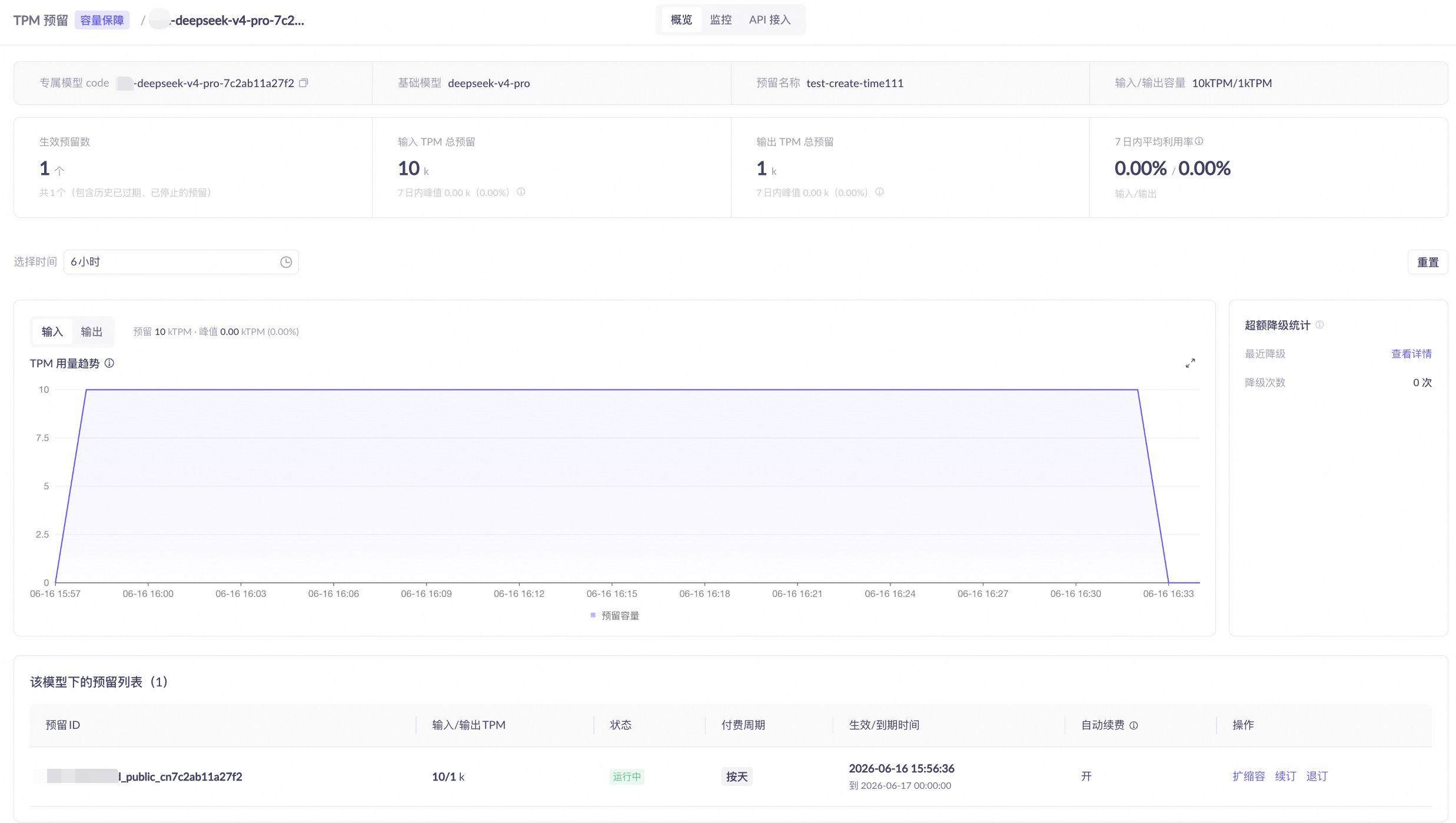
- Basic information: reservation name, dedicated model code (copyable), base model, input/output capacity.
- Statistics cards (last 7 days): active reservation count, total and peak TPM usage, average utilization.
- Utilization trend: switch between input/output directions; shows the reserved capacity line and actual usage.
- Overflow degradation statistics: shows the number of requests degraded after exceeding the reserved capacity (degradation occurs only under the "Auto overflow" policy).
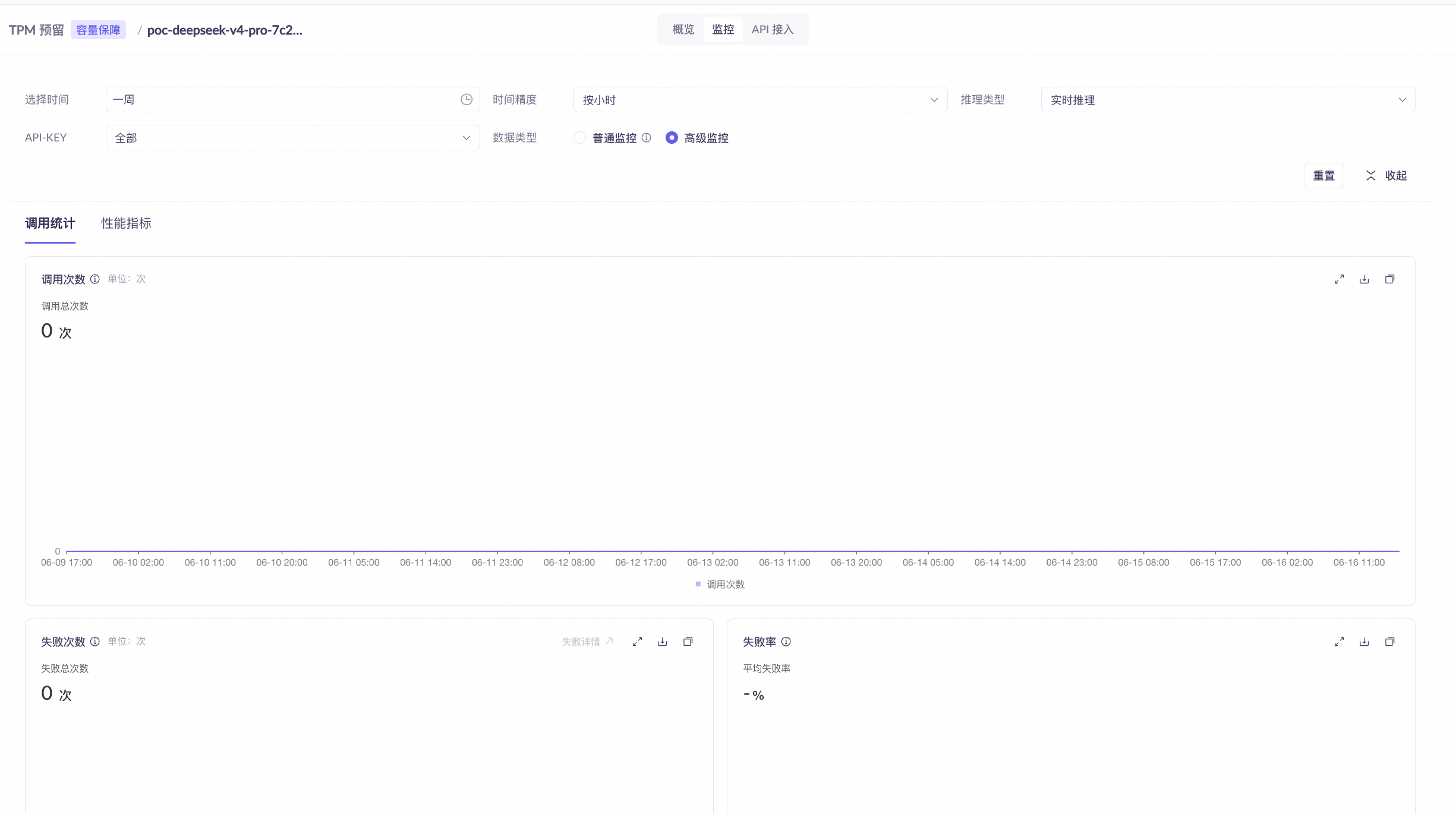
Monitoring
Provides detailed runtime monitoring data: utilization, quota usage (input/output), number of calls inside and outside the quota, and cache hit volume; for 8-hour time-window reservations, it additionally displays the package utilization within the 8-hour window. For more details, see: Model monitoring.
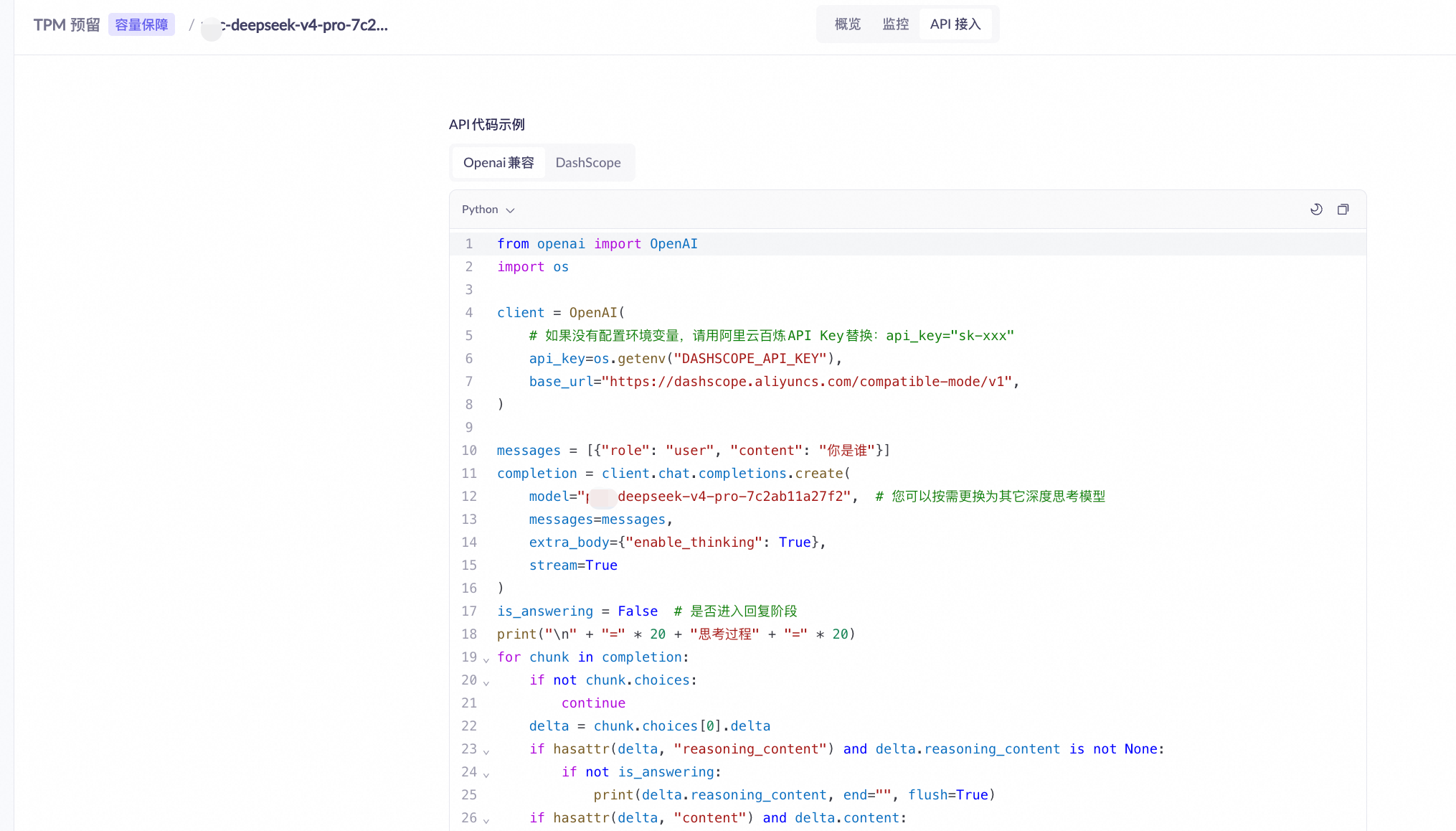
API access
Displays the dedicated model code and invocation examples.
Management operations
On the target card on the reservation list page or in the detail page, you can perform the following management operations on reservation instances. 8-hour time-window reservation instances do not support scaling, renewal, or unsubscription (capacity automatically becomes invalid after the time window expires).
Add-on capacity package
The throughput reservation page centrally manages two types of capacity instances: TPM reservations and PTUs (Provisioned Throughput Units). Add-on capacity packages apply to both. In the "Active capacity instances" area of a target card on the reservation list page, click Add-on capacity package to purchase additional capacity instances on top of an existing reservation. After the add-on, the total capacity of the reservation equals the sum of the base reservation and all add-on capacity packages. The dedicated model code remains unchanged and no API call changes are required.
The top of the dialog displays the following information about the base reservation:
- Dedicated model code, base model, performance mode (Standard mode/High-speed mode), and overflow policy: inherited from the base reservation and cannot be changed.
- Existing capacity packages: the number of capacity packages currently added.
Fill in the following purchase parameters:
Parameter | Description | Required | Value description |
|---|---|---|---|
Billing cycle | The billing cycle of the add-on capacity package is constrained by the base reservation's billing method: if the base is prepaid, only prepaid add-on packages can be selected; if the base is pay-as-you-go, either prepaid or pay-as-you-go add-on packages can be selected. High-speed mode supports pay-as-you-go or subscription; standard mode supports subscription only (by day or by 8-hour time window). | Yes | Pay-as-you-go/by hour / Subscription/by day / Subscription/by 8-hour time window (Standard mode only; capacity increases within the window and becomes invalid outside the window; for rules, see Throughput Reservation billing) |
Input capacity | Added input throughput, in kTPM. | Yes | Starting at 10 kTPM, in steps of 10 kTPM. |
Output capacity | Added output throughput, in kTPM. | Yes | Starting at 1 kTPM, in steps of 1 kTPM. |
Purchase duration | Valid duration of the add-on capacity package. Required only for Subscription/by day; Pay-as-you-go/by hour is billed based on actual duration and does not require this field. | Yes | 1~30, 60, 90, 120, 365 days. |
Auto-renewal on expiry | Applies only to Subscription/by day. Automatically deducts payment and renews at 08:00 one day before expiry. | No | On / Off |
NoteAt most one undeleted pay-as-you-go (by hour) capacity instance can exist under a single Model Code: if a pay-as-you-go instance already exists, the billing cycle of the add-on capacity package can only be set to Subscription/by day.
The bottom displays the input reservation fee, output reservation fee, and total. After confirmation, click Confirm purchase. After the purchase succeeds, the new capacity instance enters the "Active capacity instances" list and the total reserved capacity increases accordingly.
Scaling
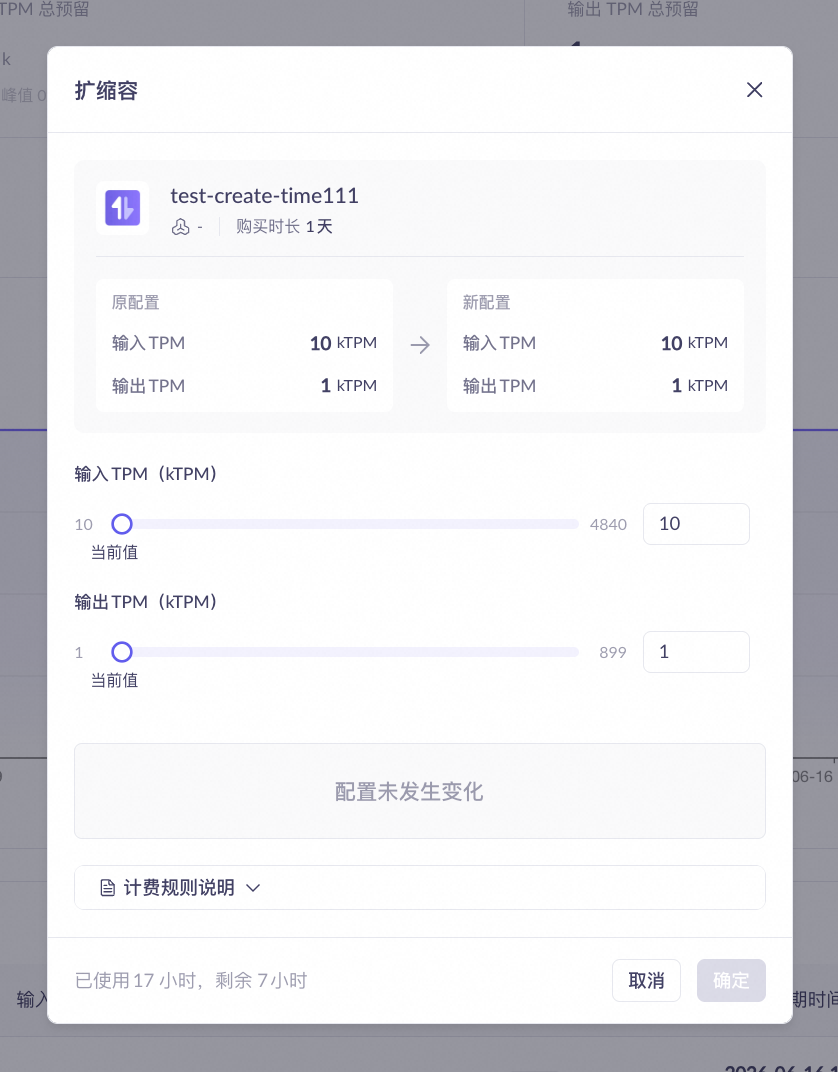
Click Scaling and adjust the input TPM and output TPM in the dialog.
NoteInput TPM and output TPM can be set to 0: after zeroing, no capacity charges accrue and the dedicated model code is retained, avoiding code invalidation caused by expiry or unsubscription. However, zeroing is a downgrade, and the used portion is settled at a 1.2x coefficient for refund (see Billing and usage notes above).
Renewal
Click Renew, select a renewal duration, and complete the payment. If Auto-renewal on expiry is enabled, the system automatically deducts payment and renews at 08:00 one day before expiry.
Unsubscribe
Click Unsubscribe and the system redirects to the Billing Center to complete the unsubscribe process.
ImportantUnsubscription is irreversible. After unsubscription, the dedicated model code becomes invalid and existing requests fall back to public resource processing. When unsubscribing, the used portion is settled at a 1.2x coefficient for refund. See the formula above.
Reservation instance status
Within 2 hours after the service expires, the status is Running; from 2 to 14 hours after expiry, it becomes Stopped; after 14 hours, it becomes Expired and is eventually deleted.
Status | Description |
|---|---|
Running | Running normally; can be called using the dedicated model code. |
Pending | Created; waiting to take effect. |
Modifying | Scaling in progress; service is not interrupted during this period. |
Stopped | Stopped due to reasons such as overdue payment; can be restored after renewal. |
Expired | Expired without renewal; resources have been released. |
Canceled | Unsubscription completed; irreversible. |
FAQ
Q: What happens when the reserved capacity is exceeded?
It depends on the overflow policy selected at creation: under "Auto overflow", requests exceeding the reserved capacity automatically degrade to pay-as-you-go billing without service interruption. You can view the degradation count and time on the Overview tab of the detail page at Overflow degradation statistics; if degradations occur frequently, we recommend scaling up. Under "Reserved capacity only", requests exceeding the quota return a 429 error and incur no additional charges; if 429s occur frequently, we recommend scaling up.
Q: How do I obtain the dedicated model code?
After a throughput reservation is created, the system automatically generates a dedicated model code. You can copy the code on the Overview tab of the throughput reservation detail page. You must replace the model parameter in your API request with this code to use the reserved capacity.
Q: What happens when a reservation expires?
After a reservation expires, the dedicated model code becomes invalid, and subsequent requests automatically fall back to public resource processing (pay-as-you-go). We recommend enabling Auto-renewal on expiry in advance to avoid service impact.
Q: How do I determine whether to scale up?
On the Overview tab of the detail page, view the TPM usage trend chart and overflow degradation statistics. If utilization stays close to 100% or degradations occur frequently, we recommend scaling up the input/output TPM.