The new Mini Program container is available only in baseline 10.2.3 and supports only the native AAR connection type.
Prerequisites
Before you start, activate mPaaS and complete the native AAR connection. Add mPaaS to your project.
Procedure
To integrate the new Mini Program container:
Each step is described in the following sections.
Select a baseline
-
Add baseline 10.2.3.
Click mPaaS > Native AAR Connection. Click Start Configuration under Add/Upgrade Baseline to add baseline 10.2.3.
-
Add the Mini Program component.
In your project, install the Mriver Tiny App component using Component Management (AAR).
Initialize the configuration
Initialize mPaaS
Initialize through the mPaaS framework (recommended)
-
Add the initialization code to the
Applicationclass.public class MyApplication extends Application { @Override public void onCreate() { super.onCreate(); // Initialize mPaaS MP.init(this); } } -
Add the meta configuration to
AndroidManifest.xml.<meta-data android:name="mpaas.init.param" android:value="com.xxx.xxx.MriverInitImpl" /> -
Add
com.xxx.xxx.MriverInitImpland implementMPInitParamManifest.import android.content.Context; import com.mpaas.core.MPInitParam; import com.mpaas.mriver.api.init.MriverInitParam; public class MriverInitImpl implements com.mpaas.MPInitParamManifest { @Override public MPInitParam initParam(Context context) { MriverInitParam mriverInitParam = MriverInitParam.getDefault(); mriverInitParam.setMriverInitCallback(new MriverInitParam.MriverInitCallback() { @Override public void onInit() { if (com.alibaba.ariver.kernel.common.utils.ProcessUtils.isMainProcess()) { // Mini Program-related configurations, such as custom JSAPIs and title bars } } @Override public void onError(Exception e) { } }); return MPInitParam.obtain().addComponentInitParam(mriverInitParam); } }
Initialize mPaaS using MPInit
To initialize mPaaS, add the following code to the Application class.
public class MyApplication extends Application implements MPInitParam.MPCallback {
    @Override
    public void onCreate() {
        super.onCreate();
        // Initialize mPaaS
        MriverInitParam mriverInitParam = MriverInitParam.getDefault();
        mriverInitParam.setMriverInitCallback(new MriverInitCallback() {
            @Override
            public void onInit() {
                if (com.alibaba.ariver.kernel.common.utils.ProcessUtils.isMainProcess()) {
                    // Mini Program-related configurations, such as custom JSAPIs and title bars

                }
            }

            @Override
            public void onError(Exception e) {

            }
        });
        MP.init(this, MPInitParam.obtain().setCallback(this).addComponentInitParam(mriverInitParam));
    }

    @Override
    public void onInit() {
        // init success
    }
}
Configure signature verification
The Mini Program container supports package signature verification. By default, verification is disabled for debug packages and enabled for release packages. Use the following API to control this feature:
// Disable signature verification
MriverResource.disableVerify();

// Enable signature verification. xx is the public key that corresponds to the private key configured in the console.
MriverResource.enableVerify(MriverResource.VERIFY_TYPE_YES,"xx");Enable signature verification before you publish the application. Configure a mini program package.
Configure the request interval for Mini Program packages
You can configure the request interval for Mini Program packages using an API:
Mriver.setConfig("h5_nbmngconfig", "{\"config\":{\"al\":\"3\",\"pr\":{\"4\":\"86400\","
    + "\"common\":\"864000\"},\"ur\":\"1800\",\"fpr\":{\"common\":\"3888000\"}},"
    + "\"switch\":\"yes\"}");
\"ur\":\"1800\" sets the global update interval in seconds. Valid values: 0 to 86400 (0 to 24 hours). Default value: 1800. A value of 0 removes the interval limit.
Do not change other parameters.
Use the mPaaS kernel
Mini Programs use the mPaaS kernel for same-layer rendering of embedded components such as WebViews, maps, and videos. Connect to the mPaaS kernel.
Publish the Mini Program
Publish the Mini Program in the mPaaS console before you start it:
-
Go to the Mini Program console. Log on to the mPaaS console. In the left navigation pane of the target application, go to Mini Program > Mini Program Release.
-
Configure a virtual domain name. If this is your first time configuring a virtual domain name, go to Mini Program > Mini Program Release > Configuration Management to configure it. A virtual domain name can be any domain name. We recommend that you use your company's domain name, such as
example.com. -
Create a Mini Program. In the mPaaS console, perform the following steps:
-
In the left navigation pane, choose Mini Program > Mini Program Release.
-
On the Mini Program package list page, click New.
-
In the New Mini Program window, enter the Mini Program ID and name, and then click OK. The Mini Program ID can be any 16-digit number, such as 2018080616290001.
-
In the Mini Program list, find the new Mini Program and click Add.
-
In the Basic Information section, complete the following configurations:
-
Version: Enter the version number of the Mini Program package, such as
1.0.0.0. -
Client Scope: The minimum and maximum Android client versions that can start this Mini Program. Set the minimum to
0.0.0and leave the maximum empty to allow all client versions.NoteEnsure that you enter the Android client version, not the Mini Program version.
-
Icon: Click Select File to upload an icon. An icon is required when you create a Mini Program for the first time. Sample icon:

-
File: Upload the Mini Program resource file in
.zipformat. You can upload the mPaaS sample Mini Program (click to download) directly.NoteRename both the
.zipfile and the folder inside it to the 16-digit Mini Program ID before uploading.
-
-
In the Configuration Information section, complete the following configurations:
-
Main Entry URL: Required. The home page of the Mini Program. The format of the main entry URL is
/index.html#xxx/xxx/xxx/xxx. The part after the at sign (#),xxx/xxx/xxx/xxx, is the first value in thepagesarray in theapp.jsonfile of the Mini Program. As shown in the following figure, the main entry for the mPaaS sample Mini Program is/index.html#page/tabBar/component/index.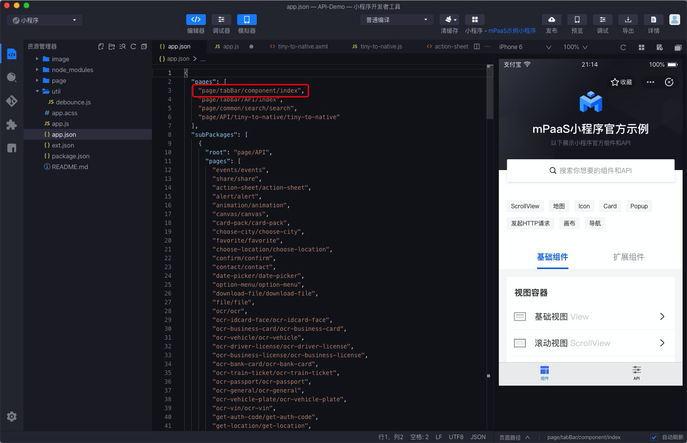
-
Keep the default values for other configurations.
-
-
Select I confirm that the above information is accurate and will not be modified after submission.
-
Click Submit.
-
-
Publish the Mini Program. In the mPaaS console, perform the following steps:
-
In the left navigation pane, click Mini Program > Mini Program Release > Official Mini Program Package Management.
-
On the Mini Program package list page, select the Mini Program package and version that you want to publish, and then click Create Release.
-
In the Create Release taskbar, complete the following configurations:
-
Release Type: Select the Official release type.
-
Release Description: Optional.
Click OK to create the release.
-
-
Start the Mini Program
After you complete the preceding steps, start the sample Mini Program with the following code:
Mriver.startApp("2018080616290001");2018080616290001 is a sample Mini Program ID. Replace it with your own.