AUNumberKeyboardView provides a custom numeric keypad with three states.
When to use
Use AUNumberKeyboardView when your app requires a custom numeric keypad — for example, when collecting payment amounts or entering PIN codes in a controlled UI. For general number input, prefer the native system keyboard, which users already know and which requires no additional integration.
AUNumberKeyboardView supports three display modes:
Standalone view: Embed the keypad directly in a layout without attaching it to an input field. This is typical in miniapp scenarios.
Attached to AUAmountEditText: Use
AUNumberKeyBoardUtil, which is already encapsulated inAUAmountEditText. For details, see the AUAmountInputBox document.Attached to a standard EditText: Use
AUNumberKeyBoardUtildirectly; you must invoke this utility yourself.
Preview
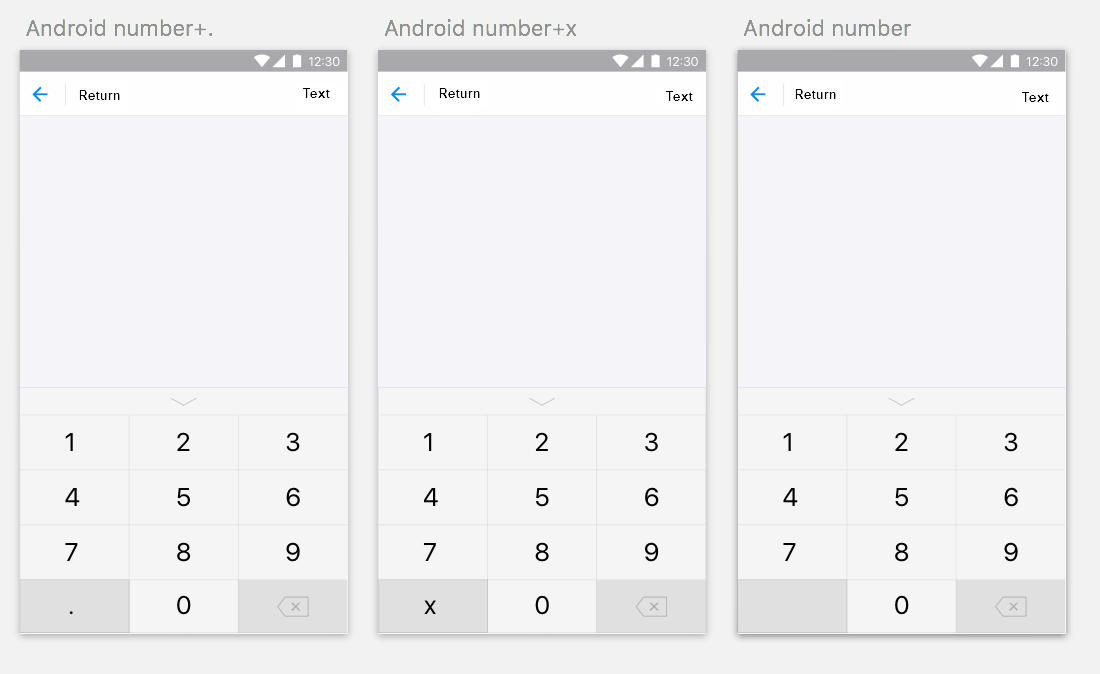
API reference
AUAmountEditText
    /**
     * Sets the style of the keyboard. The default value is STYLE_POINT.
     * @param style STYLE_POINT, STYLE_X, or STYLE_NONE
     */
    public void setStyle(int style)

    /**
     * Sets the button listener.
     * @param listener
     */
    public void setActionClickListener(OnActionClickListener listener)

    /**
     * Sets the display state listener.
     * @param windowStateChangeListener
     */
    public void setWindowStateChangeListener(WindowStateChangeListener windowStateChangeListener)

    /**
     * Shows the keyboard.
     */
    public void show()

    /**
     * Hides the keyboard.
     */
    public void hide()

    /**
     * Returns the display state.
     * @return
     */
    public boolean isShow()
AUNumberKeyBoardUtil
    /**
     * Passes the EditText and AUNumberKeyboardView.
     * @param context
     * @param editText
     * @param keyboardView
     */
    public AUNumberKeyBoardUtil(Context context, EditText editText, AUNumberKeyboardView keyboardView)

    /**
     * Sets the scroll view.
     * @param view
     */
    public void setScrollView(ScrollView view)

    /**
     * Shows the numeric keypad.
     */
    public void showKeyboard()

    /**
     * Hides the numeric keypad.
     */
    public void hideKeyboard()
Code examples
Use as a standalone view (AUAmountEditText)
Create an AUNumberKeyboardView directly and handle key events via OnActionClickListener. This pattern is typical for standalone or miniapp scenarios.
AUNumberKeyboardView auNumberKeyboardView = new AUNumberKeyboardView(this, AUNumberKeyboardView.STYLE_POINT, new AUNumberKeyboardView.OnActionClickListener() {
            @Override
            public void onNumClick(View view, CharSequence num) {

            }

            @Override
            public void onDeleteClick(View view) {

            }

            @Override
            public void onConfirmClick(View view) {

            }

            @Override
            public void onCloseClick(View view) {

            }
        });
Attach to a standard EditText (AUNumberKeyBoardUtil)
Use AUNumberKeyBoardUtil to bind AUNumberKeyboardView to a standard EditText. Declare both views in XML, then create the utility in Java.
-
XML:
<com.alipay.mobile.antui.basic.AULinearLayout xmlns:android="http://schemas.android.com/apk/res/android" android:layout_width="match_parent" android:layout_height="match_parent" android:orientation="vertical"> <com.alipay.mobile.antui.basic.AUScrollView android:id="@+id/scroll" android:layout_weight="1" android:layout_width="match_parent" android:layout_height="match_parent"> <com.alipay.mobile.antui.basic.AULinearLayout android:layout_width="match_parent" android:layout_height="match_parent" android:orientation="vertical"> <EditText android:id="@+id/editText" android:layout_width="match_parent" android:layout_height="wrap_content" android:layout_marginTop="10dp" /> </com.alipay.mobile.antui.basic.AULinearLayout> </com.alipay.mobile.antui.basic.AUScrollView> <com.alipay.mobile.antui.keyboard.AUNumberKeyboardView android:id="@+id/keyboard" android:layout_width="match_parent" android:layout_height="wrap_content" android:visibility="gone"/> </com.alipay.mobile.antui.basic.AULinearLayout> -
Java:
keyBoardUtil = new AUNumberKeyBoardUtil(context, editText, keyboardView);
keyBoardUtil.setScrollView(scrollView);