The Admin Backend allows you perform management operations on member information added in the Mini Program Open Platform Developer Backend. You can invite developers, edit member permissions, freeze member permissions, recover member permissions, and reset passwords.
Invite developers
In the Mini Program Open Platform > Admin Backend, click Basic Management > Member Management.
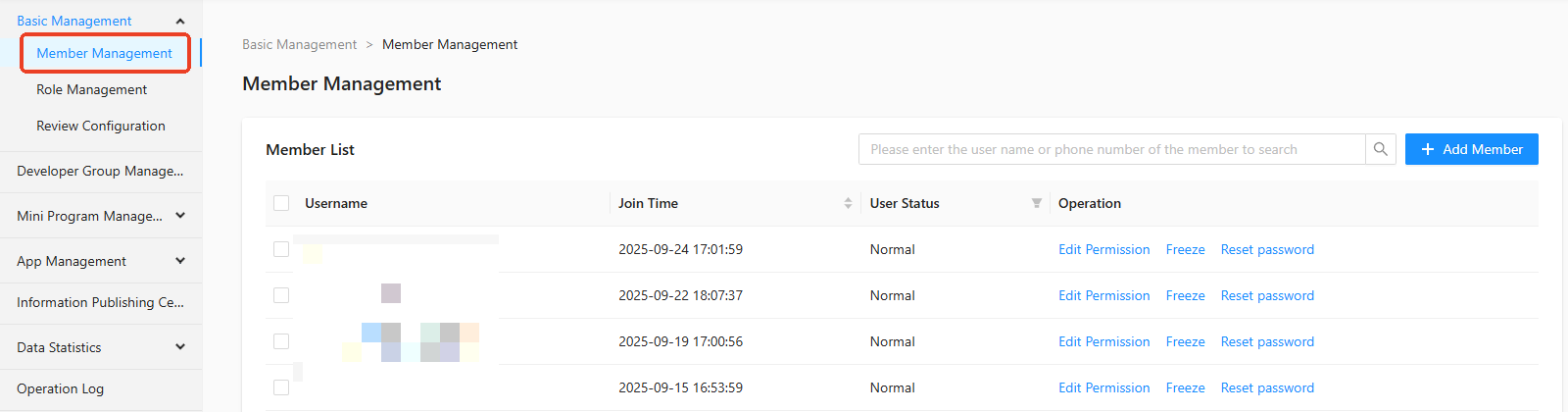
On the Member Management page, click + Add Member.

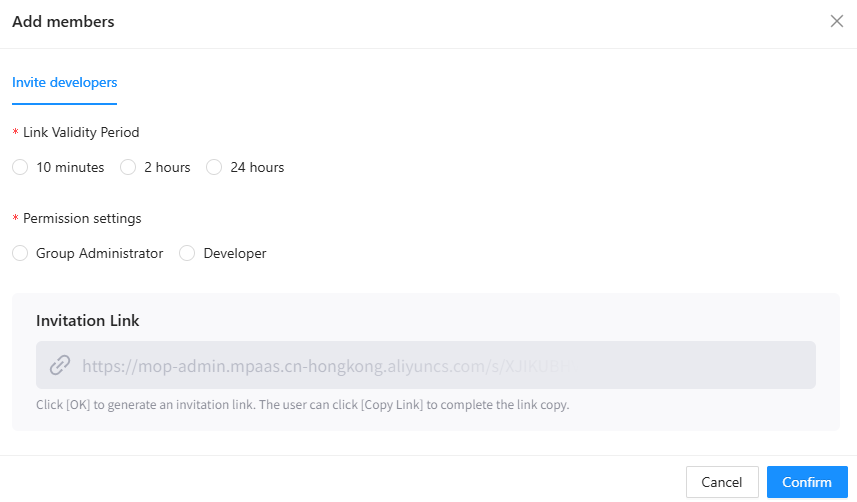
In the Add Member dialog box, select Link Validity Period and Permission Setting in the Invite Developer section.
 Note
NoteThe permission setting options are added in Role management.
Click Confirm to generate an invitation link.
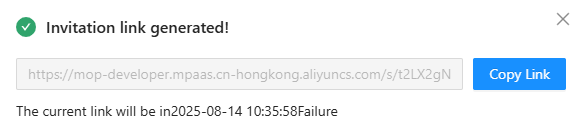
Click Copy Link button to copy the link.
Edit member permission
In the Mini Program Open Platform > Admin Backend, click Basic Management > Member Management.
On the Member Management page, click Edit Permission in the operation column of the member list.
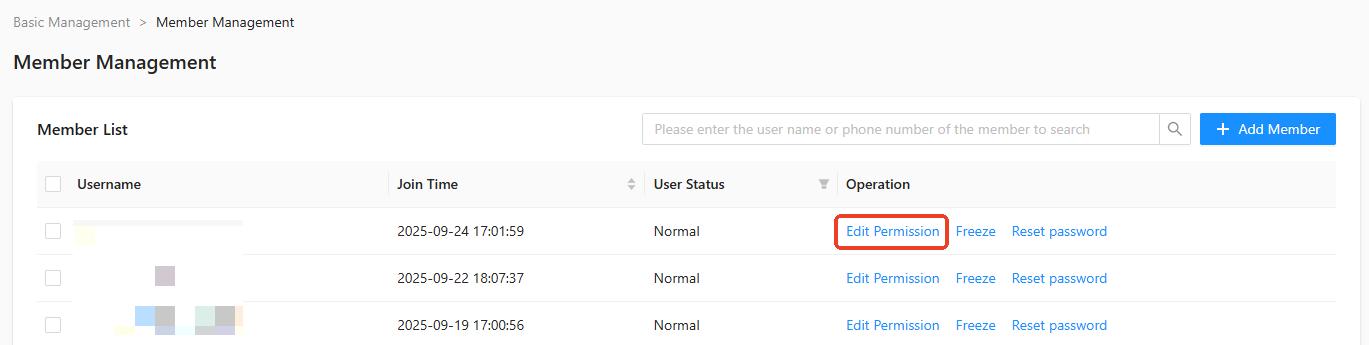
In the Edit Permission dialog box, select Permission Setting.
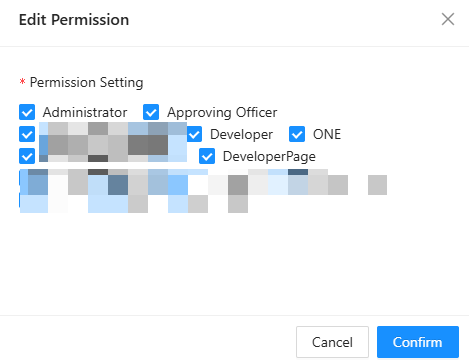
Click Confirm to successfully edit the permission.
Freeze member
In the Mini Program Open Platform > Admin Backend, click Basic Management > Member Management.
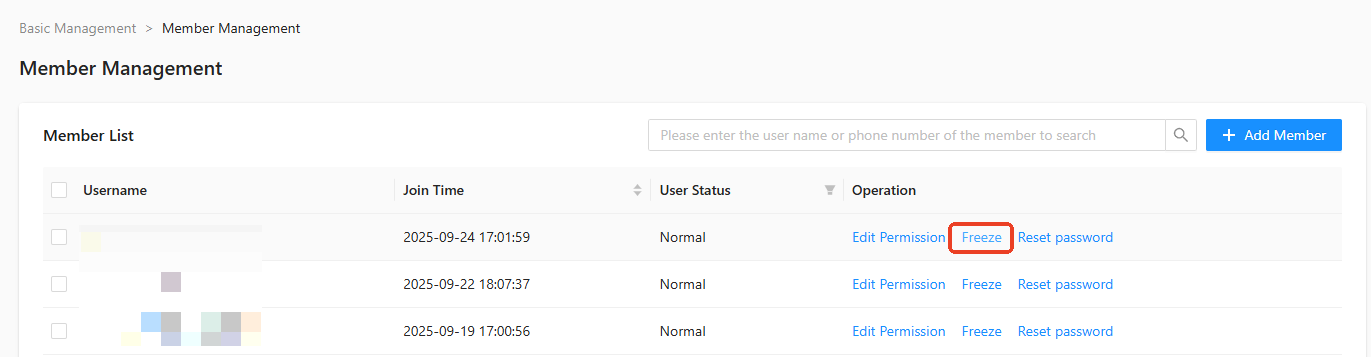
On the Member Management page, click Freeze in the operation column of the member list. After secondary confirmation, the operation is complete.
Recover member permission
In the Mini Program Open Platform > Admin Backend, click Basic Management > Member Management.
On the Member Management page, click Recover in the operation column of the member list. After secondary confirmation, the operation is complete.
Reset member password
In the Mini Program Open Platform > Admin Backend, click Basic Management > Member Management.
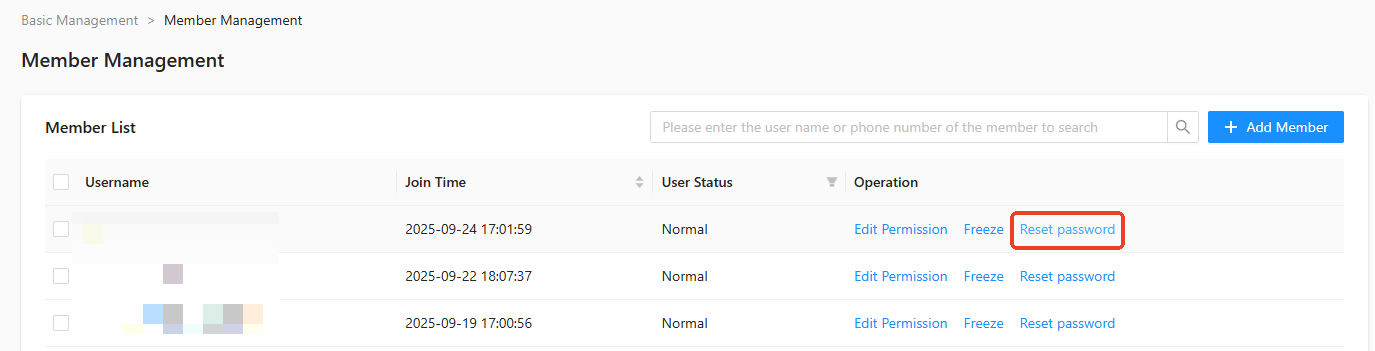
On the Member Management page, click Reset Password in the operation column of the member list. After secondary confirmation, the operation is complete.
 Important
After the password is reset, it will change to the default password in Security Settings. Please reset it and log in to change the password as soon as possible.