The Mini Program Open Platform Admin Backend supports custom roles and lets you differentiate permissions based on roles, enabling effective management of member account permissions.
Add role
On the Basic Management > Role Management page, click + Add Role.
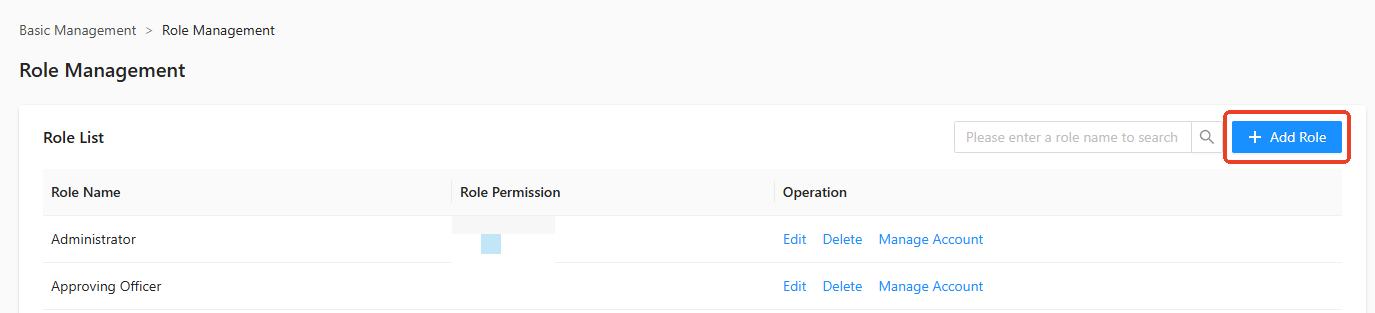
In the Add Role side panel, set the Role Name, Role Code, and configure the corresponding Role Permission.
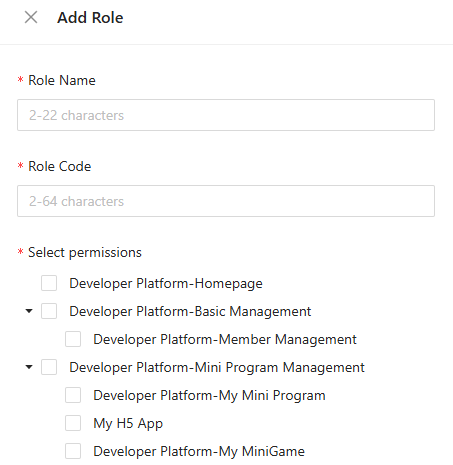
Click Confirm to create the role.
Edit role
On the Basic Management > Role Management page, click Edit in the operation column of the role list.
In the Edit Role side panel, select the role permissions.
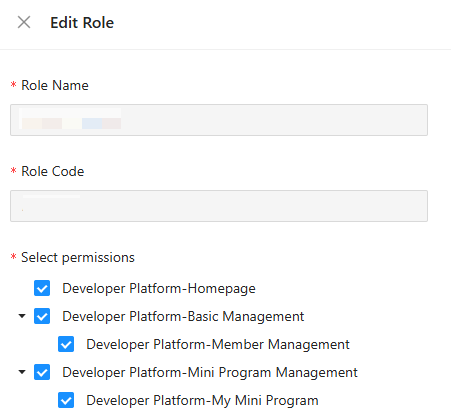
Click Confirm to modify the role.
Delete role
On the Basic Management > Role Management page, click Delete in the operation column of the role list. After confirmation, the role will be deleted.
Manage role accounts
On the Basic Management > Role Management page, click Manage Account in the operation column of the role list to add or delete members of that role.
Add role member
In the Manage Account dialog box, click + Add Member.
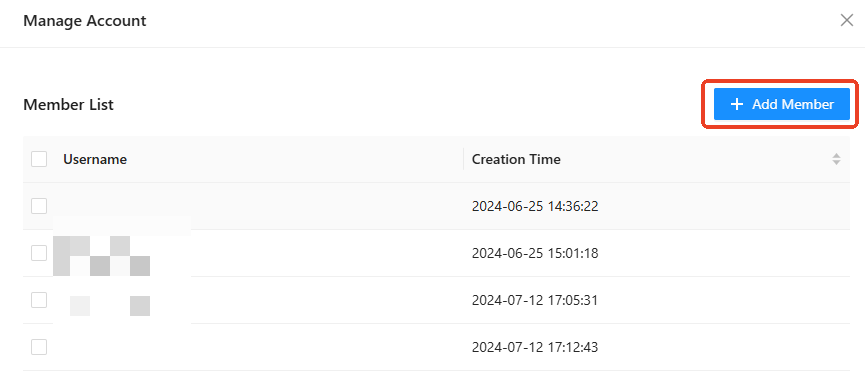
In the Add Account dialog box, select the member username.
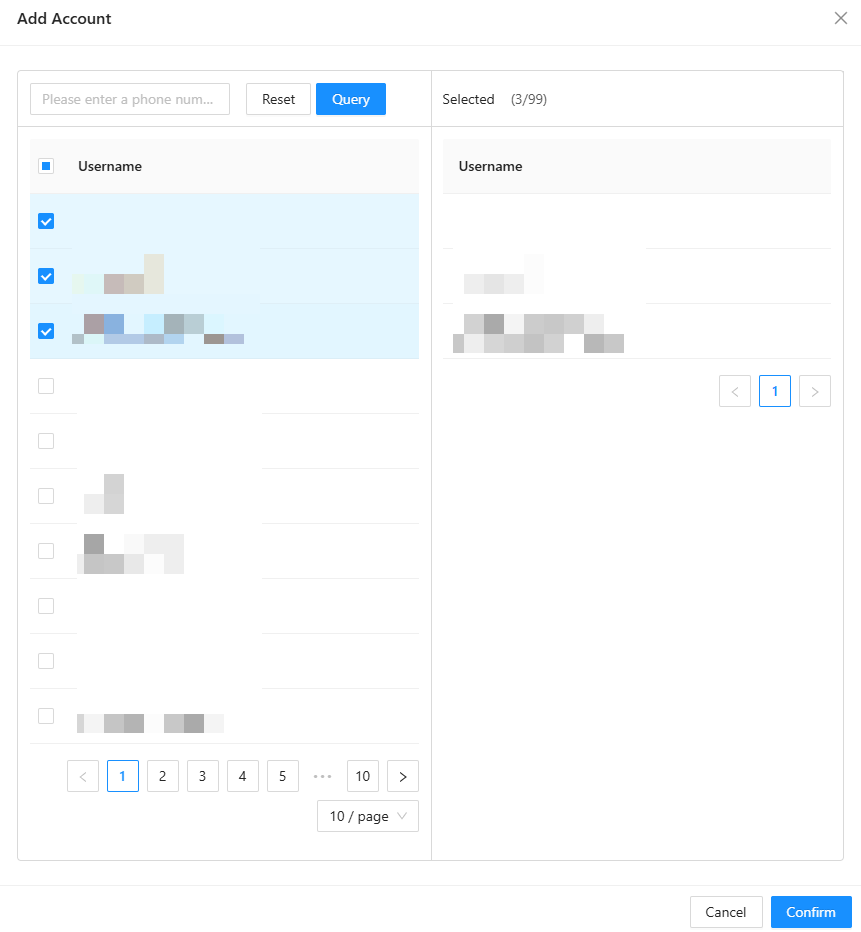
Click Confirm to add members to the role.
Delete role member
On the Manage Account page, select the username of the member you want to delete.
Click Batch Delete. After confirmation, the members will be deleted.