Hotpatch lets you fix live code issues without releasing a new app version. Use the Hotpatch Management page in the mPaaS console to upload hotpatch packages, create staged release tasks, and manage their lifecycle.
About this task
On the Hotpatch Management page, you can:
Add a hotpatch: Upload a hotpatch package to the mPaaS console.
-
Release a hotpatch package: Follow a three-stage rollout—whitelist canary release, time window canary release, and official release—to validate the patch before full distribution.
NoteIf a code issue occurs during release, you can create a rollback task to revert to the previous version.
Manage a release task: Modify, pause, or end a release task at any point.
For Android clients, each app version supports only one active hotpatch package. If a version has two separate issues, merge the two packages locally into a single combined package before uploading.
Add a hotpatch
Log in to the mPaaS console. In the left navigation pane, choose Mobile Delivery Service > Hotpatch Management.
-
Click Add hotpatch resource. In the Add hotpatch resource window, fill in the hotpatch configuration.
NoteFor the Android platform, Target Version refers to the version number of the Portal package.
In the hotpatch resource list, click the expand button (
 ) to the left of a hotpatch to view its release tasks.
Release a hotpatch package
Release a hotpatch in stages to reduce the risk of a full rollout. Start with a whitelist canary release to verify the fix with a known set of users, then expand to a time window canary release for a broader random sample, and finally proceed to an official release.
In the hotpatch resource list, click Create a release task to the right of a hotpatch.
-
In the Create a release task window, configure the following settings.
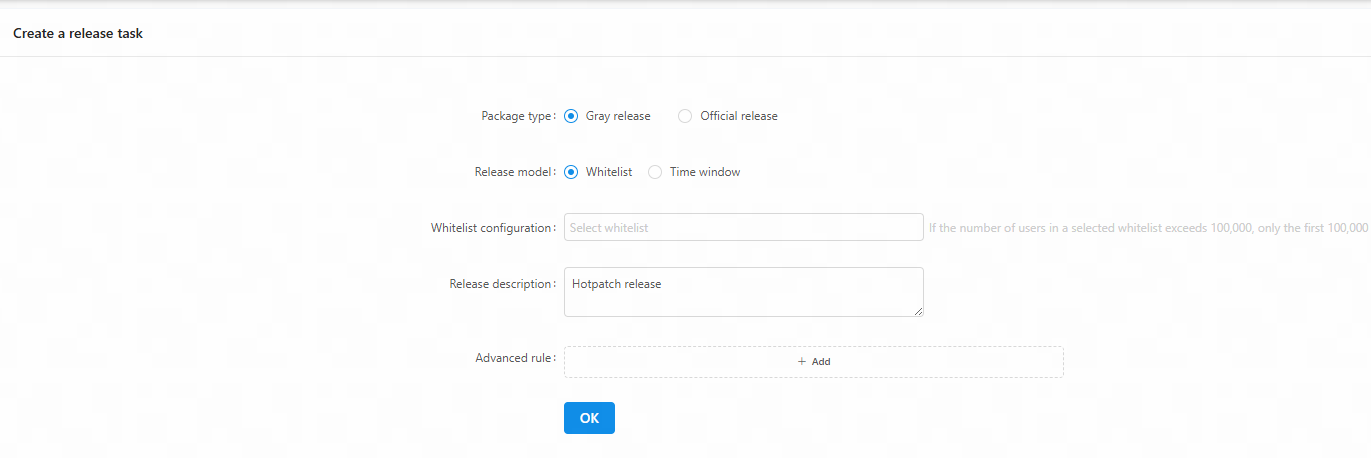
-
Task type: Official task or Rollback task.
Official task: For normal hotpatch packages.
Rollback task: Reverts the release when a code defect is found during distribution. The release type is fixed to Official release.
Release type: Gray release or Official release.
-
Release model: Available for Gray release only. Choose Whitelist or Time window.
If choosing Whitelist, select a preconfigured whitelist in the Whitelist configuration field. For details about whitelist configuration, see Whitelist management.
If choosing Time window, set End time and Users count.
Advanced rule: Filter users by conditions such as city, device model, and network. Configure advanced rules in Resource Configuration Management.
-
Click OK to create the task.
Manage a release task
In the hotpatch resource list, find the release task for a hotpatch resource and click Modify, Pause, or End to the right of the task.
Modify a task
-
Pause a task: A paused task can be resumed.

End a task: An ended task cannot be modified or resumed.