The client diagnosis service lets you remotely pull diagnostic logs from specific users or devices to investigate crashes and exceptions. The mPaaS console supports two delivery channels: Message Push Service (MPS) and Mobile Sync Service (MSS).
To diagnose an Android client, complete these steps in order:
Prerequisites
Before you begin, make sure you have:
The Mobile Analysis Service component integrated, with log reporting working correctly. For more information, see Integrate Mobile Analysis Service into an Android client.
-
Either the Message Push Service or Mobile Sync Service component integrated.
If you use the Message Push Service channel, follow the steps in Getting Started to Integrate Message Push Service to an Android Client.
If you use the Mobile Sync Service channel, see Integrate with Android Integrate Mobile Sync Service into an Android client.
Initialize the diagnosis service
The diagnosis service supports two channels for pulling diagnostic logs: Mobile Sync Service and Message Push Service. The initialization steps differ between channels.
Use the Message Push Service channel
After the app starts, complete the following steps:
Initialize the push service to establish a persistent connection between the client and the Message Push Service gateway. The push software development kit (SDK) maintains this self-built channel. Initialize the push SDK
Bind a user ID. This ID is defined by the developer. It can be a user identity from your user system or another parameter that can be mapped to a specific user, such as an account or phone number. Report a user ID
Use the Mobile Sync Service channel
After the app starts, call the following methods to initialize the sync channel. You must always call MPLogger.setUserId before initializing the channel — initialization fails if no user ID is set.
-
Trigger diagnostic tasks by user ID:
// Set the userId MPLogger.setUserId(String userId); // Initialize the Sync channel. You must set the userId first, or the initialization will fail. MPDiagnose.initSyncChannel(Context context); -
Trigger diagnostic tasks by device ID:
NoteTriggering diagnostic tasks by device is supported only in baseline 10.2.3.73 and later.
// Set the userId
MPLogger.setUserId(String userId);
// Initialize the Sync channel. You must set the userId first, or the initialization will fail.
MPDiagnose.initSyncDeviceChannel(Context context);
Write diagnostic logs
The diagnosis service only uploads logs written with MPLogger. Logs written with android.util.Log are not collected. Replace all logging calls with the equivalent MPLogger methods, which mirror the standard Log API:
void verbose(String tag, String msg);
void debug(String tag, String msg);
void info(String tag, String msg);
void warn(String tag, String msg);
void warn(String tag, Throwable t);
void warn(String tag, String msg, Throwable tr);
void error(String tag, String msg);
void error(String tag, Throwable t);
void error(String tag, String msg, Throwable t);
void print(String tag, String msg);
void print(String tag, Throwable t);
MPLogger writes to logcat in debug builds only — logs are suppressed in release builds. Diagnostic logs are stored on device at the following paths:
-
Debug build:
/sdcard/[PackageName]/applog. If this path is not writable, the SDK falls back to the release build path.ImportantIf
targetSdkVersionis 30 or later and the device runs Android 11 or later, the storage path is:/storage/emulated/0/Android/data/com.mpaas.demo/cache/[PackageName]/applog/. Release build:
/data/data/[PackageName]/files/applog.
Customize diagnostic log storage parameters
By default, local log storage retains data for 7 days with a file size limit of 15 MB. When the limit is exceeded, one-quarter of the log files are deleted.
Add the following <meta-data> entries to your app manifest to override the defaults:
// Maximum size of log files in MB
<meta-data android:name="category_applog_max_size" android:value="15" />
// Log storage duration in days
<meta-data android:name="category_applog_expires_time" android:value="7" />Customizing diagnostic log storage parameters is supported only in baseline 10.2.3.73 and later.
Pull logs from the console
After the client is writing logs with MPLogger, you can pull logs from the console to investigate crashes or exceptions on a specific device model or for a specific user.
Step 1: Create a log pull task
Log on to the mPaaS console and select your target application.
In the left navigation pane, click Mobile Analysis Service > Log Management.
On the Pull real-time logs tab, click Add.
Fill in the task details. Set User ID to the identifier your app uses in its login system — the same value passed to
MPLogger.setUserId(String userId)or reported via Message Push Service.Click OK to create the task.
Step 2: Trigger the log pull task
In the log pull task list, find the task you just created, select a Trigger Channel, and click Trigger in the Operations column.
-
Refresh the page after a moment to check the task status:
Task processed: Click View to download the diagnostic log.
Push/Sync service successfully called: The upload message was sent, but the client has not yet received or uploaded the log. Confirm that the app process is still running. If the process has stopped, restart the app. If the status does not change after restarting, see Troubleshooting.
Troubleshooting
If log pull fails, follow the steps that match your delivery channel.
Use the Message Push Service channel
In the mPaaS console, go to Message Push Service and push a regular message to the target user ID. This confirms whether the Message Push Service channel is working before you debug the diagnosis flow.
If the channel is working, clear logcat, switch to the push process, and click Trigger again in the console. Monitor logcat for the following tags.
Filter for
mPush14to check whether the diagnostic message was received. If no message appears, the push channel may be disconnected.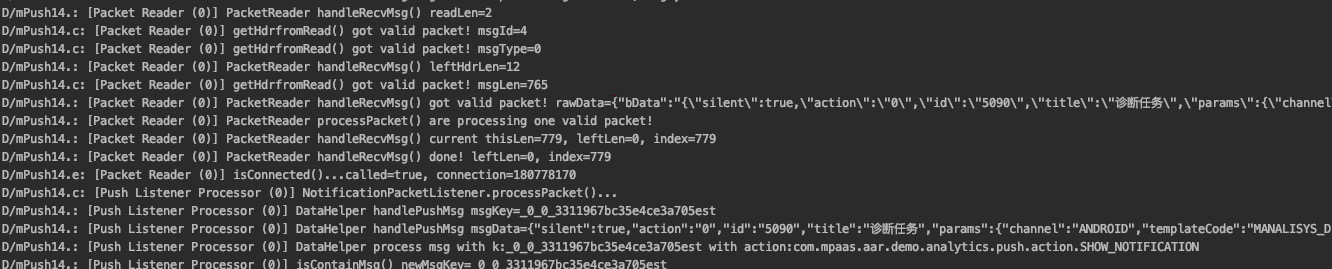
-
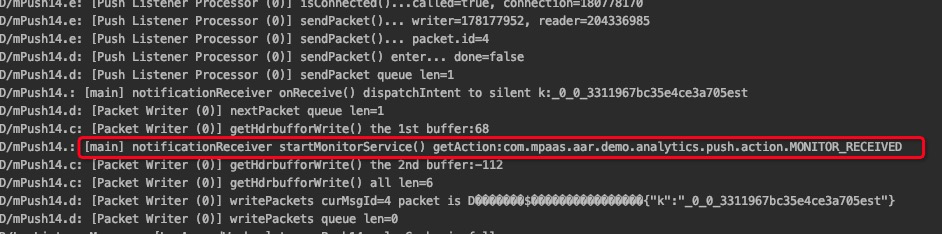
After confirming the message was received, check logcat for evidence that the message was forwarded to
MonitorService. If an error states thatClientMonitorServicecannot be found, update the SDK using the mPaaS plug-in:For baseline 10.1.32, upgrade to 10.1.68 and update the component to the latest version.
For baseline 10.1.60 or 10.1.68, update the component to the latest version.
-
After confirming that
MonitorServicehas started, filter forAlipayLogUploaderto check whether a local diagnostic log exists. The following log indicates that a local log is available for upload.
The following log indicates that no local diagnostic log exists.

If no local log exists, check both of the following:
The time range set for the log pull task must be at least 1 hour, and the app must be running and writing logs with
MPLoggerthroughout that period.-
The app must declare and dynamically request this permission:
<uses-permission android:name="android.permission.WRITE_EXTERNAL_STORAGE" />
After confirming that a local log exists, filter for
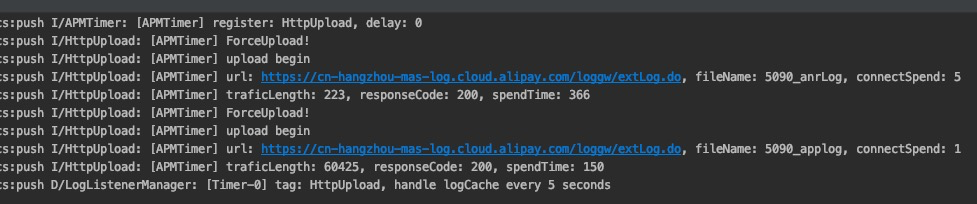
HttpUploadto check whether the upload succeeded. AresponseCodeof 200 confirms a successful upload.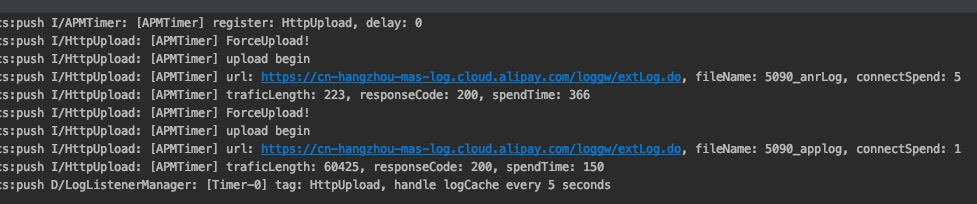
Use the Mobile Sync Service channel
Clear logcat, switch to the main process, and initialize the sync channel. Filter for
isConnectedto verify that the sync channel connection was established.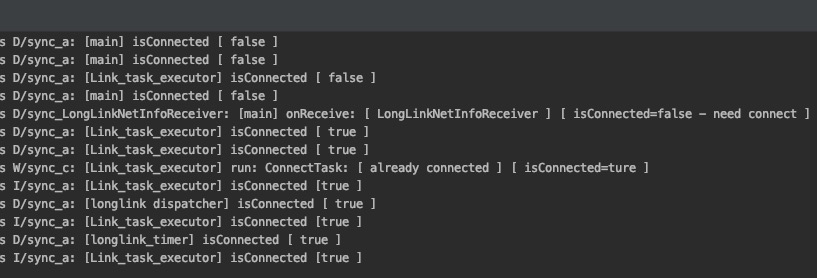
-
In the mPaaS console, click Trigger again for the diagnostic task. Filter for
MPDiagnoseto check whether the diagnostic message was received and whetherMonitorServicestarted.If no message is received, confirm that the user ID set in the app matches the user ID entered in the diagnostic task. If an error states that
ClientMonitorServicecannot be found, update the SDK using the mPaaS plug-in:For baseline 10.1.32, upgrade to 10.1.68 and update the component to the latest version.
For baseline 10.1.60 or 10.1.68, update the component to the latest version.

-
After confirming that
MonitorServicehas started, switch to the push process and filter forAlipayLogUploaderto check whether a local diagnostic log exists. The following log indicates that a local log is available for upload. The following log indicates that no local diagnostic log exists.
If no local log exists, check both of the following:
The time range set for the log pull task must be at least 1 hour, and the app must be running and writing logs with
MPLoggerthroughout that period.-
The app must declare and dynamically request this permission:
<uses-permission android:name="android.permission.WRITE_EXTERNAL_STORAGE" />
After confirming that a local log exists, filter for
HttpUploadto check whether the upload succeeded. AresponseCodeof 200 confirms a successful upload.