When you use resource groups to manage resources, you can combine them with Resource Access Management (RAM) to achieve resource isolation and fine-grained permission management within a single Alibaba Cloud account. This topic describes Logic Composer's support for resource groups and the steps to grant permissions at the resource group level.
-
Resource group-level authorization is effective only for resource types that support resource groups and for actions that support resource group-level authorization.
-
For resource types that do not support resource groups, granting permissions scoped to a resource group has no effect. When selecting a resource scope, you must select Account Level to grant permissions at the account level. For more information, see Actions that do not support resource group-level authorization.
How resource group authorization works
You can use resource groups to manage collections of resources in your Alibaba Cloud account. For example, you can create separate resource groups for different projects and move resources into their corresponding groups for centralized management. For more information, see What is a resource group?.
After you group your resources, you can grant permissions to different RAM principals, such as RAM users, RAM user groups, or RAM roles, on a specific resource group. This limits the principal to managing only the resources within that group. For more information, see Resource grouping and authorization.
This authorization method offers the following benefits:
-
Fine-grained permissions: You can ensure that each identity has only the permissions required to access specific resources, which prevents cross-project resource management in your account.
-
Scalability: When you add new resources to a resource group, the RAM principal automatically gains the corresponding permissions for the new resources without needing to grant permissions again.
Grant resource group-level permissions
The following example shows how to grant a RAM user permissions on Logic Composer resources within a specific resource group.
1. Prerequisites
-
Create a RAM user. For more information, see Create a RAM user.
-
Create a resource group and move your existing resources to the target resource group. For more information, see Create a resource group, Automatically transfer resources to a resource group, and Manually transfer resources to a resource group.
2. Grant resource group-level permissions
You can grant resource group-level permissions by using either of the following methods.
Resource Management console
Use the Permission Management feature of resource groups to grant permissions to a specific RAM user. For detailed instructions, see Grant permissions on resources in a resource group to a RAM identity.
-
Log on to the Resource Group console.
-
On the Resource Groups page, find the target resource group and click Permission Management in the Actions column.
-
On the Permission Management tab, click Add Permission.
-
In the Add Permission panel, configure the principal and policy.
-
Principal: Select an existing RAM user.
-
Policy: Select a system policy or a custom policy that you have created. For more information, see Create a custom policy.
-
-
Click Confirm.
RAM console
Use the RAM console to grant resource group-level permissions to a specific RAM user. For detailed instructions, see Manage permissions for a RAM user.
-
Log on to the RAM console with your Alibaba Cloud account or as a RAM administrator.
-
In the left-side navigation pane, choose . On the Users page, find the target RAM user and click Add Permissions in the Actions column.
-
In the Add Permissions panel, grant permissions to the RAM user.
-
Resource Scope: Select Resource Group Level.
-
Principal: Select an existing RAM user or the RAM user you created in the previous steps.
-
Policy: Select a system policy or a custom policy that you have created. For more information, see Create a custom policy.
-
-
Click Confirm.
Supported resource types
The following table lists the Logic Composer resource types that support resource groups.
|
Cloud service |
Cloud service code |
Resource type |
|
Logic Composer |
composer |
workflow |
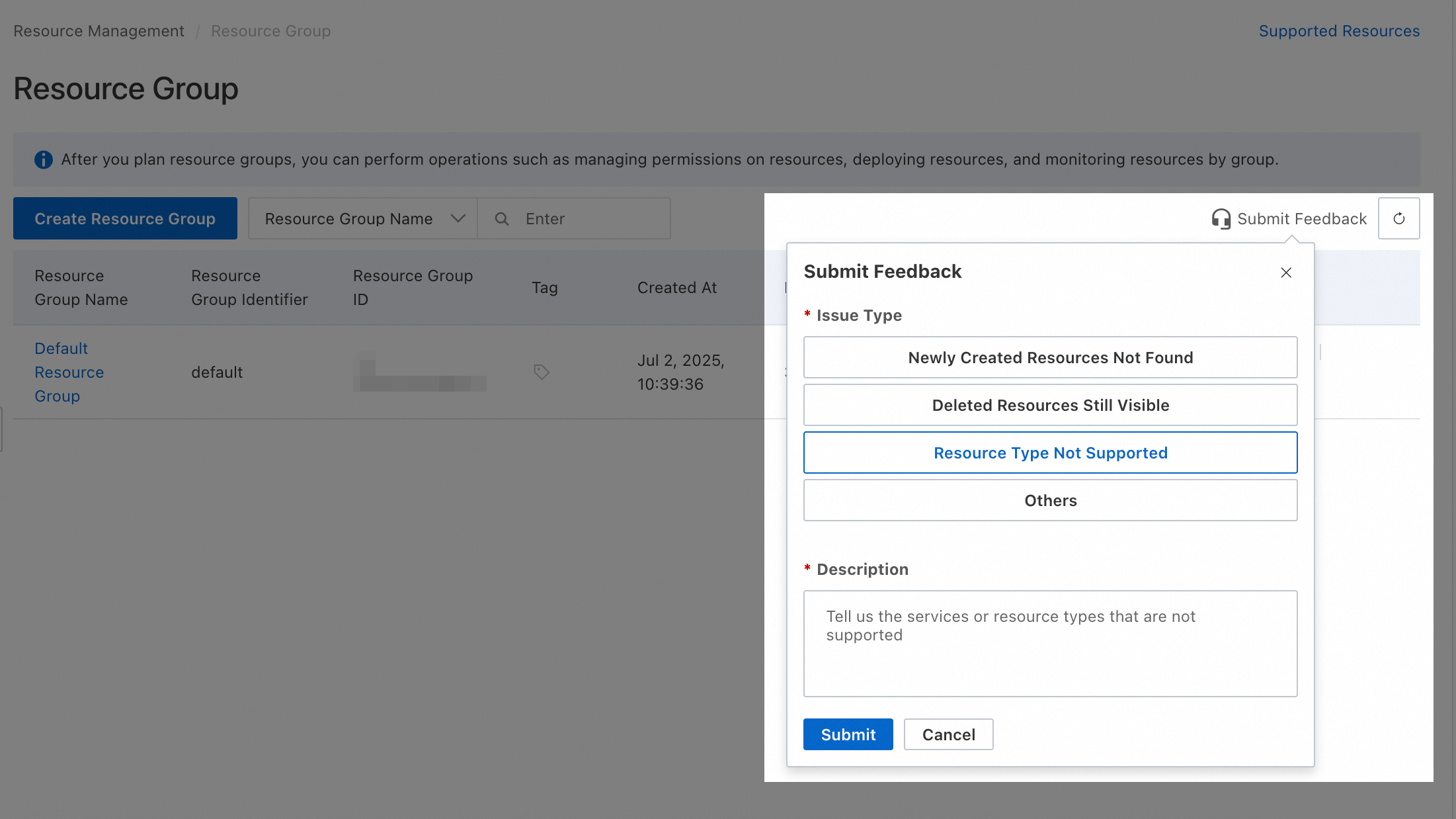
For resource types that do not yet support resource groups, you can submit feedback in the Resource Group console.
Actions without resource group-level authorization
The following Logic Composer actions do not support resource group-level authorization.
|
Action |
Description |
|
composer:CloneFlow |
Clones a workflow. |
|
composer:DescribeConnectorAttribute |
- |
|
composer:DescribeConnectorCapability |
- |
|
composer:GetTemplate |
Queries the details of a workflow template. |
|
composer:InvokeDefinition |
- |
|
composer:ListConnectorTriggers |
- |
|
composer:ListConnectors |
- |
|
composer:ListTagResources |
Lists resources that have specified tags. |
|
composer:ListTemplates |
Lists templates that are visible to the current user. |
|
composer:TagResources |
Adds tags to one or more resources. |
|
composer:UntagResources |
Removes tags from one or more resources. |
|
composer:UpdateConnection |
- |
For operations that do not support resource group authorization, setting the resource scope to Resource Group Level is ineffective. If a RAM user still requires permissions for these operations, you must create a custom policy and set the resource scope to Account Level.
 The following are two examples of custom policies. You can adjust the policy content as needed.
-
This policy allows all read-only actions that do not support resource group-level authorization by listing them in the
Actionelement.{ "Version": "1", "Statement": [ { "Effect": "Allow", "Action": [ "composer:DescribeConnectorAttribute", "composer:DescribeConnectorCapability", "composer:ListConnectorTriggers", "composer:ListConnectors", "composer:ListTagResources", "composer:ListTemplates" ], "Resource": "*" } ] } -
This policy allows all actions that do not support resource group-level authorization by listing them in the
Actionelement.{ "Version": "1", "Statement": [ { "Effect": "Allow", "Action": [ "composer:CloneFlow", "composer:DescribeConnectorAttribute", "composer:DescribeConnectorCapability", "composer:GetTemplate", "composer:InvokeDefinition", "composer:ListConnectorTriggers", "composer:ListConnectors", "composer:ListTagResources", "composer:ListTemplates", "composer:TagResources", "composer:UntagResources", "composer:UpdateConnection" ], "Resource": "*" } ] }
A RAM user or RAM role with account-level permissions can manage all corresponding resources within the account. Make sure the granted permissions match your intent. Follow the principle of least privilege when you assign permissions.
FAQ
Check a resource's resource group
-
Method 1: Click the resource name to open its details page, where you can view its resource group.
-
Method 2: Log on to the Resource Management console. Click . On the left, select the account that owns the target resource (default: Current Account). Use filters to locate the resource and view its resource group.
View product resources in a resource group
-
Method 1: Log on to the Resource Management console. Click . On the left, under the account that owns the resources (default: Current Account), click the target resource group name. Then, on the right, from the Select Resource Type drop-down list, select the product to view all its resources in the resource group.
-
Method 2: Log on to the Resource Management console. Click . Find the target resource group and click Resource Management in the Actions column. Then, from the Product drop-down list at the top of the Resource Management page, select the product to view all its resources in the resource group.
Transfer multiple resources to another resource group
Log on to the Resource Management console. Click . In the row of the target resource group, click Resource Management in the Actions column to open the resource management page. Use the filters to find the target resources. Select the checkboxes in the first column for the resources, click Transfer Resource Group at the bottom, and follow the on-screen instructions to complete the transfer.