Devices that use the MQTT protocol to connect to IoT Platform communicate by subscribing to topics or publishing messages to topics. Topics are classified into system topics, TSL model topics, and custom topics. Custom topics must be defined in the console. This topic describes how devices use custom topics to communicate with IoT Platform and how IoT Platform communicates with business servers.
Background information
In this example, an electronic thermometer subscribes to a custom topic to receive instructions and publishes messages to a custom topic to report temperature data. IoT Platform forwards the temperature data to a user server through the AMQP server. The user server calls the Pub operation to publish messages to a custom topic to remotely set the precision of the device.

Prepare the development environment
In this example, the devices and IoT Platform use SDKs for Java. Therefore, you must prepare a Java development environment. You can download and install the Java development environment from the official Java website.
In this example, the development environment consists of the following components:
Operating system: Windows 10 (64-bit)
Java Development Kit (JDK): JDK 8
Integrated development environment (IDE): IntelliJ IDEA Community Edition
Create a product and device
Log on to the IoT Platform console.
On the Overview page, click All environment. On the All environment tab, find the instance that you want to manage and click the instance ID or instance name.
In the left-side navigation pane, choose .
Click Create Product to create a thermometer product and obtain the Productkey, such as
a1uzcH0****.For more information, see Create a product.
After the product is created, click View next to the product.
On the Product Details page, click the Topic Categories tab. Then, click Custom Topic to add a custom topic category.
For more information, see Use custom topics for communication.
In this example, the following topic categories are required:
Device publishing topic: /a1uzcH0****/${deviceName}/user/devmsg, with the Publish permission.
Device subscription topic: /a1uzcH0****/${deviceName}/user/cloudmsg, with the Subscribe permission.
Click the Server-side Subscription tab. Then, click Create Subscription to configure AMQP server-side subscription. Subscribe to Device Upstream Notification to the Default Consumer Group.
Device Upstream Notification includes custom topic messages and TSL model messages. For more information, see Configure AMQP server-side subscription.
In the left-side navigation pane, choose . Then, add a device named device1 to the thermometer product that you created. Obtain the device certificate information, including ProductKey, DeviceName, and DeviceSecret.
For more information, see Create a device.
Configure the device to send a message to the server
The following figure shows how the device sends a message to the server.
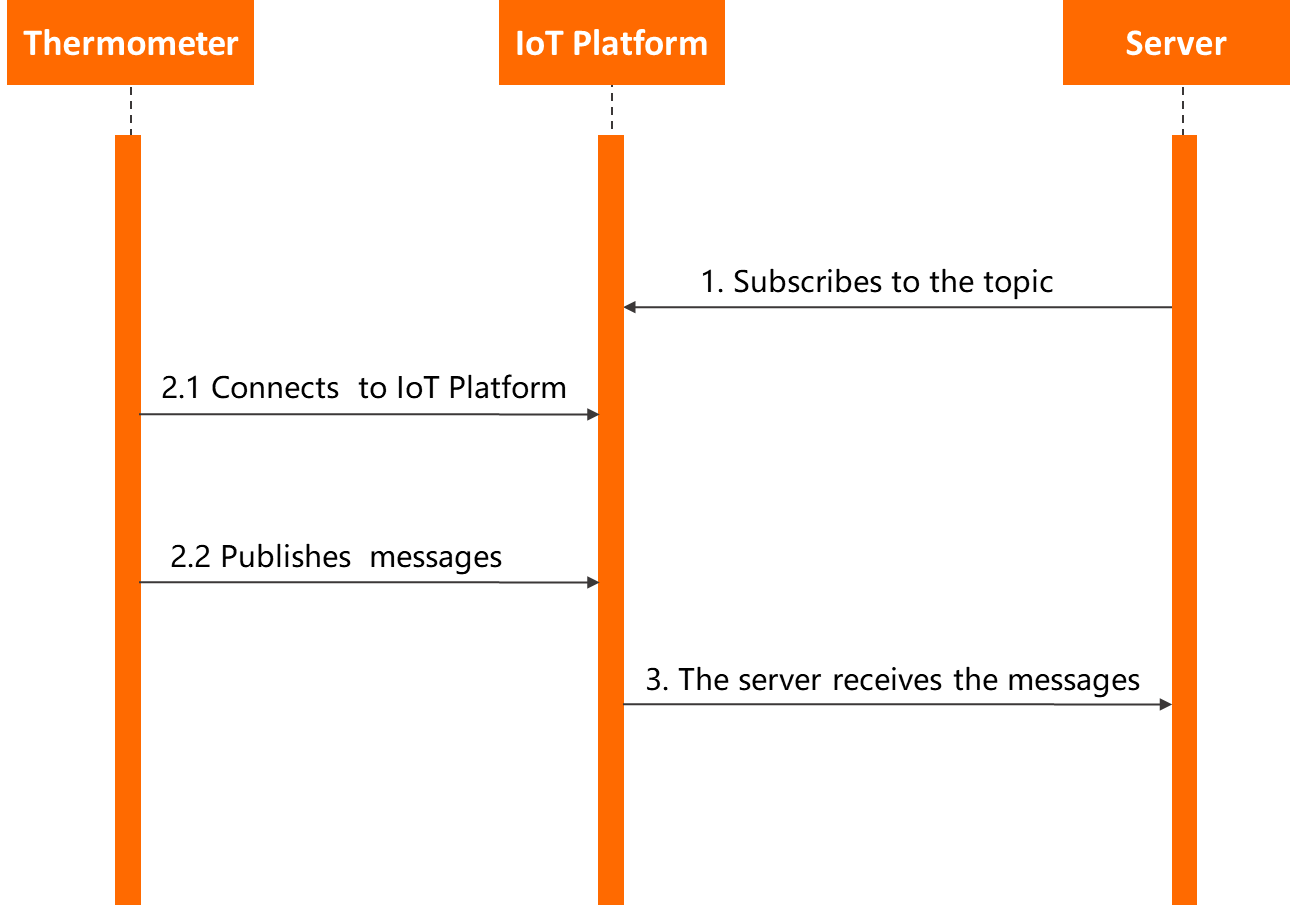
This section describes how to configure the server and device to implement the messaging process.
Connect your AMQP client to IoT Platform, and configure the client to listen to messages from the device. The server receives messages by using the AMQP client. For more information, see Connect an AMQP client to IoT Platform by using SDK for Java.
ImportantThe consumer group of the AMQP client must be in the same IoT Platform instance as the device.
Configure the device SDK to connect the device to IoT Platform and enable the device to send messages.
Configure the parameters to authenticate the device.
final String productKey = "a1*********";
final String deviceName = "device1";
final String deviceSecret = "***************";
final String region = "cn-shanghai";
final String iotInstanceId = "iot-2w****";
You must configure the parameters that are described in the following table based on your business requirements.
Parameter
Example
Description
productKey
a1uzcH0****
The device certificate information. You can view the information on the Device Details page in the IoT Platform console.For more information, see View device details.
deviceName
device1
deviceSecret
uwMTmVAMnxB****
region
cn-shanghai
The ID of the region where your IoT Platform device is located. For more information about region IDs, see Regions and zones.
iotInstanceId
iot-2w****
The ID of the instance to which the device belongs.
You can view the instance ID on the Overview page in the IoT Platform console.
If the instance ID is displayed, you must specify this parameter.
If no Overview or ID is generated for your instance, specify an empty string (
iotInstanceId = "") for the parameter.
Configure the parameters to initialize the connection, including the MQTT connection parameters, device parameters, and TSL model parameters.
LinkKitInitParams params = new LinkKitInitParams();
//Configure the MQTT connection parameters. Link SDK uses the MQTT protocol.
IoTMqttClientConfig config = new IoTMqttClientConfig();
config.productKey = productKey;
config.deviceName = deviceName;
config.deviceSecret = deviceSecret;
config.channelHost = productKey + ".iot-as-mqtt." + region + ".aliyuncs.com:1883";
//Configure the device parameters.
DeviceInfo deviceInfo = new DeviceInfo();
deviceInfo.productKey = productKey;
deviceInfo.deviceName = deviceName;
deviceInfo.deviceSecret = deviceSecret;
//Specify the initial status of the device.
Map<String, ValueWrapper> propertyValues = new HashMap<String, ValueWrapper>();

params.mqttClientConfig = config;
params.deviceInfo = deviceInfo;
params.propertyValues = propertyValues;
You must configure the parameters that are described in the following table based on your business requirements.
Parameter
Example
Description
config.channelHost
config.channelHost = productKey + ".iot-as-mqtt." + region + ".aliyuncs.com:1883";The domain name for MQTT device connection.
Old public instance:
config.channelHost = productKey + ".iot-as-mqtt." + region + ".aliyuncs.com:1883";.New public instance and Enterprise Edition instance:
config.channelHost = iotInstanceId + ".mqtt.iothub.aliyuncs.com:1883";.
Initialize the connection parameters.
//Connect and configure the callback function that is invoked after the connection is established.
LinkKit.getInstance().init(params, new ILinkKitConnectListener() {
     @Override
     public void onError(AError aError) {
         System.out.println("Init error:" + aError);
     }

     //Implement the callback function.
     @Override
     public void onInitDone(InitResult initResult) {
         System.out.println("Init done:" + initResult);
     }
 });
Send a message from the device.
After the device is connected to IoT Platform, you can use the device to send a message to the custom topic. You must replace the content of the onInitDone function with the following content:
@Override
 public void onInitDone(InitResult initResult) {
     //Specify the topic to which the message is published and the message content.
     MqttPublishRequest request = new MqttPublishRequest();
     request.topic = "/" + productKey + "/" + deviceName + "/user/devmsg";
     request.qos = 0;
     request.payloadObj = "{\"temperature\":35.0, \"time\":\"sometime\"}";
     //Publish the message and configure the callback functions that are used after the message is published.
     LinkKit.getInstance().publish(request, new IConnectSendListener() {
         @Override
         public void onResponse(ARequest aRequest, AResponse aResponse) {
             System.out.println("onResponse:" + aResponse.getData());
         }

         @Override
         public void onFailure(ARequest aRequest, AError aError) {
             System.out.println("onFailure:" + aError.getCode() + aError.getMsg());
         }
     });
 }
You must modify the code and specify parameters based on your business requirements.
Parameter
Example
Description
request.topic
"/" + productKey + "/" + deviceName + "/user/devmsg"
The custom topic on which the device has the Publish permission.
request.payloadObj
"{\"temperature\":35.0, \"time\":\"sometime\"}"
The content of the message.
The server receives the following message:
Message
{payload={"temperature":35.0, "time":"sometime"},
topic='/a1uzcH0****/device1/user/devmsg',
messageId='1131755639450642944',
qos=0,
generateTime=1558666546105}
Configure the server to send a message to the device
The following figure shows how the server sends a message to the device.
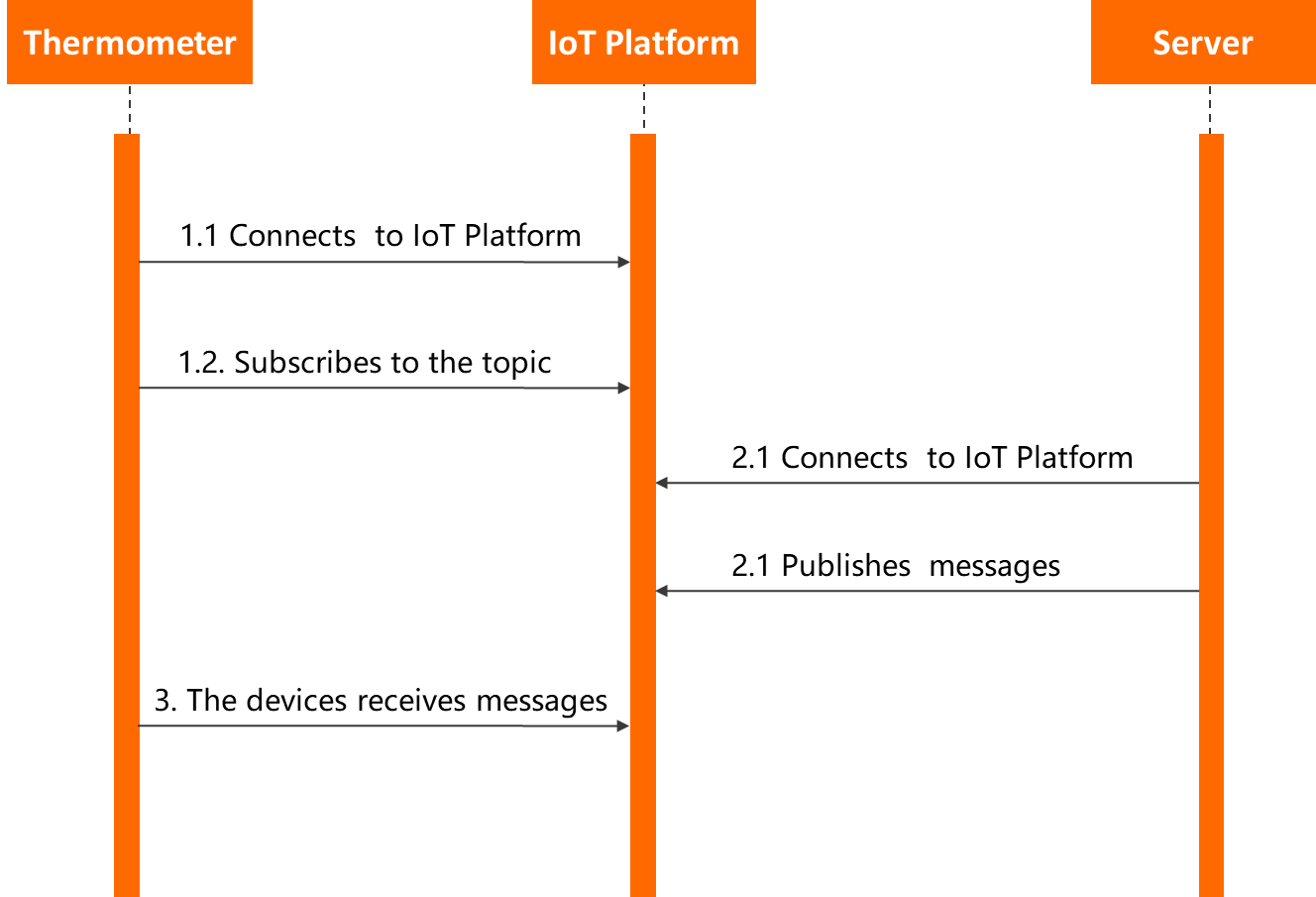
Configure the device SDK to subscribe to a custom topic.
For information about how to configure the parameters to authenticate the device, initialize the connection, and connect to IoT Platform, see the sample code in Configure the device to send a message to the server.
You must configure the device to subscribe to the custom topic.
The following sample code provides an example on how to configure the device to subscribe to a topic:
//Implement the callback function.
@Override
public void onInitDone(InitResult initResult) {
    //Specify the topic to which the device subscribes.
    MqttSubscribeRequest request = new MqttSubscribeRequest();
    request.topic = "/" + productKey + "/" + deviceName + "/user/cloudmsg";
    request.isSubscribe = true;
    //Send a subscription request and configure the callback functions that are invoked after the subscription succeeds or fails.
    LinkKit.getInstance().subscribe(request, new IConnectSubscribeListener() {
        @Override
        public void onSuccess() {
            System.out.println("");
        }

        @Override
        public void onFailure(AError aError) {

        }
    });

    //Configure a listener for downstream messages.
    IConnectNotifyListener notifyListener = new IConnectNotifyListener() {
        //Configure a callback function that is used after the downstream messages are received.
        @Override
        public void onNotify(String connectId, String topic, AMessage aMessage) {
            System.out.println(
                "received message from " + topic + ":" + new String((byte[])aMessage.getData()));
        }

        @Override
        public boolean shouldHandle(String s, String s1) {
            return false;
        }

        @Override
        public void onConnectStateChange(String s, ConnectState connectState) {

        }
    };
    LinkKit.getInstance().registerOnNotifyListener(notifyListener);
}
You must set
request.topicto a custom topic on which the device has the Subscribe permission.Configure the cloud SDK to call the Pub operation of IoT Platform to publish messages. For more information about the parameters, see Pub. For more information about how to use the SDK, see Use SDK for Java.
Configure the parameters to authenticate the device.
 String regionId = "cn-shanghai";
 String accessKey = "LTAI****************";
 String accessSecret = "yourAccessKeySecret";
 final String productKey = "a1uzcH0****";
 final String deviceName = "device1";
 final String iotInstanceId = "iot-2w****";
You must configure the parameters that are described in the following table based on your business requirements.
Parameter
Example
Description
accessKey
LTAIyourAccessKeySecretyourAccessKeySecret
The AccessKey ID and AccessKey Secret of your Alibaba Cloud account.
Log on to the IoT Platform console, move the pointer over the profile picture, and then click AccessKey Management to obtain the AccessKey ID and AccessKey secret.
NoteIf you use a RAM user, you must attach the AliyunIOTFullAccess permission policy to the RAM user. The policy allows the RAM user to manage IoT Platform resources. If you do not attach the AliyunIOTFullAccess permission policy to the RAM user, the connection to IoT Platform fails. For more information about how to grant permissions to a RAM user, see RAM user access.
accessSecret
yourAccessKeySecret
productKey
a1uzcH0****
The device certificate information. You can view the information on the Device Details page in the IoT Platform console.For more information, see View device details.
deviceName
device1
region
cn-shanghai
The ID of the region where your IoT Platform device is located. For more information about region IDs, see Regions and zones.
iotInstanceId
iot-2w****
The ID of the instance to which the device belongs.
You can view the instance ID on the Overview page in the IoT Platform console.
If the instance ID is displayed, you must specify this parameter.
If no Overview or ID is generated for your instance, specify an empty string (
iotInstanceId = "") for the parameter.
Configure the connection parameters.
//Configure the client parameters.
DefaultProfile profile = DefaultProfile.getProfile(regionId, accessKey, accessSecret);
IAcsClient client = new DefaultAcsClient(profile);
Configure the parameters that are used to publish a message.
PubRequest request = new PubRequest();
request.setIotInstanceId(iotInstanceId);
request.setQos(0);
//Specify the topic to which the message is published.
request.setTopicFullName("/" + productKey + "/" + deviceName + "/user/cloudmsg");
request.setProductKey(productKey);
//Configure the MessageContent parameter. The message content must be encoded in Base64. Otherwise, the message content is displayed as garbled characters.
request.setMessageContent(Base64.encode("{\"accuracy\":0.001,\"time\":now}"));
When you call this operation, you must configure the parameters based on your business requirements. For more information, see Pub.
Sends messages.
try {
     PubResponse response = client.getAcsResponse(request);
     System.out.println("pub success?:" + response.getSuccess());
 } catch (Exception e) {
     System.out.println(e);
 }
The device receives the following message:
msg = [{"accuracy":0.001,"time":now}]
Appendix: Sample code
You must modify the code and specify parameters based on your business requirements.
Download the Pub/Sub demo, which contains the sample code for the cloud SDK and device SDK configuration in this example.
For information about how to connect an AMQP client to IoT Platform, see the following topics:
Connect an AMQP client to IoT Platform by using SDK for Java
Connect an AMQP client to IoT Platform by using SDK for .NET
Connect an AMQP client to IoT Platform by using SDK for Node.js
Connect an AMQP client to IoT Platform by using SDK for Python 2.7
Connect an AMQP client to IoT Platform by using SDK for Python 3