If you want to access Intelligent Media Services (IMS) on mobile or web clients, you can use Security Token Service (STS) to authorize temporary access. This effectively prevents security risks caused by leaks of the AccessKey pairs of Resource Access Management (RAM) users. This topic describes how to use STS to authorize temporary access to IMS.
Background
AccessKey pairs of RAM users are permanently valid after the AccessKey pairs are enabled. If the AccessKey pairs are leaked, security risks may occur. We recommend that you use STS to authorize temporary access. You can customize the validity period of temporary AccessKey pairs, specify relatively complex policies to limit the permissions of different RAM roles, and abide by the principle of least privilege to improve service access security.
Step 1: Create a RAM user and authorize to call the AssumeRole operation
Log on to the RAM console using the Alibaba Cloud account or as a RAM administrator.
In the navigation pane on the left, choose .
On the Users page, click Create User.

On the Create User page, in the User Account Information section, set the basic information for the user.
Logon Name: Enter a name that can contain letters, digits, periods (.), hyphens (-), and underscores (_). The name can be up to 64 characters long.
Display Name: Enter a name that can contain up to 128 characters.
Tag: Click the pencil icon, then enter a tag key and value. Attach tags to the RAM user to manage users by tag.
NoteClick Add User to create multiple RAM users in a batch.
Select an Access Mode and configure the corresponding parameters.
Click OK and complete the security verification. An AccessKey pair is automatically generated for the RAM user.
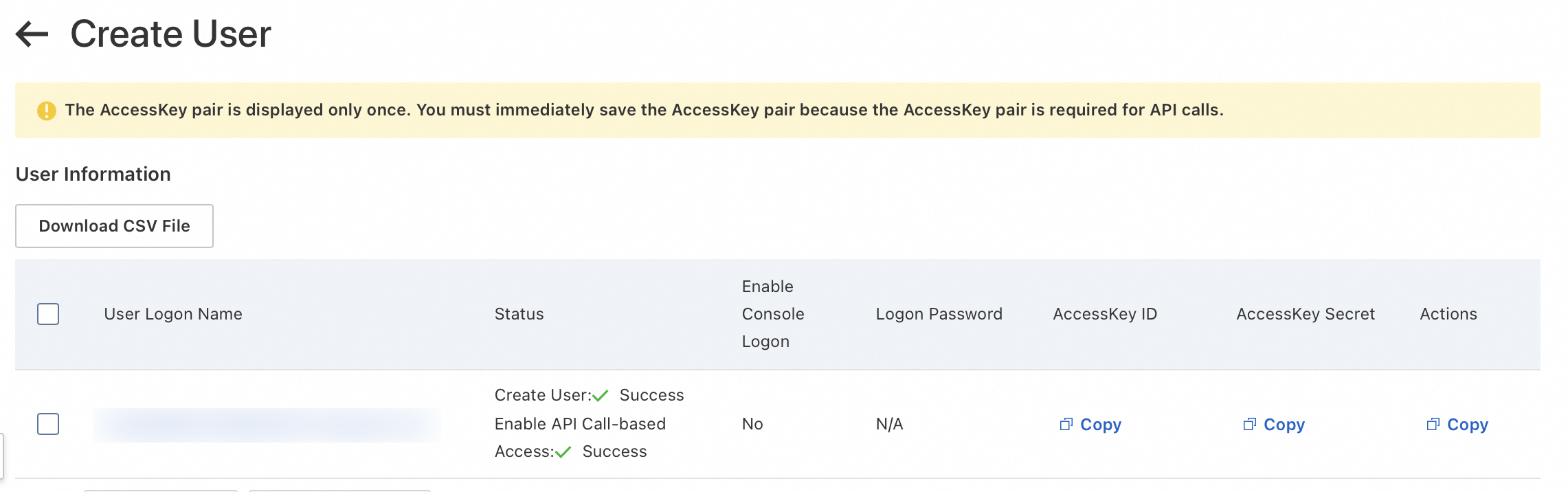
Click Copy in the Actions column and save the copied user information including the AccessKey ID and AccessKey secret.
ImportantKeep the AccessKey pair secure. The AccessKey secret is displayed only when the RAM user is created. You cannot view the AccessKey secret after you close the creation page.
On the Users page, find the created RAM user and click Add Permissions in the Actions column.
In the Grant Permission panel, grant permissions to the RAM user.
Select the scope of authorization.
Set the Resource Scope parameter to Account. IMS does not support the Resource Group scope. For more information, see Differences and relationships among the Resource Directory, Resource Group, and Tag services.
Specify the principal.
The principal is the RAM user to which you want to grant permissions.
Select an access policy.
Select System Policy, enter AliyunSTS, then select the AliyunSTSAssumeRoleAccess policy.
Click OK to complete the authorization.
Step 2: Create a RAM role and authorize to operate IMS resources
Log on to the RAM console as a RAM user who has administrative rights.
In the left-side navigation pane, choose .
On the Roles page, click Create Role.
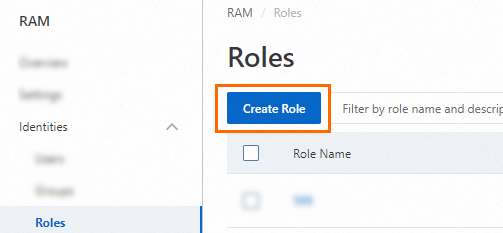
On the Create Role page, set the Principal Type parameter to Cloud Account, specify an Alibaba Cloud account, and then click OK.

Current Account: If you want a RAM user or RAM role that belongs to your Alibaba Cloud account to assume the RAM role, select Current Account.
Other Account: If you want a RAM user or RAM role that belongs to a different Alibaba Cloud account to assume the RAM role, select Other Account and enter the ID of the Alibaba Cloud account. This option is provided to grant permissions on resources that belong to different Alibaba Cloud accounts. For more information, see Delegate access across Alibaba Cloud accounts using RAM roles. You can view the ID of your Alibaba Cloud account on the Security Settings page.
Optional. If you want the RAM role to be assumed only by a specific RAM user or RAM role that belongs to the trusted Alibaba Cloud account, click Switch to Policy Editor and modify the trust policy of the RAM role in the editor.
The editor supports the Visual editor and JSON modes. In the following example, only the RAM user
Alicewithin the Alibaba Cloud account whose ID is 100******0719 can assume the RAM role.Visual editor
Specify a RAM user for the Principal element.


JSON
Specify a RAM user for the
RAMfield of thePrincipalparameter.{ "Version": "1", "Statement": [ { "Effect": "Allow", "Principal": { "RAM": "acs:ram::100******0719:user/Alice" }, "Action": "sts:AssumeRole" } ] }
In the Grant Permission panel, grant permissions to the RAM role.
Set the authorization scope.
Set the Resource Scope parameter to Account. IMS does not allow you to set the Resource Scope parameter to Resource Group. For more information about resource groups, see Differences and relationships among the Resource Directory, Resource Group, and Tag services.
Specify the principal.
The principal is the RAM role to which permissions are granted. By default, the current RAM role is specified. You can also specify a different RAM role.
Select policies in the Policy section.
Use system policies
Select System Policy from the drop-down list, enter AliyunICE in the search box, and then select system policies based on your business requirements.
Policy
Description
API operation
AliyunICEFullAccess
Permissions to manage and operate all IMS resources
This policy grants permissions on all operations of IMS.
AliyunICEReadOnlyAccess
Read-only permissions on all IMS resources
This policy grants permissions on all read-only operations of IMS, such as Get, Describe, Search, and List operations.
Use custom policies
Select Custom Policy from the drop-down list and select custom policies based on your business requirements. If no custom policies are available, you can create one. For more information, see Create custom policies or the Sample custom policies section of this topic.
NoteYou can attach a maximum of five policies to a RAM user at a time. If you want to attach more than five policies to a RAM user, repeat the operation.
To control risks, we recommend that you abide by the principle of least privilege.
If you want to use IMS SDK for iOS or Android, you must specify the
AliyunOSSFullAccesspolicy or a custom Object Storage Service (OSS) policy based on your business requirements. This is because the SDK needs to upload files to OSS.
Click OK to complete the authorization.
Step 3: Use the RAM user to call AssumeRole to obtain a temporary AccessKey pair
Download and integrate the STS SDK. For more information, see STS SDK overview.
Call the AssumeRole API to obtain temporary identity credentials for the role.
This topic provides an example that uses Java code. For sample code in other languages, see SDK sample code.