IDaaS provides a general logon page for end users to log on to the CloudSSO user portal or directly to connected applications using their IDaaS accounts.
Each IDaaS instance has a unique logon page address. Find it in the Quick Start, Accounts, or Logon menu.
Logon flow
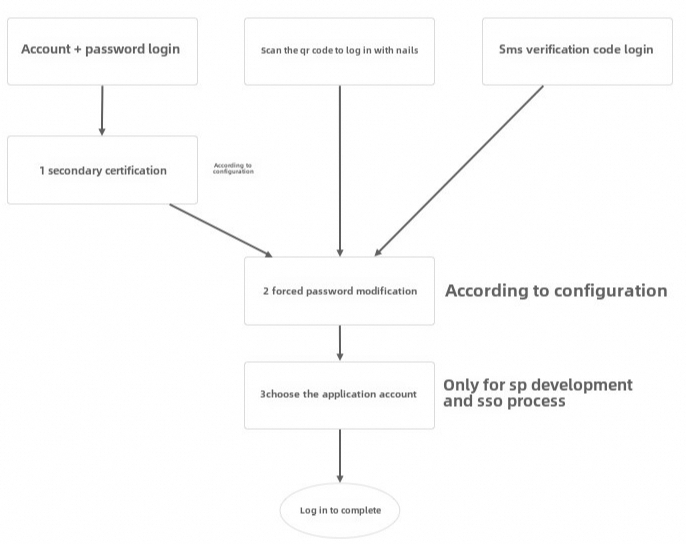
The flow includes three special steps:
| Step | Name | Details |
|---|---|---|
| 1 | Multi-factor authentication (MFA) | Applies to password-based logon only. See Multi-factor authentication. |
| 2 | Forced password change | Not yet available. |
| 3 | Select application account | Applies to service provider (SP)-initiated single sign-on (SSO) only. After logon, select an application account to initiate SSO. |
Logon page
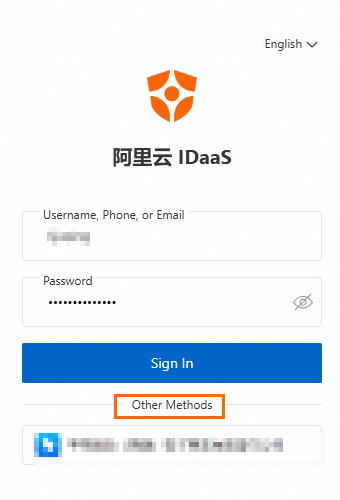
Multi-factor authentication page
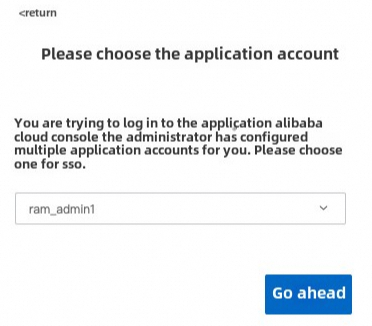
Select application account
When the same IDaaS account maps to multiple identities in an application, add multiple application accounts to represent each identity. For more information, see SAML application account configuration.
During SP-initiated SSO, if the logged-on account has multiple application accounts for the target application, a prompt appears to select one.
Logon exceptions
CAPTCHA
Applies to: Username and password logon only.
After one failed logon attempt in the same browser, all subsequent username and password attempts require CAPTCHA until a logon succeeds.
Account lockout
Applies to: Username and password logon only.
An account is locked after 10 consecutive failed attempts within 5 minutes. If the account has multiple logon identities (for example, a username and a mobile number), failed attempts are counted across all identities.
To unlock the account:
Wait 5 minutes. The account unlocks automatically.
Have an administrator unlock it in the Accounts menu.
Complete the forgot password flow. The account unlocks automatically after the flow is complete. (Not yet available.)
Verification code limits
Applies to: Logon, MFA, and password reset flows.
A verification code can be sent once every 60 seconds. SMS and email timers are counted separately.
Each verification code can be entered up to 3 times. After 3 failed attempts, the code expires. Request a new code to retry.