This topic describes how to configure and use a custom email gateway.
Overview
Identity as a Service (IDaaS) Employee Identity and Access Management (EIAM) allows you to add custom email gateways to your instance. This way, you can configure email templates in different languages and send email notifications that contain enterprise brand information to users.
Terms
Term | Description |
initial email gateway | The email gateway that is built in your IDaaS EIAM instance. You cannot modify the configurations of this email gateway. |
custom email gateway | The email gateway that you add to your IDaaS EIAM instance. To add a custom gateway, activate an email gateway service such as Alibaba Cloud Direct Mail. |
default email gateway | The email gateway that is used by your IDaaS EIAM instance to send email notifications to users. The default email gateway can be the initial email gateway or a custom email gateway. |
Preparations
To facilitate the configuration process, we recommend that you make the following preparations before you configure a custom email gateway.
Item | Description |
Email gateway | You need to activate an email gateway service such as Alibaba Cloud Direct Mail to send emails to users. In addition, you need to create an email domain and sender address in advance for sending emails. |
Instance of Trial Edition or Enterprise Edition | Only instances of Trial Edition and Enterprise Edition support custom email gateways. You can enable free trial for your instance or upgrade your instance. |
Add a custom email gateway
In the IDaaS EIAM console, go to Branding > Email Templates and click Add Custom Email Gateway.
In the Add Custom Email Gateway panel, configure the information about the custom email gateway. Some information must be obtained from your email gateway service.
Gateway Service Provider: the email protocol. Set the value to SMTP. Simple Mail Transfer Protocol (SMTP) is a common protocol for sending emails.
Display Name: the name of the email gateway, which is displayed only in the IDaaS EIAM console.
SMTP Endpoint: the endpoint of the SMTP service, which is obtained from your email gateway service. In general, the value is a domain name. For example, the SMTP endpoint of Alibaba Cloud Direct Mail is xxxx.aliyun.com.
Port Number: the port number of the SMTP service, which is obtained from your email gateway service. Commonly used ports include 25, 80, and 465. Port 465 uses SSL for encrypted communication. Obtain the port number from your email gateway service.
Enable SSL Encryption: specifies whether to enable SSL encryption. If you enable SSL encryption, connection security is improved. To enable SSL encryption, you must specify a dedicated port number.
SMTP Account and SMTP Password: the account and password that are used to access your SMTP email gateway. In general, the account is the email address prefix or email address of the sender.
Sender Email Address: the email address of the sender. Example: xxxx@example.com.
Sender Name: the name of the sender, which can be your enterprise name or brand name. This parameter is optional. If you do not configure this parameter, the email prefix of the sender is used by default.
Click Test Sending, enter a recipient's email address, and then click OK. This sends a test email.
If the test email is successfully sent, the configurations of the custom email gateway are valid.
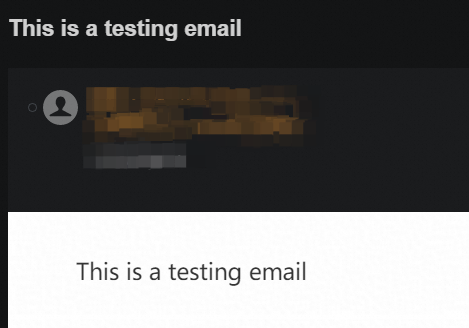
After confirming the settings, click OK to add the custom email gateway.
After the gateway is added, it appears in the gateway list with a status of Available. You can Manage or Remove it. At the bottom of the page, you can view and Change the default email gateway. If the custom gateway is unavailable, the system automatically uses the initial gateway to send emails.
The Available state of the custom email gateway indicates that the email gateway features of the instance can be used. However, this does not mean that the custom email gateway can send emails. You must check whether the custom email gateway can properly work.
Manage a custom email gateway
Click Manage in the Actions column of the custom email gateway to go to the management page.
On the Gateway Configuration tab, you can modify the custom email gateway settings, such as the SMTP endpoint.
On the Email Template tab, you can configure the email language, subject, and content for each email use case.
-
Email Language: For each use case, you can create email subjects and content in multiple languages to send localized notifications to users. Currently, Chinese and English are supported.
Email Theme: the title of the email.
Email Content: the content of the email. You can configure only the content but not the style of the email.
Email use cases include two-factor authentication, changing or verifying an email address, reset password, initialize password, and administrator password reset. The customization mode supports partial customization. Full customization is not yet supported. The email content must include the ${code} variable.
Change the default email gateway
In the default email gateway section at the bottom of the email gateway page, click Change and select the desired gateway. IDaaS EIAM then uses this gateway to send all email notifications.
If you specify a custom email gateway as the default email gateway and the custom email gateway becomes unavailable due to causes such as service expiration, IDaaS EIAM automatically switches to the initial email gateway to send email notifications.
Remove a custom email gateway
IDaaS allows you to remove a custom email gateway. After you remove the gateway, the configurations of the gateway are cleared and cannot be restored.