Replace the system-generated domain of your IDaaS EIAM instance with your own domain for pages such as the logon page and user portal. This maintains brand consistency and lets you control access through a proxy — for example, restricting logons to specific IP addresses.
Overview
The custom domain feature lets you replace the URLs of IDaaS EIAM pages — such as the logon page and user portal — with a domain you own, maintaining brand consistency.
By setting up a proxy service, you can also control who can access IDaaS EIAM. For example, you can restrict access to the application portal to users from specific IP addresses.
Key concepts
|
Term |
Description |
|
Initial domain |
A system-generated domain assigned when you create an IDaaS EIAM instance, in the format |
|
Custom domain |
A domain you own and add to your IDaaS EIAM instance, for example, |
|
Default domain |
The domain the IDaaS EIAM instance uses by default. You must select either the initial domain or a custom domain. If automatic redirection is enabled, accessing the initial domain redirects users to the default domain. |
Potential impacts
Setting up a custom domain affects the following features. Review these impacts and adjust configurations before or after enabling a custom domain.
|
Affected object |
Feature |
Description |
|
User portal |
Logon page |
The logon page URL includes a domain. |
|
Application portal |
The application portal URL includes a domain. |
|
|
DingTalk identity provider - outbound |
QR code logon/Workbench SSO |
The DingTalk callback domain must always use the initial domain. |
|
SSO to the IDaaS application portal or an application |
The application home page URL includes a domain. |
|
|
WeCom identity provider - inbound |
QR code logon |
The domain users access (such as the user portal or direct access to a custom, OIDC, or SAML application) must match the WeCom authorization callback domain. Otherwise, users cannot log on using WeCom QR codes. |
|
Webpage authorization logon (Workbench SSO) and sensitive data synchronization |
The domain users access (such as the user portal or direct access to a custom, OIDC, or SAML application) must match the WeCom trusted domain. Otherwise, users cannot use WeCom webpage authorization logon or sensitive data synchronization. |
|
|
OIDC application/Custom application |
Authorization endpoint |
If an instance uses only one custom domain, we recommend keeping the initial domain as the default, setting the custom domain as the default domain, and enabling automatic redirection. Otherwise, users may need to log on again during SSO. If the instance requires multiple custom domains, the authorization endpoint must match the user's logon page domain. Otherwise, users may need to log on again during SSO. |
|
Logout endpoint |
||
|
SAML application |
IdP metadata URL |
If an instance uses only one custom domain, we recommend keeping the initial domain as the default, setting the custom domain as the default domain, and enabling automatic redirection. Otherwise, users may need to log on again during SSO. If the instance requires multiple custom domains, the IdP metadata URL must match the user's logon page domain. Otherwise, users may need to log on again during SSO. |
|
SSO URL |
||
|
WebAuthn |
Register authenticator |
A WebAuthn authenticator works only on the domain where it was registered. For example, if a user registers authenticator A1 on domain A, they cannot use A1 when logging on from domain B — they must register a new authenticator on domain B. Users can have multiple authenticators for different domains. |
Prerequisites
|
Item |
Description |
|
Domain |
A dedicated domain for IDaaS EIAM. We recommend using a first-level or second-level domain. |
|
Permissions to manage DNS records |
You need to add one or two DNS records in your DNS provider's console (for example, Alibaba Cloud DNS) to verify domain ownership, then resolve your domain to your Nginx proxy server. |
|
ICP filing number |
If your website is hosted in the Chinese mainland, you must provide an ICP filing number for the domain. |
|
Activate Edge Security Acceleration (ESA) |
You must activate the ESA service. |
|
Permissions to manage the proxy service |
You need to configure the domain's HTTPS certificate, back-to-origin HOST, and other settings in your proxy service (for example, Alibaba Cloud DCDN or Alibaba Cloud ESA). |
|
A trial or upgraded instance |
Only trial and Enterprise Edition instances support custom domains. Try an instance or upgrade your existing instance. |
The custom domain feature itself does not incur additional charges. However, proxy services (Alibaba Cloud ESA or DCDN) are billed based on usage. For pricing details, refer to the corresponding billing documentation.
Add a custom domain
In the left-side navigation pane, click Branding > Custom Domains, and then click Add Custom Domain Name.
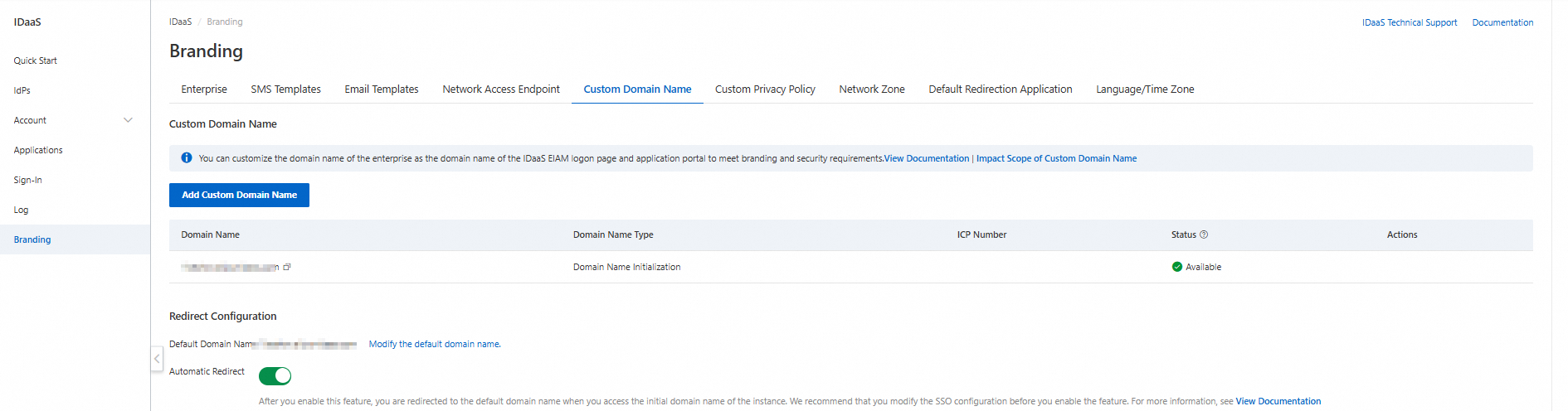
Custom domains can affect logon, SSO, and data synchronization. To avoid business disruptions, review the potential impacts before you proceed.
Step 1: Enter the domain
Enter your custom domain, such as login.example.com. This domain must be globally unique across all IDaaS EIAM instances. Enter only the domain — no paths or parameters. The domain can contain lowercase letters, numbers, hyphens (-), and periods (.), with a maximum length of 128 characters.
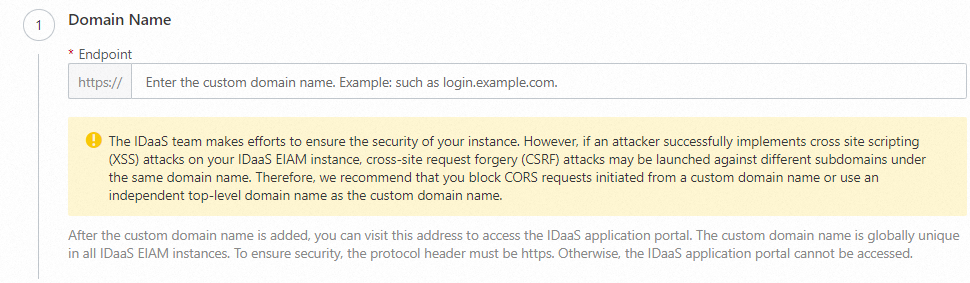
Although the IDaaS EIAM team secures your instance, a successful Cross-Site Scripting (XSS) attack on your IDaaS EIAM instance could theoretically enable a Cross-Site Request Forgery (CSRF) attack on other subdomains under the same parent domain. We recommend blocking Cross-Origin Resource Sharing (CORS) requests from the custom domain or using a separate parent domain as your custom domain.
Step 2: Add a DNS record
Go to your DNS provider, such as Alibaba Cloud DNS, to add a DNS record. This verifies your ownership of the domain. For a given IDaaS EIAM instance and custom domain, the record type, name, and value are static. If you do not have DNS management permissions, you can ask someone else to add the record.
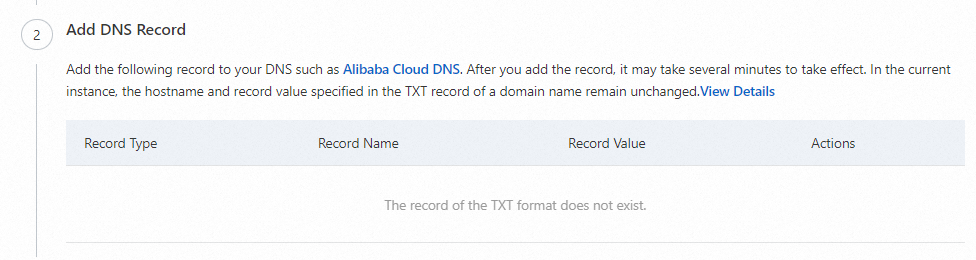
The following documents provide instructions for adding DNS records with specific providers:
Step 3: Enter an ICP filing number
According to the Administrative Measures on Internet Information Services, if your website is hosted in the Chinese mainland, you must provide an entity or website ICP filing number. To comply with local regulations, providing an ICP filing number is mandatory for all IDaaS EIAM instances in Alibaba Cloud regions within the Chinese mainland that use the custom domain feature. The filing number is displayed on the instance's logon page.
Step 4: Complete the process
After confirming that the information is correct, click Added to add the custom domain. You must also complete the proxy configuration before the custom domain becomes usable.
Configure a proxy service
When users or applications access IDaaS EIAM through a custom domain, your proxy service forwards the requests. You are responsible for ensuring high availability of the proxy. Choose one of the following proxy options based on your needs:
Comparison of the three proxy options:
-
Alibaba Cloud ESA: Edge security acceleration. Best for scenarios that require CDN acceleration and WAF protection.
-
Alibaba Cloud DCDN: Dynamic CDN acceleration. Simple to configure. Best for quick setup scenarios.
-
Nginx: Self-managed proxy. Flexible and fully under your control. Best for scenarios that already use Nginx infrastructure.
For quick and simple setup, we recommend Alibaba Cloud DCDN. For CDN acceleration and WAF protection, use Alibaba Cloud ESA. For existing Nginx infrastructure requiring full control, use Nginx.
Alibaba Cloud ESA (Edge Security Acceleration)
Step 1: Add an ESA site
Go to the Alibaba Cloud ESA console. In the left-side navigation pane, click . Follow the console wizard to complete the configurations, and then click Buy Now.
Step 2: Add a DNS record (proxy acceleration)
-
In the navigation bar, click and click the target site.
-
Choose and click Add Record.
For more information, see Manually add DNS records.
Step 3: Configure an HTTPS certificate
-
In the navigation bar, click and click the target site.
-
Choose and click Upload Custom Certificate.
For more information, see Configure edge certificates.
Step 4: Configure the back-to-origin host
-
In the navigation bar, click and click the target site.
-
Choose and click Create Rule.
For more information, see Customize the origin Host.
Step 5: Configure back-to-origin request headers
-
In the navigation bar, click and click the target site.
-
Choose . On the Modify request header tab, select the Apply to, click Modify Request Header, select the applicable resource Type and Operation, and enter the Request Header Name and Enter a request header value.
-
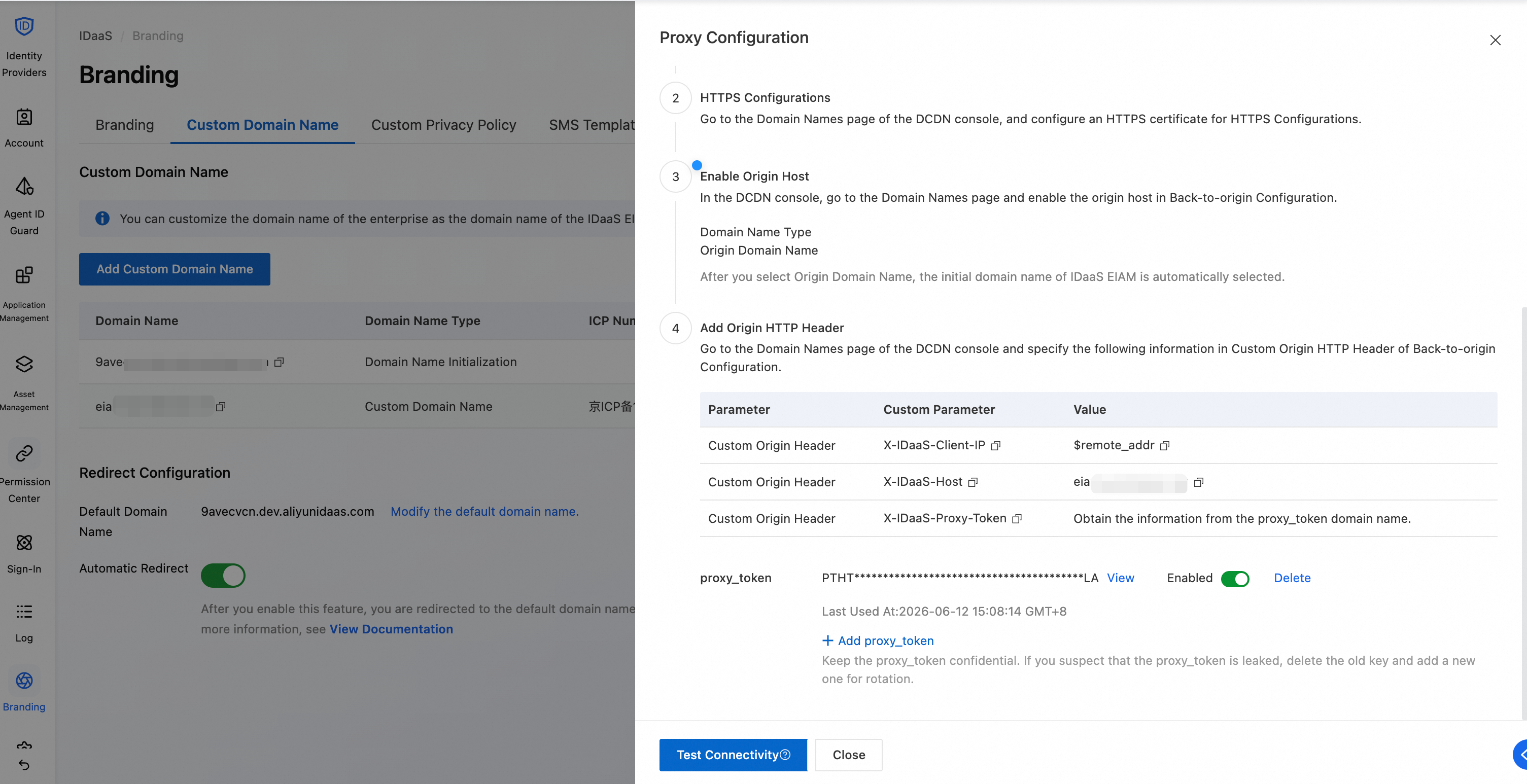
First record: Type: Static; Action: Add; Header Name: X-IDaaS-Host; Header Value: $remote_addr.
-
Second record: Type: Static; Action: Add; Header Name: X-IDaaS-Proxy-Token; Header Value: Custom domain name.
-
Third record: Type: Dynamic; Action: Add; Header Name: X-IDaaS_Client-IP; Header Value: proxy_token from the proxy configuration.
To find the required values, go to the IDaaS EIAM console, click in the left-side navigation pane, find the custom domain, and click Actions to open the Proxy Configuration tab.
-
For more information, see Modify outgoing request headers.
Alibaba Cloud DCDN
Step 1: Add a domain
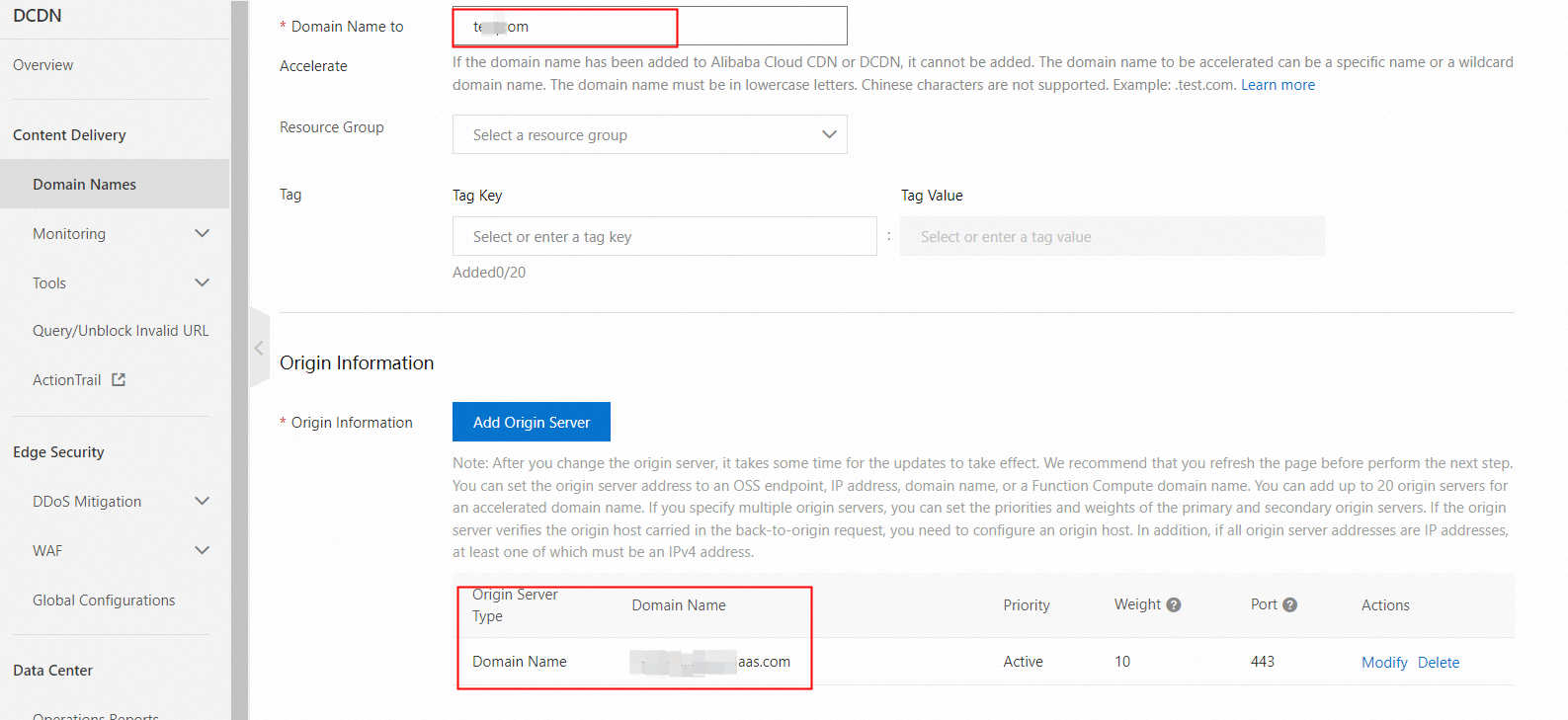
Add a domain on the Domain Names page in the Alibaba Cloud DCDN console.
-
Accelerated Domain Name: Your custom domain.
-
Origin Info:
-
Set Origin Type to Origin Domain.
-
Enter the initial domain of your IDaaS EIAM instance (without the
https://prefix). -
Select port 443.
-
After adding the domain, copy the CNAME record from DCDN and add it to your DNS provider's settings. For more information, see Configure a CNAME record.
Step 2: Configure an HTTPS certificate
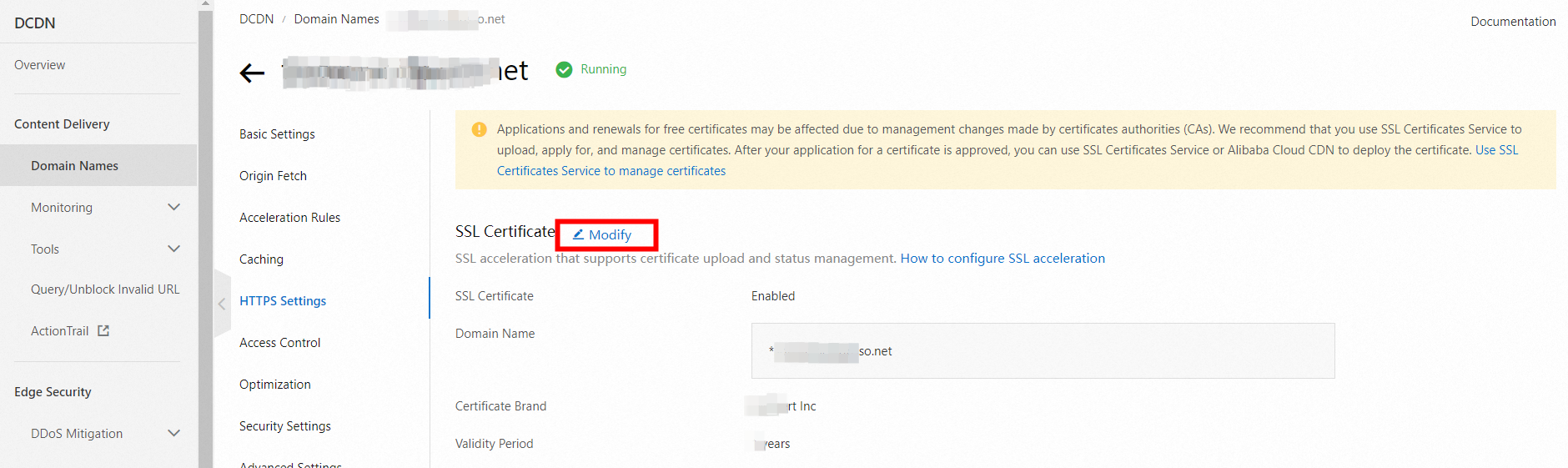
In the Alibaba Cloud DCDN console, go to the Domain Names page, open the domain details page, and configure an HTTPS certificate in the HTTPS settings. For more information, see Configure an HTTPS certificate.
Step 3: Enable back-to-origin HOST
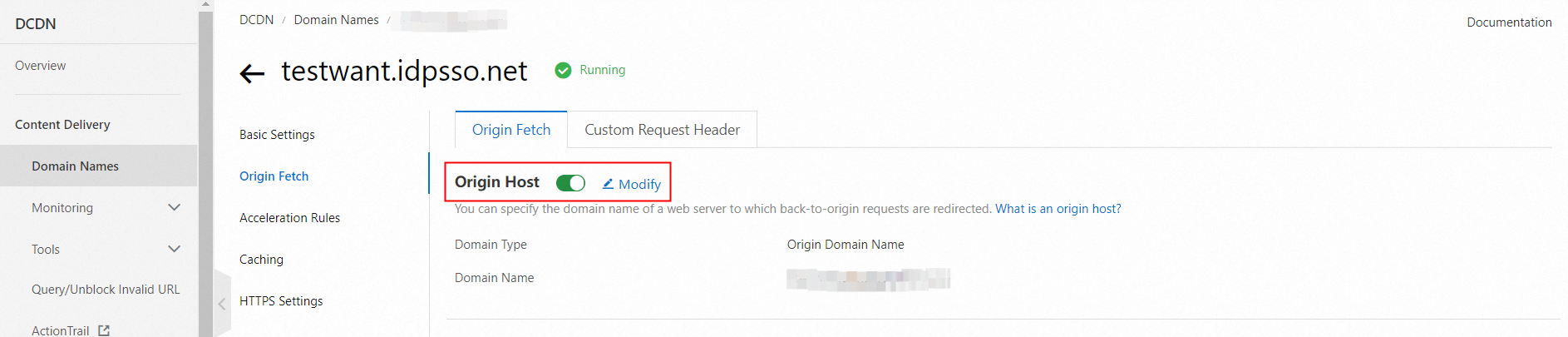
Still on the domain details page, go to the Back-to-origin Configuration settings and enable Origin Host.
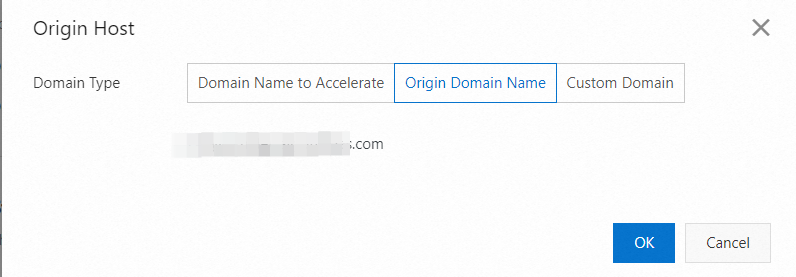
Set Domain Type to Origin Domain. This automatically selects the initial domain of the IDaaS EIAM instance.
Step 4: Add back-to-origin HTTP headers
Still on the domain details page, go to the Back-to-origin Configuration settings and click Custom Back-to-Origin HTTPS Header to add the IP, Host, and Token information. These headers help prevent IP address spoofing and improve access security.

Nginx configuration
Step 1: Install Nginx
Install from source
# Download the installation package
wget http://nginx.org/download/nginx-1.18.0.tar.gz

# Unpack the archive
tar -zxvf nginx-1.18.0.tar.gz
cd nginx-1.18.0

# Configure and specify the Nginx installation directory
./configure --prefix=/usr/local/nginx

# Compile and install
make && make install

# Verify the installation
cd /usr/local/nginx/sbin
./nginx -t A successful installation returns the following output:
nginx: the configuration file /usr/local/nginx//conf/nginx.conf syntax is ok
nginx: configuration file /usr/local/nginx//conf/nginx.conf test is successful
CentOS/AlmaLinux/RHEL
# Install the EPEL repository (required for some systems)
sudo yum install epel-release -y

# Install Nginx
sudo yum install nginx -y

# Start the Nginx service
sudo systemctl start nginx

# Enable auto-start on boot
sudo systemctl enable nginx

# Check the service status
sudo systemctl status nginx
Ubuntu/Debian
# Update the package list
sudo apt update

# Install Nginx
sudo apt install nginx -y

# Start the Nginx service
sudo systemctl start nginx

# Enable auto-start on boot
sudo systemctl enable nginx

# Check the service status
sudo systemctl status nginx
Step 2: Modify the Nginx configuration
-
Find the Nginx configuration file path.
nginx -t -
Configure the domain proxy.
-
Edit the server block within the http block of the
nginx.conffile. -
Configure the reverse proxy to forward requests from your custom domain, such as
www.example.com, to the IDaaS domain*****.aliyunidaas.com.server { # Listen on the HTTPS port and enable SSL listen 443 ssl; # Configure the domain to forward (your custom domain) server_name www.example.com; location / { # Reverse proxy target (the IDaaS instance domain) proxy_pass https://*****.aliyunidaas.com; } }
-
-
Redirect HTTP to HTTPS.
Redirect HTTP traffic for your custom domain to HTTPS to improve security and SEO.
# HTTP server block (listens on port 80) server { listen 80; server_name www.example.com; # Redirect HTTP requests to HTTPS location / { return 301 https://$host$request_uri; } } -
Configure the SSL certificate.
-
Prepare your certificate files and upload them to the Nginx server.
-
Edit the Nginx configuration file.
server {
    # HTTPS server block (listens on port 443)
    listen 443 ssl;
    server_name www.example.com;

    # SSL certificate paths (replace with your actual paths)
    ssl_certificate      /usr/local/nginx/ssl/www.example.com.crt;
    ssl_certificate_key /usr/local/nginx/ssl/www.example.com.key;

    # SSL configuration (optional optimization)
    ssl_protocols TLSv1.2 TLSv1.3;
    ssl_ciphers HIGH:!aNULL:!MD5;

}
-
-
Configure IDaaS back-to-origin request headers.

-
Edit the server block within the http block of the
nginx.conffile. -
Set the back-to-origin request headers using
proxy_set_header.# Configure IDaaS back-to-origin request headers location / { proxy_pass https://***.aliyunidaas.com; # Pass the client's real IP address proxy_set_header X-IDaas-Client-IP $remote_addr; # Pass the host header (confirm the host value expected by the target service) proxy_set_header X-IDaas-Host eiam-idaas.idpsso.net; # Proxy authentication token (obtain the proxy token from the IDaaS console) proxy_set_header X-IDaas-Proxy-Token PTC<your-proxy-token>; # Preserve the original Host header (optional) proxy_set_header Host $host; }
-
Step 3: Restart Nginx
Source installation
sudo /usr/local/nginx/sbin/nginx -s reloadCentOS/AlmaLinux/RHEL
sudo service nginx restartUbuntu/Debian
sudo systemctl restart nginxVerify the proxy configuration
In the IDaaS EIAM console, click in the left-side navigation pane. Find the custom domain, click Actions, and then click Proxy Configuration. Switch to the tab for your configured proxy and click Test Connection to simulate access to the custom domain from the IDaaS EIAM instance. Because the domain itself may have access policies (for example, allowing only office network IPs), the test result is for reference only. We recommend testing from a simulated user environment for the most reliable results.

After a successful test, review and adjust related configurations based on the potential impacts, and provide the custom domain to your users. If users continue to use the initial domain, enable automatic redirection.
Domain status
Because a domain can have its own access policies (such as allowing access only from office network IPs), IDaaS EIAM cannot confirm whether the custom domain is operating correctly. The availability status only indicates that the custom domain feature is enabled for the instance; it does not guarantee that the domain is accessible. You must verify that the custom domain is operating correctly.

Modify the default domain
The default domain serves two purposes:
-
When the Automatic Redirect feature is enabled, users or applications accessing the initial domain are automatically redirected to the default domain.
-
It is displayed in multiple places in the console, such as the user portal URL and logon URL.

If you select a custom domain as the default domain and enable automatic redirection, you must manually change the default domain if the custom domain becomes unavailable (for example, if the instance expires). Otherwise, your users or applications may be unable to access the instance.
Enable automatic redirection
Automatic redirection forwards users and applications from the instance's initial domain to the default domain. Accessing a custom domain does not trigger a redirect. If you use only one custom domain, set it as the default domain and enable automatic redirection. This lets users perform SSO seamlessly, whether they access the initial domain or the custom domain — no SSO configuration changes are needed.
If you do not enable automatic redirection or need multiple custom domains, you must adjust the application's SSO and other configurations (see Potential impacts). Otherwise, users might need to log on again during SSO or be unable to log on using WeCom QR codes.
Delete a custom domain
Before deleting a custom domain, check whether it is still in use (for example, in identity provider or application SSO configurations). The last-used time shown in the confirmation dialog is for reference — it also reflects the last use of the proxy_token, which you can verify directly in your proxy configuration.
In the IDaaS EIAM console, click in the left-side navigation pane. Find the custom domain, click Actions, and then click Delete.
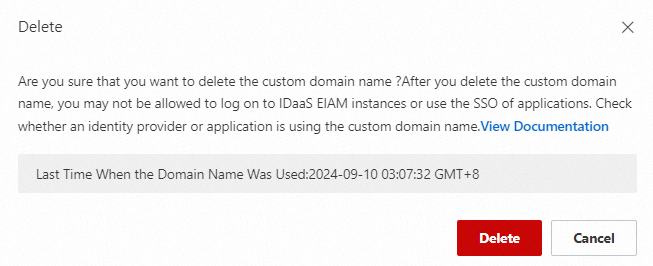
After deletion, the custom domain can no longer access the IDaaS EIAM instance. Remove the corresponding configurations from your DNS provider and proxy service to prevent incorrect domain forwarding.