Connect your corporate OpenLDAP directory to IDaaS as an inbound identity provider. This lets you import OpenLDAP organizations and accounts into IDaaS, and authenticate users with their existing LDAP credentials.
Supported capabilities
| Capability | Supported | Description |
|---|---|---|
| Sync organizations and accounts | Yes | Import LDAP organizations and user accounts into IDaaS automatically on a daily full-sync schedule. |
| Delegated authentication | Yes | Verify user credentials against LDAP so users log on to IDaaS and connected applications with their LDAP credentials. |
| Automatic password update | Yes | When a user logs on through delegated authentication and the IDaaS account has no password, IDaaS sets it to match the LDAP password. |
| Custom user filter | Yes | Sync only users that match a custom LDAP filter expression. |
| Sync protection | Yes | Automatically cancel a sync job if it would delete more than 30 accounts or 10 organizations, preventing accidental data loss. |
| Incremental sync | No | LDAP does not support incremental queries. IDaaS performs a full sync every morning and supports manual full syncs on demand. |
How it works
IDaaS connects to your LDAP server through the configured network endpoint. During synchronization, IDaaS reads the directory tree under the specified source node (Base DN) and imports organizations and user accounts. During authentication, IDaaS binds to LDAP with the user's credentials to verify the password.
Use the Network Access Endpoint feature to sync data and delegate authentication without opening public ports on your LDAP server.
Prerequisites
Before you begin, ensure that you have:
An IDaaS instance with administrator access
An LDAP administrator account with at least read permissions, in Distinguished Name (DN) format — for example,
cn=admin,ou=Technical Department,dc=example,dc=comThe LDAP server address and port
Connect IDaaS to OpenLDAP
Step 1: Configure the connection
Log on to the IDaaS console. Find the instance and click Console in the Actions column.IDaaS console
In the left navigation pane, choose IdPs > Inbound. Click Add Outbound. In the provider list, find OpenLDAP and click Add.
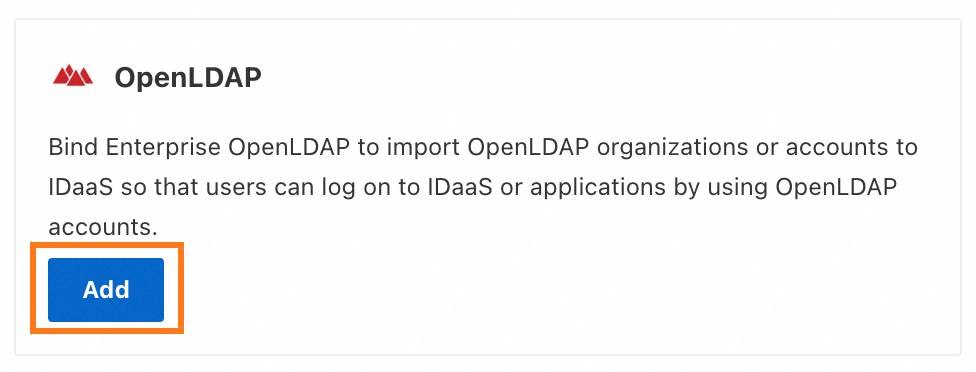
On the Connect to OpenLDAP panel, configure the following parameters.
Parameter Description Display Name The name shown to users when they log on to IDaaS. Network Access Endpoint Controls how IDaaS reaches your LDAP server. A shared endpoint uses a fixed public outbound IP address. A dedicated endpoint uses a private outbound IP address, letting IDaaS access your Alibaba Cloud VPC over a private network — no public port required. To restrict inbound requests to IDaaS only, configure an IP allowlist on your LDAP server. For details, see Network endpoints. Server address The address and port of the LDAP server. Default port: 389 — for example, 127.0.0.1:389. If you enable LDAPS or StartTLS, port 636 is typically used.Enable StartTLS Encrypts the LDAP connection. Enabling this significantly improves connection security. For certificate setup, see LDAP security configuration. Administrator Account The LDAP account IDaaS uses to read directory data for sync and delegated authentication. Requires at least read permissions. Must be in DN format — for example, cn=admin,ou=Technical Department,dc=example,dc=com.Administrator Password The password for the administrator account. 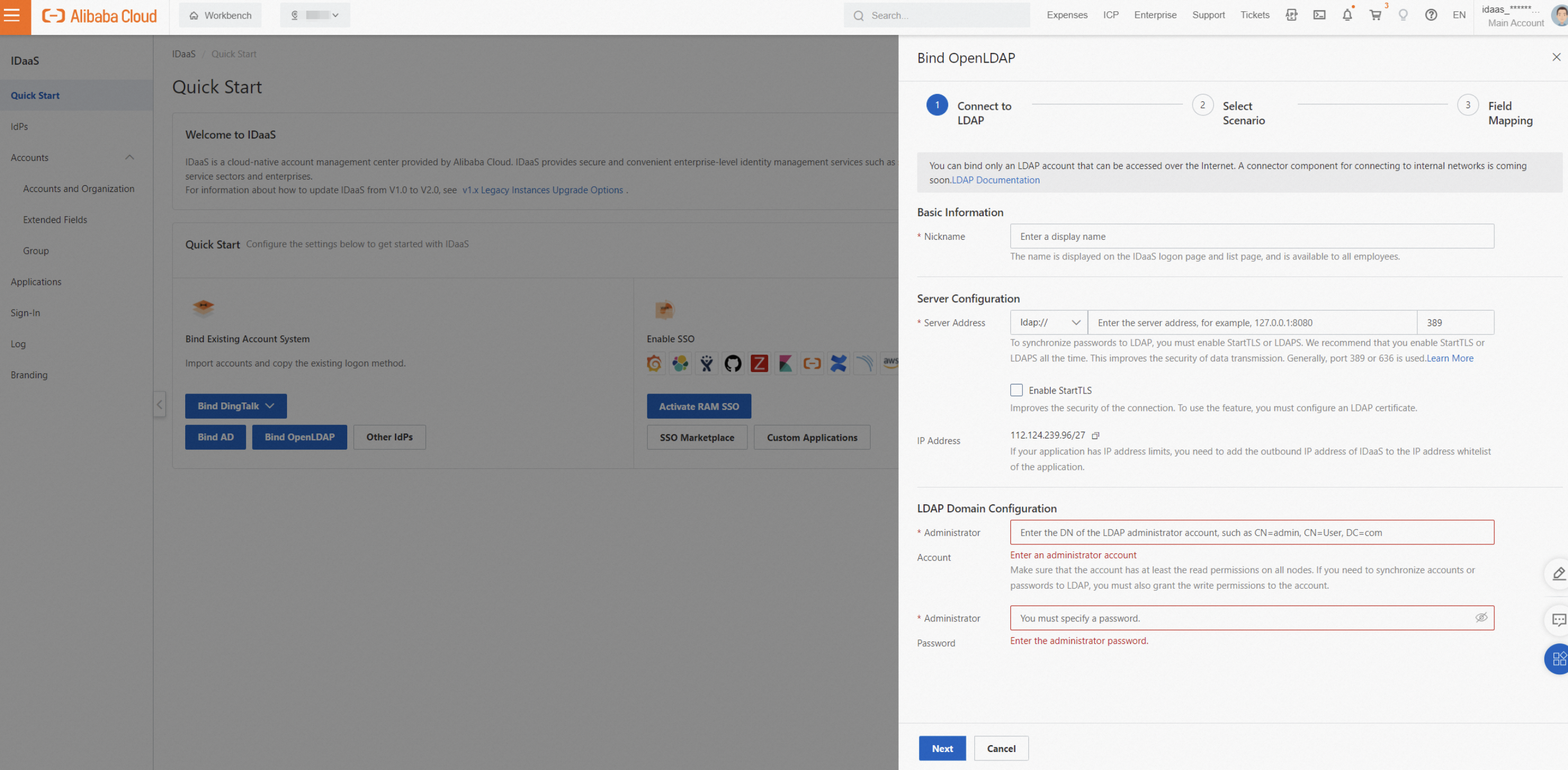
Step 2: Select features
Select which capabilities to enable.

Basic configuration
Synchronization Direction: Sets the LDAP source node from which organizations and accounts are imported into IDaaS. Enter the DN of the source node — for example,
dc=example,dc=comfor the root node.Scheduled Verification: IDaaS runs a full sync every morning. To sync immediately, trigger a manual full sync. If a single account fails to import, the remaining imports continue. Check Synchronization Logs for failure details. IDaaS includes sync protection: if more than 30 accounts or 10 organizations are scheduled for deletion in a single sync job, the job is automatically canceled. Adjust the protection threshold to match your organization's size.
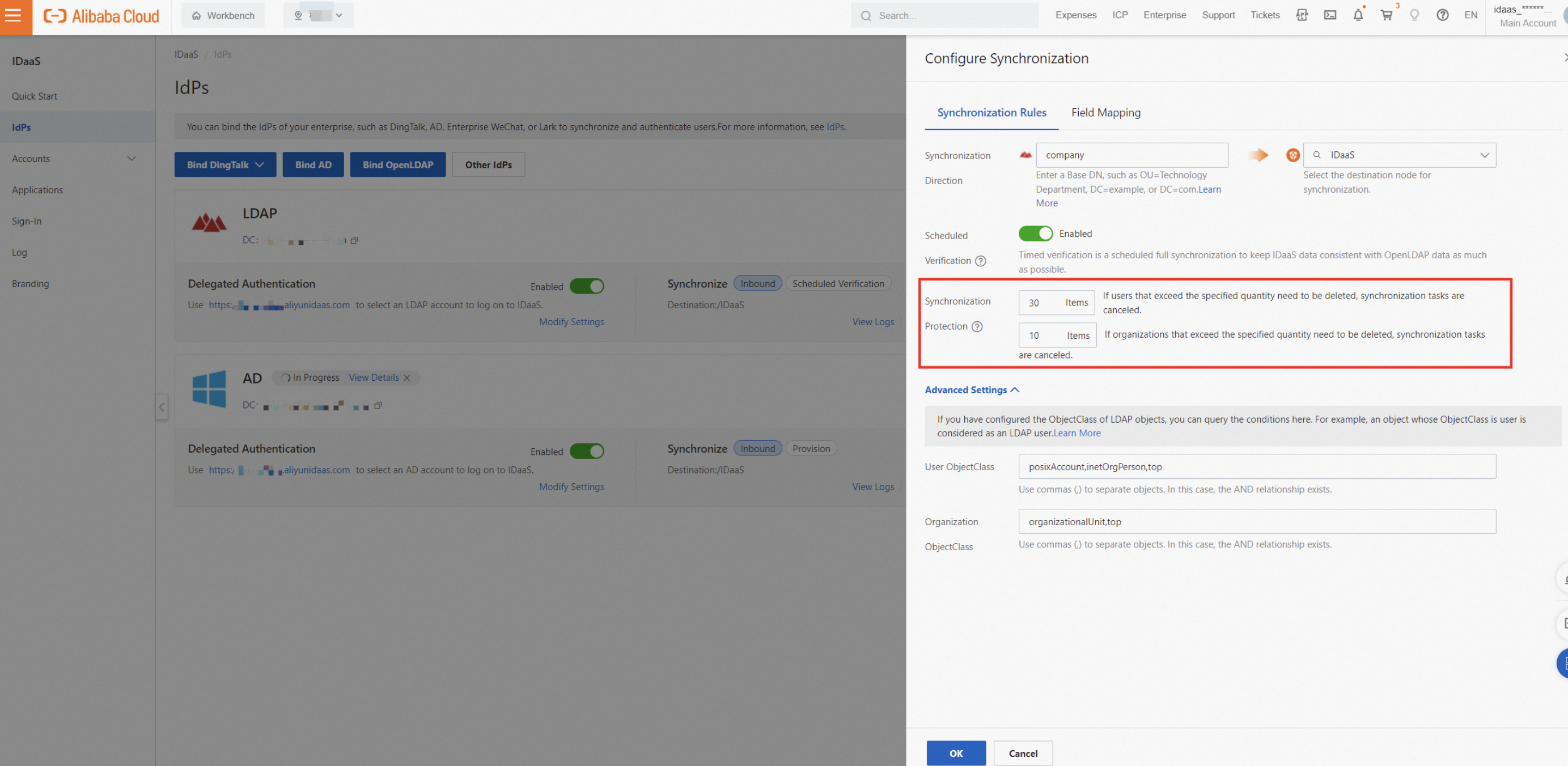
Delegated Authentication: Lets users log on to IDaaS using their LDAP username and password.
Automatic Password Update: When a user logs on through delegated authentication and the IDaaS account has no password, IDaaS sets it to match the LDAP password. The LDAP password must meet the IDaaS password policy requirements. Otherwise, the password cannot be updated automatically.
Advanced settings
User/Organization ObjectClass: Defines which LDAP objects are treated as users or organizations. For example, an object where
ObjectClass=useris treated as a user.ImportantIf you customize the
ObjectClassfor users or organizations, keep the value consistent. Inconsistent values cause unexpected sync results.User logon identity: The LDAP attributes IDaaS uses to find a user during delegated authentication. Enter multiple attributes separated by commas to create an OR condition — a user can log on with any of the specified attributes. All attributes must map to the same LDAP user; otherwise, authentication fails.
User filter: A custom LDAP filter expression that limits which users are synced. By default, the filter includes an AND condition for
ObjectClass. Click View Details to see the full expression. For filter syntax, see LDAP filter syntax.
Step 3: Configure field mappings
Map LDAP attributes to IDaaS account fields. This is useful if you have existing IDaaS accounts and want to link them to LDAP users based on a matching field — for example, match on mobile phone number. To use a field as a mapping identifier, enable it manually, as shown in the following figure.
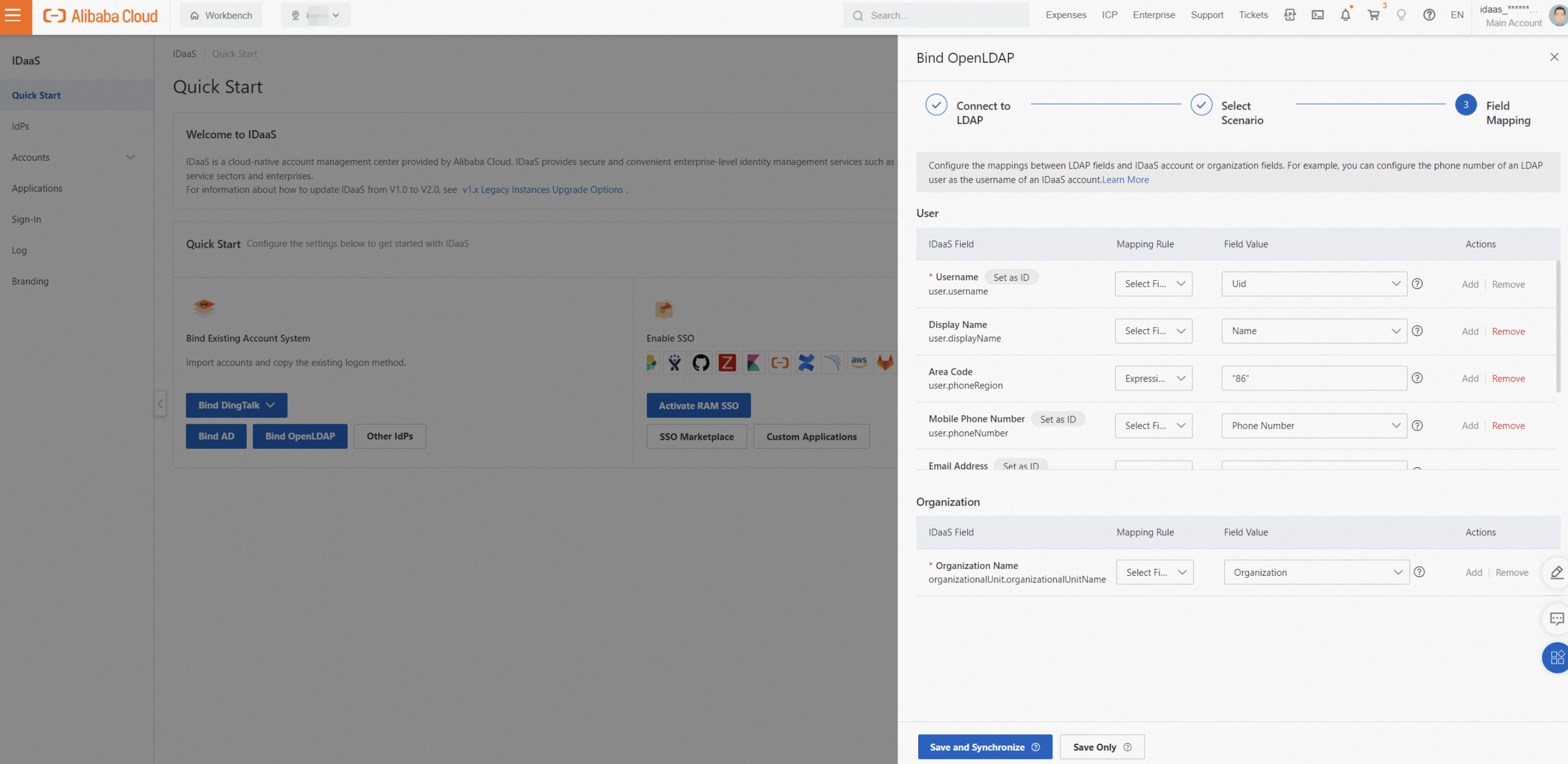
For details, see Field mappings.
LDAP security configuration
By default, LDAP transmits data in plaintext. Enabling LDAPS or StartTLS encrypts the connection and significantly reduces the risk of data interception.
After you configure a certificate on your LDAP server, click the corresponding button in IDaaS to retrieve the certificate fingerprint. This establishes a trust relationship between IDaaS and the LDAP certificate.
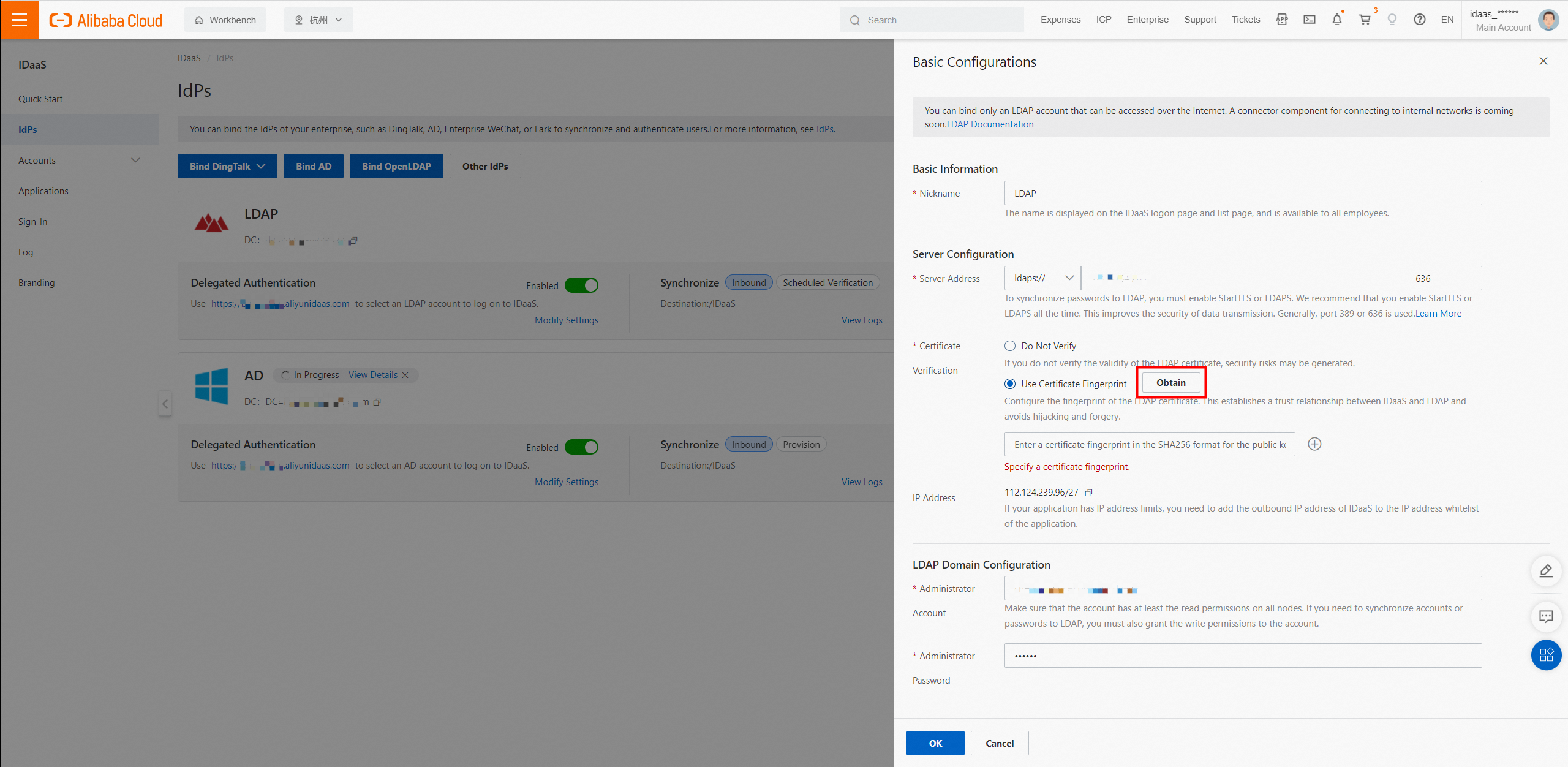
LDAP custom configuration
ObjectClass
In LDAP, an ObjectClass is a collection of attributes that defines what an object represents — a user, organization, computer, and so on. Every LDAP object must have an ObjectClass. For example, if you set the User ObjectClass to inetOrgPerson,posixAccount,top in IDaaS, any object with those classes is treated as a user. To check the ObjectClass of an object, view it in your LDAP admin tool.
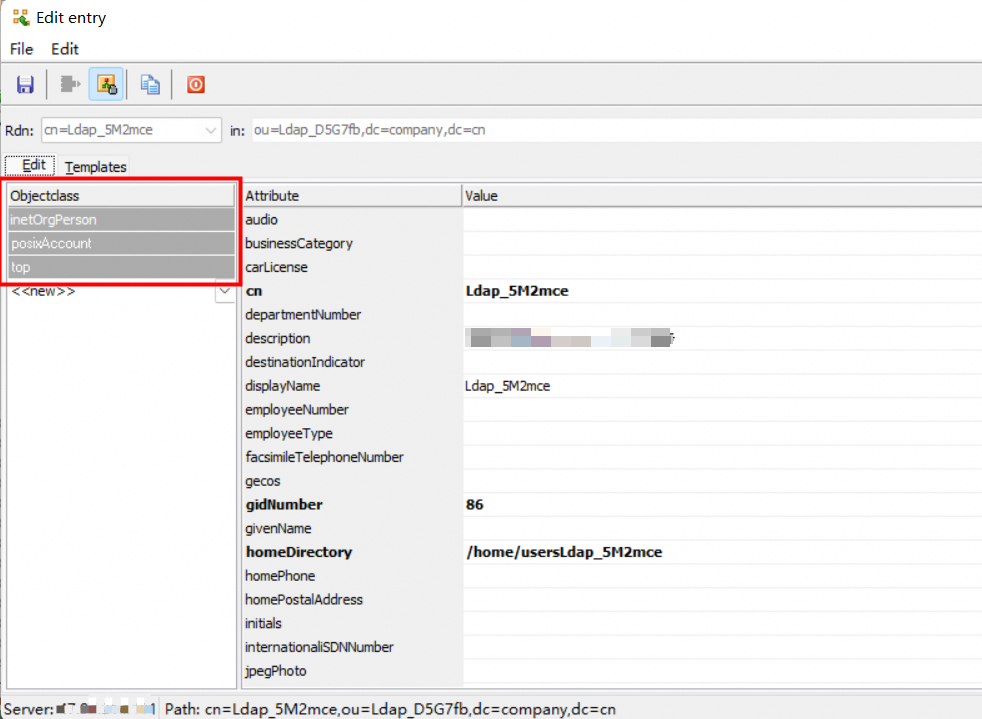
If you customize the ObjectClass for users or organizations, keep the value consistent across all objects. Inconsistent values cause unexpected sync results.
Logon identity
When a user logs on to IDaaS through delegated authentication, IDaaS searches LDAP using the configured attributes to find the user and verify the password.
Common attributes include uid, mobile phone number, mailbox, and employee ID. If you configure multiple attributes, they create an OR condition — each attribute must be unique within the directory and map to the same LDAP user. If multiple LDAP users match, authentication fails.
LDAP filter syntax
Changing ObjectClass or filter affects which LDAP entries are synced. During a full sync, IDaaS accounts and organizations that no longer match the filter are deleted. Before making changes, raise the sync protection limit and verify the filter results in a test environment.
Overview
A custom filter limits which users are synced from LDAP to IDaaS. By default, the filter includes an AND condition for ObjectClass. Click View Details to see the full expression.
To verify filter results before applying them, run the expression in an LDAP admin tool.
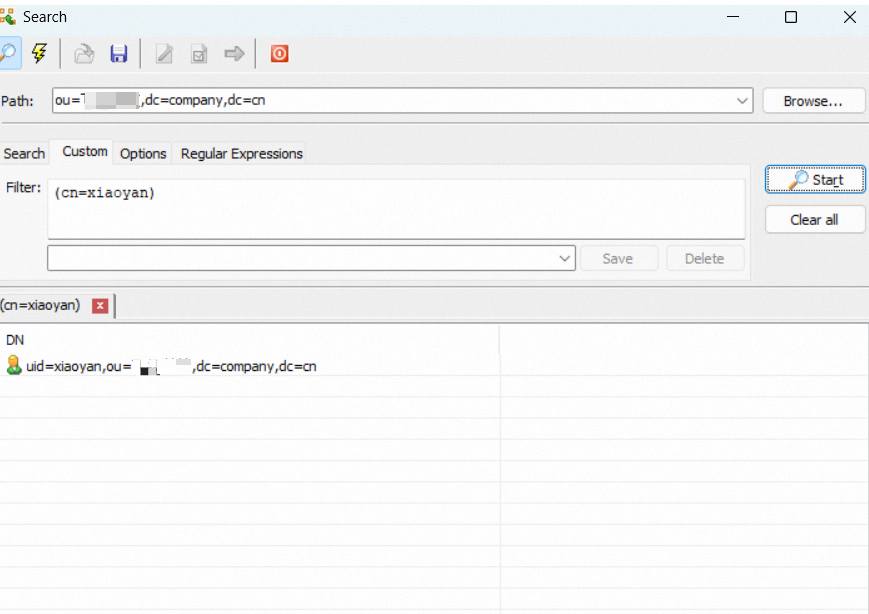
Common syntax
| Operator | Meaning | Example |
|---|---|---|
= | Equal to | (cn=Alice) |
>= | Greater than or equal to | (pwdLastSet>=1319563845000000000) |
<= | Less than or equal to | (employeeNumber<=1000) |
& | AND — all conditions must be met | (&(cn=CN*)(title=RD)) |
| | OR — at least one condition must be met | (|(cn=Test*)(cn=Admin*)) |
! | NOT — condition must not be met | (!(cn=Test*)(cn=Admin*)) |
Common statements
| Scenario | Filter expression |
|---|---|
| Username starts with "CN" | (cn=CN*) |
| User with a specific mailbox | (mail=alice@example.com) |
LDAP synchronization configuration
Obtain the Base DN
A Base Distinguished Name (Base DN) identifies the node in the LDAP directory tree under which IDaaS performs queries and sync operations. Set the Base DN in the Synchronization Direction settings.
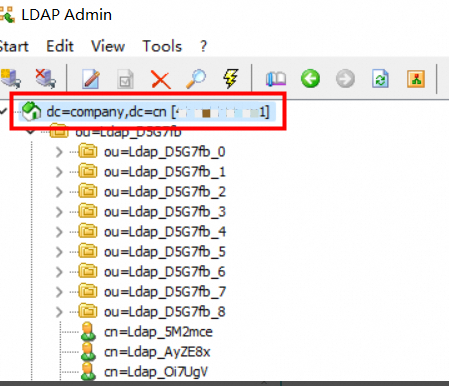
DN format: ou=some-organization,dc=example,dc=com. The root node DN is typically dc=example,dc=com (your domain). To find the DN of a node, view it in your LDAP admin tool.
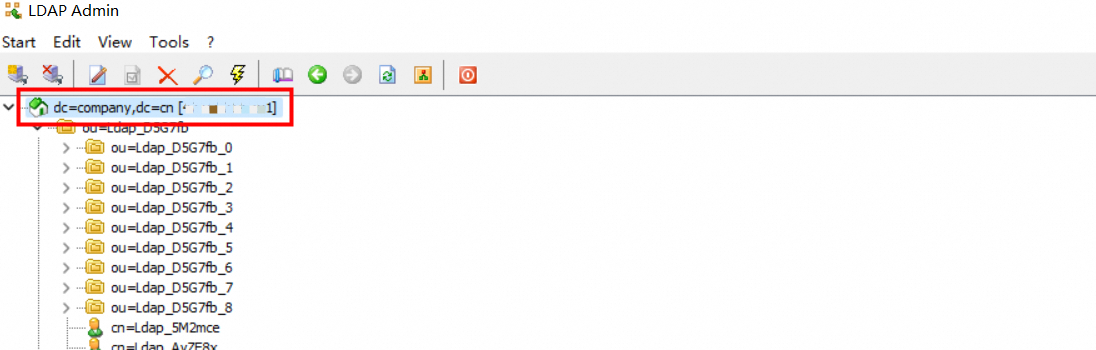
When you configure the Base DN, IDaaS also records the node's ObjectGuid as a fingerprint. If the node's path changes and the Base DN no longer matches the stored fingerprint, IDaaS blocks sync to prevent data errors. Reconfigure the source node to resume sync.
Scheduled verification
LDAP does not support incremental data queries, so IDaaS performs a full sync every morning. To sync immediately, trigger a manual full sync.
IDaaS includes sync protection: if more than 30 accounts or 10 organizations are scheduled for deletion in a single sync job, the job is automatically canceled. Adjust the protection threshold based on your organization's size.