Data sources inside a virtual private cloud (VPC) are not accessible from the public internet by default. Without a VPC data channel, you would need to assign elastic IP addresses (EIPs) to expose them -- increasing both attack surface and cost. A VPC data channel creates private connectivity between your Managed Service for Grafana workspace and data sources inside a VPC, keeping traffic off the public internet. A single channel supports multiple data sources in the same VPC.
VPC data channels apply only to Grafana workspaces created before September 1, 2023.
VPC data channels are available only in Pro Edition and Advanced Edition. If you are using Developer Edition, upgrade first.
How it works
After a VPC data channel is installed, data sources in that VPC can be reached from Grafana using their private IP addresses -- no EIP or public endpoint required.
Install a VPC data channel and connect a data source
This walkthrough covers the full workflow: preparing a data source inside a VPC (optional), installing a VPC data channel, configuring a Grafana data source to use it, and verifying the connection. Prometheus serves as the example, but the same approach works for any supported data source type.
Prerequisites
Before you begin, ensure that you have:
A Managed Service for Grafana workspace (Pro Edition or Advanced Edition)
A VPC with at least one vSwitch and one security group
A data source running inside the VPC (if not, complete the optional step below first)
(Optional) Install a Prometheus data source in a VPC
Skip this step if a data source is already running in your VPC. The following example installs Prometheus on an Elastic Compute Service (ECS) instance. You can install other data sources on the ECS instance based on your business requirements.
Log on to an ECS instance in the VPC.
Run the following commands to download, extract, and start Prometheus:
   # Download Prometheus
   wget https://github.com/prometheus/prometheus/releases/download/v2.8.1/prometheus-2.8.1.linux-amd64.tar.gz

   # Extract to /usr/local/
   tar -zxvf prometheus-2.8.1.linux-amd64.tar.gz -C /usr/local/

   # Rename the directory
   cd /usr/local
   mv prometheus-2.8.1.linux-amd64/ prometheus
   cd prometheus/

   # Verify the installation
   ./prometheus --version

   # (Optional) Edit prometheus.yml to customize your scrape configuration.

   # Start Prometheus in the background
   ./prometheus &
Open the following URL in a browser to access the Prometheus UI:
http://<ECS-public-IP>:9090/graphQuery the
upmetric. If the query result is displayed, Prometheus is installed and running correctly.NoteThe
upmetric withjob="prometheus"is a built-in self-monitoring metric that Prometheus exposes by default.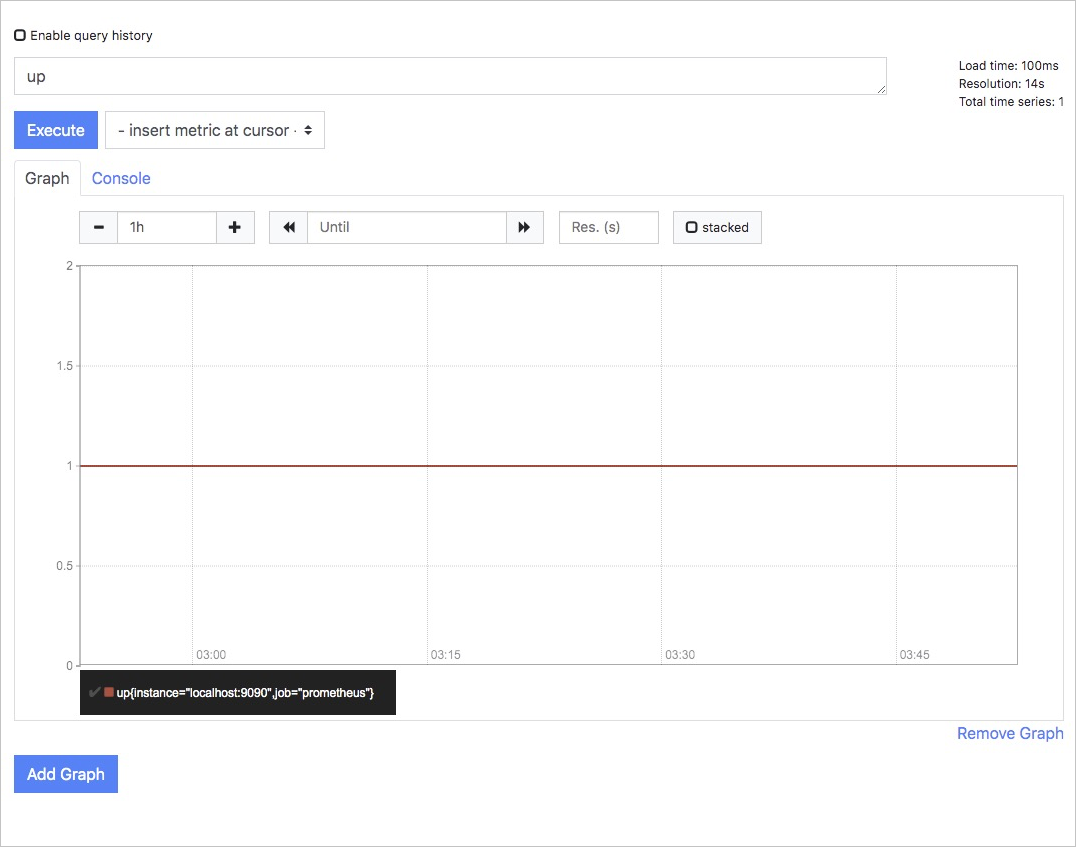
Install the data channel
Log on to the Managed Service for Grafana console. In the left-side navigation pane, click Workspace Management.
On the Workspace Management page, click the ID of the target workspace.
In the left-side navigation pane, click VPC Data Source Channel Management.
Click Install Data Source Channel. In the dialog box, configure the following parameters and click Install.
Parameter Description Region The region where your VPC is deployed VPC The VPC that contains your data source Name A descriptive name for this data channel vSwitch The vSwitch (subnet) to use for the connection Security Group The security group that controls traffic between the Grafana workspace and the VPC 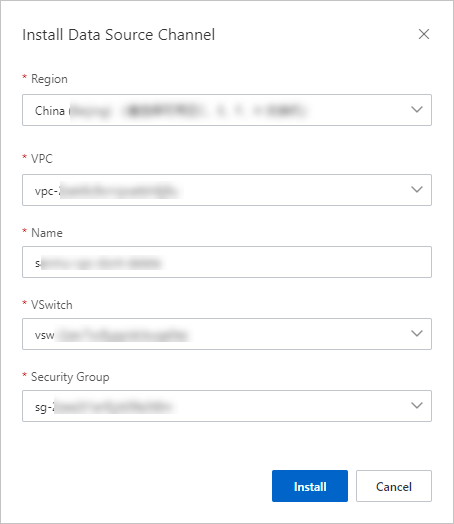
After installation completes, the new data channel appears on the VPC Data Source Channel Management page.

Add a data source in Grafana
On the VPC Data Source Channel Management page, find your data channel and click Configure Data Source in the Actions column. This opens the Grafana data source configuration page.
On the Data Sources tab, click Add data source, then select Prometheus.
NoteSelect the data source type that matches your setup. Prometheus is used here as an example.
On the Settings page, configure the following parameters: For other Prometheus-specific parameters, see the Grafana documentation.
NoteFind the primary private IP address of your ECS instance on its Instance Details page. For details, see the ECS documentation.
Parameter Value Network Type The VPC data channel you created in the previous section URL The private endpoint of your data source, for example http://<ECS-private-IP>:9090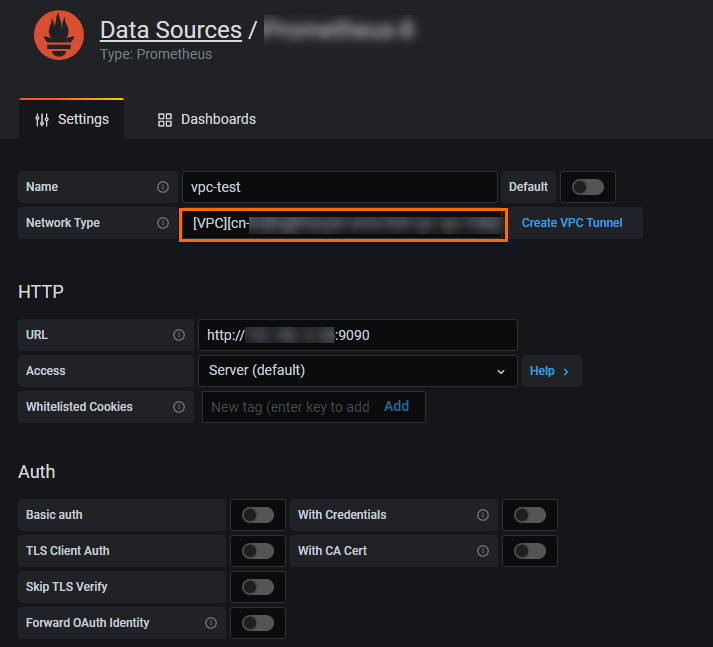
Click Save & test. If the message
Data source is workingappears, the connection is successful.
Verify the connection
After the data source is added, confirm that Grafana can query metrics through the VPC data channel.
In the left-side navigation pane of the Grafana console, click the
 icon to open the Explore page.
From the data source drop-down list at the top of the page, select the data source you added.
In the Metrics field, enter
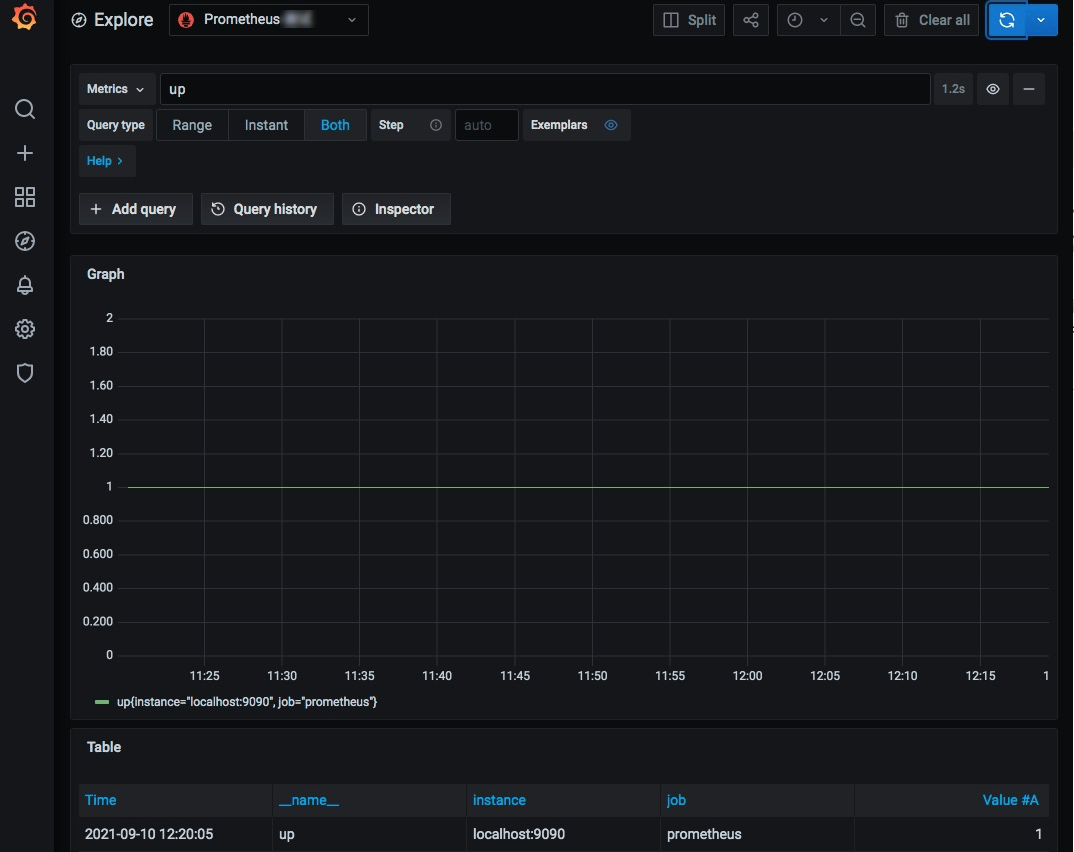
upand click Run query.If the result matches the Prometheus monitoring panel from the earlier installation step, the VPC data channel is working correctly.