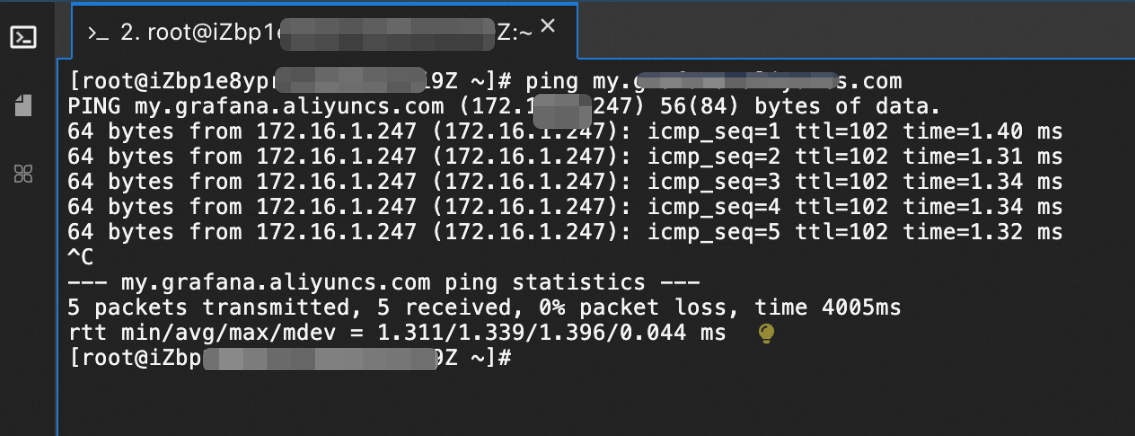
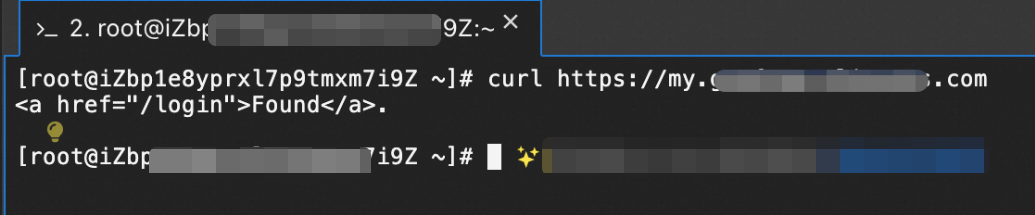
The custom private domain name feature of Managed Service for Grafana allows you to resolve your Grafana workspace to a specified domain name, meeting individual or enterprise requirements for unified domain names.
Preparations
Go to the Workspace Information page of the Grafana workspace, and enable the private domain name in the Basic Information section.
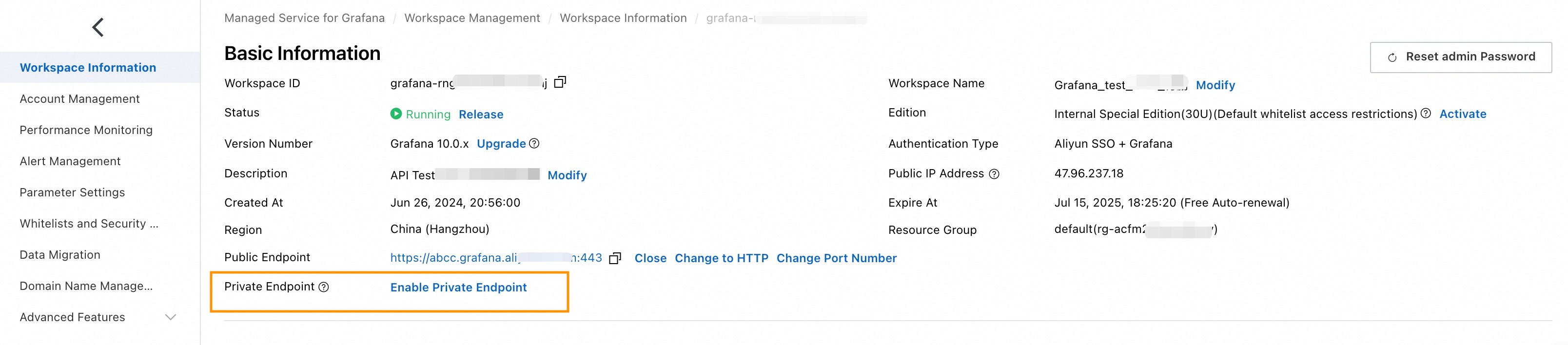
Obtain the private domain name of the workspace.
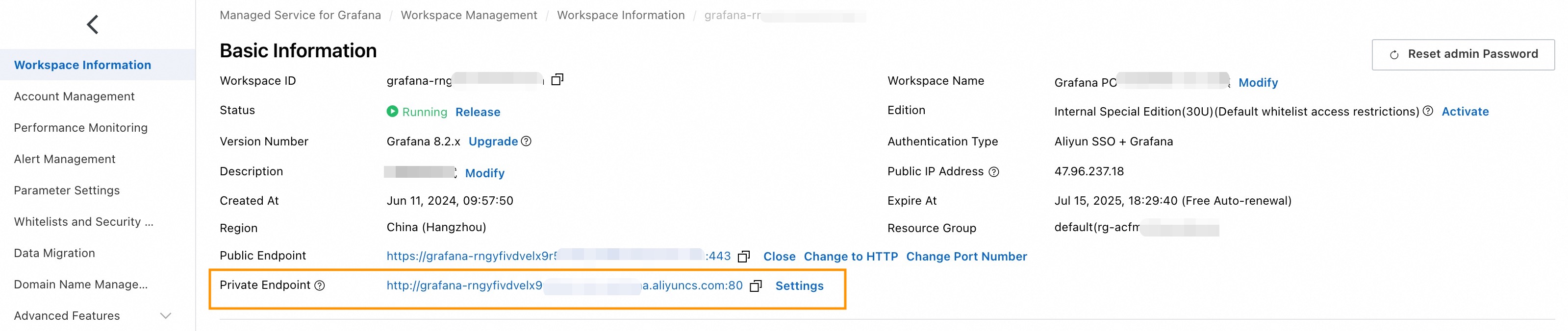
Method 1: Customize an HTTP private domain name
This example demonstrates how to customize a private domain name using Private DNS.
Log on to the Alibaba Cloud DNS console.
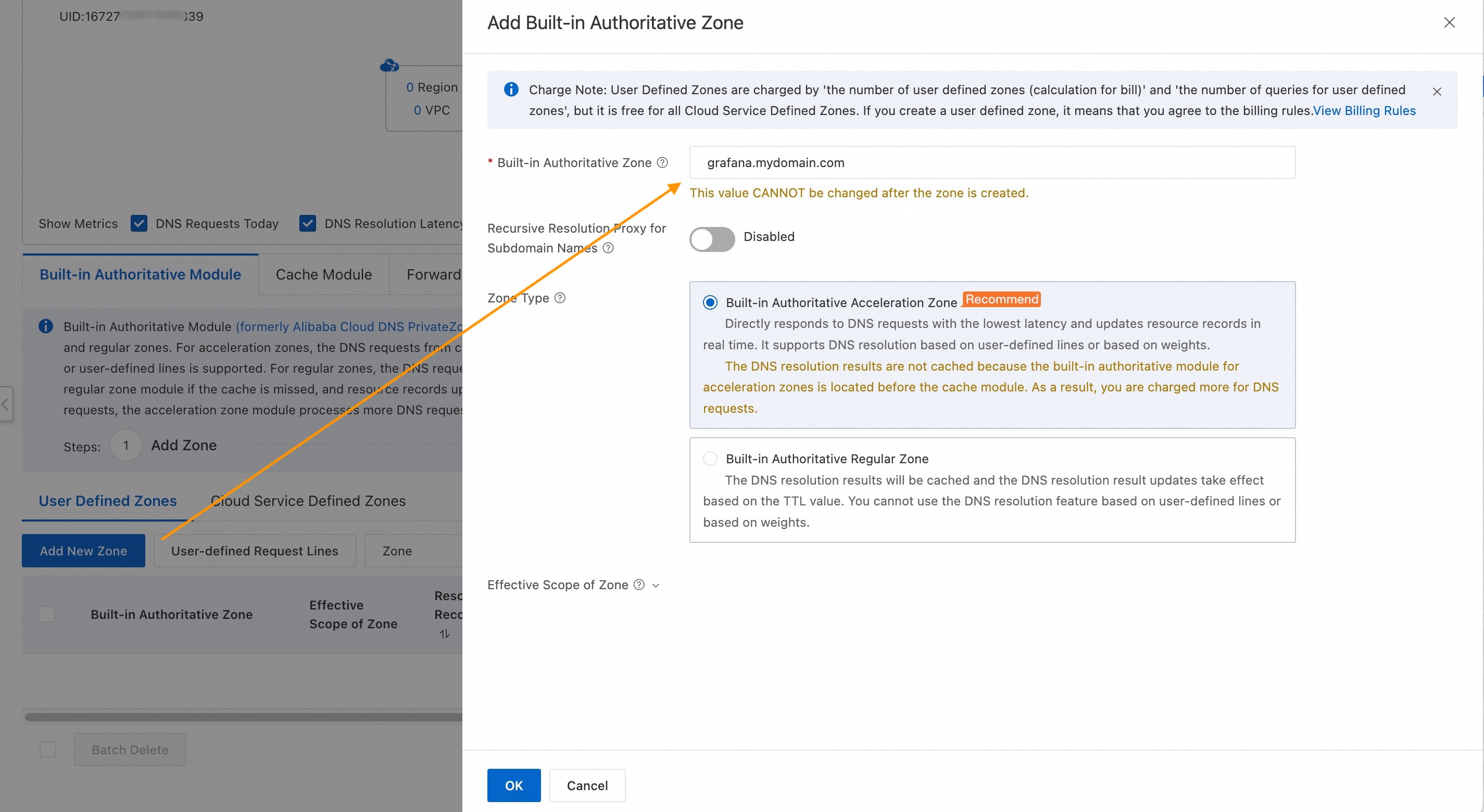
On the Private DNS (PrivateZone) page, click Add New Zone. In the panel that appears, set Built-in Authoritative Zone, and then click OK.
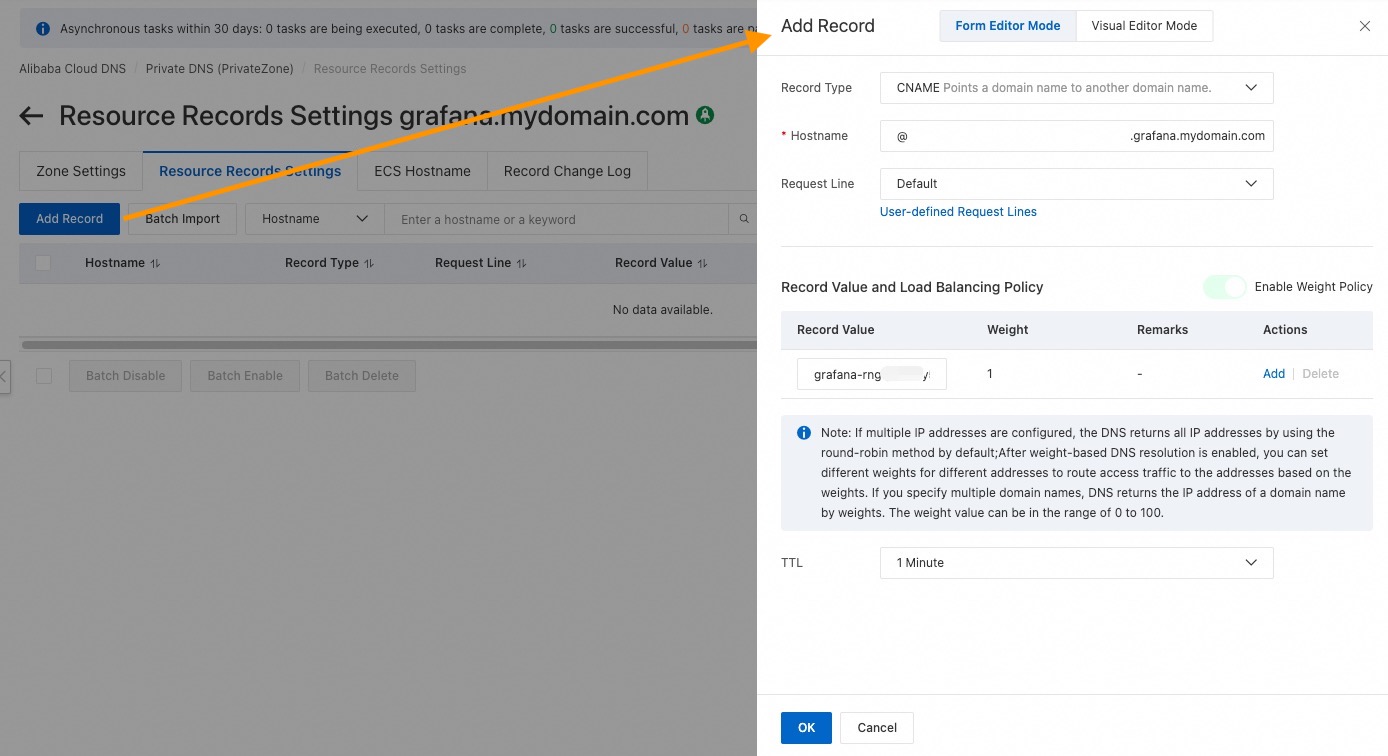
On the User Defined Zones tab of the Private DNS (PrivateZone) page, click the new zone. On the Resource Records Settings tab of the page that appears, click Add Record, and then set the parameters in the Add Record panel, as shown in the following figure.
Parameter
Description
Example
Record Type
Select CNAME, indicating that the domain name points to another domain name.
CNAME
Hostname
Fill in the domain name prefix.
@
Request Line
Select Default.
Default
Record Value and Load Balancing Policy
Record Value: Enter the private domain name of the Grafana workspace.
Weight: 1
Record Value: grafana-cn-kjp**-vpc.grafana.aliyuncs.com
Weight: 1
TTL
Select 1 Minute.
1 Minute
In the Change Resource Record Confirmation message, click OK.
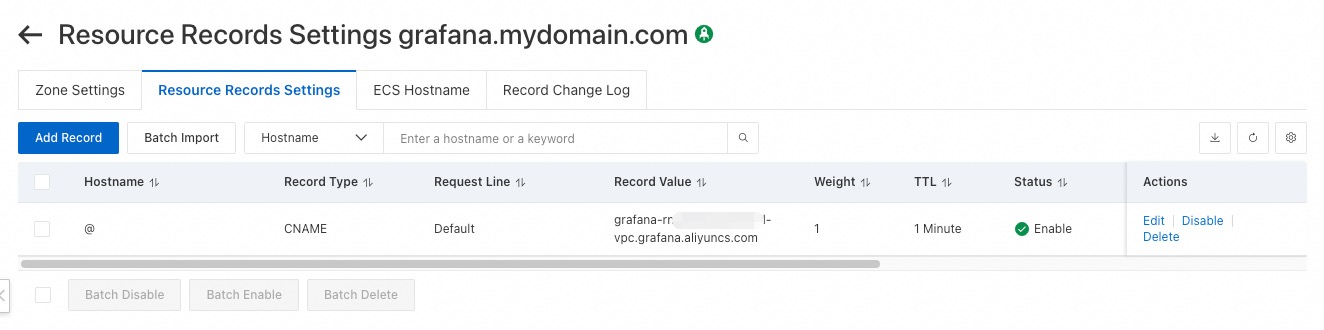
Set the effective scope of the domain name and select the VPC where the domain name needs to take effect.
Return to the Private DNS (PrivateZone) page, find the zone and click Effective Scope Settings in the Actions column.
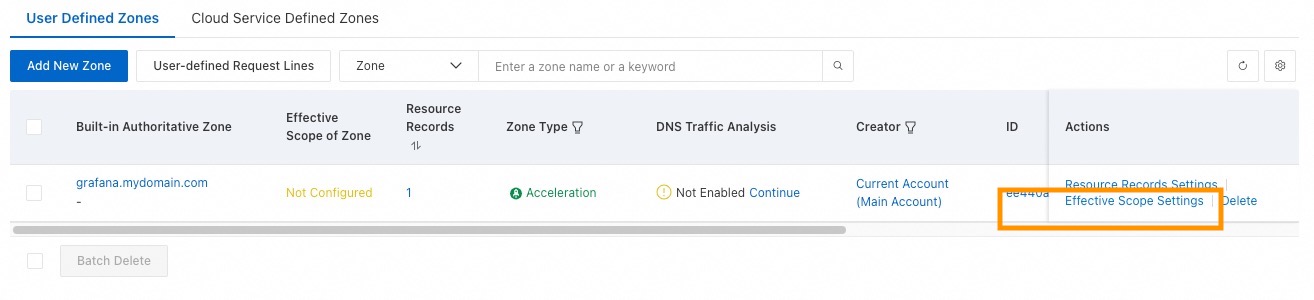
On the Zone Settings tab, select the VPC where the domain name needs to take effect, and click OK.
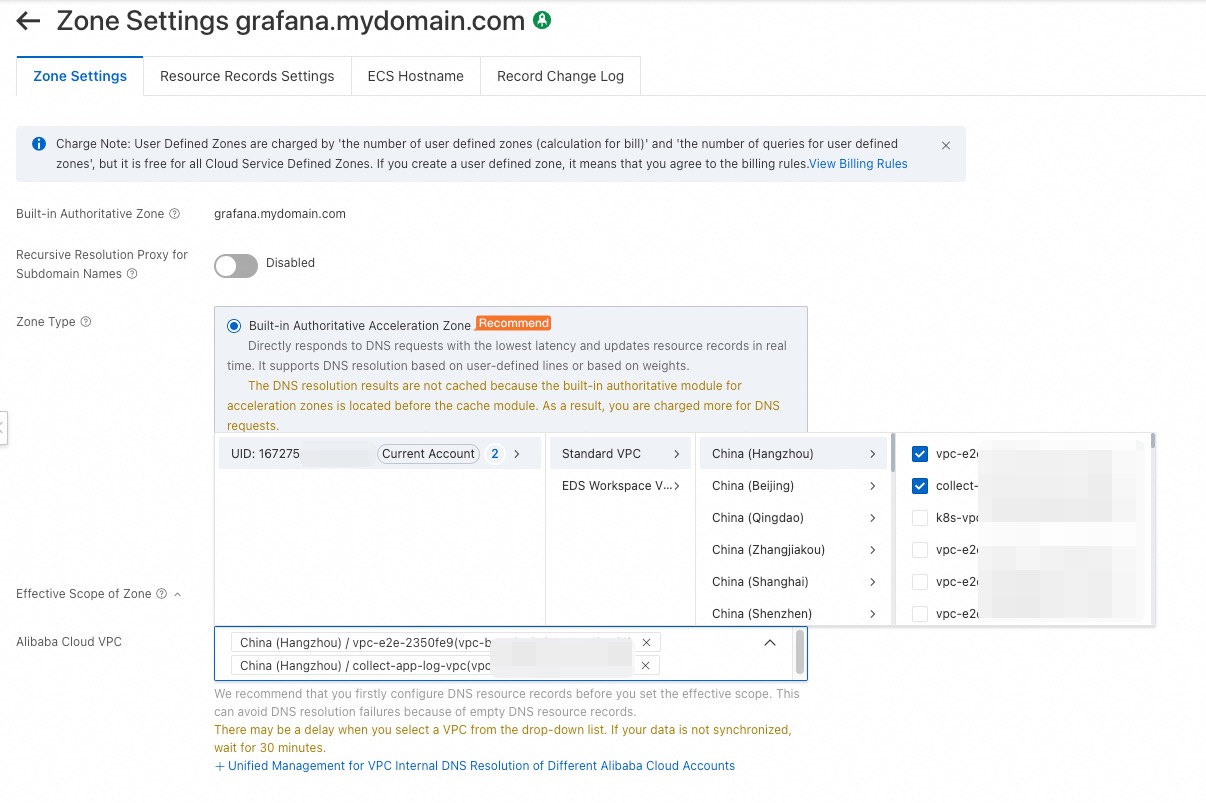
Verify whether the domain name is effective on the Elastic Compute Service (ECS) instance in the corresponding VPC.
Ping
grafana.mydomain.comor accesshttp://grafana.mydomain.comdirectly.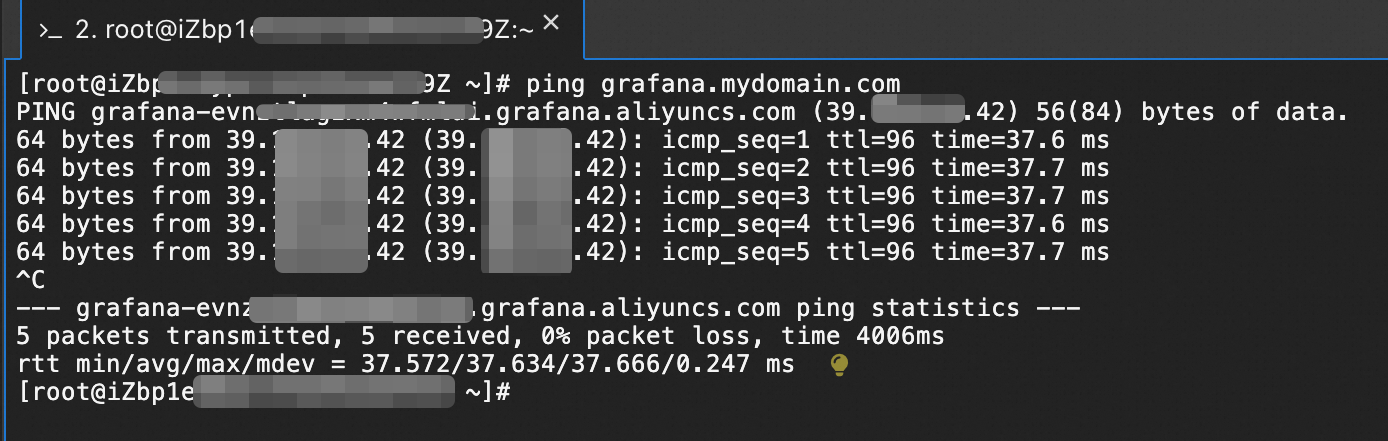
Method 2: Configure a custom HTTPS private domain name through ECS and NGINX
Install NGINX on an ECS instance.
Choose an ECS instance to deploy NGINX.
Download and decompress the installation package of NGINX.
# You can manually download the installation package from the link and then upload it to the server, or you can use the wget command to fetch the installation package directly.
wget https://nginx.org/download/nginx-1.24.0.tar.gz

# Choose the directory for installing NGINX.
cp nginx-1.24.0.tar.gz /usr/local/nginx/
cd /usr/local/nginx/
tar -zxvf nginx-1.24.0.tar.gz
cd nginx-1.24.0/
Install SSL dependencies.
yum -y install make zlib-devel gcc-c++ libtool openssl openssl-develCheck and set installation parameters.
./configure --user=nobody --group=nobody --prefix=/usr/local/nginx --with-http_stub_status_module --with-http_gzip_static_module --with-http_realip_module --with-http_sub_module --with-http_ssl_moduleCompile and install NGINX.
make
make install
Prepare the SSL certificate.
Copy the certificate and paste it in the
/usr/local/nginx/ssldirectory of the ECS instance. Name the certificate files as:/usr/local/nginx/ssl/cert.pem /usr/local/nginx/ssl/cert.keyConfigure NGINX.
Modify the
/usr/local/nginx/conf/nginx.conffile and add the following configuration.# HTTPS server # server { listen 443 ssl; server_name grafana.mydomain.com; ssl_certificate /usr/local/nginx/ssl/cert.pem; ssl_certificate_key /usr/local/nginx/ssl/cert.key; ssl_session_cache shared:SSL:1m; ssl_session_timeout 5m; ssl_ciphers HIGH:!aNULL:!MD5; ssl_prefer_server_ciphers on; location / { add_header Access-Control-Allow-Origin *; add_header Access-Control-Allow-Methods 'GET, POST, OPTIONS'; add_header Access-Control-Allow-Headers 'DNT,X-Mx-ReqToken,Keep-Alive,User-Agent,X-Requested-With,If-Modified-Since,Cache-Control,Content-Type,Authorization'; proxy_set_header Host $host; proxy_set_header X-Real-IP $remote_addr; proxy_set_header X-Forwarded-For $proxy_add_x_forwarded_for; proxy_pass http://grafana-cn-kjp4*******-vpc.grafana.aliyuncs.com:80; } }NoteReplace
server_nameandproxy_passwith actual values:server_name: the custom domain name.proxy_pass: the private domain name of the Grafana workspace.
Check the configuration.
cd /usr/local/nginx/sbin/
./nginx -t
If the check fails, modify and adjust the configuration file according to the error message. Examples of possible errors include: certificate file not found, incorrect certificate format, configuration format not compliant with NGINX requirements, line break comments not valid, or separators containing Chinese characters.
Start NGINX.
./nginxConfigure domain name resolution.
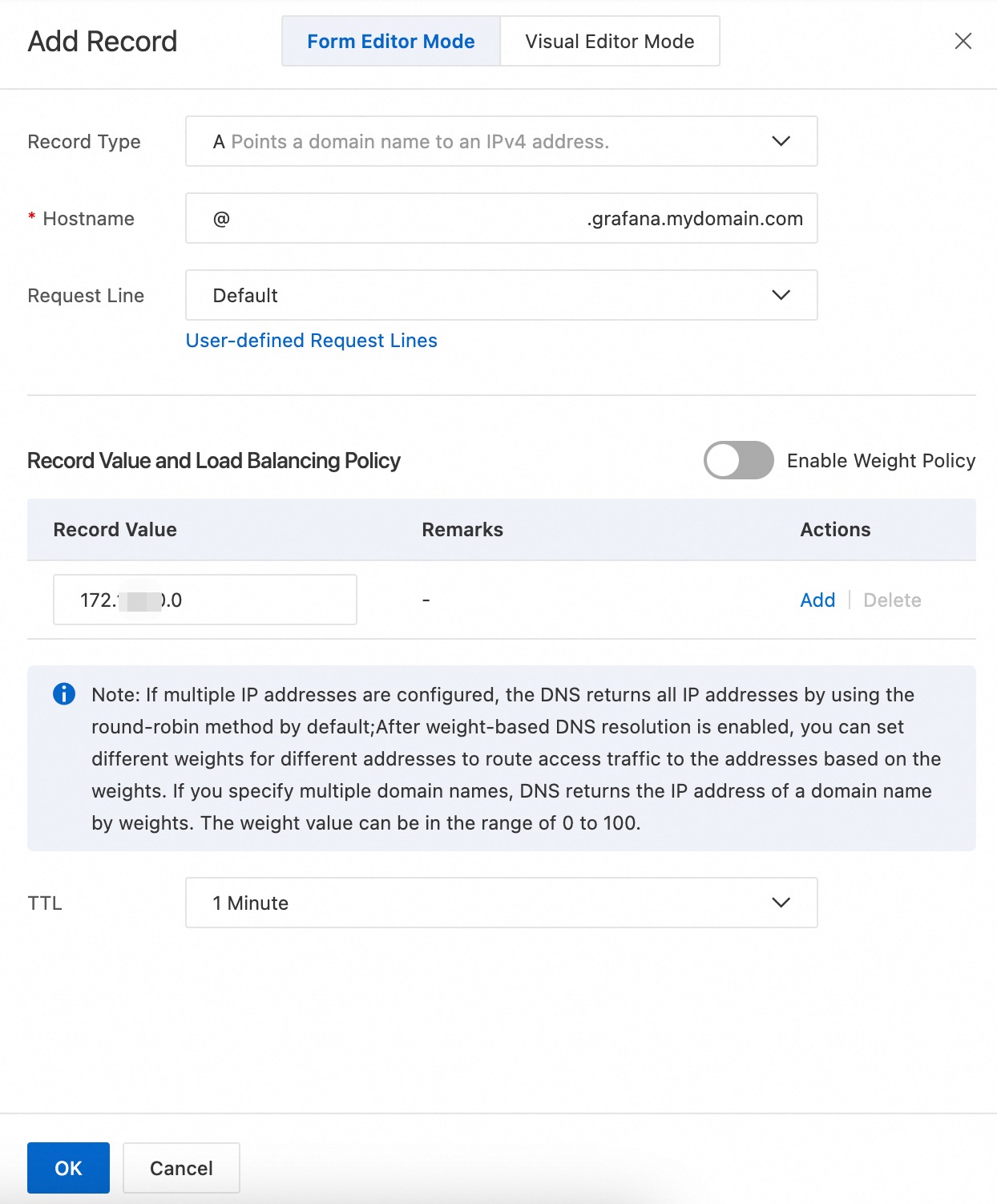
Refer to Method 1: Customize an HTTP private domain name to set up domain name resolution and configure the effective scope.
NoteOn the Resource Records Settings tab, add a new record, set the record type to A, and set the record value to the private IP address of the ECS instance.
Method 3: Configure a custom HTTPS private domain name through ALB
Add a listener and configure the private IP address.
Confirm the private domain name of the Grafana workspace.
Ping the private domain name to obtain the IP address.
ping grafana-cn-kjp4*******-vpc.grafana.aliyuncs.comNoteGenerally, the private IP address of a Grafana workspace does not change unless the workspace is stopped or the private domain name is disabled.
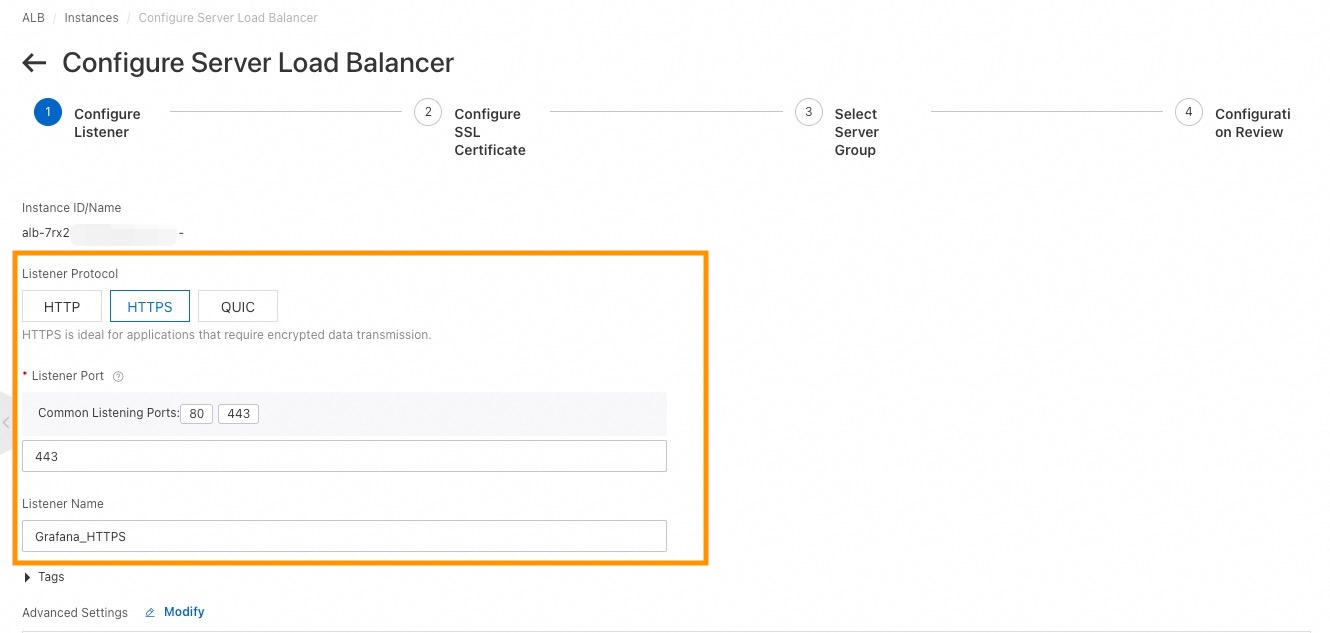
Add an HTTPS listener to the ALB instance. Follow these steps to set some important parameters. For more information, see Add an HTTPS listener.
Log on to the SLB console, navigate to ALB > Instances, find the ALB instance and click Create Listener in the Actions column.

In the Configure Listener step, refer to the following figure to set the parameters.
In the Configure SSL Certificate step, select an SSL certificate. If you do not have one, click Create SSL Certificate to generate a new SSL certificate.
In the Select Server Group step, set the following parameters.
Parameter
Description
Example
Server Group Type
Select IP Type.
IP Type
Server Group Name
Enter a custom server group name.
Grafana Service
NoteClick Add Server to add the private IP address of the Grafana workspace obtained from "Step a", with "Port 80".
Click Submit.
Confirm that the listener status is normal in the listener list.
Configure domain name resolution.
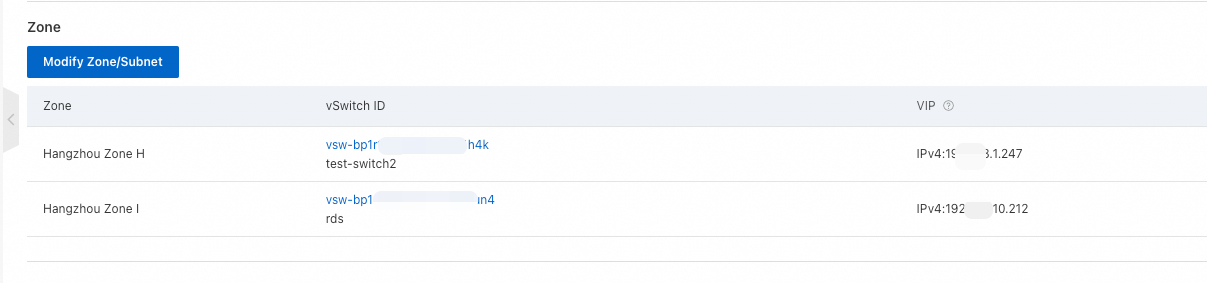
Obtain the VIP (virtual IP address) from the ALB instance details page.
Configure domain name resolution.
Refer to Method 1: Customize an HTTP private domain name to set up domain name resolution. Taking Private DNS as an example:
When adding a record, set the record type to A and the host record to @ (adjust according to your specific situation), and then add the ALB instance VIP obtained above as the record value.
Set the effective scope.
Confirm that the domain name is effective.