Transcoding is one of the most compute-intensive tasks in audio and video pipelines. This topic explains when and why to build your own serverless transcoding service using Function Compute and Serverless Workflow, compares two deployment architectures, and walks you through deploying and testing each one.
When to build your own transcoding service
Alibaba Cloud provides a managed transcoding service for standard audio and video needs. Build your own when you need:
Elastic scaling for existing workloads — You already run FFmpeg on virtual machines or containers and want to add elasticity and high availability without a full rewrite.
Parallel and batch processing — Every Friday, hundreds of 1080p videos larger than 4 GB are generated and must all finish within a few hours.
Custom post-processing — After transcoding, record details in a database or prefetch popular videos to CDN to reduce origin load.
Audio-specific processing — Convert audio formats, customize sample rates, or apply denoising.
Direct NAS or ECS disk access — Source files reside on Apsara File Storage NAS or Elastic Compute Service (ECS) cloud disks and cannot be moved to Object Storage Service (OSS) first.
Multi-step pipelines — Transcode, add watermarks, and generate GIFs — then extend with new steps later without affecting live services.
Lightweight or one-off tasks — Extract GIFs from the first few frames of an OSS video, or get the duration of audio or video files. A self-built solution costs less for these cases.
Solutions
Traditional self-managed deployment
Purchase ECS instances, deploy FFmpeg-based processing, and use OSS and CDN for storage and playback acceleration.

Serverless deployment
Choose between two architectures based on your workload complexity.
Simple video processing system
For basic transcoding needs. When a user uploads a video to OSS, an OSS trigger invokes a function. The function calls FFmpeg to transcode the video and saves the result back to OSS.

Video processing workflow system
For faster transcoding of large videos, or pipelines that combine multiple operations. An OSS trigger invokes a function, which starts a Serverless Workflow execution to transcode the video into one or more formats.

This architecture supports:
Transcoding a single video into multiple formats, with post-processing steps such as updating metadata in a database.
Automatic parallel processing when multiple files upload simultaneously — Function Compute scales out and transcodes each file into multiple formats at once.
NAS-based video segmentation for very large files — split the video into segments, transcode segments in parallel, then merge them. Tune segment duration to control speed versus resource usage.
Video segmentation splits a video stream into a series of segment files at fixed time intervals and generates a manifest file listing those segments.
Advantages of the serverless approach
Engineering efficiency
| Item | Serverless | Traditional self-managed |
|---|---|---|
| Infrastructure | None | Procure and manage it yourself. |
| Development | Focus on business logic. Use Serverless Devs to orchestrate and deploy resources. | Set up the production environment — install software, configure services, apply security updates — in addition to writing business logic. |
| Parallel and distributed processing | Use Serverless Workflow for orchestration. Stability and monitoring are handled by the platform. | Requires strong development skills and a robust monitoring system. |
| Learning curve | Know your preferred language and FFmpeg. | Requires Kubernetes and ECS knowledge on top of programming and FFmpeg. |
| Time to production | ~3 person-days (2 days development and testing, 1 day stress testing). | ~30 person-days — hardware procurement, environment setup, development, testing, monitoring, and canary release. |
Elastic scaling and operations
| Item | Serverless | Traditional self-managed |
|---|---|---|
| Scaling | Function Compute scales in milliseconds to handle traffic spikes. No operations required. | Requires Server Load Balancer (SLB) and manual scaling configuration. Scales more slowly. |
| Monitoring and alerting | Per-execution latency and logs, fine-grained Serverless Workflow execution details, and comprehensive alerting. | Metrics at the elastic scaling or container level. |
Transcoding performance
Baseline: a managed cloud transcoding service takes 188 seconds to convert an 89-second MOV file to MP4. This is the reference time T. Performance acceleration = T ÷ Function Compute transcoding time.
| Segment duration (s) | Function Compute transcoding time (s) | Performance acceleration |
|---|---|---|
| 45 | 160 | 117.5% |
| 25 | 100 | 188% |
| 15 | 70 | 268.6% |
| 10 | 45 | 417.8% |
| 5 | 35 | 537.1% |
These figures apply to CPU instances. For GPU-accelerated instances, see Best practices for audio and video processing.
Cost
The following tables compare transcoding costs for MP4 and FLV — the two most common on-demand formats. Function Compute memory is set to 3 GB.
Cost reduction = (Cloud vendor cost − Function Compute cost) ÷ Cloud vendor cost.
Table 1. MP4 to FLV
| Resolution | Bitrate | Frame rate | Function Compute time | Function Compute cost | Cloud vendor cost | Cost reduction |
|---|---|---|---|---|---|---|
| Standard definition 640×480 | 889 KB/s | 24 | 11.2 s | 0.003732288 | 0.032 | 88.3% |
| High definition 1280×720 | 1963 KB/s | 24 | 20.5 s | 0.00683142 | 0.065 | 89.5% |
| Ultra high definition 1920×1080 | 3689 KB/s | 24 | 40 s | 0.0133296 | 0.126 | 89.4% |
| 4K 3840×2160 | 11185 KB/s | 24 | 142 s | 0.04732008 | 0.556 | 91.5% |
Table 2. FLV to MP4
| Resolution | Bitrate | Frame rate | Function Compute time | Function Compute cost | Cloud vendor cost | Cost reduction |
|---|---|---|---|---|---|---|
| Standard definition 640×480 | 712 KB/s | 24 | 34.5 s | 0.01149678 | 0.032 | 64.1% |
| High definition 1280×720 | 1806 KB/s | 24 | 100.3 s | 0.033424 | 0.065 | 48.6% |
| Ultra high definition 1920×1080 | 3911 KB/s | 24 | 226.4 s | 0.0754455 | 0.126 | 40.1% |
| 4K 3840×2160 | 15109 KB/s | 24 | 912 s | 0.30391488 | 0.556 | 45.3% |
Cloud vendor video processing uses standard transcoding. Transcoding time under one minute is billed as one minute (two minutes used for billing here). Even if billed at 1.5 minutes, cost reduction would vary by less than 10%.
Real-world savings are typically greater than these figures suggest, for two reasons:
The test videos use high bitrates. Most production workloads involve standard-definition or low-definition videos with lower bitrates, which reduces Function Compute computation time and cost while cloud transcoding charges remain unchanged.
Cloud transcoding services often bill non-standard resolutions at the next tier. A 856×480 or 1368×768 video is billed at 1280×720 HD or 1920×1080 UHD rates — a sharp price jump even if the actual compute increase is under 30%. Function Compute bills precisely per actual usage.
Simple video processing system
By completing this section, you will have a working OSS-triggered transcoding function that automatically converts uploaded MP4 videos to FLV format.
Prerequisites
Before you begin, make sure you have:
Activated Function Compute. See Activate Function Compute.
An OSS bucket. See Create a bucket in the OSS console.
Deploy the simple video processing system
Step 1: Create a service
Log on to the Function Compute console. In the left navigation pane, click Services & Functions.
In the top menu bar, select a region. On the Services page, click Create Service.
In the Create Service panel, enter a service name and description, then click OK. For this example, set the service role to
AliyunFCDefaultRoleand attach theAliyunOSSFullAccesspermission policy. For full service configuration options, see Create a service.
Step 2: Create a function
On the Function Management page, click Create Function.
On the Create Function page, configure the following settings, then click Create. Video processing is time-intensive and file sizes vary, so the advanced configuration values above are recommended for this use case. For full function configuration options, see Create a function.
Setting Value Creation method Create with built-in runtime Handler type Event-driven handler Runtime Python 3.9 Code upload method Use sample code vCPU count 4 Memory 8 GB Temporary disk size 10 GB Timeout 7200 s
Step 3: Create an OSS trigger
On the function details page, click the Triggers tab. From the Version or alias drop-down list, select a version or alias. Click Create Trigger.
In the Create Trigger panel, configure the following settings, then click OK.
ImportantIf the object prefix starts with
/, the OSS trigger will not fire.Setting Action Example Trigger type Select Object Storage OSS. Object Storage OSS Name Enter a custom name. oss-trigger Version or alias Defaults to LATEST. For other versions or aliases, select one first from the function details page. See Manage versions and Manage aliases. LATEST Bucket name Select an existing OSS bucket. testbucket Object prefix Enter a prefix to match object names. Set both a prefix and suffix to avoid nested event loops and extra charges. For triggers in the same bucket with identical event types, prefixes and suffixes must not overlap. See OSS trigger rules. source File Extension Enter a suffix to match object names. Set both a prefix and suffix to avoid nested event loops and extra charges. mp4 Trigger events Select one or more triggering events. See OSS event definitions. oss:ObjectCreated:PutObject, oss:ObjectCreated:PostObject, oss:ObjectCreated:CompleteMultipartUpload Role name Select AliyunOSSEventNotificationRole. If this is your first trigger of this type, click OK in the dialog that appears to authorize it. AliyunOSSEventNotificationRole
Step 4: Write function code
On the function details page, click the Function Code tab and write your code in the editor. The function below converts MP4 videos to FLV format and saves the output to the
destdirectory in the same OSS bucket.# -*- coding: utf-8 -*- import logging import oss2 import os import json import subprocess import shutil logging.getLogger("oss2.api").setLevel(logging.ERROR) logging.getLogger("oss2.auth").setLevel(logging.ERROR) LOGGER = logging.getLogger() def get_fileNameExt(filename): (_, tempfilename) = os.path.split(filename) (shortname, extension) = os.path.splitext(tempfilename) return shortname, extension def handler(event, context): LOGGER.info(event) evt = json.loads(event) evt = evt["events"] oss_bucket_name = evt[0]["oss"]["bucket"]["name"] object_key = evt[0]["oss"]["object"]["key"] output_dir = "dest" dst_format = "flv" shortname, _ = get_fileNameExt(object_key) creds = context.credentials auth = oss2.StsAuth(creds.accessKeyId, creds.accessKeySecret, creds.securityToken) oss_client = oss2.Bucket(auth, 'oss-%s-internal.aliyuncs.com' % context.region, oss_bucket_name) exist = oss_client.object_exists(object_key) if not exist: raise Exception("object {} is not exist".format(object_key)) input_path = oss_client.sign_url('GET', object_key, 6 * 3600) # m3u8 special handling rid = context.request_id if dst_format == "m3u8": return handle_m3u8(rid, oss_client, input_path, shortname, output_dir) else: return handle_common(rid, oss_client, input_path, shortname, output_dir, dst_format) def handle_m3u8(request_id, oss_client, input_path, shortname, output_dir): ts_dir = '/tmp/ts' if os.path.exists(ts_dir): shutil.rmtree(ts_dir) os.mkdir(ts_dir) transcoded_filepath = os.path.join('/tmp', shortname + '.ts') split_transcoded_filepath = os.path.join( ts_dir, shortname + '_%03d.ts') cmd1 = ['ffmpeg', '-y', '-i', input_path, '-c:v', 'libx264', transcoded_filepath] cmd2 = ['ffmpeg', '-y', '-i', transcoded_filepath, '-c', 'copy', '-map', '0', '-f', 'segment', '-segment_list', os.path.join(ts_dir, 'playlist.m3u8'), '-segment_time', '10', split_transcoded_filepath] try: subprocess.run( cmd1, stdout=subprocess.PIPE, stderr=subprocess.PIPE, check=True) subprocess.run( cmd2, stdout=subprocess.PIPE, stderr=subprocess.PIPE, check=True) for filename in os.listdir(ts_dir): filepath = os.path.join(ts_dir, filename) filekey = os.path.join(output_dir, shortname, filename) oss_client.put_object_from_file(filekey, filepath) os.remove(filepath) print("Uploaded {} to {}".format(filepath, filekey)) except subprocess.CalledProcessError as exc: # if transcode fail, trigger invoke dest-fail function raise Exception(request_id + " transcode failure, detail: " + str(exc)) finally: if os.path.exists(ts_dir): shutil.rmtree(ts_dir) # remove ts file if os.path.exists(transcoded_filepath): os.remove(transcoded_filepath) return {} def handle_common(request_id, oss_client, input_path, shortname, output_dir, dst_format): transcoded_filepath = os.path.join('/tmp', shortname + '.' + dst_format) if os.path.exists(transcoded_filepath): os.remove(transcoded_filepath) cmd = ["ffmpeg", "-y", "-i", input_path, transcoded_filepath] try: subprocess.run( cmd, stdout=subprocess.PIPE, stderr=subprocess.PIPE, check=True) oss_client.put_object_from_file( os.path.join(output_dir, shortname + '.' + dst_format), transcoded_filepath) except subprocess.CalledProcessError as exc: # if transcode fail, trigger invoke dest-fail function raise Exception(request_id + " transcode failure, detail: " + str(exc)) finally: if os.path.exists(transcoded_filepath): os.remove(transcoded_filepath) return {}Click Deploy code.
Step 5: Test the function
Simulate OSS event parameters using function input to verify correctness. In production, the function triggers automatically when an OSS event occurs.
On the Function Code tab, click the
 icon to the right of Test Function and select Configure Test Parameters.
In the Configure test parameters panel, select Create new test event or Edit existing test event. Enter an event name and the following event content, then click OK.
{
    "events": [
        {
            "eventName": "oss:ObjectCreated:CompleteMultipartUpload",
            "eventSource": "acs:oss",
            "eventTime": "2022-08-13T06:45:43.000Z",
            "eventVersion": "1.0",
            "oss": {
                "bucket": {
                    "arn": "acs:oss:cn-hangzhou:123456789:testbucket",
                    "name": "testbucket",
                    "ownerIdentity": "164901546557****"
                },
                "object": {
                    "deltaSize": 122539,
                    "eTag": "688A7BF4F233DC9C88A80BF985AB****",
                    "key": "source/a.mp4",
                    "size": 122539
                },
                "ossSchemaVersion": "1.0",
                "ruleId": "9adac8e253828f4f7c0466d941fa3db81161****"
            },
            "region": "cn-hangzhou",
            "requestParameters": {
                "sourceIPAddress": "140.205.XX.XX"
            },
            "responseElements": {
                "requestId": "58F9FF2D3DF792092E12044C"
            },
            "userIdentity": {
                "principalId": "164901546557****"
            }
        }
    ]
}
For details about event parameters, see Configure function input parameters.
Click Test Function and view the result on the Function Code tab.
Video processing workflow system
By completing this section, you will have a Serverless Workflow-orchestrated transcoding pipeline that splits large videos into segments, transcodes each segment in parallel, merges the results, and supports multiple output formats.
Prerequisites
Before you begin, make sure you have:
Activated Function Compute. See Activate Function Compute.
An OSS bucket. See Create a bucket in the OSS console.
Activated Serverless Workflow. See Activate Serverless Workflow.
Activated Apsara File Storage NAS. See Activate Apsara File Storage NAS.
Activated Virtual Private Cloud (VPC). See Activate Virtual Private Cloud.
Configured the following Resource Access Management (RAM) roles:
AliyunFCDefaultRole — Assign when creating the service. Attach
AliyunOSSFullAccess,AliyunFnFFullAccess, andAliyunFCInvocationAccessto enable calling functions, managing workflows, and accessing OSS.AliyunOSSEventNotificationRole — Used by OSS to send event notifications.
fnf-execution-default-role — Required to create and manage Serverless Workflow workflows. Attach
AliyunFCInvocationAccessandAliyunFnFFullAccess.
Installed and configured Serverless Devs. See Install Serverless Devs and dependencies and Configure Serverless Devs.
Deploy the video processing workflow system
This solution uses Serverless Devs to deploy multiple functions and a Serverless Workflow in one step.
Step 1: Initialize the application
Run the following command to initialize the project:
s init video-process-flow -d video-process-flowConfigure the following items when prompted. Adjust values as needed.
| Configuration item | Example |
|---|---|
| Region | cn-hangzhou |
| Service name | video-process-flow-demo |
| Function Compute service RAM role ARN | acs:ram::10343546****:role/aliyunfcdefaultrole |
| OSS bucket name | testBucket |
| Prefix | source |
| Directory to save transcoded videos | dest |
| OSS trigger RAM role ARN | acs:ram::10343546****:role/aliyunosseventnotificationrole |
| Segment duration for video splitting | 30 |
| Output video format | mp4, flv, avi |
| Workflow name | video-process-flow |
| Workflow RAM role ARN | acs:ram::10343546****:role/fnf-execution-default-role |
| Credential alias | default |
Step 2: Deploy the project
cd video-process-flow && s deploy -ySuccessful deployment output looks like this:
[2023-08-31 13:22:21] [INFO] [S-CORE] - Project video-demo-flow successfully to execute

fc-video-demo-split:
  region:   cn-hangzhou
  service:
    name: video-process-flow-wg76
  function:
    name:       split
    runtime:    python3
    handler:    index.handler
    memorySize: 3072
    timeout:    600
fc-video-demo-transcode:
  region:   cn-hangzhou
  service:
    name: video-process-flow-wg76
  function:
    name:       transcode
    runtime:    python3
    handler:    index.handler
    memorySize: 3072
    timeout:    600
fc-video-demo-merge:
  region:   cn-hangzhou
  service:
    name: video-process-flow-wg76
  function:
    name:       merge
    runtime:    python3
    handler:    index.handler
    memorySize: 3072
    timeout:    600
fc-video-demo-after-process:
  region:   cn-hangzhou
  service:
    name: video-process-flow-wg76
  function:
    name:       after-process
    runtime:    python3
    handler:    index.handler
    memorySize: 512
    timeout:    120
fc-oss-trigger-trigger-fnf:
  region:   cn-hangzhou
  service:
    name: video-process-flow-wg76
  function:
    name:       trigger-fnf
    runtime:    python3
    handler:    index.handler
    memorySize: 128
    timeout:    120
  triggers:
    -
      type: oss
      name: oss-t
video-demo-flow:
  RegionId: cn-hangzhou
  Name:     video-process-flow
Verify the deployment
Log on to the OSS console. Navigate to the
sourcedirectory intestBucketand upload an MP4 video file.Log on to the Serverless Workflow console. On the Workflows page, click the target workflow. On the Executions tab, click the execution name to view the workflow execution flow and status.
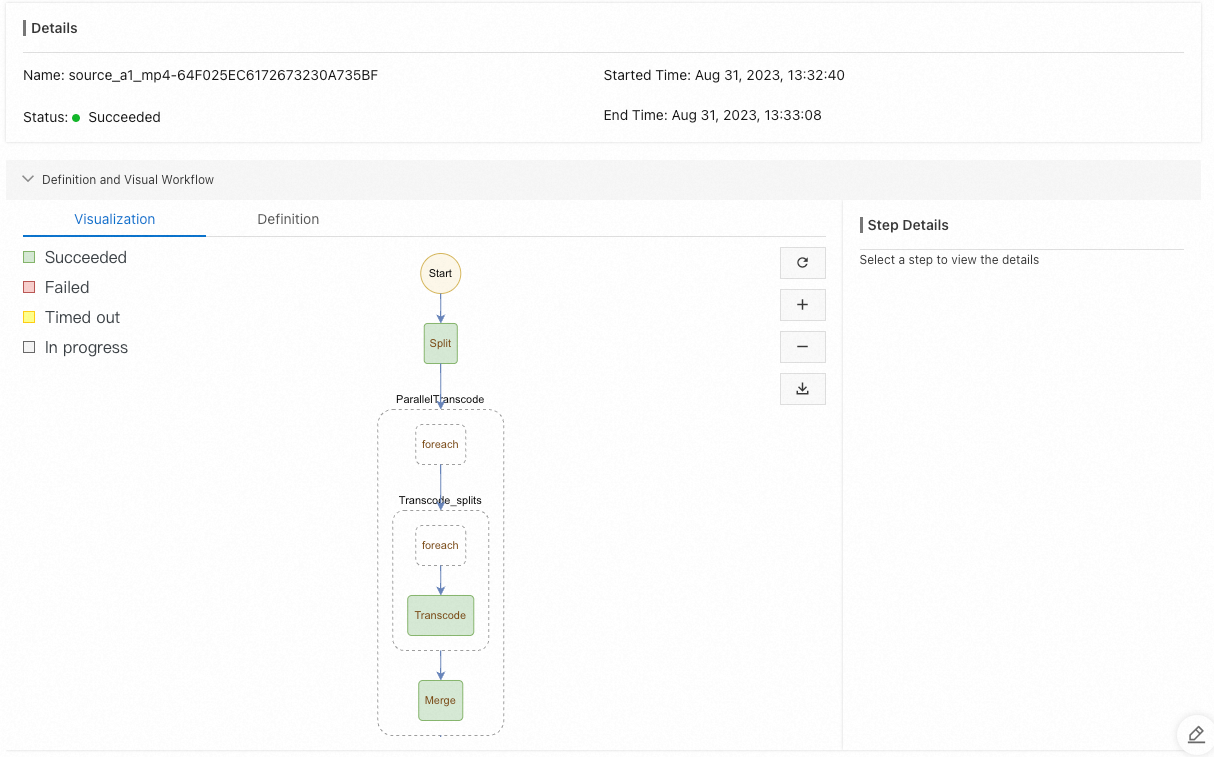
When the execution status shows Succeeded, go to the
destdirectory intestBucketto view the transcoded files. If the transcoded files appear, the video processing system is working correctly.
FAQ
Can I migrate an existing FFmpeg-based service from virtual machines or containers to Function Compute?
FFmpeg commands port directly to Function Compute with minimal refactoring. The migration cost is low, and the resulting service inherits Function Compute's elastic scaling and high availability.
How does the system handle many videos uploading at the same time?
When multiple files upload to OSS simultaneously, Function Compute scales out automatically and processes them in parallel. For load testing details, see Stress testing for the video processing workflow system.
I need to process hundreds of 1080p videos larger than 4 GB within a few hours. How do I do this?
Use the video processing workflow system and tune the segment duration. Shorter segments give each video more parallel compute resources, reducing total transcoding time. See Stress testing for the video processing workflow system.
I need to record transcoding details in a database or prefetch popular videos to CDN after processing. How do I do this?
Add custom steps to the Serverless Workflow definition — for example, a post-processing function that writes to a database or triggers a CDN prefetch after transcoding completes.
My pipeline includes transcoding, watermarking, and GIF generation. How do I add new steps later without affecting live services?
Serverless Workflow only orchestrates function invocations. Update only the relevant functions. Use function versions and aliases to run canary releases safely. See Manage versions.
I only need lightweight tasks like extracting GIFs from the first few frames or getting audio/video duration. How do I build this?
Run the relevant FFmpeg commands directly in a function. For a complete example, see fc-oss-ffmpeg.
My source files are on NAS or ECS cloud disks. How do I process them without moving them to OSS?
Mount the NAS file system to your function and read files directly. See Configure a NAS file system.
References
OSS triggers: OSS triggers overview and Configure native OSS triggers
Serverless Devs: Manage functions with Serverless Devs and Common Serverless Devs commands