To allow multiple users to collaborate on a Flink project and perform tasks such as job development and Operations and Maintenance (O&M) in the development console, you can add them as members and attach roles. This topic describes authorization scenarios, role types, and the authorization procedure.
Authorization scenarios
Scenario | Interface | Description |
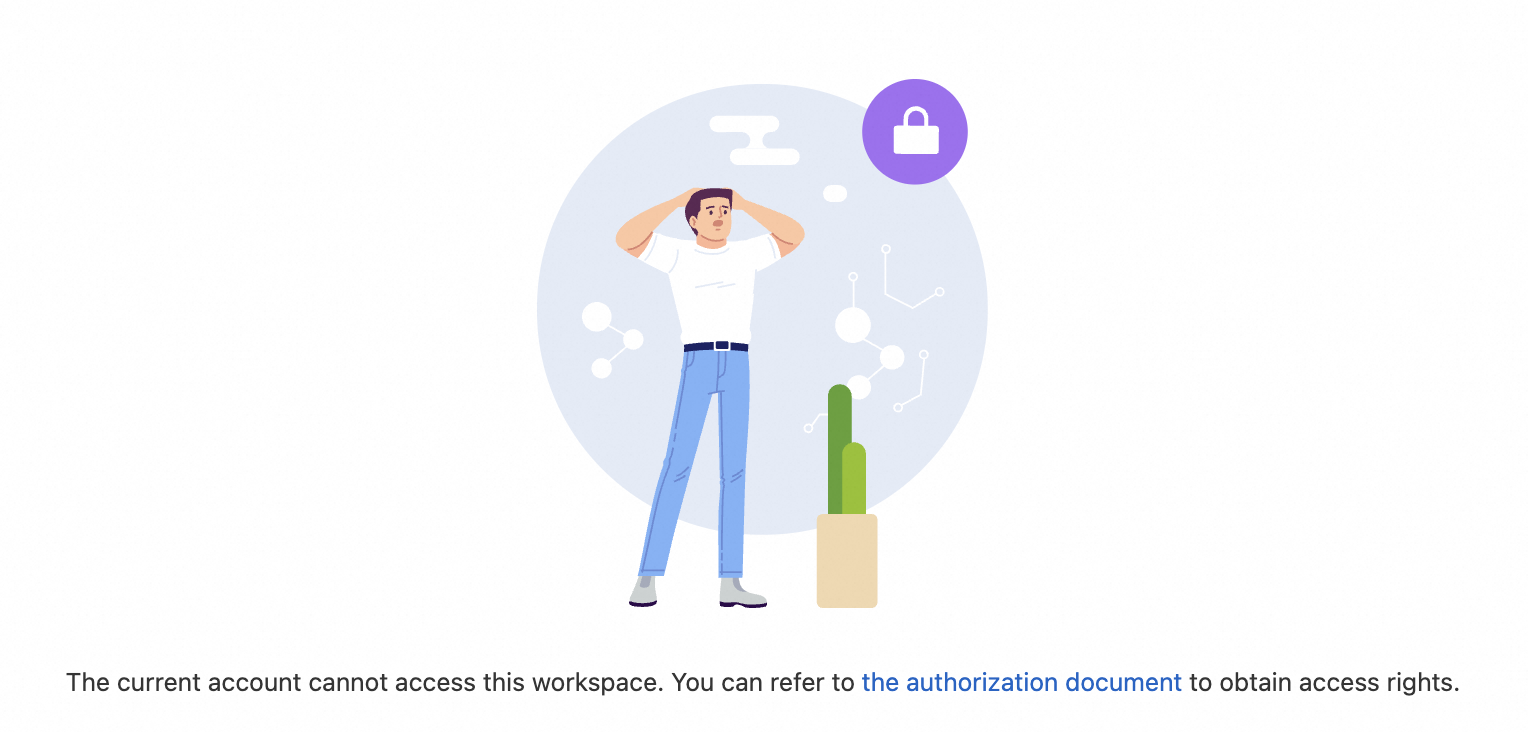
Cannot access the current project |
| This indicates that you do not have access permissions for this project. Contact a member with the owner role or a user with member management permissions to assign you the viewer role or a higher role. For more information, see Authorization procedure. After you are granted the permissions, refresh the page or access it again. |
Cannot use a specific feature or operation |
| This indicates that your account lacks the required permissions for this action. Contact a member with the owner role or a user with role management permissions. Ask them to modify the permissions of your custom role to meet your operational needs. |

Role types
A role is a collection of access permissions. The real-time computing development console provides two types of roles: system roles and custom roles. The following table describes the differences between them.
Role type | Role description | Notes |
System role | Flink has three built-in system roles: owner, editor, and viewer. For the permission differences between system roles, see Fine-grained permission list. |
|
Custom role | If system roles do not meet your requirements for fine-grained authorization, you can create custom roles. You can quickly extend and add required permissions based on the permissions of the viewer or editor role. |
|
Prerequisites
Read the Authorization instructions.
Authorization procedure
1. (Optional) Create a custom role
You can create a custom role with specific permissions as needed. If you want to use a default system role, you can skip this step.
Log on to the real-time computing development console as a member with the Owner role or with role management permissions.
At the top of the page, select the target project.
In the navigation pane on the left, click , and then click the Role Management tab.
Click Add Role and enter the required information.
Parameter
Description
Role Name
The name of the custom role. The name must start with a letter, can contain only digits, letters, and hyphens (-), and must be no more than 64 characters in length.
Role Description
A description or additional information about the role. This helps administrators and other members understand the purpose and permission scope of the role. The description can be up to 256 characters in length.
Role Permissions
To ensure permission integrity, some permission points have dependencies on other required permission points. The system automatically selects these dependencies for you. For details about permission dependencies, see Fine-grained permission list.
Click OK. You can then view, edit, and delete the custom role that you added.
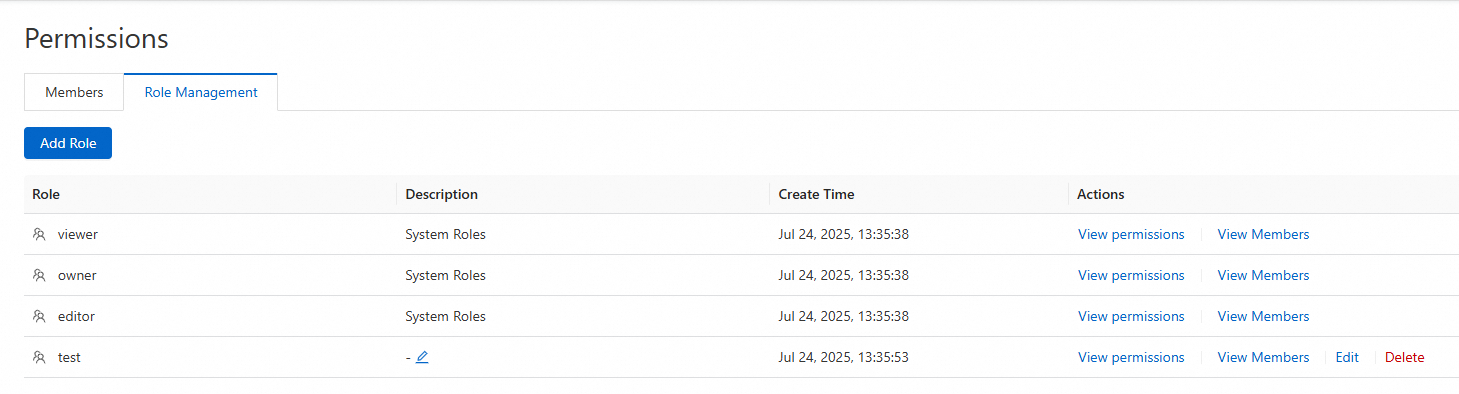
View Permissions: View the permissions of the role.
View Members: View the members that are attached to the role.
Edit Permissions: Members with role editing permissions can add or remove permissions as needed.
Delete Custom Role: Before you delete a role, consider the security risks. You must remove all members from the role or assign them different roles. After the role has no attached members, a member with role deletion permissions can delete the role.
2. Attach a role to a member
Attach a role to a member to ensure that the member has the necessary permissions.
Log on to the real-time computing development console as a member with permissions to create members, such as a member with the Owner role.
At the top of the page, select the target project.
In the navigation pane on the left, click , and then click the Member Management tab.
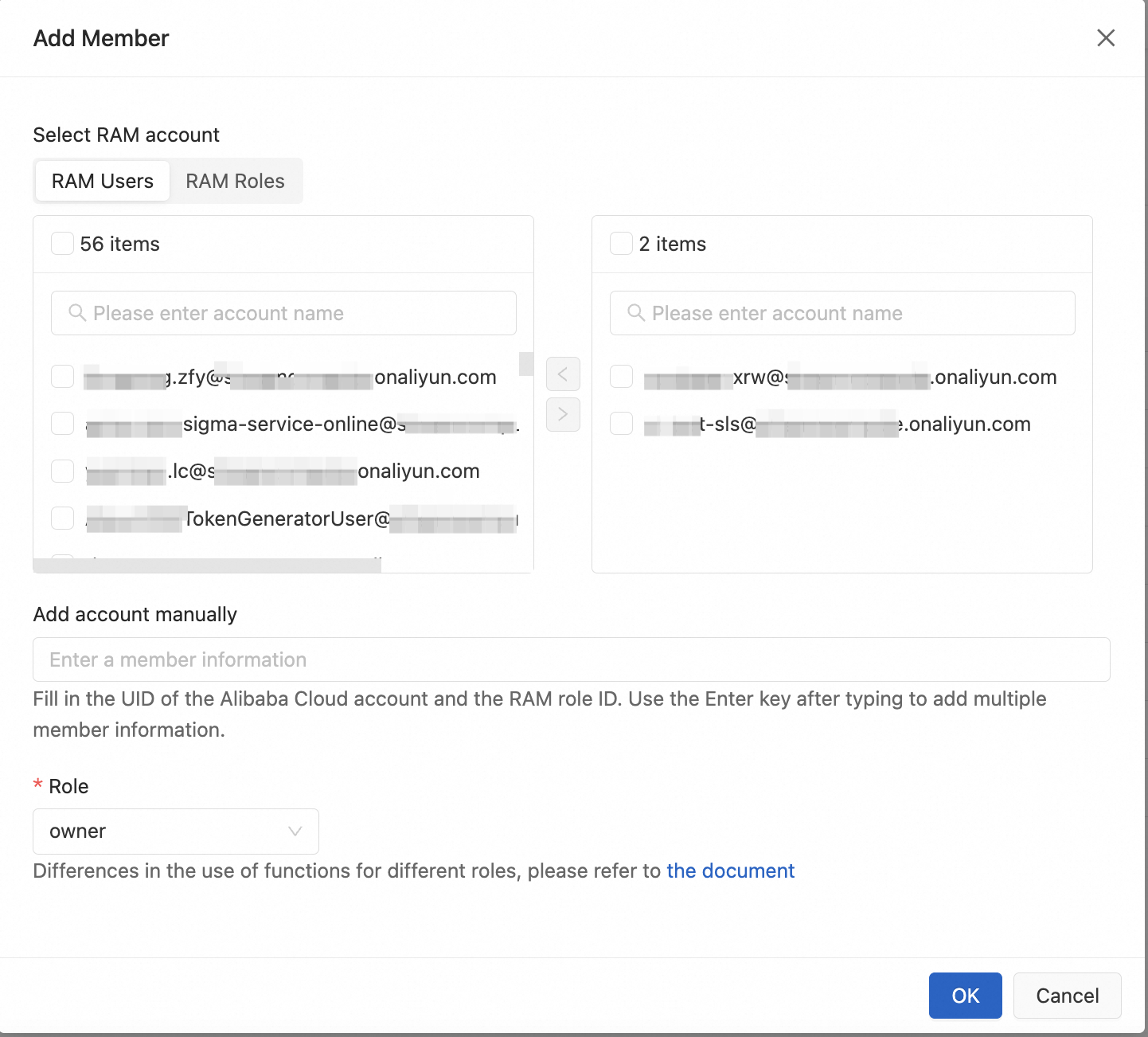
Click Add Member, add a member, and select a Role for the member.
Configuration item
Details
Select RAM account
Displays the Resource Access Management (RAM) users and RAM roles that are created under the Alibaba Cloud account for the project. You can select multiple users and roles for authorization.
Add account manually
Manually enter other Alibaba Cloud account IDs, RAM user IDs, or RAM role IDs for authorization. The following list describes how to view the IDs:
Alibaba Cloud account ID: Click the profile picture in the upper-right corner of the console. In the Account Center, navigate to the Security Settings page to view your Account ID.
RAM user ID (UID): For more information, see View the information about a RAM user.
RAM role ID: For more information, see View the information about a RAM role.
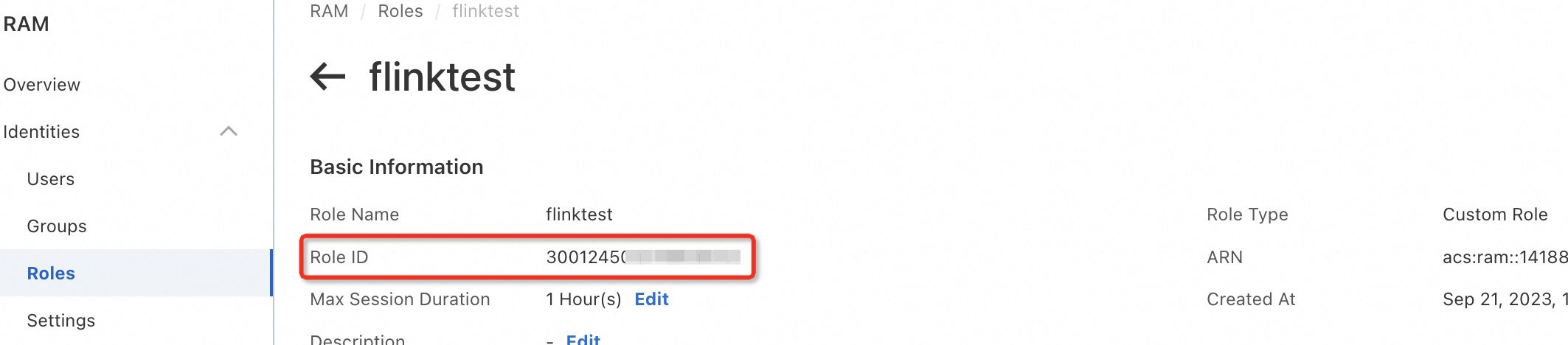
Role
You can select a system role or a custom role. Before you select a target role, you can go to the Role Management tab and click View Permissions in the Actions column of the target role to view its permissions.
Click OK.
3. Log on and use the console after authorization
After the authorization is complete, the newly added member can log on to the real-time computing development console and use its features.
If the member is already logged on: After the permissions are granted, the member must refresh the page to access the target project.
If the member is not logged on: After the permissions are granted, the member can access the target project using the project URL.
Fine-grained permission list
First-level permission | Second-level permission | owner | editor | viewer |
ETL/Data ingestion | View list of SQL/YAML job drafts | √ | √ | √ |
Develop SQL/YAML job drafts (create, edit) | √ | √ | ||
Debug SQL job drafts | √ | √ | ||
Deep check SQL/YAML job drafts | √ | √ | ||
Delete SQL/YAML job drafts | √ | √ | ||
Deploy SQL/YAML job drafts | √ | √ | ||
Data query | View data query scripts | √ | √ | √ |
Edit data query scripts (create, edit, delete) | √ | √ | ||
Execute data query scripts | √ | √ | ||
Job O&M | View list of O&M deployments | √ | √ | √ |
Deploy JAR and Python jobs | √ | √ | ||
Update O&M deployment configuration | √ | √ | ||
Delete O&M deployments | √ | √ | ||
Start/Stop job instances | √ | √ | ||
Data Management | View materialized tables | √ | √ | √ |
View metadata | √ | √ | √ | |
View tables | √ | √ | √ | |
Create materialized tables | √ | √ | ||
Create catalogs | √ | √ | ||
Create tables | √ | √ | ||
Delete materialized tables | √ | √ | ||
Delete catalogs | √ | √ | ||
Delete tables | √ | √ | ||
Edit materialized tables | √ | √ | ||
File Management | View resources | √ | √ | √ |
Upload resources | √ | √ | ||
Delete resources | √ | √ | ||
Download resources | √ | √ | ||
Session Management | Delete session clusters | √ | √ | |
View session clusters | √ | √ | √ | |
Create session clusters | √ | √ | ||
Update session cluster configuration | √ | √ | ||
Start/Stop session clusters | √ | √ | ||
Security Center | View member list | √ | √ | √ |
Create members | √ | √ | ||
Edit members | √ | |||
Delete members | √ | |||
View role list | √ | √ | √ | |
Create roles | √ | |||
Edit roles | √ | |||
Delete roles | √ | |||
View variable list | √ | √ | √ | |
Create variables | √ | √ | ||
Delete variables | √ | √ | ||
Configuration Management | View job templates | √ | √ | √ |
Edit job templates | √ | √ | ||
Git Configuration | Attach Git repository | √ | ||
Pull code changes | √ | √ | ||
Push code changes | √ | √ | ||
Detach Git repository | √ |
References
If you use a RAM user or RAM role to access the real-time computing management console and perform operations such as purchasing, viewing, or deleting workspaces, you must grant the required permissions. For more information, see Management Console Authorization.