This document provides a comprehensive walkthrough of the complete workflow for integrating the ZOLOZ iOS SDK locally via Swift Package, including test code to verify successful SDK integration.
Prerequisites
Before integrating the ZOLOZ iOS SDK, ensure that your Xcode version is 15.0 or later.
Steps
This document uses the SPMDemo example project, where the Resources directory has already been created. The following steps will demonstrate the complete integration process of the ZOLOZ iOS SDK based on this project.
Step 1: Obtain the ZOLOZ SDK
Contact ZOLOZ technical support to obtain the ZOLOZ SDK (provide in ZIP format).
Extract the ZIP file, a complete SDK folder will be generated after extraction.
Step 2: Integrate the ZOLOZ SDK
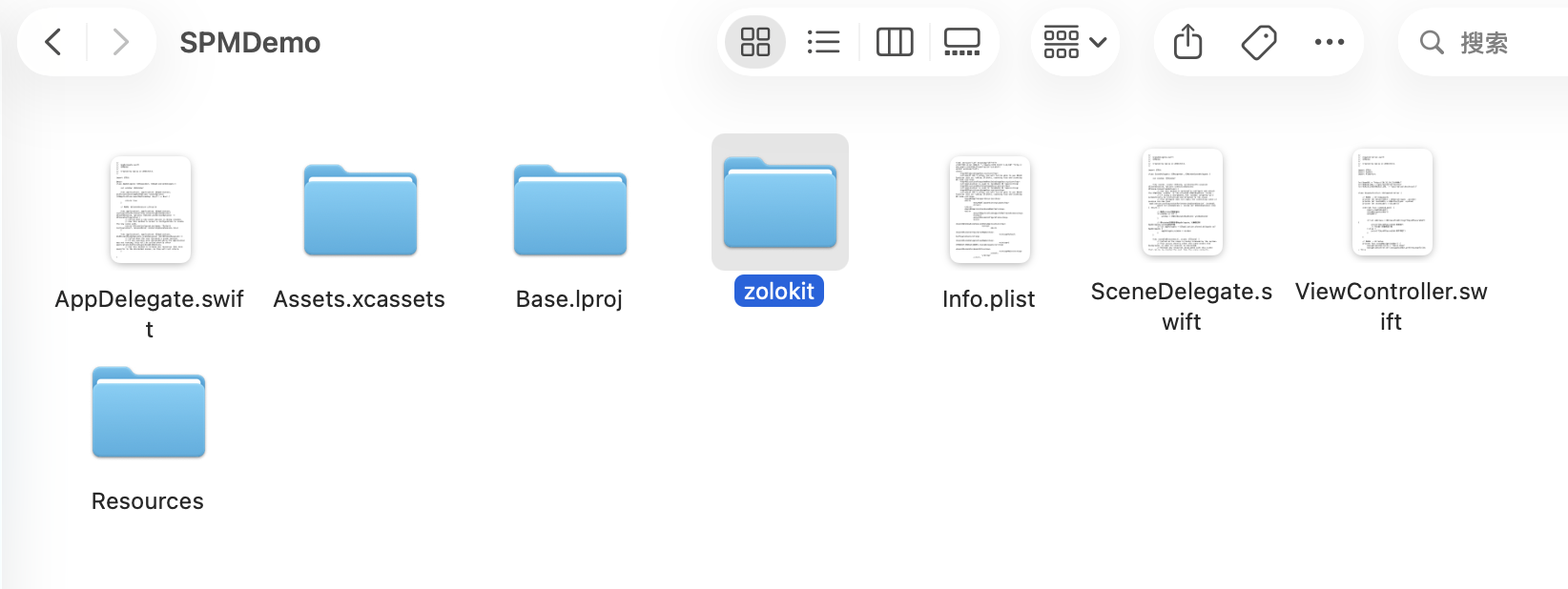
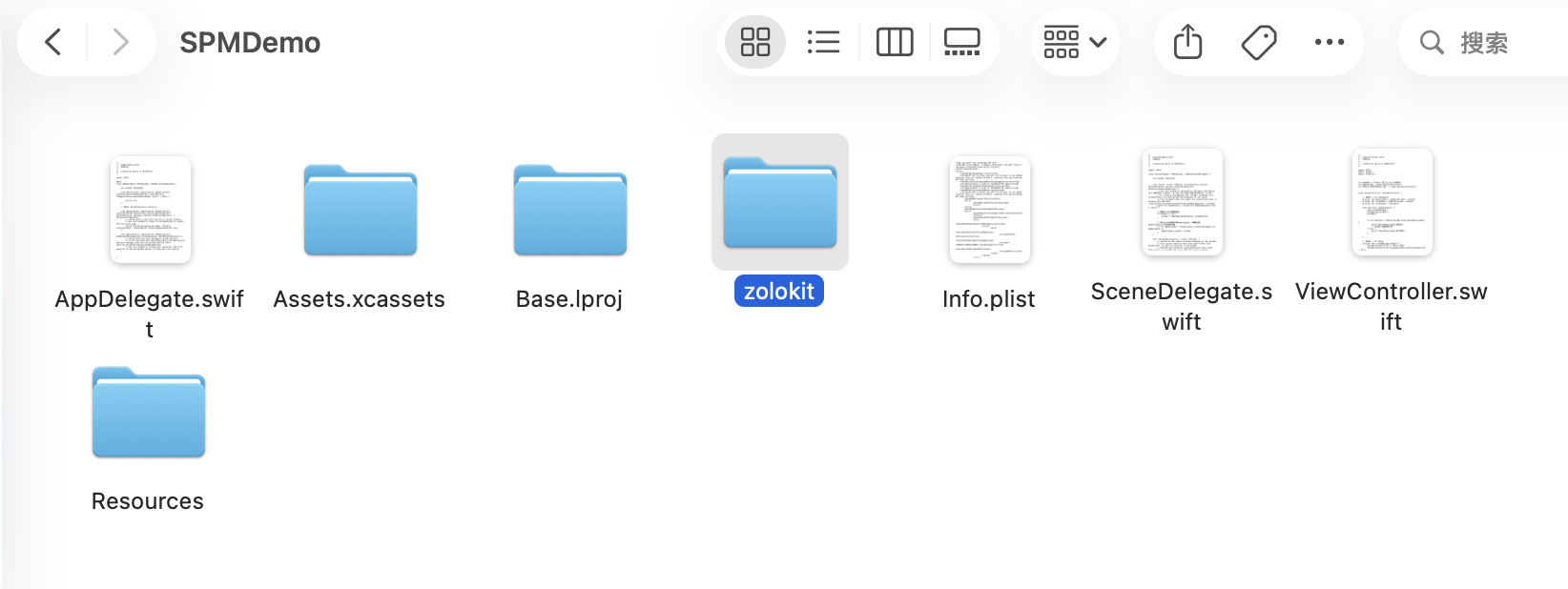
Copy the decompressed zolozkit folder into the project directory.
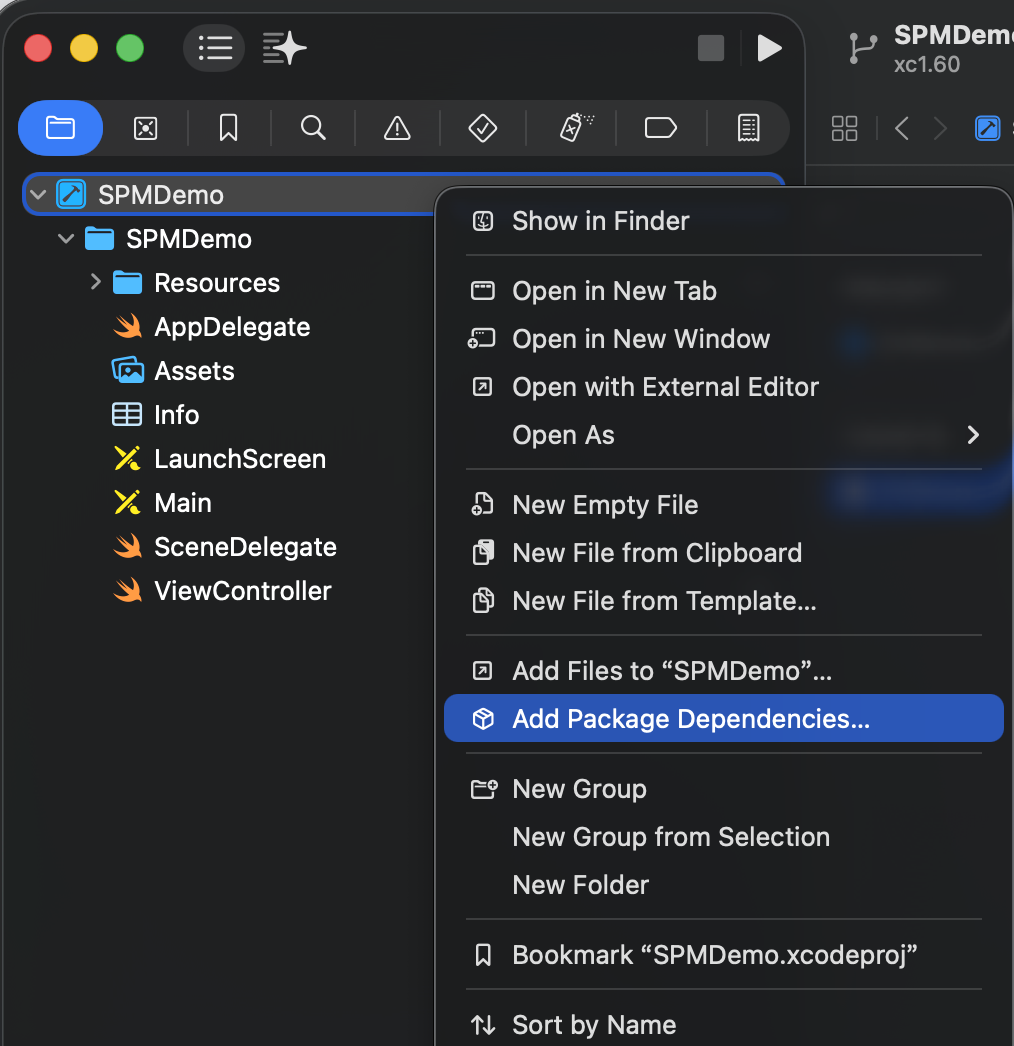
Add the package dependency.
Open Xcode, and select File > Add Package Dependencies....
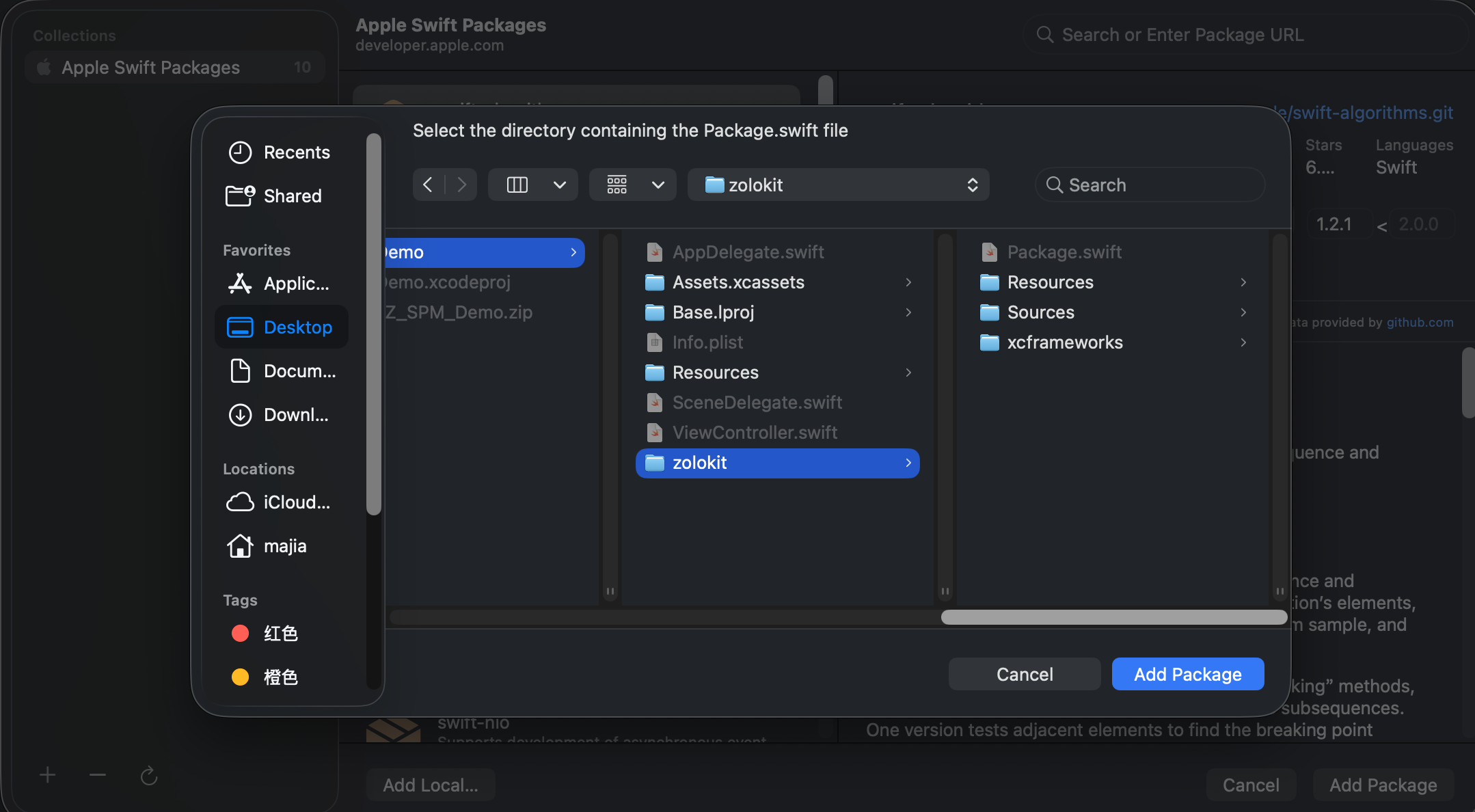
In the dialog box, choose Add Local..., which will open a file selection window.
Select zolozkit folder in the dialog box.
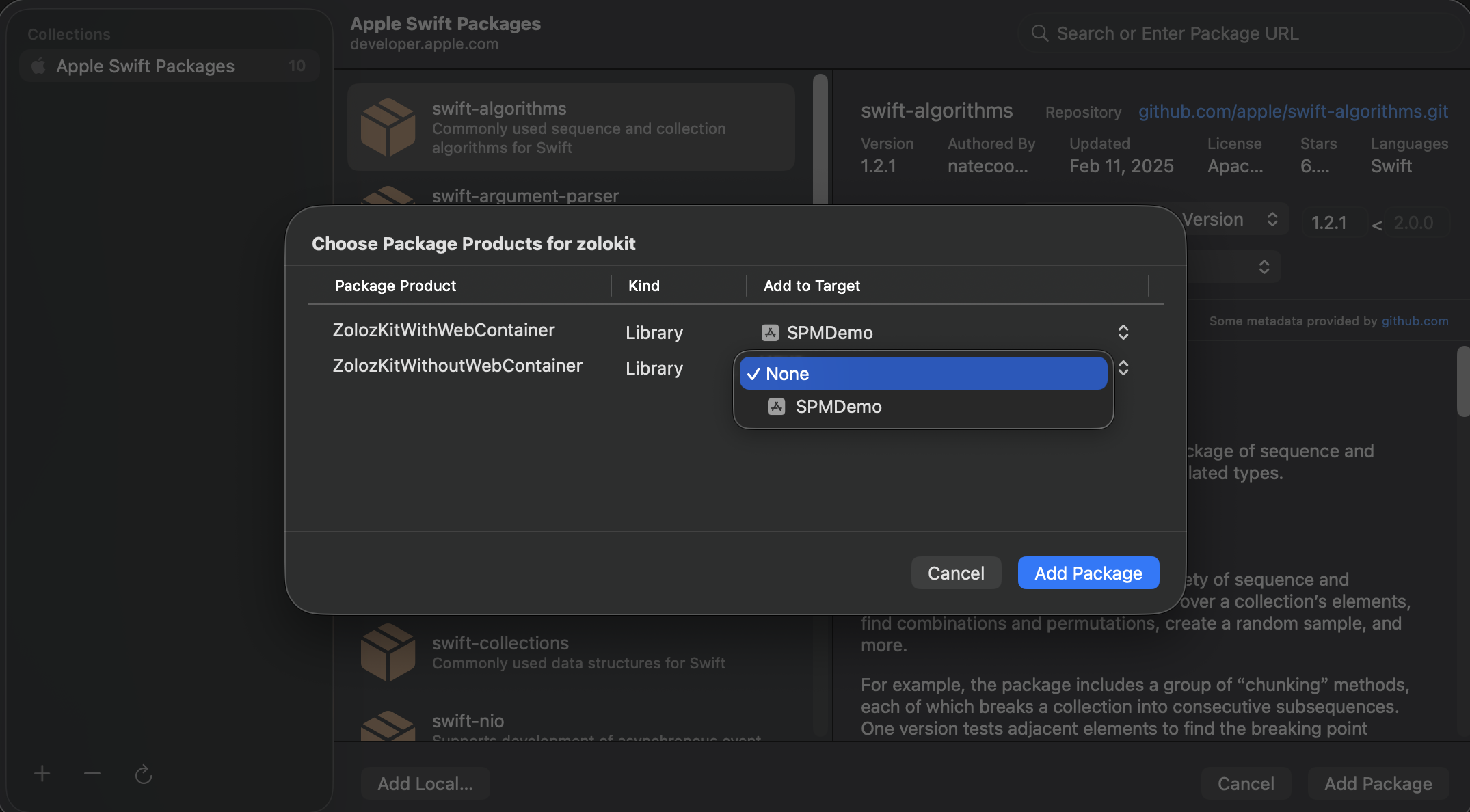
Configure Package Products.
SetZolozKitWithoutWebContainertoNonein dialog box, and click Add Package to complete addition.Check the link status.
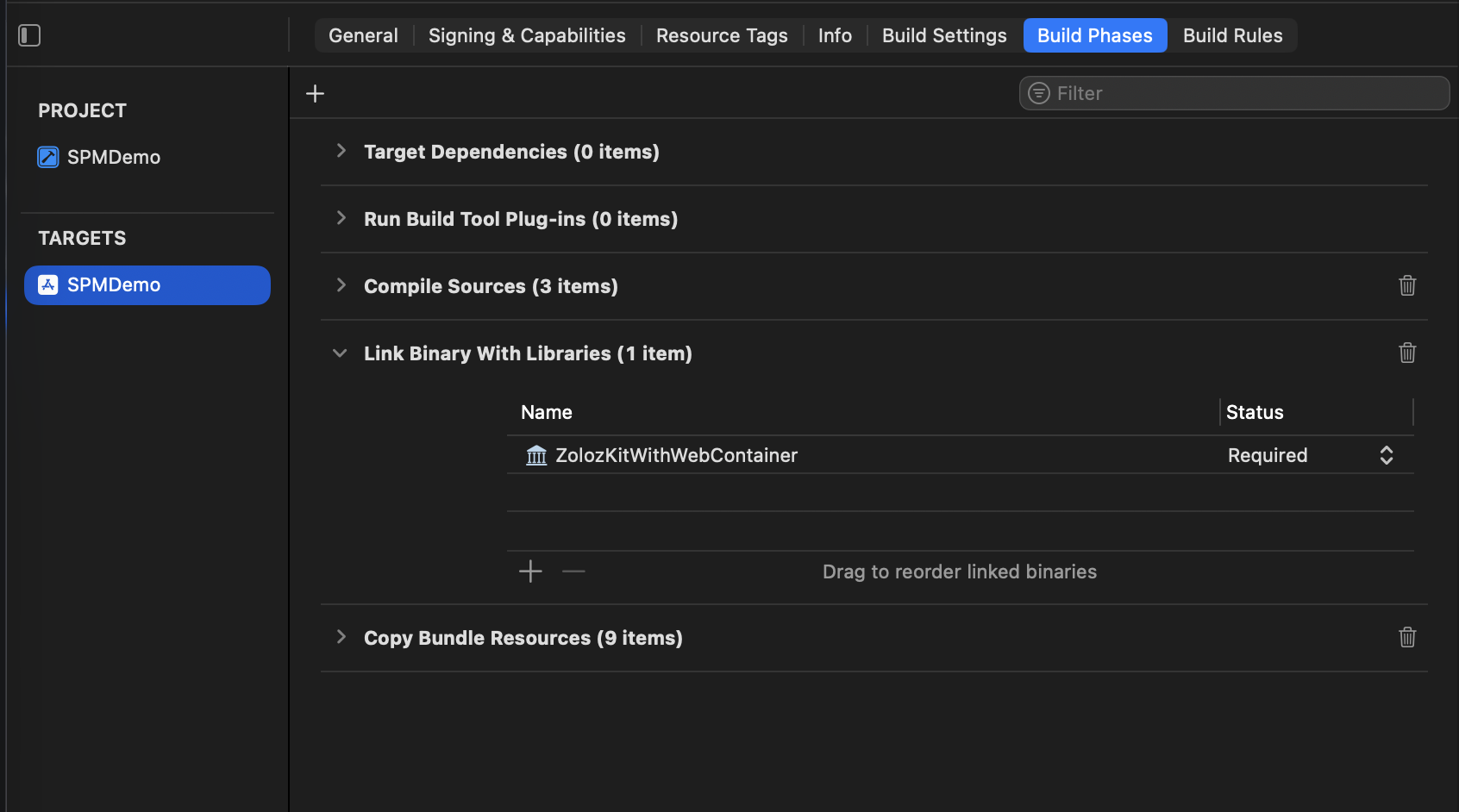
Navigate to TARGETS > Build Phases > Link Binary With Libraries. If ZolozKitWithWebContainer is displayed, the SDK reference is successful.
Step 3: Add resource files to the main project
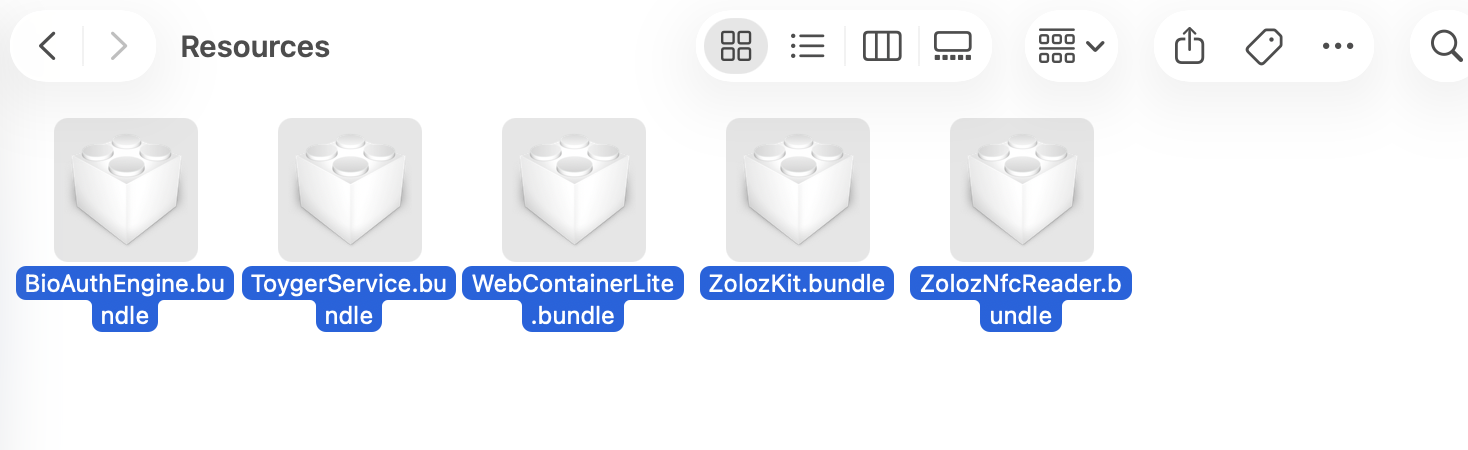
Navigate to the
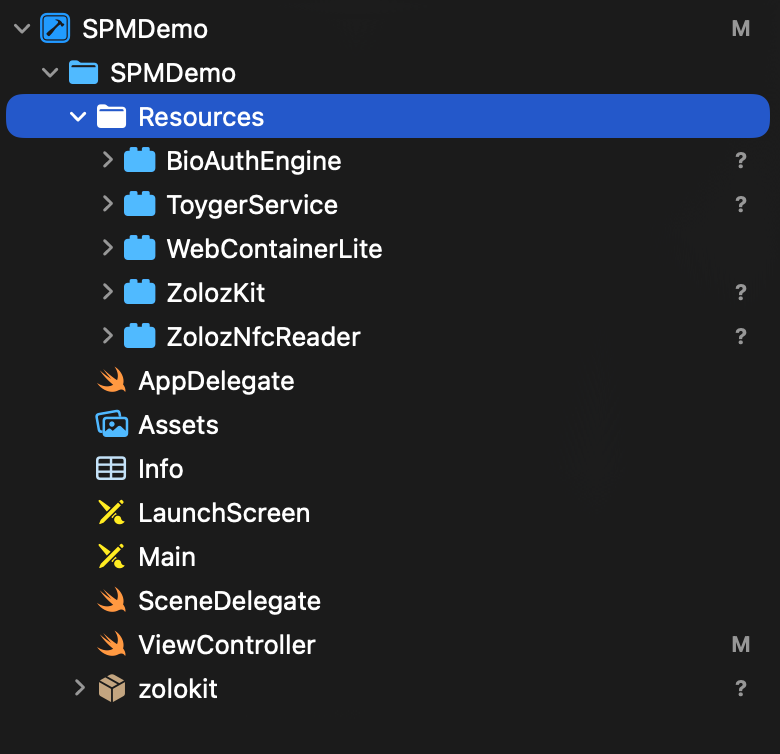
zolozkit/Resourcesdirectory.Copy all bundle files in this directory to the main project directory.
Verify the resource file references.
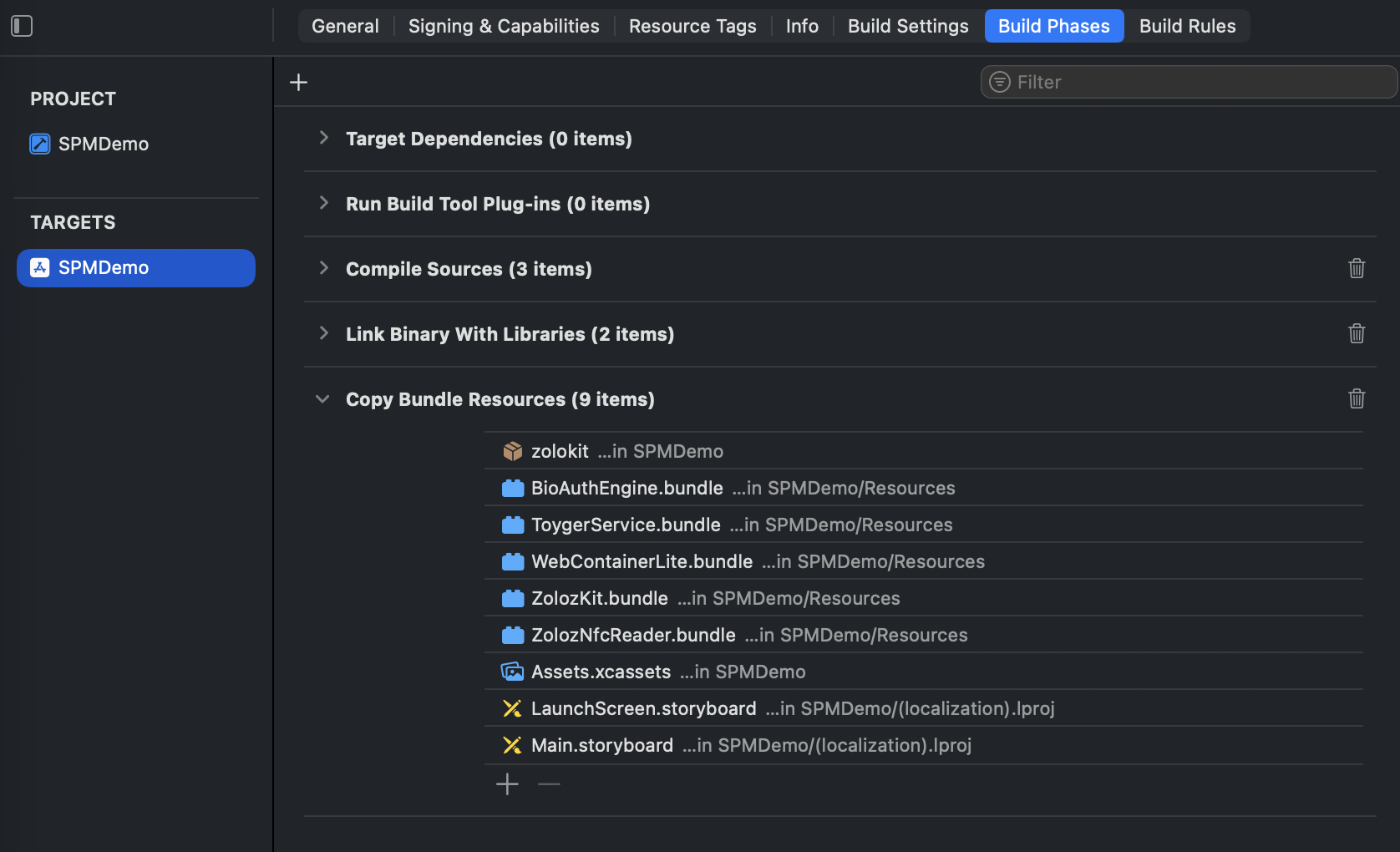
Navigate to TARGETS > Build Phases > Copy Bundle Resources to confirm that all bundle files are listed and referenced in the main project.
Validation of Integration
After integration is complete, use the following two test codes to verify whether the SDK is successfully integrated.
Verify metainfo Retrieval
Run the following codes in the project to retrieve metainfo, and confirm whether ZOLOZ iOS SDK is successfully integrated.
let metainfo = ZLZFacade.getMetaInfo();
showAlert(title: "METAINFO", message: metainfo)
If metaInfo content is successfully displayed, the SDK integration is successful. Below is a complete metainfo example.
{
    "appVersion": "1",
    "bioMetaInfo": "3.46.0:0,2;RJBBACRJIIFQGQDARIJ4BNJACJA=;2.0.8.251111182808",
    "appName": "zoloz.demo.spmdemo.mj.SPMDemo",
    "deviceType": "ios",
    "osVersion": "iOS 26.1",
    "keyHash": "5EBC**",
    "buildVersion": "2.0.8.251111182808",
    "apdidToken": "ZLZ0307B71E92194BCD843170C4F417****",
    "deviceModel": "iPhone13,3"}
Verify bundle files Import
Run the following test code to verify whether the required bundle files for ZOLOZ are successfully imported.
If
showAlertreturnsSuccess, all bundle files are imported successfully.If
showAlertreturnsMissing Bundles, some bundle files failed to import. You can check the error messages for details.
// Define bundle names to checklet bundleNames = [
    "BioAuthEngine.bundle",
    "ToygerService.bundle",
    "WebContainerLite.bundle",
    "ZolozKit.bundle",
    "ZolozNfcReader.bundle"]

// Check bundle file existencevar missingBundles: [String] = []

for bundleName in bundleNames {
    if Bundle.main.path(forResource: bundleName, ofType: nil) == nil {
    missingBundles.append(bundleName)
}
}

// display check resultsif missingBundles.isEmpty {
    showAlert(title: "Success", message: "All bundles exist")
} else {
    showAlert(title: "Missing Bundles", message: "The following bundles are missing: \n\n" + missingBundles.joined(separator: "\n"))
}