Based on open-source community plugins, Alibaba Cloud Kibana provides two pre-installed plugins: BSearch-QueryBuilder and bsearch_label. This topic describes how to install and remove these Kibana plugins.
Install a plugin
Usage notes
Kibana plugins are supported only on Alibaba Cloud Elasticsearch versions 6.3 and 6.7.
Before you install a plugin, ensure that your Kibana node has at least 2 vCPUs and 4 GB of memory. If your Kibana node does not meet this requirement, upgrade it. For more information, see upgrade cluster configuration.
You cannot install custom Kibana plugins.
Procedure
Log on to the Alibaba Cloud Elasticsearch console.
In the navigation pane on the left, click Elasticsearch Clusters.
In the top navigation bar, select a resource group and region.
On the Elasticsearch Clusters page, click the ID of the target cluster.
In the navigation pane on the left, click Data Visualization.
In the Kibana section, click Modify Configuration.
In the Plug-in Configuration section, find the plugin that you want to install and click Install in the Actions column.
ImportantInstalling a plugin triggers a restart of the Kibana node. During the restart, Kibana services are unavailable. We recommend performing this operation during off-peak hours.
In the Installation Prompt dialog box, click OK.
After the node restarts, the plugin is installed. The plugin status changes to Installed.
Query data using BSearch-QueryBuilder
BSearch-QueryBuilder is a front-end-only plugin that allows you to build complex search requests visually without writing complex DSL statements. This section describes how to use the BSearch-QueryBuilder plugin to query data.
Background information
Query DSL is an open-source Java framework for building type-safe SQL queries. It allows you to construct queries using an API instead of concatenating strings. Query DSL supports platforms such as JPA, JDO, SQL, Java Collections, RDF, Lucene, and Hibernate Search.
Elasticsearch provides a comprehensive JSON-based DSL to define queries. The Query DSL consists of a series of abstract query expressions. Specific queries can contain other queries (such as bool), some queries can contain filters (such as constant_score), and others can contain both queries and filters (such as filtered). You can combine any of the query expressions and filters supported by Elasticsearch to build complex queries. However, writing DSL statements can be error-prone and requires specialized knowledge. BSearch-QueryBuilder helps users unfamiliar with Elasticsearch DSL to quickly generate DSL statements.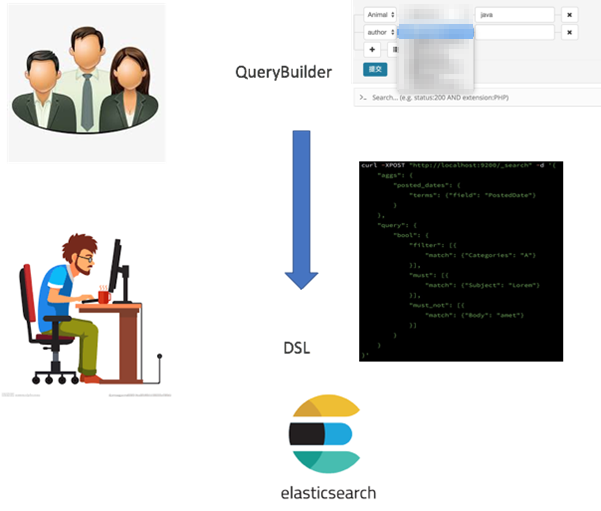
The BSearch-QueryBuilder plugin has the following features:
Easy to use: The BSearch-QueryBuilder plugin provides a visual, point-and-click interface to construct Elasticsearch DSL query requests. You can perform custom data queries without coding, which reduces the learning curve for complex DSL. It can also help developers write or validate DSL statements.
Convenient and fast: You can save complex query conditions in Kibana to avoid recreating them.
Lightweight: The plugin occupies about 14 MB of disk space and does not run persistently in memory. It does not affect the normal operation of Kibana and Elasticsearch.
Secure and reliable: The BSearch-QueryBuilder plugin does not modify, store, or forward your data. Its source code has passed the Alibaba Cloud security audit.
The BSearch-QueryBuilder plugin is supported only on Alibaba Cloud Elasticsearch clusters running version 6.3 or 6.7.
Procedure
Log on to the Kibana console of your Alibaba Cloud Elasticsearch cluster.
For more information, see Log on to the Kibana console.
Optional: In the navigation pane on the left, click Management and create an index pattern.
ImportantIf you have already created an index pattern, skip this step.
On the Management page, click Index Patterns in the Kibana section.
On the Create index pattern page, enter an index pattern name. The name must match the index that you want to query.
Click Next step.
On the Create index pattern page, enter
product_infoin the Index pattern field. A message indicates that one index matches.Click Create index pattern.
In the navigation pane on the left, click Discover.
On the Discover page, in the upper-right corner, click Query.
Add query and filter conditions, then click Submit.
Click the
 icon to add a query condition.
Click the
 icon to add a sub-filter condition to the query.
Click the
 icon to delete a query or filter condition.
BSearch-QueryBuilder supports various query types, such as wildcard queries, multi-condition queries, and queries with custom time ranges. The following examples show how to perform these queries:
Wildcard query
The following example shows a fuzzy search on the Email field. The Email field is required to fuzzy match iga. In the filter conditions, set the field to email, select Wildcard for the match type, enter
*iga*as the match value, and then click Submit to run the query.The query returns all records where the email contains
iga, such asabigail@salazar-family.zzzandabigail@banks-family.zzz. The results also display fields such as customer_first_name, customer_gender, and taxful_total_price.Multi-condition query
The query conditions in the following example specify that the index must be tryme_book, and a filter must be applied to the Type field. The Type must be University Teaching Aids, Math , Teaching Chinese to Speakers of Other Languages, or University Textbooks. In Query Builder, select the
tryme_bookindex, and select Match as the match type. Add an OR logic group that contains four match conditions for the type field with the valuesUniversity Teaching Aids,Mathematics,Teaching Chinese to Speakers of Other Languages, andUniversity Textbooks. Click submit to submit the query.The query returns multiple matching book documents. Each record displays fields such as
author,price,publish,name, andinfoin JSON format.Query with a custom time range
You can filter by time fields. This example shows how to filter the utc_time field to query data within the range of
[now-240d, now]. Set the filter field to utc_time, select In the last as the condition type, enter240days as the value, then click Submit.The query returns all data records that match the specified time range (the last 240 days).
Label data using bsearch_label
bsearch_label is a front-end-only data labeling plugin that allows you to label data visually without writing DSL statements. By labeling data, you can assign a special value to a field or add a new field with a specific value. You can then use the labels for aggregation, classification, statistical analysis, or quick filtering.
Procedure
Log on to the Kibana console of your target Alibaba Cloud Elasticsearch cluster. For more information, see Connect to a cluster by using Kibana.
Optional: In the navigation pane on the left, click Management and create an index pattern. If you have already created an index pattern, skip this step.
On the Management page, click Index Patterns in the Kibana section.
On the Create index pattern page, enter an index pattern name. The name must match the index that you want to query.
Click Next step.
Click Create index pattern.
In the navigation pane on the left, click Discover.
On the Discover page, in the upper-right corner, click Label.
The Label button appears only after you install the bsearch_label plugin.
Label your data using one of the following methods.
Label an existing field
For example, search for records where the name is John Doe.
Select the
agefield and set its value to18.Click Confirm Labeling.
Enable the Labeling History switch to view the labeling history.
Label a new field
For example, search for records where the name is John Doe.
Select the Custom Labeling Field checkbox.
Add a new field named
tagand set its value toteenager.Click Confirm Labeling to view the result.
Remove a plugin
In the Plug-in Configuration section, find the plugin that you want to remove, click Remove in the Actions column, then follow the on-screen instructions.
Removing a plugin also requires a restart of the Kibana node. During the restart, Kibana services are unavailable. We recommend performing this operation during off-peak hours.