In time-series scenarios, data volume grows over time. Storing all detailed data linearly increases storage costs. To manage this, use the Elasticsearch (ES) rollup feature to significantly reduce these costs. This document shows how to use rollup to summarize Logstash traffic data.
Prerequisites
- You have the
manageormanage_rolluppermission.For more information, see Security Privileges.
- You have created an Alibaba Cloud Elasticsearch instance. For more information, see Create an Alibaba Cloud Elasticsearch instance. This document uses a Standard Edition instance running Elasticsearch 7.4.Note The rollup commands in this document apply to Elasticsearch 7.4. For commands that apply to Elasticsearch 6.x, see rollup job.
Background information
This document is based on the following scenario:- Summarize the hourly
networkoutTrafficandnetworkinTrafficdata for a specificinstanceIdat 15-minute intervals. - Use a Kibana chart to display the
networkinTrafficandnetworkoutTrafficdata for a specificinstanceId.
monitordata-logstash-sls-* prefix as an example. With this pattern, a new index is created each day. The index mapping is as follows. "monitordata-logstash-sls-2020-04-05" : {
"mappings" : {
"properties" : {
"@timestamp" : {
"type" : "date"
},
"__source__" : {
"type" : "text",
"fields" : {
"keyword" : {
"type" : "keyword",
"ignore_above" : 256
}
}
},
"disk_type" : {
"type" : "text",
"fields" : {
"keyword" : {
"type" : "keyword",
"ignore_above" : 256
}
}
},
"host" : {
"type" : "keyword"
},
"instanceId" : {
"type" : "keyword"
},
"metricName" : {
"type" : "keyword"
},
"monitor_type" : {
"type" : "keyword"
},
"networkinTraffic" : {
"type" : "double"
},
"networkoutTraffic" : {
"type" : "double"
},
"node_spec" : {
"type" : "keyword"
},
"node_stats_node_master" : {
"type" : "keyword"
},
"resource_uid" : {
"type" : "keyword"
}
}
}
}
}Procedure
Step 1: Create a rollup job
PUT _rollup/job command to define an hourly rollup job. PUT _rollup/job/ls-monitordata-sls-1h-job1
{
"index_pattern": "monitordata-logstash-sls-*",
"rollup_index": "monitordata-logstash-rollup-1h-1",
"cron": "0 */15 * * * ?",
"page_size" :1000,
"groups" : {
"date_histogram": {
"field": "@timestamp",
"fixed_interval": "1h"
},
"terms": {
"fields": ["instanceId"]
}
},
"metrics": [
{
"field": "networkoutTraffic",
"metrics": ["sum"]
},
{
"field": "networkinTraffic",
"metrics": ["sum"]
}
]
}| Parameter | Required | Type | Description |
index_pattern |
Yes | string | The index or index pattern to roll up. Wildcards (*) are supported. |
rollup_index |
Yes | string | The destination index for the rolled-up data. Wildcards are not supported; you must provide a full index name. |
cron |
Yes | string | The schedule for running the rollup job. This is independent of the data summarization interval. |
page_size |
Yes | integer | The number of buckets processed in each iteration of the rollup job. A larger value executes faster but requires more memory. |
groups |
Yes | object | Defines the grouping fields and aggregations for the rollup job. |
└date_histogram |
Yes | object | Rolls up a date field into time-based buckets. |
└field |
Yes | string | The date field to roll up. |
└fixed_interval |
Yes | time units | The interval for data summarization. For example, 1h rolls up the specified date field into one-hour intervals. This parameter defines the minimum time interval at which data can be aggregated. |
terms |
No | object | N/A |
└fields |
Yes | string | Defines the set of terms fields. The fields in this array can be of keyword or numeric types and can be in any order. |
metrics |
No | object | N/A |
└field |
Yes | string | Defines the field for the metrics you want to collect. In the preceding example, metrics are collected for the networkoutTraffic and networkinTraffic fields. |
└metrics |
Yes | array | Defines the aggregation operator. For example, sum calculates the sum of the networkinTraffic field. Supported operators are min, max, sum, average, and value_count. |
- When you use a wildcard in
index_pattern, ensure that it does not match therollup_indexname. Otherwise, an error occurs. - The mapping of a rollup index is an object type. Ensure that no index template in the cluster matches the rollup index. Otherwise, an error occurs.
- Field group aggregation only supports Date Histogram, Histogram, and Terms aggregations. For detailed limitations, see Rollup aggregation limitations.
Step 2: Start and view the rollup job
- Start the rollup job.
POST _rollup/job/ls-monitordata-sls-1h-job1/_start - View the configuration, statistics, and status of the rollup job.
GET _rollup/job/ls-monitordata-sls-1h-job1/For more information, see Get rollup jobs API.
If the command is successful, a result similar to the following is returned.{ ........ "status" : { "job_state" : "indexing", "current_position" : { "@timestamp.date_histogram" : 1586775600000, "instanceId.terms" : "ls-cn-ddddez****" }, "upgraded_doc_id" : true }, "stats" : { "pages_processed" : 3, "documents_processed" : 11472500, "rollups_indexed" : 3000, "trigger_count" : 1, "index_time_in_ms" : 766, "index_total" : 3, "index_failures" : 0, "search_time_in_ms" : 68559, "search_total" : 3, "search_failures" : 0 } }
Step 3: Query data from the rollup index
The internal structure of rollup documents differs from that of raw data. The rollup search endpoint rewrites a standard query DSL to match the rollup document format, retrieves the response, and then rewrites it back into the format that the client expects.
- Use
match_allto retrieve all data from the rollup index.GET monitordata-logstash-rollup-1h-1/_search { "query": { "match_all": {} } }- Specify only one rollup index per query. Wildcard matching is not supported. Queries on live data do not have this restriction and can specify multiple indexes.
- Queries only support
Term,Terms,Range query,MatchAll query, and compound queries such asBoolean,Boosting, andConstantScore. For more limitations, see Rollup search limitations.
- Use
_rollup_searchto aggregate thenetworkoutTrafficdata.GET /monitordata-logstash-rollup-1h-1/_rollup_search { "size": 0, "aggregations": { "sum_temperature": { "sum": { "field": "networkoutTraffic" } } } }The_rollup_searchendpoint supports a subset of the standard Search API features:query: Specifies the DSL query parameters, which are subject to certain limitations. For more information, see Rollup search limitations and Rollup aggregation limitations.aggregations: Specifies the aggregation parameters.
The following features are not available for_rollup_search:size: Because rollup handles aggregated data and does not return individual hits, set thesizeparameter to0or omit it.- Parameters such as
highlighter,suggestors,post_filter,profile, andexplainare not supported.
Step 4: Create a rollup index pattern
- Log on to the Kibana console.
For more information, see Log on to the Kibana console.
- In the left-side navigation pane, click the Management icon.
- In the Kibana section, click Index Patterns.
- Optional: Close the About index patterns page.
Note Skip this step if you have created an index pattern before.
- Click .
- Enter an index pattern name, such as
monitordata-logstash-rollup-1h-1, and then click Next step. - From the Time Filter field name list, select @timestamp.
- Click Create index pattern.
Step 5: Create a Kibana traffic chart
Create Kibana charts to monitor the networkinTraffic and networkoutTraffic data from the rollup index:
- Log on to the Kibana console.
For more information, see Log on to the Kibana console.
- Create a LINE chart.
- In the left-side navigation pane, click the Visualize icon.
After you click the icon, the Visualizations page appears. The Create new visualization button is displayed in the upper-right corner.
- Click Create new visualization.
- In the New Visualization dialog box, click LINE.
- From the list of index patterns, click your rollup index pattern.
- In the left-side navigation pane, click the Visualize icon.
- Configure Metrics and Buckets.
- In the Metrics section, click
 .
. - Configure the Y-axis parameters.
Parameter Description Aggregation Select Sum. Field Select networkinTrafficornetworkoutTraffic.Custom label Enter a custom label for the Y-axis. - In the Buckets section, click .
- Configure the X-axis parameters.
Parameter Description Aggregation Set this to the date_histogramdefined in thegroupsparameter in Step 1: Create a rollup job.Field Select @timestamp. Minimum interval The default value is the aggregation time granularity defined in the rollup job. The value must be an integer multiple of the rollup configuration interval, such as 2hor3h. - Click the
 icon.
icon.
- In the Metrics section, click
- In the top menu bar, click save.
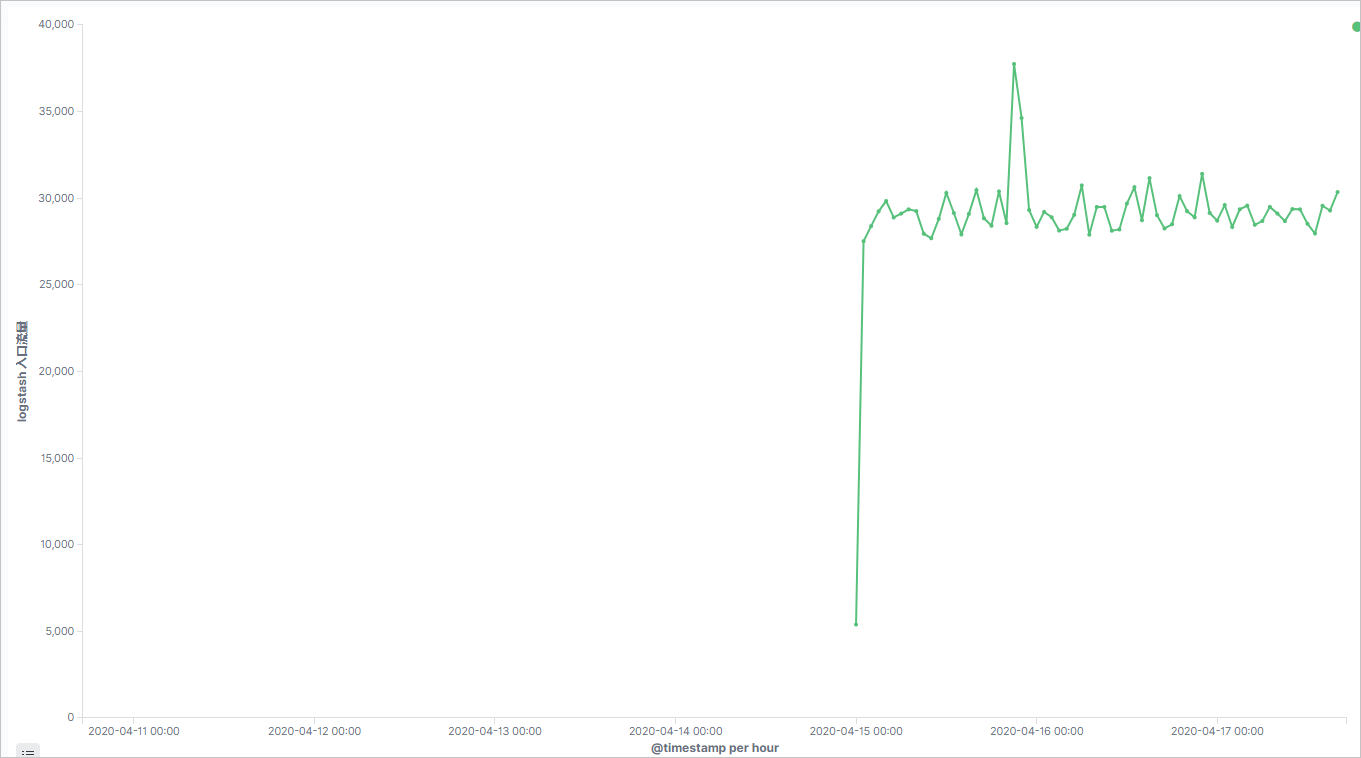
The result is shown in the following figure.
- Create a Gauge chart in the same way.
- Configure the Gauge chart.
On the
monitordata-logstash-rollup-1h-1index, in the Metrics section, add two metrics:Metric 1: Set Aggregation to Sum, set Field to
networkinTraffic, and set Custom label toTotal inbound Logstash traffic.Metric 2: Set Aggregation to Sum, set Field to
networkoutTraffic, and set Custom label toTotal outbound Logstash traffic.
Step 6: Create a Kibana traffic dashboard
- In the left-side navigation pane of the Kibana console, click the Dashboard icon.
The Dashboards page appears. The Create new dashboard button is displayed in the upper-right corner.
- Click Create new dashboard.
- In the top menu bar, click Add.
- On the Add panels page, click the visualization chart that you configured in Visualize.
- Close the Add panels page and click save in the top menu bar.
- Enter a name for the dashboard and click Confirm Save.
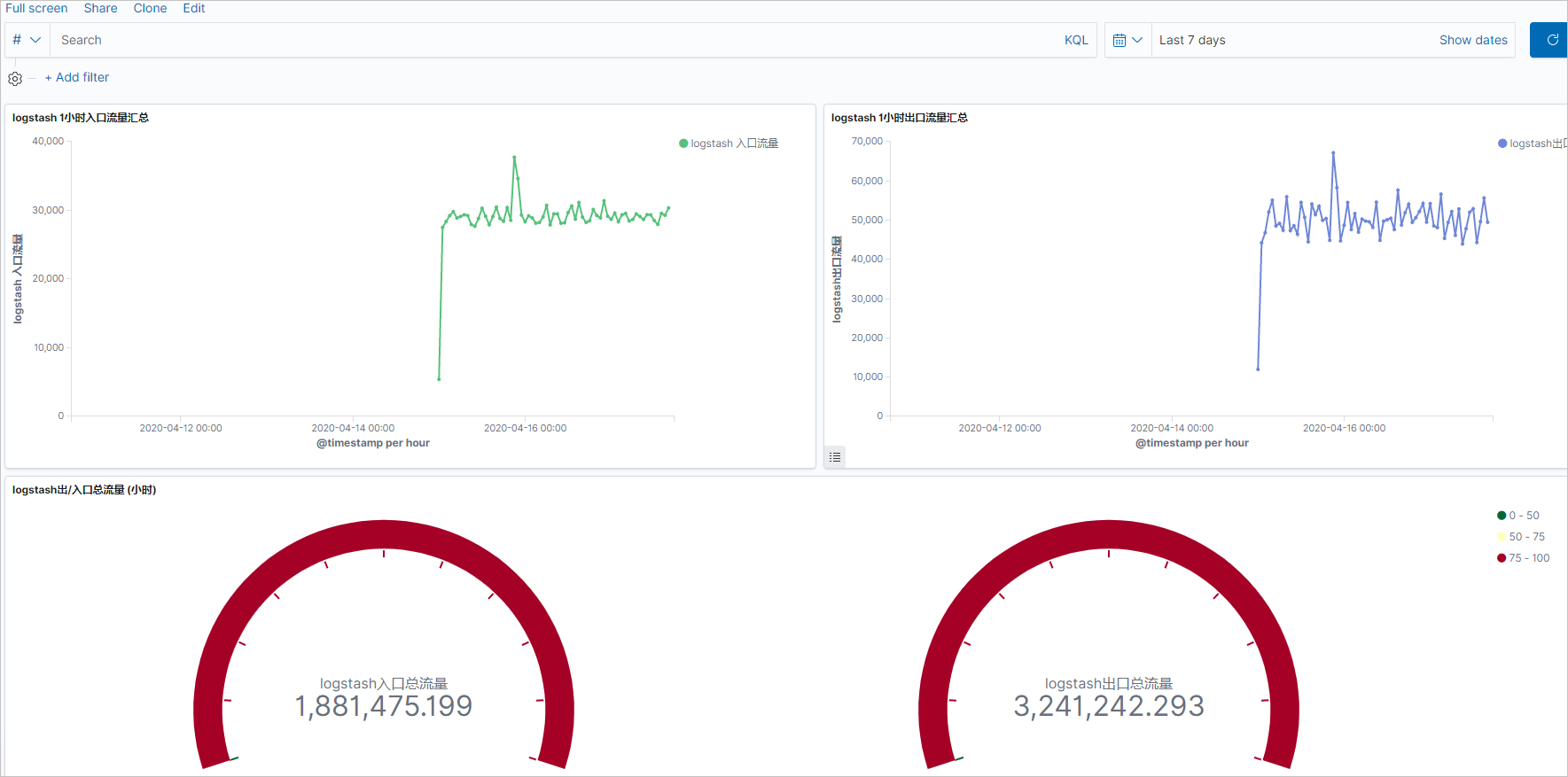
After saving, the result appears on the dashboard.
- Click + Add filter, select a filter item, configure the filter conditions, and then click save.
This example uses a
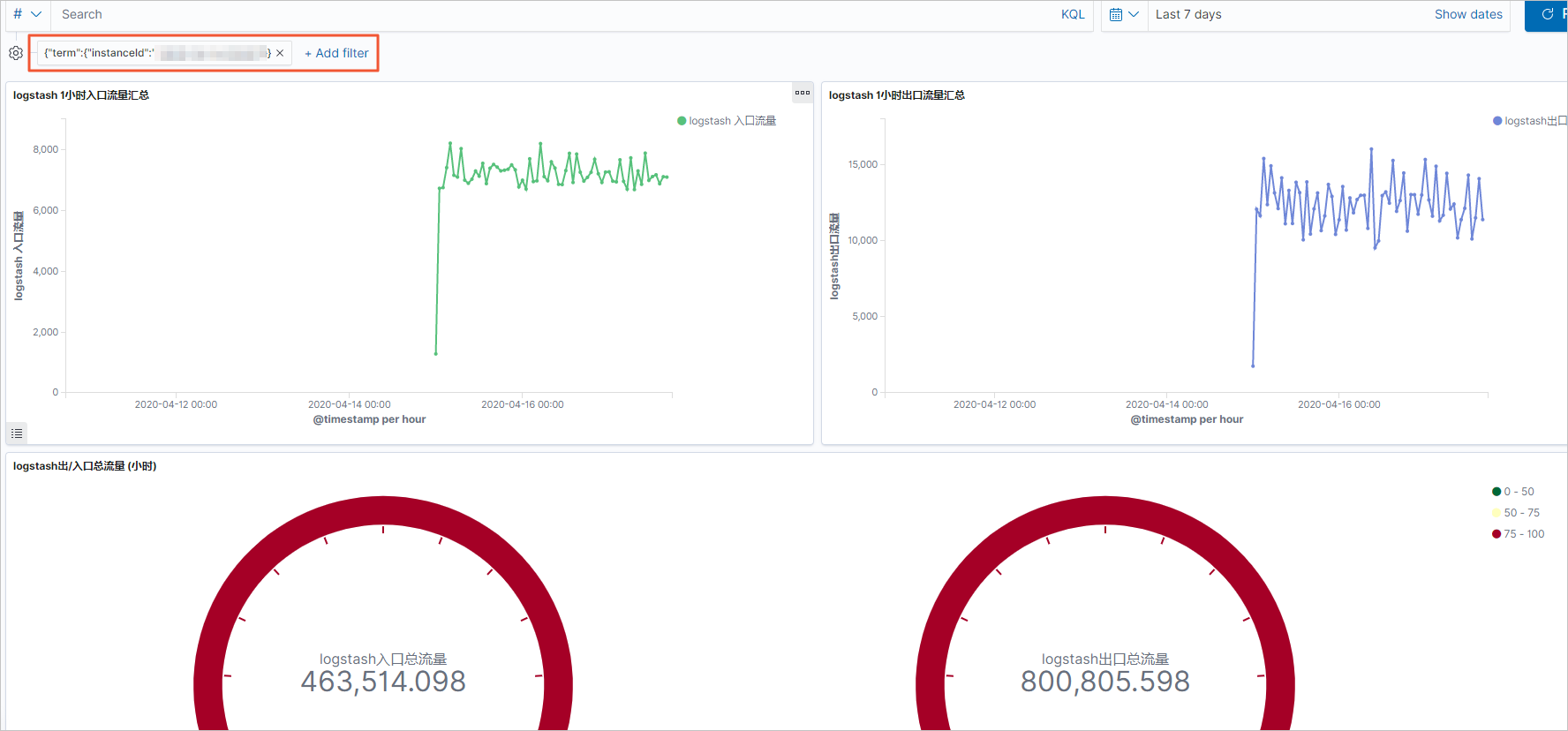
termfilter item to query the traffic of a specific instance. The final result is shown below.