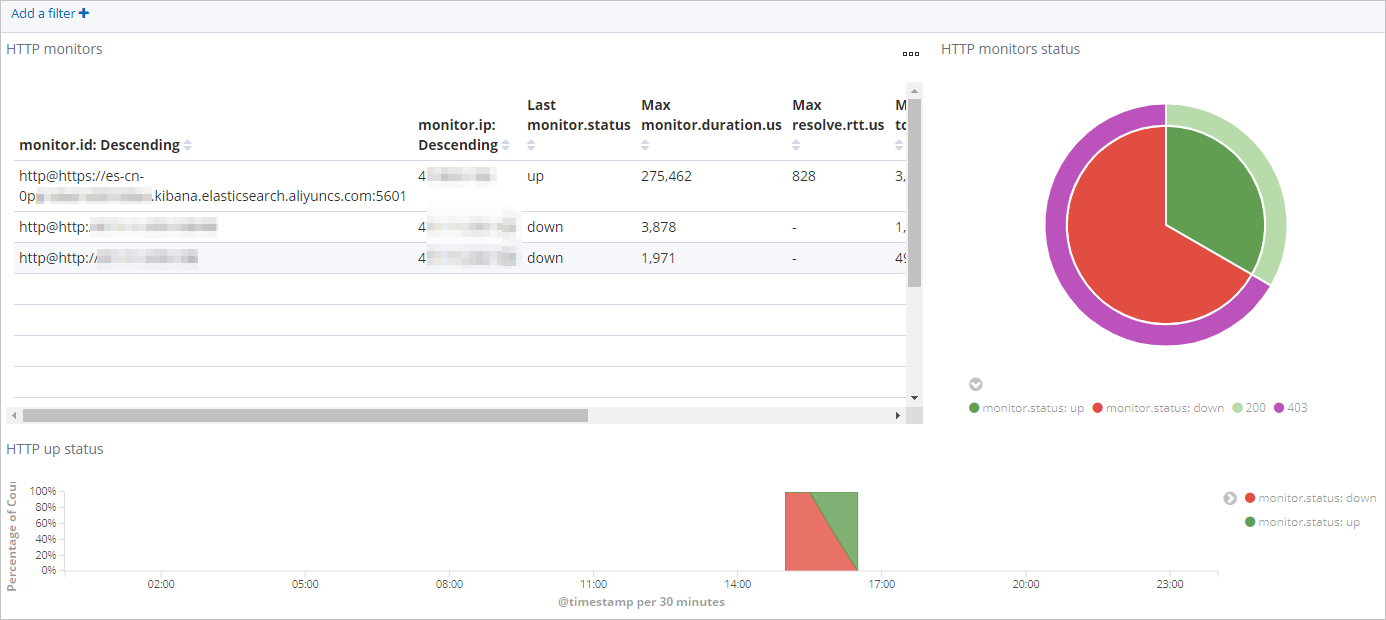
Use Heartbeat to monitor the availability of ICMP and HTTP services and visualize the results.
Background information
Heartbeat is a lightweight daemon that you install on a remote server to periodically check service availability. Unlike Metricbeat, which only detects whether a server is up or down, Heartbeat verifies whether a service is reachable.
Unlike most Beats shippers that must be installed on edge nodes, Heartbeat can run on a separate machine, even outside the network where the monitored services run.
Heartbeat supports the following three types of monitors:
-
ICMP monitor (ICMPv4 and ICMPv6): Sends ICMP requests to check whether a service is available. Root permissions are required.
-
TCP monitor: Connects to a service over TCP and sends or receives specific payloads to verify availability.
-
HTTP monitor: Connects to a service over HTTP and checks for specific status codes, response headers, or content to verify availability.
NoteBoth TCP and HTTP monitors support SSL, TLS, and some proxy settings.
Prerequisites
-
Create an Alibaba Cloud Elasticsearch instance.
For more information, see Create an Alibaba Cloud Elasticsearch instance.
-
Enable the Auto Indexing feature for your Alibaba Cloud Elasticsearch instance.
For security reasons, Alibaba Cloud Elasticsearch disables Auto Indexing by default. However, Beats relies on this feature. If you select Elasticsearch as the shipper Output, you must enable the Auto Indexing feature. For more information, see Access and configure an instance.
-
Create an Alibaba Cloud ECS instance in the same VPC as the Alibaba Cloud Elasticsearch instance.
For more information, see Create a custom instance.
ImportantBeats currently supports only Alibaba Cloud Linux (Alinux), Red Hat, and CentOS operating systems.
-
Install Cloud Assistant and Docker on the target ECS instance.
For more information, see Install the Cloud Assistant agent and Deploy and use Docker.
Procedure
Log on to the Alibaba Cloud Elasticsearch console.
-
In the left-side navigation pane, click Beats Data Shippers.
-
In the Create Shipper section, click Heartbeat.
-
Install and configure the shipper.
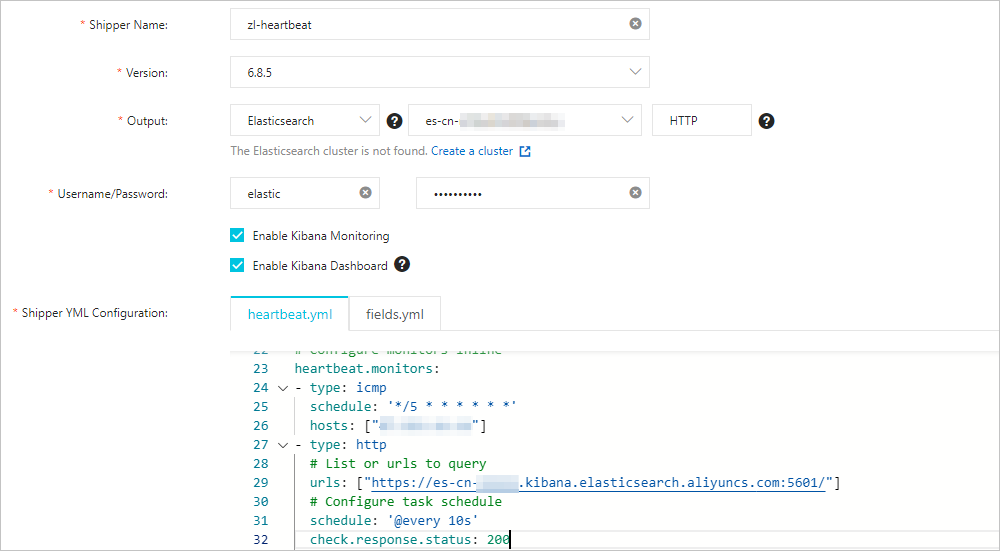
For more information, see Collect ECS service logs by using Filebeat and Shipper YML configuration. The configuration used in this topic is as follows.
 Note
Note-
Select Enable Kibana Monitoring. This enables monitoring for the Heartbeat service in the Kibana console.
-
Select Enable Kibana Dashboard. This generates dashboards in the Kibana console without requiring additional YML configuration. Because Alibaba Cloud Kibana is deployed in a VPC, you must first enable private network access on the Kibana configuration page. For more information, see Connect to a cluster by using Kibana.
To configure the monitors, set the
heartbeat.monitorsparameter in the heartbeat.yml file as shown in the following example.heartbeat.monitors: - type: icmp schedule: '*/5 * * * * * *' hosts: ["47.111.xx.xx"] - type: http # List or urls to query urls: ["https://es-cn-xxxxx.kibana.elasticsearch.aliyuncs.com:5601/"] # Configure task schedule schedule: '@every 10s' check.response.status: 200Parameter
Description
typeThe type of monitor. This topic uses the
icmpandhttpmonitors.scheduleThe task schedule.
schedule: '*/5 * * * * * *'runs the task every 5 seconds.schedule: '@every 10s'runs the task every 10 seconds after Heartbeat starts.hostsThe list of hosts to check.
urlsThe list of URLs to check.
check.response.statusThe HTTP status code to validate.
check.response.status: 200means the service is considered healthy only if it returns a status code of200.NoteFor more information about the parameters, see the official Heartbeat configuration documentation.
-
-
Select the ECS instance where you will install the shipper.
The selected ECS instance must meet the prerequisites.
-
Start the shipper and check its installation status.
-
Click Start.
After the shipper starts successfully, a Start Shipper dialog box appears.
-
Click Back to Beats Shippers to return to the Beats Data Shippers page. In the Manage Shippers section, find the newly installed Heartbeat shipper.
-
Wait for the shipper Shipper Status to change to Enabled 1/1. Then, in the Actions column, click View Instances.
-
On the View Instances page, check the Installed Shippers. When the status changes to Normal Heartbeat, the installation is successful.
-
View the results
-
Log on to the Kibana console of the target Alibaba Cloud Elasticsearch instance.
For more information, see Log on to the Kibana console.
-
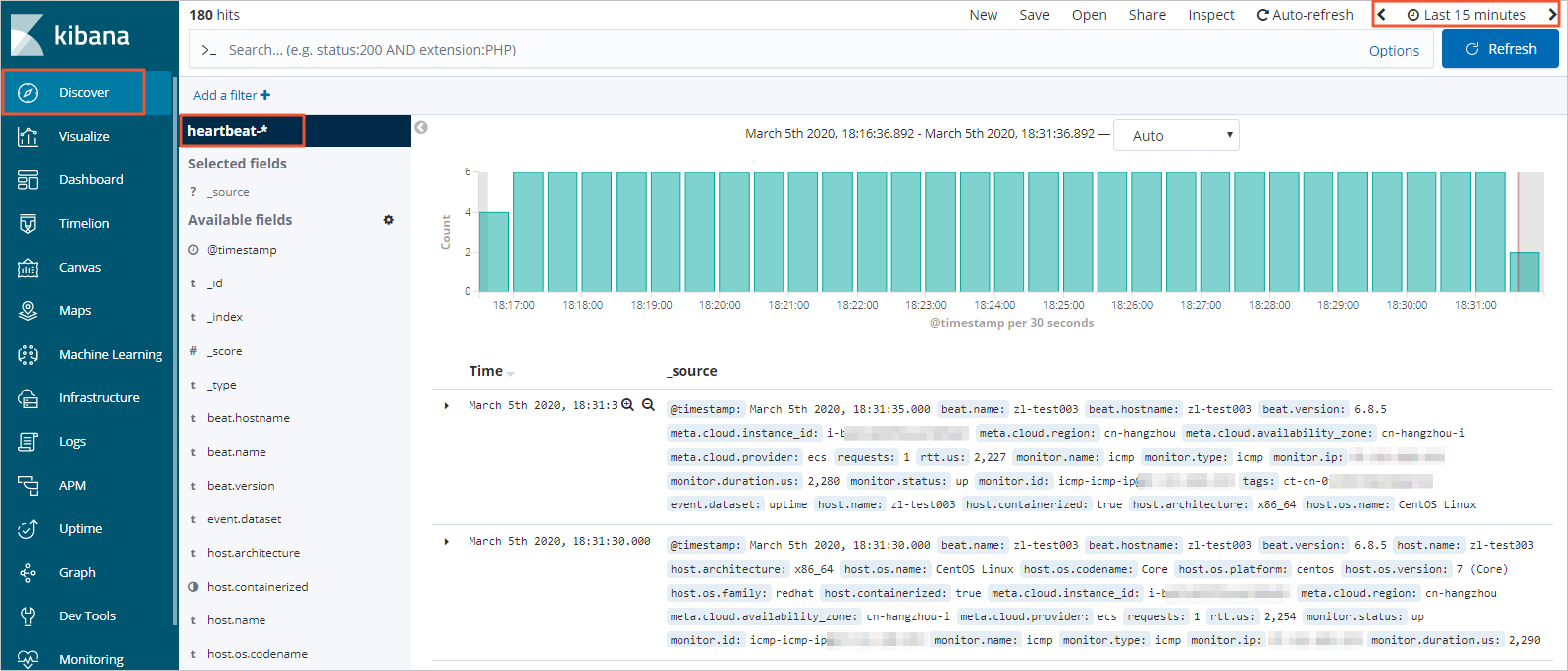
In the left-side navigation pane, click Discover. Select the predefined heartbeat-* index pattern and a time range to view the Heartbeat data for that period.
-
In the left-side navigation pane, click Dashboard.
-
In the Dashboard list, click Heartbeat HTTP monitoring. Then, select a time range to view the HTTP status statistics for that period.