This topic describes the features and key metrics of Wan2.1 models, best practices for deploying models in the edge cloud, and how to set up a test environment. This helps you quickly understand model features, deployment requirements, and performance optimization methods, efficiently deploying and using the models in the edge cloud to meet video generation requirements in different scenarios.
Introduction to Wan2.1 models
Wan2.1 models are open-source video generation models developed by Alibaba Cloud. Wan2.1 models have significant advantages in handling complex movements, restoring real physical laws, enhancing cinematic quality, and optimizing instruction compliance. Whether you are a creator, developer, or enterprise user, you can find appropriate models and features based on your business requirements to achieve high-quality video generation. Wan2.1 models also support industry-leading Chinese and English text effect generation, meeting creative needs in advertising, short videos, and other fields. According to the VBench authoritative evaluation system, Wan2.1 models ranked first with a total score of 86.22%, significantly outperforming domestic and international video generation models such as Sora, Minimax, Luma, Gen3, and Pika.
Wan2.1-T2V-14B: high-performance professional edition that provides the industry-leading performance to meet scenarios with extremely high video quality requirements.
Wan2.1-T2V-1.3B: capable of generating 480P videos with low GPU memory requirements.
Recommended configurations and inference performance for deploying a Wan2.1 model
Edge cloud provides multi-specification, differentiated heterogeneous computing resources on widely distributed nodes to meet heterogeneous computing power requirements for different scenarios. The memory of a GPU ranges from 12 GB to 48 GB. If you deploy the Wan2.1-T2V-1.3B model in the edge cloud for inference, the recommended configurations and inference performance are as follows:
To use Wan2.1-T2V-1.3B with BFloat16 precision to generate a 480P video, we recommend that you use an instance that includes five GPUs with 12 GB memory each.
For an instance that includes five GPUs with 12 GB memory each, running on a single GPU in single-path mode can achieve the best cost-effectiveness. Although single-GPU operation consumes a long time for video generation, multi-path inference tasks can be processed concurrently. This yields higher returns within a unit of time.
If you prioritize video generation efficiency, you can use an instance that includes two GPUs with 48 GB memory each. This reduces the single-path video generation time by approximately 85% with only a 35% increase in cost.
Instance type
Inference method
Video duration (s)
Generation time (s)
GPU memory usage (GB)
Single-path cost
Five-GPU bare metal instance with 12 GB memory each
Single-GPU single-path
5
1459
9.6
100%
Four-GPU single-path
5
865
35.3
296%
Single-GPU instance with 48 GB memory each
Single-GPU single-path
5
456
18.6
144%
Dual-GPU instance with 48 GB memory each
Dual-GPU single-path
5
214
20.9
135%
To use Wan2.1-T2V-14B with BFloat16 precision to generate a 720P video, we recommend that you use an instance that includes two GPUs with 48 GB memory each.
720P provides a higher quality video experience, but the video generation time will be longer. You can choose the appropriate resources based on your business scenario requirements and the quality of the sample video.
Instance type
Inference method
Video duration (s)
Generation time (s)
GPU memory usage (GB)
Dual-GPU instance with 48 GB memory each
Dual-GPU single-path
5
3503
41
The following table describes the configurations for the preceding instance types.
Environment parameter
Five-GPU bare metal instance with 12 GB memory each
Single-GPU instance with 48 GB memory each
Dual-GPU instance with 48 GB memory each
CPU
Two 24-core CPUs, 3.0 to 4.0 GHz
48 cores
96 cores
Memory
256 GB
192 GB
384 GB
GPU
Five NVIDIA GPUs with 12 GB memory each
One NVIDIA GPU with 48 GB memory each
Two NVIDIA GPUs with 48 GB memory each
Operating system
Ubuntu 20.04
GPU driver
Driver version: 570.124.06
CUDA version: 12.4
Driver version: 550.54.14
CUDA version: 12.4
Driver version: 550.54.14
CUDA version: 12.4
Inference framework
PyTorch
Set up a test environment
Create an instance and perform initialization
Create an instance in the ENS console
Log on to the ENS console.
In the left-side navigation pane, choose .
On the Instances page, click Create Instance. For information about how to configure the ENS instance parameters, see Create an instance.
You can configure the parameters based on your business requirements. The following table describes the recommended configurations.
Step
Parameter
Recommended value
Basic Configurations
Billing Method
Subscription
Instance type
x86 Computing
Instance Specification
NVIDIA 48GB * 2
For detailed specifications, contact the customer manager.
Image
Ubuntu
ubuntu_22_04_x64_20G_alibase_20240926
Network and Storage
Network
Self-built Network
System Disk
Ultra Disk, 80 GB or more
Data Disk
Ultra Disk, 1 TB or more
System Settings
Set Password
Custom Key or Key Pair
Confirm the order.
After you complete the system settings, click Confirm Order in the lower-right corner. The system configures the instance based on your configuration and displays the price. After the payment is made, the page jumps to the ENS console.
You can view the created instance in the ENS the console. If the instance is in the Running state, the instance is available.
Create an instance by calling an operation
You can also call an operation to create an instance in OpenAPI Portal.
The following section describes the reference code of the operation parameters.
{
  "InstanceType": "ens.gnxxxx",         <The instance type>
  "InstanceChargeType": "PrePaid",
  "ImageId": "ubuntu_22_04_x64_20G_alibase_20240926",
  "ScheduleAreaLevel": "Region",
  "EnsRegionId": "cn-your-ens-region",     <The edge node>
  "Password": <YOURPASSWORD>,           <The password>
  "InternetChargeType": "95BandwidthByMonth",
  "SystemDisk": {
    "Size": 80,
    "Category": "cloud_efficiency"
  },
  "DataDisk": [
    {
      "Category": "cloud_efficiency",
      "Size": 1024
    }
  ],
  "InternetMaxBandwidthOut": 5000,
  "Amount": 1,
  "NetWorkId": "n-xxxxxxxxxxxxxxx",
  "VSwitchId": "vsw-xxxxxxxxxxxxxxx",
  "InstanceName": "test",
  "HostName": "test",
  "PublicIpIdentification": true,
  "InstanceChargeStrategy": "instance",      <Billing based on instance>
}
Log on to the instance and initialize the disk
Log on to the instance
For more information about how to log on to an instance, see Connect to an instance.
Initialize the disk
Expand the root directory.
After you create or resize an instance, you need to expand the root partition online without restarting the instance.
# Install the cloud environment toolkit.
sudo apt-get update
sudo apt-get install -y cloud-guest-utils

# Ensure that the GPT partitioning tool sgdisk exists.
type sgdisk || sudo apt-get install -y gdisk

# Expand the physical partition.
sudo LC_ALL=en_US.UTF-8 growpart /dev/vda 3

# Resize the file system.
sudo resize2fs /dev/vda3

# Verify the resizing result.
df -h
Mount the data disk.
You need to format and mount the data disk. The following section provides the sample commands. Run the commands based on your business requirements.
# Identify the new disk. lsblk # Format the disk without partitioning it. sudo mkfs -t ext4 /dev/vdb # Configure the mount. sudo mkdir /data echo "UUID=$(sudo blkid -s UUID -o value /dev/vdb) /data ext4 defaults,nofail 0 0" | sudo tee -a /etc/fstab # Verify the mount. sudo mount -a df -hT /data # Modify permissions. sudo chown $USER:$USER $MOUNT_DIR Note
NoteIf you want to create an image based on the instance, you must delete the
ext4 defaults 0 0row from the/etc/fstabfile. Otherwise, instances created based on the image cannot be started.
Install dependencies
For information about how to install CUDA, see CUDA Toolkit 12.4 Downloads | NVIDIA Developer.
wget https://developer.download.nvidia.com/compute/cuda/12.4.0/local_installers/cuda_12.4.0_550.54.14_linux.run

chmod +x cuda_12.4.0_550.54.14_linux.run

# This step takes a while. A graphical interaction will appear.
sudo sh cuda_12.4.0_550.54.14_linux.run

# Add environment variables.
vim ~/.bashrc
export PATH="$PATH:/usr/local/cuda-12.4/bin"
export LD_LIBRARY_PATH="$LD_LIBRARY_PATH:/usr/local/cuda-12.4/lib64"
source ~/.bashrc

# Verify whether the operations are successful.
nvcc  -V
nvidia-smi
(Optional) Install tools
uv is a management tool for Python virtual environment and dependencies, which is suitable for instances that need to run multiple models. For more information, see Installation | uv (astral.sh).
# Install uv. By default, uv is installed in ~/.local/bin/.
curl -LsSf https://astral.sh/uv/install.sh | sh

# Edit ~/.bashrc.
export PATH="$PATH:~/.local/bin"

source ~/.bashrc

# Create a venv environment named diff.
uv venv diff --python 3.12 --seed
source diff/bin/activate
If the CUDA environment variables that you configured become invalid after you install uv, and nvcc\nvidia-smi cannot be found, perform the following operations:
vim myenv/bin/activate
# Add the following content to the end of export PATH.
export PATH="$PATH:/usr/local/cuda-12.4/bin"
export LD_LIBRARY_PATH="$LD_LIBRARY_PATH:/usr/local/cuda-12.4/lib64"
(Optional) Install a GPU monitoring tool
# Install the following GPU monitoring tool. You can also use nvidia-smi.
pip install nvitop
Download an inference framework and model
We recommend that you use the DiffSynth Studio model framework launched by ModelScope to achieve better performance and stability. For more information, see https://github.com/modelscope/DiffSynth-Studio/tree/main.
# Install the ModelScope download tool.
pip install modelscope

# Download DiffSynth Studio and dependencies.
cd /root
git clone https://github.com/modelscope/DiffSynth-Studio.git

cd DiffSynth-Studio
pip install -e .

# Install xfuser.
pip install xfuser>=0.4.3

# Download the Wan2.1-T2V-14B model file to the corresponding directory of DiffSynth Studio.
modelscope download --model Wan-AI/Wan2.1-T2V-14B --local_dir /root/DiffSynth-Studio/models/Wan-AI/Wan2.1-T2V-14B
Test video generation
DiffSynth Studio provides two parallel methods: Unified Sequence Parallel (USP) and Tensor Parallel. In this example, Tensor Parallel is used. Use a test script to generate a 720P video based on Wan2.1-T2V-14B.
(Optional) Optimize the test script
You can achieve the following effect by modifying some code and parameters in the test script examples/wanvideo/wan_14b_text_to_video_tensor_parallel.py:
Because the code repository is continuously being optimized, the code files may be updated at any time. The following modifications are for reference only.
Avoid downloading the model again every time you run it.
Modify the compression quality of the video. A larger video file indicates better clarity.
Change the generated video from 480P (default) to 720P.
# Modify the test code file.
vim /root/DiffSynth-Studio/examples/wanvideo/wan_14b_text_to_video_tensor_parallel.py

# 1. Comment out the code around line 125 to avoid downloading the model again every time you run it, thus using the previously downloaded model.

# snapshot_download("Wan-AI/Wan2.1-T2V-14B", local_dir="models/Wan-AI/Wan2.1-T2V-14B")

# 2. Modify the code around line 121, modify the save_video input parameter in the test_step function, video frame rate, and compression quality. 1 indicates the lowest quality. 10 indicates the highest quality.
save_video(video, output_path, fps=24, quality=10)

# 3. Add the following input parameter around line 135 to modify the resolution. The default value is 480p.
....
"output_path": "video1.mp4",
# The following two lines are newly added.
"height": 720,
"width": 1280,
},

# 4. Save the file and exit the editor.
:wq
Run the test script
# Run the test script.
torchrun --standalone --nproc_per_node=2 /root/DiffSynth-Studio/examples/wanvideo/wan_14b_text_to_video_tensor_parallel.py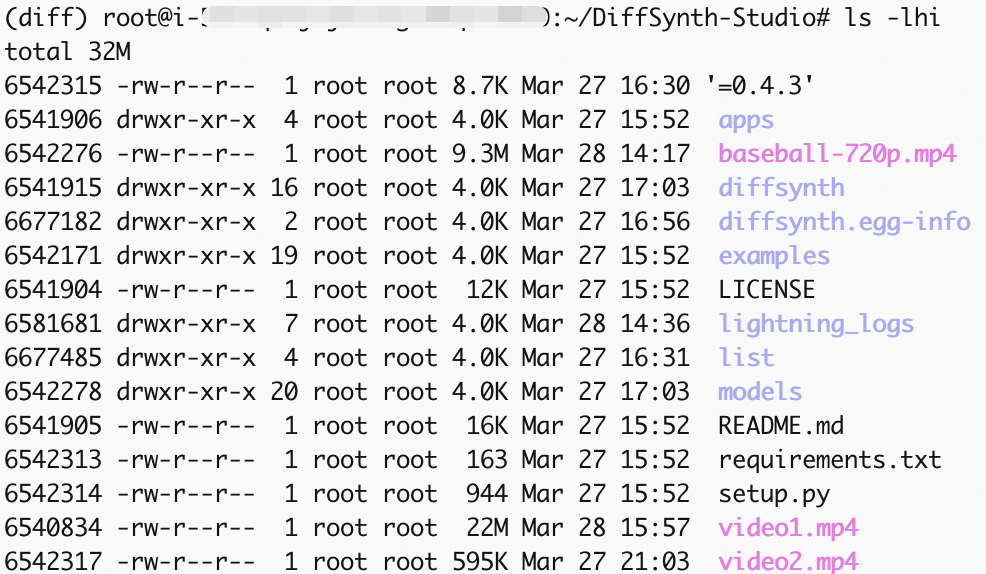
Generate a video
To modify the output path, change the value of output_path in Item 3 of the (Optional) Optimize the test script section.
You can refer to the remaining time prompt in the progress bar for the test time. After the running is complete, the video file video1.mp4 is generated. For information about how to use ossutil to import the generated video to Aliababa Coud OSS, see Copy objects.