StarRocks allows you to import CSV files of a size less than 10 GB from your on-premises machine. This topic describes the basic principles and best practices of Stream Load. This topic also provides examples on how to import data in Stream Load mode.
Background information
Stream Load is a synchronous import method that allows you to import on-premises files or data streams to StarRocks by sending HTTP requests. In Stream Load mode, the import result is returned after the import is complete. You can determine whether the import is successful based on the return value of the request.
Terms
coordinator: the node that receives data, distributes data to other data nodes, and returns a result after the data is imported.
Basic principles
Stream Load allows you to submit an import job by sending an HTTP request. If you submit the request to the frontend (FE) node, the FE node forwards the request to a backend (BE) node by performing an HTTP redirect. You can also submit the request directly to a BE node. The BE node serves as a coordinator node to divide data by table schemas and distribute the data to related BE nodes. Then, the coordinator node returns the results of the import job to you.
The following figure shows how Stream Load works.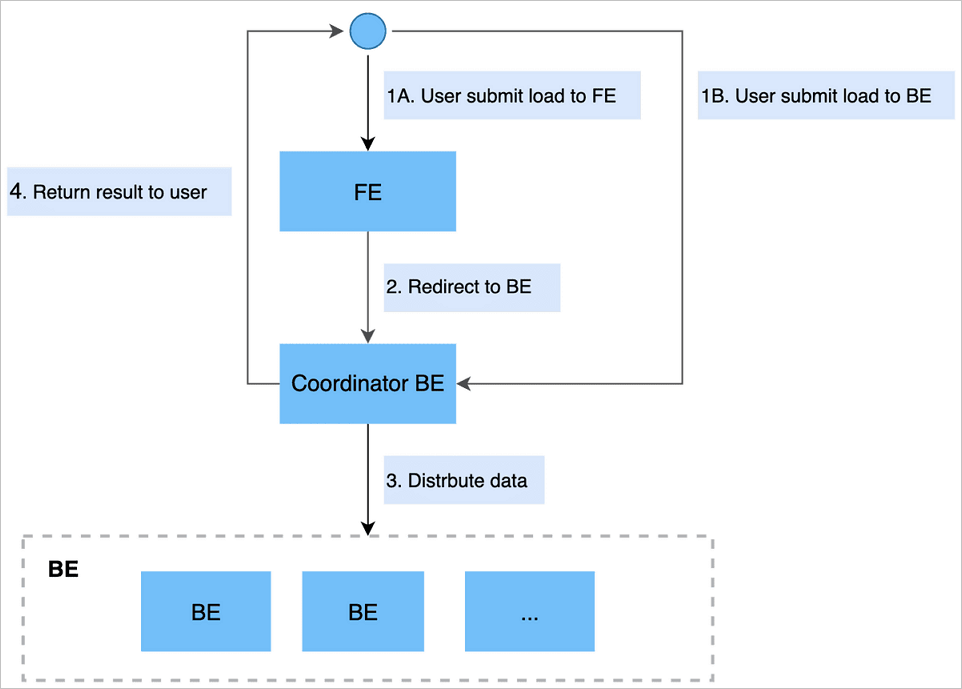
Examples
Create an import job
In Stream Load mode, data is submitted and transferred by using the HTTP protocol. In this example, the curl command is used to submit an import job. You can also use other HTTP clients to submit and transfer data.
Syntax
curl --location-trusted -u user:passwd [-H ""...] -T data.file -XPUT \
http://fe_host:http_port/api/{db}/{table}/_stream_loadHTTP supports chunked transfer encoding and non-chunked transfer encoding. For non-chunked transfer encoding, you must use the Content-Length header field to specify the length of the content that you want to upload. This ensures data integrity.
We recommend that you set the Expect header to 100-continue to prevent unnecessary data transmission when an error occurs.
You can view the supported header properties in the description of the import job parameters in the following table. The parameters are configured in the -H "key1:value1" format. If multiple parameters are involved, you must use multiple -H to indicate the parameters. Example: -H "key1:value1" -H "key2:value2". In Stream Load mode, all parameters related to an import job are configured in the header. The following table describes the parameters.
Parameter | Description | |
Signature parameter | user:passwd | In Stream Load, an import job is created by using the HTTP protocol. A signature is generated for the import job by using basic access authentication. StarRocks authenticates user identity and import permissions based on the signature. |
Import job parameters | label | The label of the import job. Data with the same label cannot be repeatedly imported. You can specify a label for an import job to prevent data from being repeatedly imported. StarRocks retains labels for jobs that have been completed in the last 30 minutes. |
column_separator | The column delimiter of the file that you want to import. Default value: \t. If a non-printable character is used as a column delimiter, the delimiter must be in the hexadecimal format and start with the \x prefix. For example, if the column delimiter of a Hive file is \x01, configure this parameter in the following format: | |
row_delimiter | The row delimiter of the file that you want to import. Default value: \n. Important \n cannot be passed by using the curl command. If you specify \n as the row delimiter, Shell first passes the backward slash (\) and then n, instead of directly passing \n. You can escape a string by using a Bash script. If you want to pass \n and \t, you can start the string with a dollar sign ($) and a full-width single quotation mark ('), and end the string with a half-width single quotation mark ('). Example: | |
columns | The mapping between the columns in the file that you want to import and the columns in the StarRocks table. If the columns in the source file are the same as those in the StarRocks table, you do not need to configure this parameter. Otherwise, you must configure this parameter to specify a data conversion rule. You can configure this parameter by using the following methods: Specify the column names in the StarRocks table that correspond to the column names in the file in sequence. Alternatively, specify the columns based on calculations.
| |
where | The data filter condition. You can configure this parameter to filter out unnecessary data. For example, if you want to import only the data whose value in the k1 column is 20180601, you can set this parameter to | |
max_filter_ratio | The maximum ratio of data that can be filtered out. For example, data is filtered out because it does not conform to specific standards. Default value: 0. Valid values: 0 to 1. Note Data that does not conform to standards does not include the data that is filtered out by the WHERE condition. | |
partitions | The partitions to which data is imported. We recommend that you configure this parameter if you confirm the partitions to which data is imported. Data that does not belong to the specified partitions will be filtered out. For example, if you want to import data to the p1 and p2 partitions, you can set this parameter to | |
timeout | The timeout period of the import job. Default value: 600. Valid values: 1 to 259200. Unit: seconds. | |
strict_mode | Specifies whether to enable the strict mode for the import job. By default, the strict mode is enabled. To disable the strict mode, set the parameter to | |
timezone | The time zone of the import job. The default time zone is UTC+8. This parameter affects the results of all time zone-related functions involved in the import job. | |
exec_mem_limit | The maximum size of memory that is available for the import job. Default value: 2. Unit: GB. | |
Example
curl --location-trusted -u root -T date -H "label:123" \
    http://abc.com:8030/api/test/date/_stream_load
After an import job is complete, the information about the import job is returned in JSON format. Sample return results:
{
    "TxnId": 11672,
    "Label": "f6b62abf-4e16-4564-9009-b77823f3c024",
    "Status": "Success",
    "Message": "OK",
    "NumberTotalRows": 199563535,
    "NumberLoadedRows": 199563535,
    "NumberFilteredRows": 0,
    "NumberUnselectedRows": 0,
    "LoadBytes": 50706674331,
    "LoadTimeMs": 801327,
    "BeginTxnTimeMs": 103,
    "StreamLoadPlanTimeMs": 0,
    "ReadDataTimeMs": 760189,
    "WriteDataTimeMs": 801023,
    "CommitAndPublishTimeMs": 199"
}
Parameter | Description |
TxnId | The transaction ID of the import job. The transaction ID can be fully managed by Alibaba Cloud. |
Label | The label of the import job. If you have specified a label, the label is returned. If you have not specified a label, the system automatically generates a label. |
Status | The status of the import job. Valid values:
|
ExistingJobStatus | The status of the import job that corresponds to the existing label. This parameter is displayed only if the value of the Status parameter is Label Already Exists. You can obtain the status of the import job that corresponds to the existing label based on the returned value. Valid values:
|
Message | The detailed description of the status of the import job. If the import job fails, the detailed failure cause is returned. |
NumberTotalRows | The total number of data rows read from the data stream. |
NumberLoadedRows | The number of imported data rows in the import job. This parameter is returned only if the status of the import job is Success. |
NumberFilteredRows | The number of data rows filtered out in the import job. The data rows whose quality does not conform to standards are filtered out. |
NumberUnselectedRows | The number of data rows that are filtered out by the WHERE condition. |
LoadBytes | The data size of the source file. |
LoadTimeMs | The duration of the import job. Unit: milliseconds. |
ErrorURL | The URL of the data entries that are filtered out. Only the first 1,000 data entries are retained. If the import job fails, you can run the following command to obtain the data that is filtered out. Then, you can analyze the data and make adjustments. |
Cancel an import job
In Stream Load mode, you can stop a process to cancel an import job. If an import job times out or an error occurs, the system automatically cancels the job.
ps -ef | grep stream_loadBest practices
Scenarios
Stream Load is suitable for scenarios where the source files are stored in memory or local disks. Stream Load is a synchronous import method. If you want to synchronously obtain the result of an import job, you can submit import jobs in Stream Load.
Data size
In Stream Load mode, a BE node imports and distributes data. We recommend that you use Stream Load to import data of a size from 1 GB to 10 GB. By default, the maximum size of data that can be imported in Stream Load mode is 10 GB. Therefore, you must modify the streaming_load_max_mb parameter of the BE node to import a file whose size exceeds 10 GB. For example, if the size of the file to be imported is 15 GB (15,360 MB), you can set the streaming_load_max_mb parameter of the BE node to a data size greater than 15 GB.
curl --location-trusted -u 'admin:****' -XPOST http://be-c-****-internal.starrocks.aliyuncs.com:8040/api/update_config?streaming_load_max_mb=15360The default timeout period of an import job that is submitted in Stream Load is 600 seconds. To adjust the timeout period, change the value of the timeout parameter of the FE node in your StarRocks instance in the EMR console.
Complete example
Data is stored in the /mnt/disk1/customer.tbl directory of the specific client. You want to import the data to the customer table of the stream_load database of your StarRocks instance.
Download data: customer.tbl
Instance information: The number of import jobs in Stream Load mode that can be concurrently processed is not affected by the instance size.
Procedure:
Modify the BE.conf configuration file of the BE node if the size of the file that you want to import exceeds the default upper limit. For example, you can set the streaming_load_max_mb parameter to 15360. Unit: MB.
curl --location-trusted -u 'admin:*****' -XPOST http://be-c-****-internal.starrocks.aliyuncs.com:8040/api/update_config?streaming_load_max_mb=15360On the Instance Configuration tab of your instance, change the value of the stream_load_default_timeout_second parameter. In this example, set the value to 3600.
Create a destination table named customer.
CREATE TABLE `customer` (
  `c_custkey` bigint(20) NULL COMMENT "",
  `c_name` varchar(65533) NULL COMMENT "",
  `c_address` varchar(65533) NULL COMMENT "",
  `c_nationkey` bigint(20) NULL COMMENT "",
  `c_phone` varchar(65533) NULL COMMENT "",
  `c_acctbal` double NULL COMMENT "",
  `c_mktsegment` varchar(65533) NULL COMMENT "",
  `c_comment` varchar(65533) NULL COMMENT ""
) ENGINE=OLAP
DUPLICATE KEY(`c_custkey`)
COMMENT "OLAP"
DISTRIBUTED BY HASH(`c_custkey`) BUCKETS 24
PROPERTIES (
"replication_num" = "1",
"in_memory" = "false",
"storage_format" = "DEFAULT",
"enable_persistent_index" = "false",
"compression" = "LZ4"
);
Create an import job. If the data set contains a large amount of data, you can perform the operation in the background.
curl --location-trusted -u 'admin:*****' -T /mnt/disk1/customer.tbl -H "label:labelname" -H "column_separator:|" http://fe-c-****-internal.starrocks.aliyuncs.com:8030/api/load_test/customer/_stream_loadThe following information is returned:
{ "TxnId": 575, "Label": "labelname", "Status": "Success", "Message": "OK", "NumberTotalRows": 150000, "NumberLoadedRows": 150000, "NumberFilteredRows": 0, "NumberUnselectedRows": 0, "LoadBytes": 24196144, "LoadTimeMs": 1081, "BeginTxnTimeMs": 104, "StreamLoadPlanTimeMs": 106, "ReadDataTimeMs": 85, "WriteDataTimeMs": 850, "CommitAndPublishTimeMs": 20 }NoteIf the error
"ErrorURL": "http://***:8040/api/_load_error_log?file=error_log_***"is reported, you can run thecurlcommand to view the details.
Sample code for integration
For information about how to use Java to submit import jobs in Stream Load, see stream_load.
For information about how to use Spark to submit import jobs in Stream Load, see 01_sparkStreaming2StarRocks.