Storing credentials such as AccessKeys and passwords in plaintext during data development exposes them to leakage risks. Ciphertext Management lets you encrypt and store sensitive information, then reference it dynamically in Notebook jobs, Spark configurations, and batch or stream job parameters—without exposing the raw values in your code or configuration files.
How it works
Create a ciphertext in Ciphertext Management and assign it a variable name.
Reference the ciphertext in your Notebook code, Spark session configuration, or job runtime parameters.
At runtime, EMR Serverless Spark decrypts the value and injects it automatically—the plaintext is never visible in your code or logs.
Prerequisites
Before you begin, ensure that you have:
An EMR Serverless Spark workspace
The permissions to create and manage ciphertexts in that workspace
Create a ciphertext
Log on to the E-MapReduce console.
In the navigation pane on the left, choose EMR Serverless > Spark.
On the Spark page, click the name of the target workspace.
On the EMR Serverless Spark page, click Ciphertexts in the navigation pane on the left.
On the Ciphertexts page, click Add Ciphertext.
On the Add Ciphertext page, configure the following parameters and click Confirm.
Parameter Description Variable Name A unique identifier for this ciphertext within the workspace. Cannot be modified after creation. Ciphertext The sensitive value to encrypt. Case-sensitive. Cannot be modified or viewed again after creation.
Record the ciphertext value before saving. Once created, the value cannot be retrieved or modified.
Use a ciphertext
Use in a Notebook job
In a Notebook job, use the emrssutils.utils library to retrieve a ciphertext at runtime. The DPI engine version must be esr-2.8.0, esr-3.4.0, esr-4.4.0, or later.
The following example retrieves a database password stored as a ciphertext and uses it to read data over JDBC.
Step 1: Import the library and load the ciphertext.
import emrssutils.utils

# Retrieve the decrypted value at runtime
password = emrssutils.utils.get_secret(key='<variable_name>')
Replace <variable_name> with the Variable Name you assigned when creating the ciphertext.
Step 2: Reference the ciphertext value in your Spark code.
df = spark.read \
    .format("jdbc") \
    .option("url", "jdbc:mysql://<jdbc_url>") \
    .option("dbtable", "<db>.<table>") \
    .option("user", "<username>") \
    .option("password", password) \
    .load()
df.show()
Use in Spark configurations
In Spark session or batch job configurations, reference a ciphertext using the following syntax:
${secret_values.variable_name}Replace variable_name with the Variable Name you assigned when creating the ciphertext.
The following example shows a Spark configuration for a SQL session that reads from and writes to MaxCompute, with the AccessKey stored as a ciphertext named AccessKey.
spark.sql.catalog.odps                        org.apache.spark.sql.execution.datasources.v2.odps.OdpsTableCatalog
spark.sql.extensions                          org.apache.spark.sql.execution.datasources.v2.odps.extension.OdpsExtensions
spark.sql.sources.partitionOverwriteMode      dynamic
spark.hadoop.odps.tunnel.quota.name           pay-as-you-go
spark.hadoop.odps.project.name                <project_name>
spark.hadoop.odps.end.point                   https://service.cn-hangzhou-vpc.maxcompute.aliyun-inc.com/api
spark.hadoop.odps.access.id                   <accessId>
spark.hadoop.odps.access.key                  ${secret_values.AccessKey}
For more information about reading from and writing to MaxCompute, see Read from and write to MaxCompute.
Use in batch or stream jobs
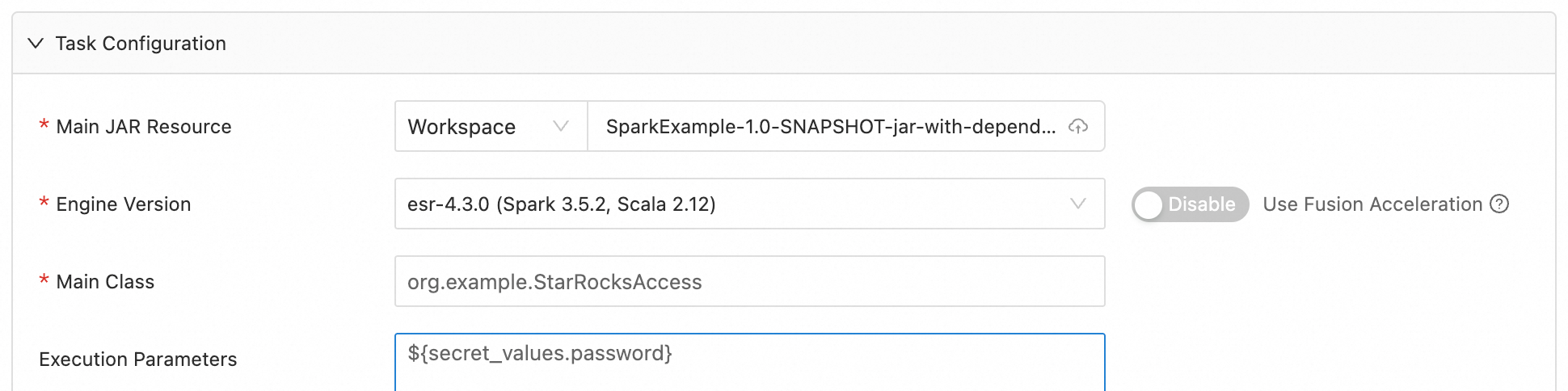
In the runtime parameters of a batch or stream job, reference a ciphertext using the same syntax:
${secret_values.variable_name}The following screenshot shows a JAR batch job configured with a ciphertext in its runtime parameters.