The DataAnalysis module in DataWorks includes a chart builder that converts SQL query results into interactive visualizations. This topic walks you through four chart configurations using user profile data: a stacked bar chart, two pie charts, and a grouped column chart.
Prerequisites
Before you begin, ensure that you have:
Processed the required data — raw data must be transformed into basic user profile data using DataWorks DataStudio before you start
Visualization scenarios
The following table lists the four scenarios covered in this topic.
| Scenario | Chart type |
|---|---|
| Numbers of registered members in different provinces and cities | Stacked Bar Chart |
| Distribution of page views of members in different age ranges | Pie Chart |
| Distribution of page views of members by gender | Pie Chart |
| Numbers of page views of members counted by gender and zodiac sign | Grouped Column Chart |
Open SQL Query
Log on to the DataWorks console. In the top navigation bar, select the desired region. In the left-side navigation pane, choose Data Analysis and Service > DataAnalysis. On the page that appears, click Go to DataAnalysis. In the left-side navigation pane, click SQL Query.
Configure a data source
Grant your account access to the data source. Go to Security Center and choose Security policy > Data query and analysis control. On the Queryable data source tab, find your data source and click Authorization. For details, see Use the data query and analysis control feature.
Create a temporary file.
First visit or no file open: Click Create SQL Query in the right-side area.
Existing file already open: Click the
 icon to the right of the current file name.
For more information about SQL query files, see SQL query.
Select a data source for the file. On the configuration tab, click the
 icon in the upper-right corner. Select a workspace, a compute engine type, and a data source. This example uses a MaxCompute data source.
Query data
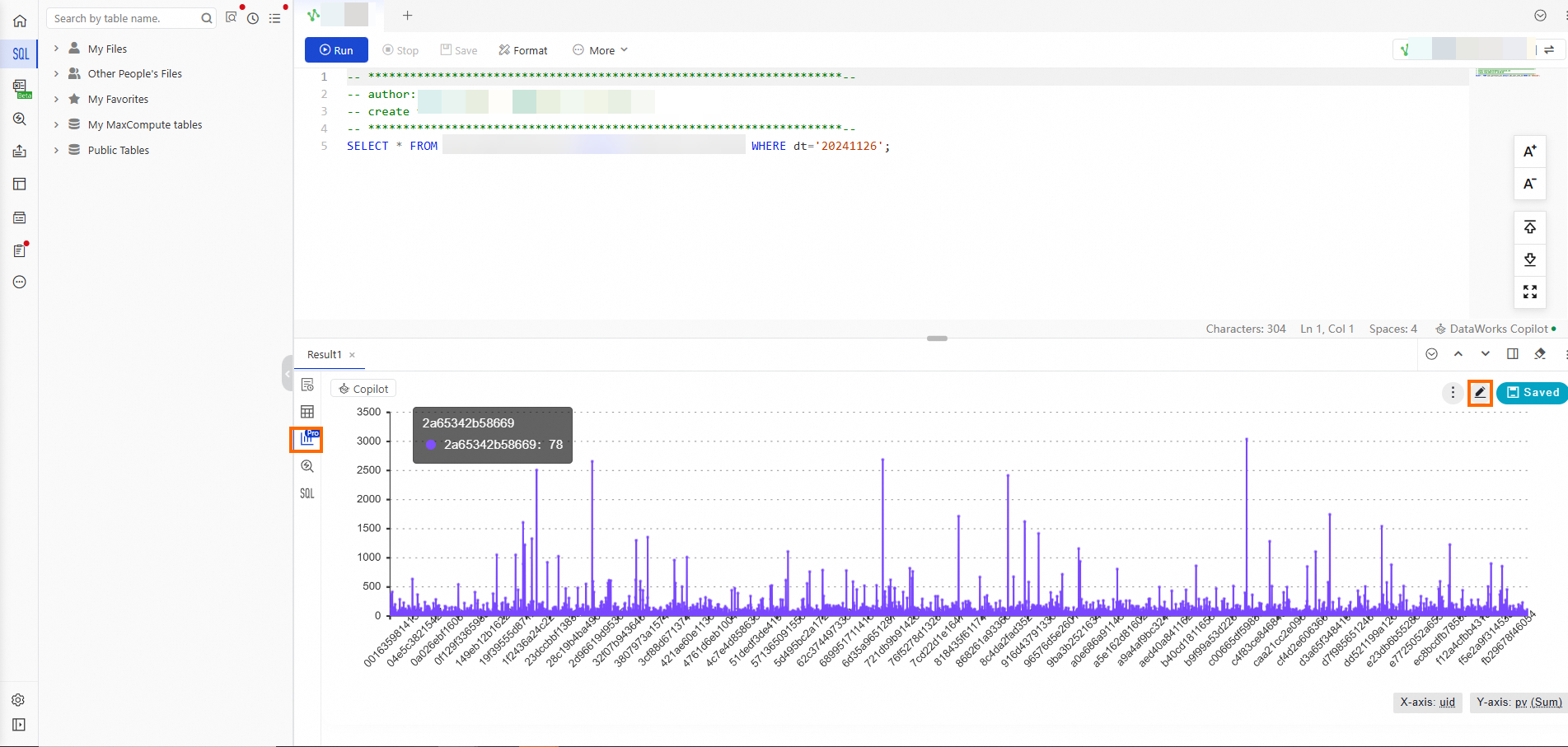
On the configuration tab of the SQL query file, enter the following SQL statement and click the  icon to run it. This example queries the
 dt="20241126" partition of the ads_user_info_1d_spark table.
-- If the desired partition is not found, run show partitions tablename to view available partitions.
select * from ads_user_info_1d_spark where dt='Data timestamp';
Configure charts
After the query completes, click the  icon on the left side of the query result section to switch to chart view. To open the chart configuration tab, click the
  icon in the upper-right corner of the chart.
The chart configuration tab has two panels:
Data Settings (left panel): Map query result columns to chart axes, categories, and values.
Style Settings (right panel): Change the chart type and configure visual appearance, including axis titles.
Numbers of registered members in different provinces and cities
Double-click the chart title and enter a new title.
In Style Settings, click the Change Chart tab and select Stacked Bar Chart.
In Data Settings, drag the uid field to the X-axis area and select Aggregate > Distinct Count.
Drag the region field to the Y-axis area.
In Style Settings, click the Global Settings tab. In the Chart Information section, click Details and then click Chart Style.
In the X-axis section, click Axis Title and set Displayed Title to Number of Registered Members.
In the Y-axis section, click Axis Title and set Displayed Title to Province.
Click Save in the upper-right corner. Final chart:
Setting Value Chart type Stacked Bar Chart X-axis field uid — Aggregate: Distinct Count X-axis title Number of Registered Members Y-axis field region Y-axis title Province 

Distribution of page views by age range
Double-click the chart title and enter a new title.
In Style Settings, click the Change Chart tab and select Pie Chart.
In Data Settings, drag the age_range field to the Category area.
Drag the pv field to the Value area and select Aggregate > Sum.
Click Save in the upper-right corner. Final chart:
Setting Value Chart type Pie Chart Category field age_range Value field pv — Aggregate: Sum 

Distribution of page views by gender
Double-click the chart title and enter a new title.
In Style Settings, click the Change Chart tab and select Pie Chart.
In Data Settings, drag the gender field to the Category area.
Drag the pv field to the Value area and select Aggregate > Sum.
Click Save in the upper-right corner. Final chart:
Setting Value Chart type Pie Chart Category field gender Value field pv — Aggregate: Sum 

Page views by gender and zodiac sign
Double-click the chart title and enter a new title.
In Style Settings, click the Change Chart tab and select Grouped Column Chart.
In Data Settings, drag the gender field to the X-axis area.
Drag the pv field to the Y-axis area and select Aggregate > Sum.
Drag the zodiac field to the Split area.
In Style Settings, click the Global Settings tab. In the Chart Information section, click Details and then click Chart Style.
In the X-axis section, click Axis Title and set Displayed Title to gender.
In the Y-axis section, click Axis Title and set Displayed Title to pv.
Click Save in the upper-right corner. Final chart:
Setting Value Chart type Grouped Column Chart X-axis field gender X-axis title gender Y-axis field pv — Aggregate: Sum Y-axis title pv Split field zodiac 

What's next
After configuring a chart, you have two save options:
Save: Permanently saves the chart so you can share it with your team.
Save As: Creates a copy of the chart, which lets you explore other chart types without modifying the original.

To view all charts created with Save As, click Cards in the left-side navigation pane of the DataAnalysis page.
