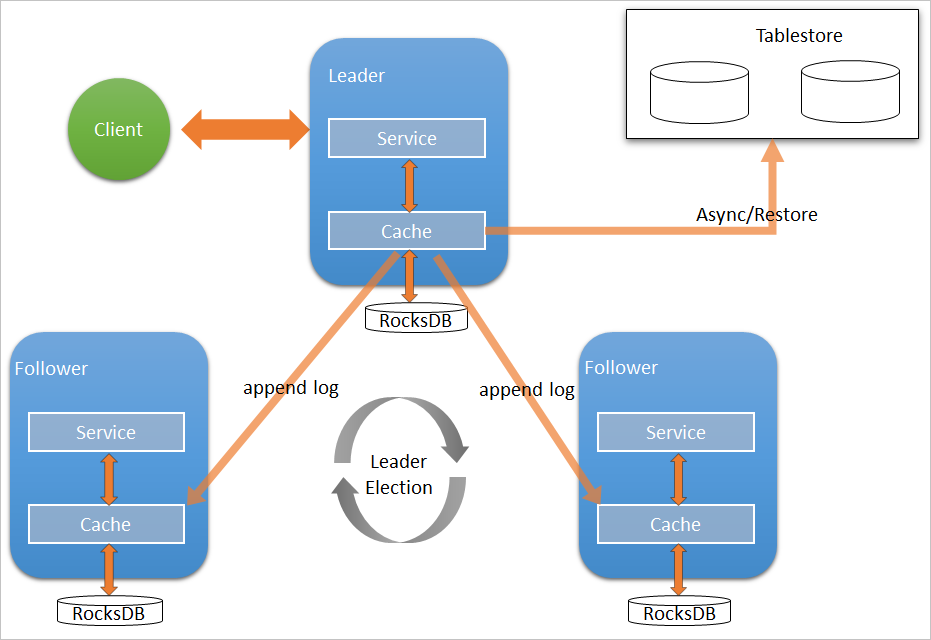
Available from EMR V3.27.0, Raft-RocksDB-Tablestore provides high-availability metadata storage for JindoFS Namespace Service. A three-node Raft cluster distributes metadata across three master nodes using local RocksDB. Optionally, EMR asynchronously replicates metadata to a Tablestore instance, creating an off-cluster backup that survives cluster termination and enables recovery to a new cluster.
How it works
A single Raft instance runs across three master nodes. Each node uses local RocksDB to persist metadata. The Raft protocol synchronizes writes across all three nodes, so a single node failure does not cause data loss.
When Tablestore is configured as the remote backend, EMR asynchronously uploads metadata from local RocksDB to Tablestore in real time. This creates a complete off-cluster replica.
Prerequisites
Before you begin, ensure that you have:
-
A Tablestore high-performance instance with the transaction feature enabled. For instructions, see Create instances.
-
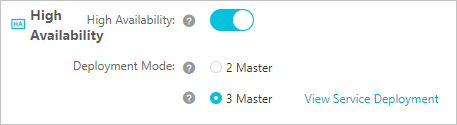
An E-MapReduce (EMR) cluster with three master nodes. For instructions, see Create a cluster.
Configure a Raft instance as the local storage backend
-
Log on to the Alibaba Cloud EMR console.
-
In the top navigation bar, select the region where your cluster resides and select a resource group.
-
Click the Cluster Management tab.
-
Find your cluster and click Details in the Actions column.
-
In the left-side navigation pane, choose Cluster Service > SmartData.
-
From the Actions drop-down list in the upper-right corner, select Stop All Components.
-
Configure Namespace Service parameters. For details, see Use JindoFS in block storage mode.
-
Go to the namespace configuration tab:
-
In the left-side navigation pane, choose Cluster Service > SmartData.
-
Click the Configure tab.
-
In the Service Configuration section, click the namespace tab.
-
-
Configure the following parameters:
Parameter Description Required value namespace.backend.typeBackend storage type for Namespace Service. Set to raft. Valid values:rocksdb,ots,raft. Default:rocksdb.raftnamespace.backend.raft.initial-confAddresses of the three master nodes where the Raft instance runs. This value is fixed. emr-header-1:8103:0,emr-header-2:8103:0,emr-header-3:8103:0jfs.namespace.server.rpc-addressAddresses of the three master nodes for client access to the Raft instance. This value is fixed. emr-header-1:8101,emr-header-2:8101,emr-header-3:8101 -
(Optional) Configure Tablestore as the remote asynchronous backup. Without Tablestore, metadata exists only in local RocksDB across the three master nodes. If all three nodes are lost or the cluster is terminated, metadata cannot be recovered. Configure Tablestore to create an off-cluster replica that enables recovery to a new cluster. Configure the following parameters on the namespace tab:
WarningSet
namespace.backend.raft.async.ots.enabledtotruebefore SmartData service initialization completes. Once metadata has been written to local RocksDB, this setting has no effect.Parameter Description Required value namespace.ots.instanceName of the Tablestore instance. emr-jfs(example)namespace.ots.accessKeyAccessKey ID used to access the Tablestore instance. Your AccessKey ID namespace.ots.accessSecretAccessKey secret used to access the Tablestore instance. Your AccessKey secret namespace.ots.endpointEndpoint of the Tablestore instance. Use a VPC endpoint for lower latency. http://emr-jfs.cn-hangzhou.vpc.tablestore.aliyuncs.com(example)namespace.backend.raft.async.ots.enabledEnable asynchronous upload to Tablestore. Set to true.true -
Save the configuration:
-
In the upper-right corner of the Service Configuration section, click Save.
-
In the Confirm Changes dialog box, enter a description and turn on Auto-update Configuration.
-
Click OK.
-
-
From the Actions drop-down list in the upper-right corner, select Start All Components.
Recover metadata from a Tablestore instance
When Tablestore is configured as the remote backend, a complete replica of JindoFS metadata is stored in Tablestore. After stopping or releasing the original EMR cluster, you can recover the metadata to a new cluster and regain access to the original files.
Step 1: Prepare the original cluster for shutdown
-
(Optional) Record the current file and folder counts for later verification:
hadoop fs -count jfs://test/Example output:
1596 1482809 25 jfs://test/ (folders) (files) -
Stop all jobs running on the original cluster.
-
Wait 30–120 seconds for EMR to sync all metadata to Tablestore, then verify sync status:
jindo jfs -metaStatus -detailThe sync is complete when the LEADER node shows
_synced=1in the output:... LEADER emr-header-1:8103 _synced=1 FOLLOWER emr-header-2:8103 ... FOLLOWER emr-header-3:8103 ...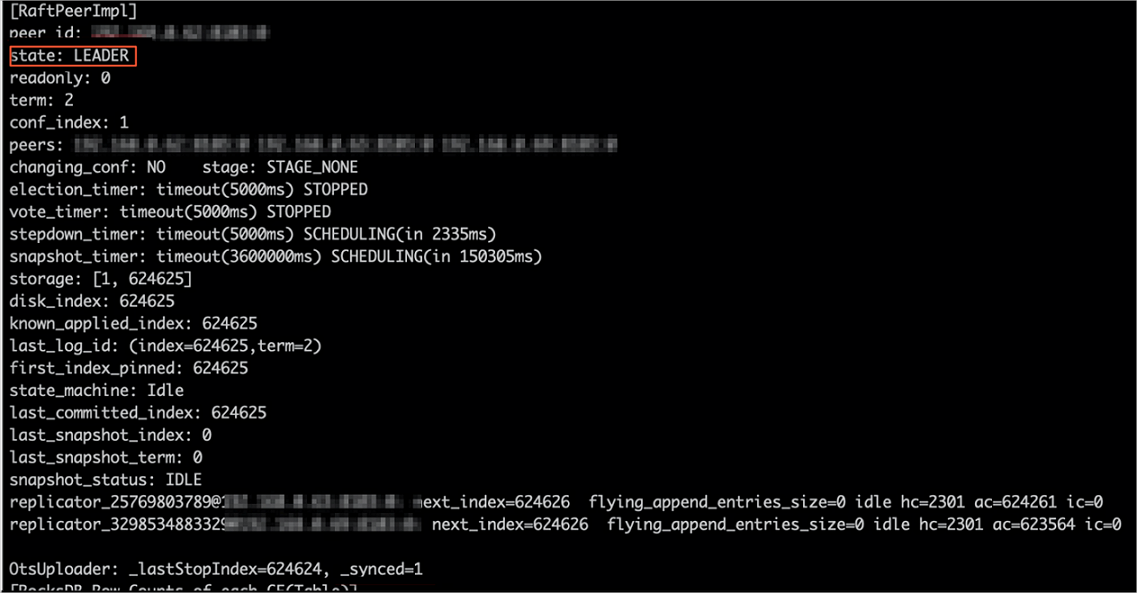
-
Stop or release the original EMR cluster. Make sure no clusters are accessing the Tablestore instance before proceeding.
Step 2: Create a new cluster and configure recovery mode
-
Create an EMR cluster in the same region as the Tablestore instance, then stop all SmartData components. Follow the steps in Configure a Raft instance as the local storage backend.
-
On the namespace tab, configure the following parameters:
Parameter Description Required value namespace.backend.raft.async.ots.enabledEnable asynchronous upload to Tablestore. Set to falseduring recovery.falsenamespace.backend.raft.recovery.modeEnable metadata recovery from Tablestore. Set to true.true -
Save the configuration:
-
In the upper-right corner of the Service Configuration section, click Save.
-
In the Confirm Changes dialog box, enter a description and turn on Auto-update Configuration.
-
Click OK.
-
-
From the Actions drop-down list in the upper-right corner, select Start All Components.
Step 3: Monitor recovery progress
After SmartData starts, EMR automatically pulls metadata from Tablestore into local Raft-RocksDB. Track progress with:
jindo jfs -metaStatus -detailRecovery is complete when the LEADER node state is FINISH:
...
LEADER   emr-header-1:8103   state=FINISH
FOLLOWER emr-header-2:8103   ...
FOLLOWER emr-header-3:8103   ...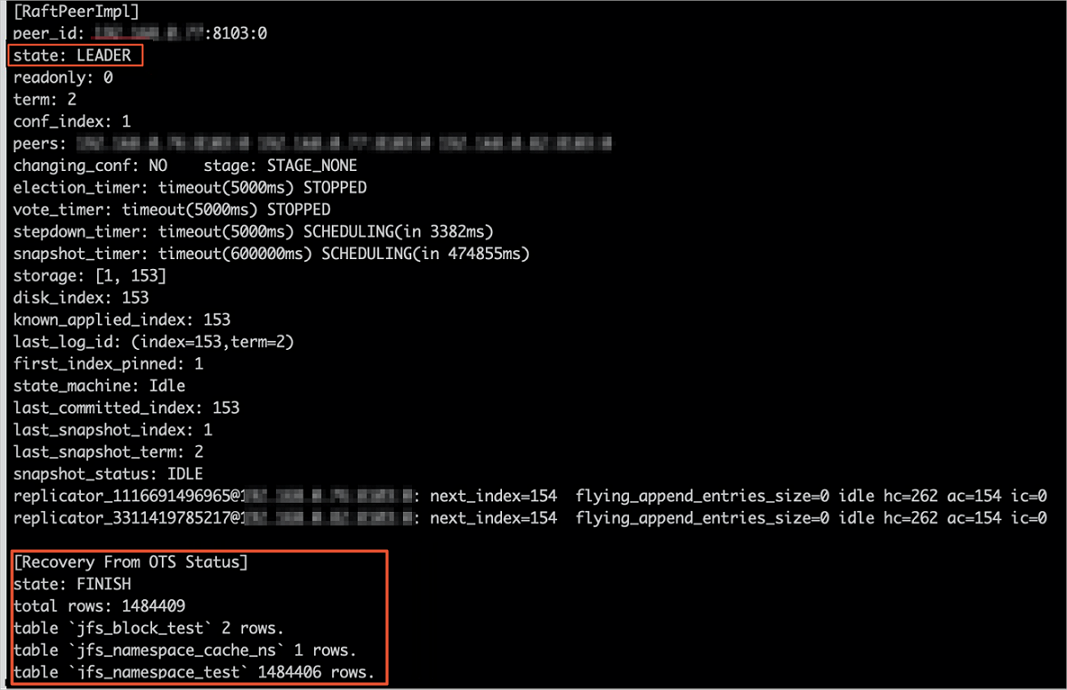
During recovery, the cluster is read-only. Write operations return:
java.io.IOException: ErrorCode : 25021 , ErrorMsg: Namespace is under recovery mode, and is read-only.Step 4: Verify data integrity
While the cluster is still in read-only mode, verify that file and folder counts match the original cluster:
hadoop fs -count jfs://test/Expected output (matches the counts recorded in step 1):
1596 1482809 25 jfs://test/Read files to confirm data is accessible:
hadoop fs -cat jfs://test/testfile
hadoop fs -ls jfs://test/
Step 5: Exit recovery mode and resume normal operation
-
On the namespace tab, update the following parameters:
Parameter Description Required value namespace.backend.raft.async.ots.enabledRe-enable asynchronous upload to Tablestore. truenamespace.backend.raft.recovery.modeDisable recovery mode. false -
Save the configuration using the same procedure as before.
-
Restart the cluster:
-
Click the Cluster Management tab.
-
Find the cluster. In the Actions column, click More and select Restart.
-