Configure and use JindoFS for efficient cloud-native storage on E-MapReduce 3.20.0 to 3.22.0 clusters.
Overview
JindoFS is a cloud-native file system that combines OSS and local storage. As the next-generation storage system for E-MapReduce, it provides efficient and reliable storage for compute engines.
JindoFS provides two storage modes: block storage mode and cache mode.
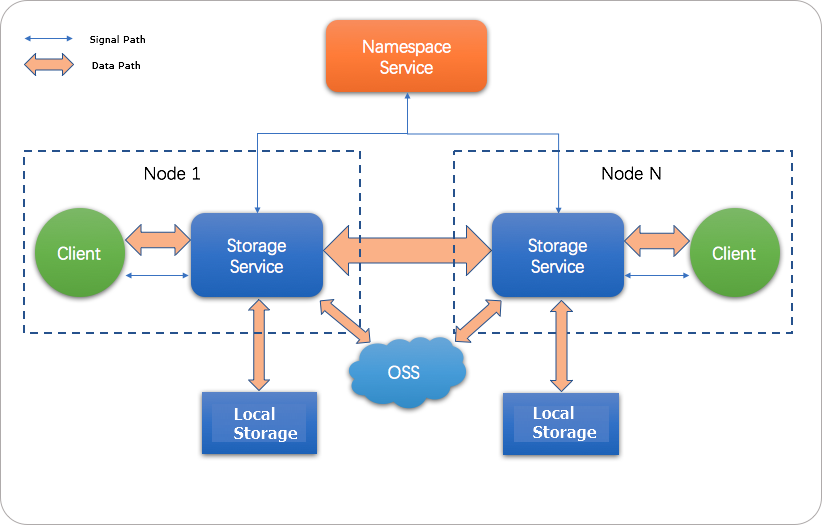
JindoFS uses a heterogeneous multi-backup mechanism that leverages both local storage and OSS. The Storage Service uses OSS as its primary storage backend for high data reliability and local storage for redundant backups to accelerate reads. Metadata is managed by the local Namespace Service, delivering metadata operation performance comparable to HDFS.
- E-MapReduce 3.20.0 and later support JindoFS. To use JindoFS, select the required services when creating a cluster.
- This guide covers using JindoFS on E-MapReduce versions from 3.20.0 up to (but not including) 3.22.0. For instructions on how to use JindoFS on E-MapReduce 3.22.0 and later, see SmartData User Guide (E-MapReduce 3.22.0 to 3.25.1).
Use cases
E-MapReduce currently provides three big data storage systems: E-MapReduce OssFileSystem, E-MapReduce HDFS, and E-MapReduce JindoFS. Both OssFileSystem and JindoFS are cloud-based storage solutions. The following table compares the characteristics of these three storage systems and Hadoop support for Alibaba Cloud OSS.
| Feature | Hadoop support for Alibaba Cloud OSS | E-MapReduce OssFileSystem | E-MapReduce HDFS | E-MapReduce JindoFS |
| Storage capacity | Tremendous | Tremendous | Depends on cluster scale | Tremendous |
| Reliability | High | High | High | High |
| Throughput factor | Server | I/O performance of disk caches | I/O performance of disks | I/O performance of disks |
| Metadata query efficiency | Low | Medium | High | High |
| Scale out | Easy | Easy | Easy | Easy |
| Scale in | Easy | Easy | Node decommission required | Easy |
| Data locality | None | Weak | Strong | Medium |
JindoFS block storage mode has the following features:
- Unlimited elastic storage capacity: OSS serves as the storage backend. Storage is not limited by the local cluster, and the local cluster can be freely scaled in or out.
- Local read acceleration: JindoFS uses the storage resources of the local cluster to accelerate data reads. This mode is suitable for clusters that have local storage capabilities, and improves read throughput even with limited local storage. It is particularly effective for Write Once Read Many (WORM) workloads.
- High-performance metadata operations: Metadata operation efficiency is comparable to that of HDFS. This avoids the latency of OSS file system metadata operations and the instability that frequent access may cause.
- Data locality: Data locality is maximized when jobs are running, which reduces network traffic and further improves read performance.
Prerequisites
-
Select an E-MapReduce version from 3.20.0 up to (but not including) 3.22.0. In the optional services section, select SmartData and Bigboot. For more information, see Create a cluster. The Bigboot service provides core platform services, such as distributed data management and component monitoring. Building on Bigboot, the SmartData service provides the JindoFS file system to applications.
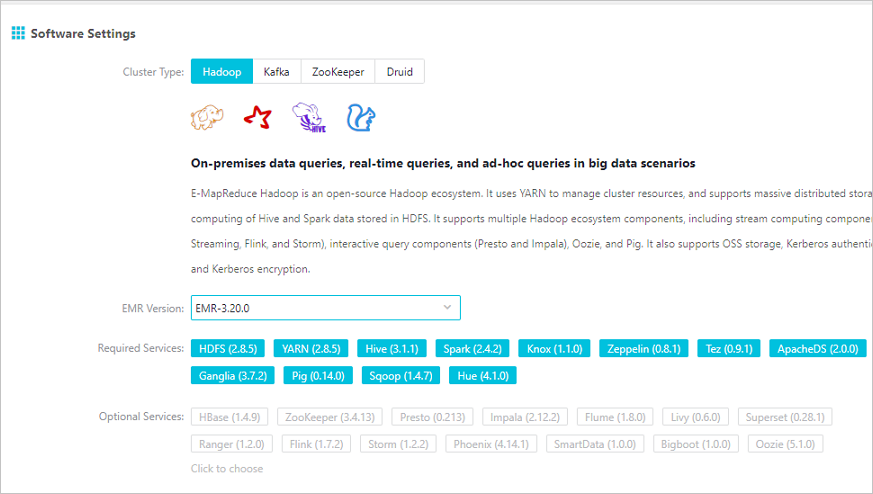
- Configure the cluster The JindoFS file system provided by SmartData uses OSS as its storage backend. Before you can use JindoFS, configure the required OSS parameters in one of two ways: modify Bigboot parameters after cluster creation and restart SmartData, or add custom configurations during cluster creation so that services launch with your specified parameters.
- Method 1: Configure after cluster creation
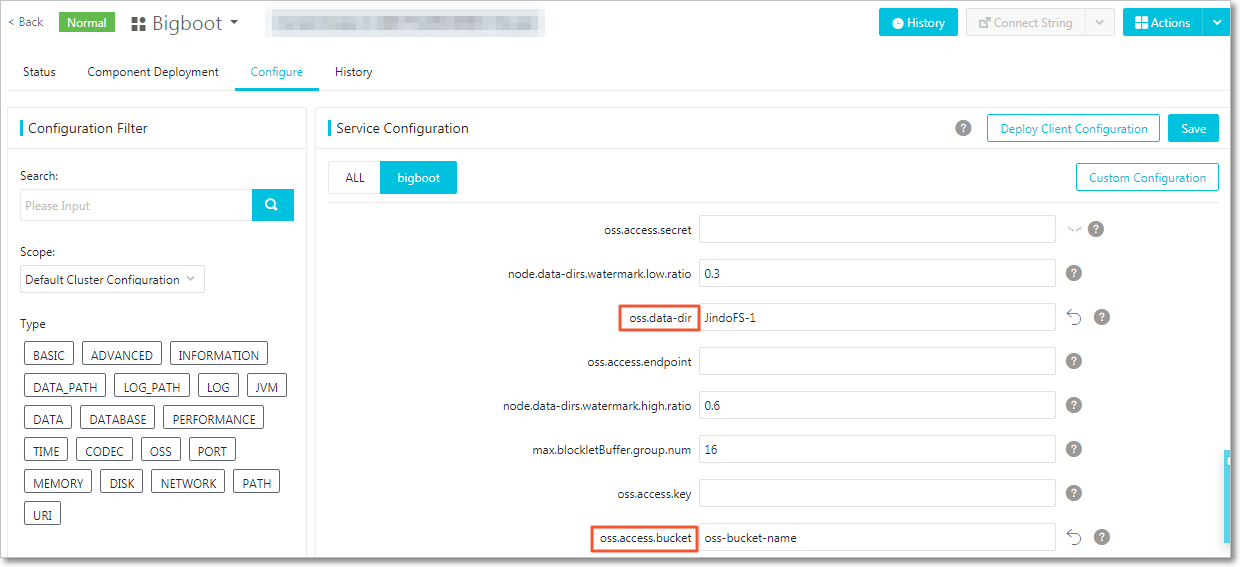
oss.access.bucketspecifies the name of the OSS bucket.oss.data-dirspecifies the directory that JindoFS uses in the OSS bucket. Note: This directory serves as the JindoFS storage backend. Do not manually alter the data it contains, and ensure it is used exclusively for JindoFS. You do not need to create this directory in OSS in advance; JindoFS creates it automatically when it first writes data.oss.access.endpointspecifies the region where the bucket is located.oss.access.keyspecifies the AccessKey ID for the OSS storage backend.oss.access.secretspecifies the AccessKey secret for the OSS storage backend.
For optimal performance and stability, use an OSS bucket in the same region as your E-MapReduce cluster. This allows credential-free access without configuring an AccessKey ID or AccessKey secret.
All JindoFS configurations are in the Bigboot component. The following figure highlights the required items in red.
 Note JindoFS supports multiple namespaces. In this topic, a namespace named
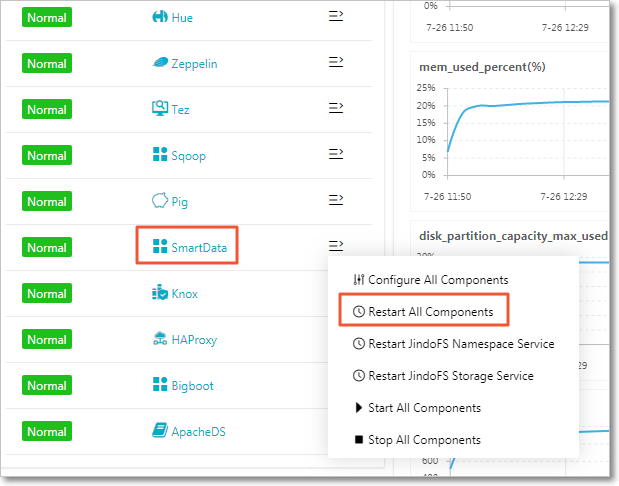
testis used as an example.After you complete the configuration, save and deploy it. Then, restart all components in the SmartData service to begin using JindoFS.
- Method 2: Configure during cluster creation You can add custom configurations when creating an E-MapReduce cluster. For example, to enable access to an OSS bucket in the same region without credentials, select Custom Software Configuration as shown in the figure and add the following JSON to configure
oss.data-dirandoss.access.bucket.[ { "ServiceName":"BIGBOOT", "FileName":"bigboot", "ConfigKey":"oss.data-dir", "ConfigValue":"jindoFS-1" }, { "ServiceName":"BIGBOOT", "FileName":"bigboot", "ConfigKey":"oss.access.bucket", "ConfigValue":"oss-bucket-name" } ]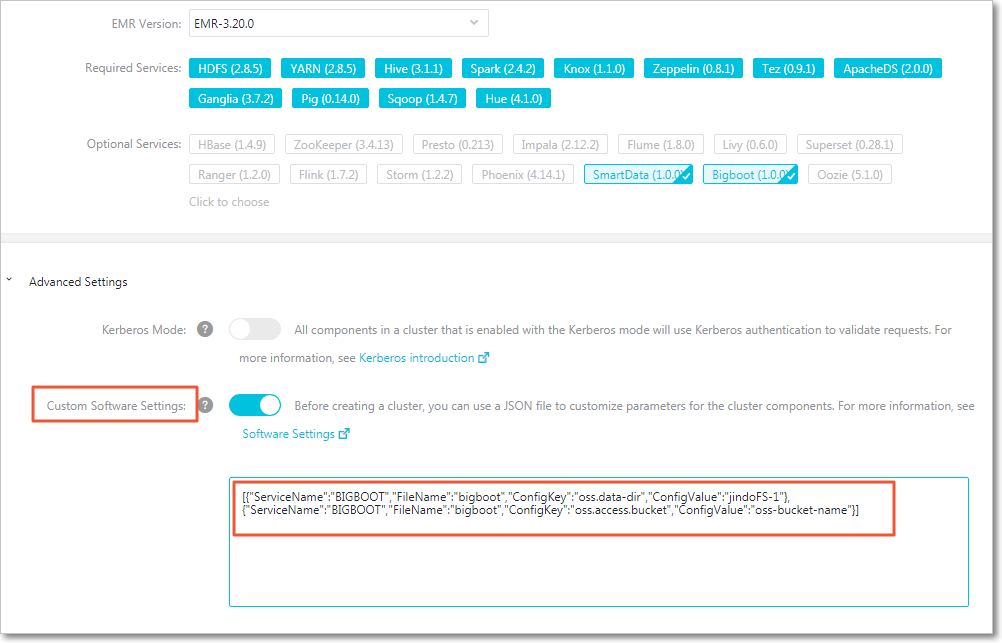
- Method 1: Configure after cluster creation
Use JindoFS
hdfs:// prefix with jfs://. For example: hadoop fs -ls jfs:///
hadoop fs -mkdir jfs:///test-dir
hadoop fs -put test.log jfs:///test-dir/Disk space watermark control
JindoFS uses OSS as its backend for massive storage capacity, but local disk space is limited. JindoFS automatically evicts cold data backups based on two watermark parameters: node.data-dirs.watermark.high.ratio and node.data-dirs.watermark.low.ratio. Both parameters are set as a ratio (a decimal from 0 to 1) of total disk capacity. When disk usage reaches the high watermark, JindoFS evicts data until the usage level drops to the low watermark. The value for the low watermark must be lower than the high watermark.
Apply a storage policy
Run the following command to set a storage policy for a directory:
jindo dfsadmin -R -setStoragePolicy [path] [policy]Run the following command to check the storage policy on a directory:
jindo dfsadmin -getStoragePolicy [path]| Parameter | Description |
|---|---|
[path] |
The directory path to apply or query. |
[policy] |
The storage policy name: COLD, WARM, HOT, or TEMP. |
-R |
Applies the policy recursively to all subdirectories. |