JindoFS is a cloud-native file system that combines Object Storage Service (OSS) and local storage to provide efficient, reliable storage for E-MapReduce (EMR). This guide covers JindoFS configuration, usage, and common scenarios.
Overview
JindoFS supports the block storage mode and cache mode.
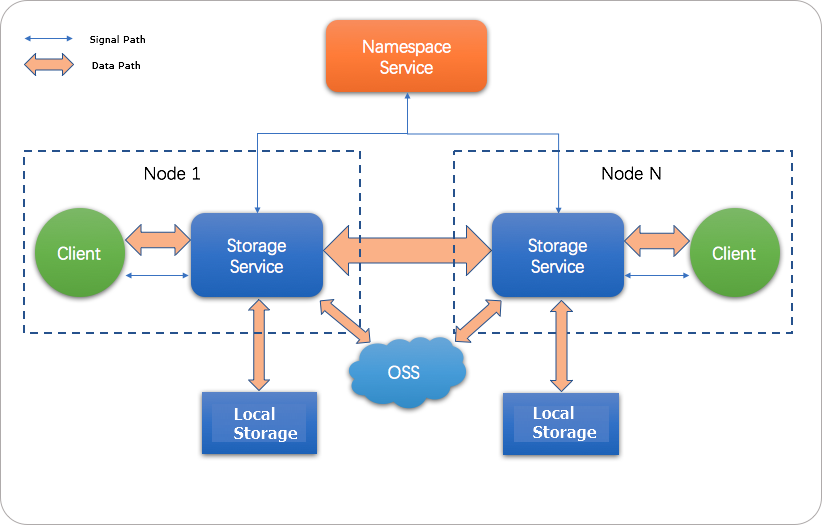
JindoFS adopts a heterogeneous multi-backup mechanism. Storage Service stores data in OSS for high reliability, with redundant backups in the local cluster to accelerate reads. Namespace Service manages JindoFS metadata locally instead of querying OSS, which improves query performance similar to Hadoop Distributed File System (HDFS).
-
JindoFS is supported in EMR 3.20.0 and later. To use JindoFS, select the service when you create a cluster.
-
This topic describes how to use JindoFS in EMR 3.22.0 and later. For instructions on using JindoFS in versions from EMR 3.20.0 up to (but not including) 3.22.0, see SmartData User Guide (EMR 3.20.0 to 3.22.0).
Prepare the environment
-
Create a cluster
Select EMR 3.22.0 or later and select SmartData in the optional services. For more information, see Create a cluster.
-
Configure the cluster
JindoFS uses OSS as its storage backend and requires OSS-related parameters to be configured. You can either modify Bigboot parameters after cluster creation (requires restarting SmartData) or add custom configurations during cluster creation so services start with your settings.
-
Initialize parameters after cluster creation
You can configure all parameters related to JindoFS in Bigboot by following these steps:
-
On the Service Configuration page, click the bigboot tab.
Set the value of jfs.namespaces to
test. -
Click Custom Configuration. In the Add Configuration Item dialog box, add the following configuration items: Set
jfs.namespaces.test.uritooss://oss-bucket/oss-dir, setjfs.namespaces.test.modetoblock, configure the corresponding OSS AccessKey ID and AccessKey Secret, and then click OK.
Note-
The listed parameters are required.
-
JindoFS supports multiple namespaces. This topic uses
testas an example namespace.
Parameter
Description
Example
jfs.namespaces
The namespaces supported by the current JindoFS instance. Use commas to separate multiple namespaces.
test
jfs.namespaces.test.uri
The URI of the storage backend for the
testnamespace.oss://oss-bucket/oss-dir
NoteYou can point this to a specific directory within an OSS bucket, which becomes the root directory for that namespace.
jfs.namespaces.test.mode
The storage mode for the
testnamespace.block
NoteJindoFS supports
blockandcachestorage modes.jfs.namespaces.test.oss.access.key
The AccessKey ID for OSS.
xxxx
NoteFor optimal performance and stability, use an OSS bucket under the same account and in the same region as your EMR cluster. This enables password-free OSS access, eliminating the need for AccessKey credentials.
jfs.namespaces.test.oss.access.secret
The AccessKey Secret for OSS.
Save and deploy the JindoFS configuration. Restart all components in SmartData to use JindoFS.
-
-
Add custom configurations during cluster creation
You can add custom settings when you create an EMR cluster. For example, to enable password-free access to an OSS bucket in the same region, select Custom Software Configuration and add the following configuration for the
testnamespace.[ { "ServiceName":"BIGBOOT", "FileName":"bigboot", "ConfigKey":"jfs.namespaces","ConfigValue":"test" },{ "ServiceName":"BIGBOOT", "FileName":"bigboot", "ConfigKey":"jfs.namespaces.test.uri", "ConfigValue":"oss://oss-bucket/oss-dir" },{ "ServiceName":"BIGBOOT", "FileName":"bigboot", "ConfigKey":"jfs.namespaces.test.mode", "ConfigValue":"block" } ]
-
Use JindoFS
JindoFS works similarly to HDFS. Replace the hdfs prefix with the jfs prefix in your file paths.
JindoFS supports most of the computing components in the EMR cluster, including Hadoop, Hive, Spark, Flink, Presto, and Impala.
Examples:
-
Shell commands
hadoop fs -ls jfs://your-namespace/ hadoop fs -mkdir jfs://your-namespace/test-dir hadoop fs -put test.log jfs://your-namespace/test-dir/ hadoop fs -get jfs://your-namespace/test-dir/test.log ./ -
MapReduce job
hadoop jar /usr/lib/hadoop-current/share/hadoop/mapreduce/hadoop-mapreduce-examples-2.8.5.jar teragen -Dmapred.map.tasks=1000 10737418240 jfs://your-namespace/terasort/input hadoop jar /usr/lib/hadoop-current/share/hadoop/mapreduce/hadoop-mapreduce-examples-2.8.5.jar terasort -Dmapred.reduce.tasks=1000 jfs://your-namespace/terasort/input jfs://your-namespace/terasort/output -
Spark SQL
CREATE EXTERNAL TABLE IF NOT EXISTS src_jfs (key INT, value STRING) location 'jfs://your-namespace/Spark_sql_test/';
Disk space watermark control
JindoFS uses OSS as its backend for massive storage capacity, but local disk space is limited. JindoFS automatically evicts cold data backups based on two watermark parameters: node.data-dirs.watermark.high.ratio and node.data-dirs.watermark.low.ratio. Both parameters are set as a ratio (a decimal from 0 to 1) of total disk capacity. When disk usage reaches the high watermark, JindoFS evicts data until the usage level drops to the low watermark. The value for the low watermark must be lower than the high watermark.
Configure the storage policy
JindoFS provides the following storage policies for directories to meet different storage needs.
|
Policy |
Description |
|
COLD |
Data has only one backup in OSS and no local backup. This policy is suitable for storing cold data. |
|
WARM |
The default storage policy. Data has one backup in OSS and one on local storage. The local backup can effectively accelerate subsequent read operations. |
|
HOT |
Data has one backup in OSS and multiple backups on local storage. This policy provides further acceleration for the most frequently accessed data. |
|
TEMP |
Data has only one local backup. This policy provides high-performance reads and writes for temporary data but reduces data reliability. It is suitable for storing and accessing temporary data. |
Use the Admin command-line tool to configure the storage policy of a directory. The default policy is WARM, and new files inherit the policy of their parent directory. Run the following command to set a storage policy:
jindo dfsadmin -R -setStoragePolicy [path] [policy]Run the following command to obtain the storage policy configured for a directory:
jindo dfsadmin -getStoragePolicy [path]Here, [path] specifies the path for which you want to set the policy, and -R specifies that the policy is recursively applied to all subdirectories under the specified path.
Use the Admin tool
The JindoFS Admin tool provides the archive and jindo commands.
-
Use the archive command to archive cold data.
This command explicitly evicts local blocks while retaining OSS backups. For example, if Hive partitions a table by day, you can periodically run the archive command on directories with infrequently accessed data, such as partitions older than a week.
Run the following archive command:
jindo dfsadmin -archive [path]NoteThe [path] parameter specifies the directory path of the files to be archived.
-
Use the jindo command to manage JindoFS metadata in Namespace Service.
jindo dfsadmin [-options]NoteYou can run the
jindo dfsadmin --helpcommand to get help information.
The Admin tool also provides diff and sync commands for cache mode.
-
The diff command displays differences between local data and backend storage.
jindo dfsadmin -R -diff [path]NoteBy default, this command compares the metadata of the immediate subdirectories within the specified
[path]. The-Roption recursively compares all paths under the specified[path]. -
The
synccommand synchronizes metadata between local and backend storage.jindo dfsadmin -R -sync [path]NoteThe
[path]parameter specifies the path to synchronize. By default, only the metadata of the immediate subdirectories of[path]is synchronized. The-Roption recursively synchronizes all paths under the specified[path].