This tutorial walks you through adding data sources to DataWorks, configuring batch synchronization tasks, and using E-MapReduce (EMR) Hive nodes to create tables and query the synchronized data.
In this tutorial, you will:
-
Add three data sources (HttpFile, MySQL, OSS) to a DataWorks workspace
-
Create a workflow with two batch synchronization nodes
-
Configure the nodes to sync user data and access logs to OSS
-
Create EMR Hive external tables that map to the OSS data
-
Run the workflow and verify the results with ad hoc queries
Nodes created in this tutorial:
| Node name | Type | Purpose |
|---|---|---|
workshop_start_emr |
Zero-Load Node | Triggers the workflow daily |
ods_user_info_d_2oss_emr |
Offline synchronization | Syncs MySQL user data to OSS |
ods_raw_log_d_2oss_emr |
Offline synchronization | Syncs HttpFile access logs to OSS |
ods_user_info_d_emr |
EMR Hive | Creates an external table for user data |
ods_raw_log_d_emr |
EMR Hive | Creates an external table for access logs |
Prerequisites
Before you begin, make sure you have:
-
A prepared environment. See Prepare environments.
-
A security group rule added in the Elastic Compute Service (ECS) console that allows port
10000of the ECS instance to connect to DataWorks. Set Authorization Object to the CIDR block of the vSwitch associated with the resource group. See Add a security group rule.
Step 1: Add data sources
Add three data sources to your DataWorks workspace: an HttpFile source for website access logs, a MySQL source for user information, and an OSS destination to store the synced data.
Add an HttpFile data source
-
Go to the Data Sources page.
-
Log on to the DataWorks console. In the top navigation bar, select the desired region. In the left-side navigation pane, choose More > Management Center. On the page that appears, select your workspace from the drop-down list and click Go to Management Center.
-
In the left-side navigation pane of the SettingCenter page, click Data Sources.
-
-
In the upper-left corner of the Data Sources page, click Add Data Source. In the Add Data Source dialog box, click HttpFile.
-
On the Add HttpFile Data Source page, configure the following parameters. Use the sample values for both the development and production environments.
Parameter Value Data Source Name user_behavior_analysis_httpfileData Source Description This data source is read-only in data synchronization scenarios. It is used as the source of a batch synchronization task to access the provided test data. URL https://dataworks-workshop-2024.oss-cn-shanghai.aliyuncs.com -
Find a desired resource group and click Test Network Connectivity in both the Connection Status (Development Environment) and Connection Status (Production Environment) columns.
ImportantAt least one resource group must show Connected. Otherwise, you cannot use the codeless UI to configure a data synchronization task for this data source.
-
Click Complete Creation.
Add a MySQL data source
-
In the left-side navigation pane of the SettingCenter page, click Data Sources. In the upper-left corner, click Add Data Source.
-
In the Add Data Source dialog box, select MySQL.
-
On the Add MySQL Data Source page, configure the following parameters. Use the sample values for both environments.
Parameter Value Data Source Name user_behavior_analysis_mysqlData Source Description This data source is read-only in data synchronization scenarios. It is used as the source of a batch synchronization task to access the provided test data. Configuration Mode Connection String Mode Connection Address Host IP address: rm-bp1z69dodhh85z9qa.mysql.rds.aliyuncs.com; Port:3306Database Name workshopUsername workshopPassword workshop#2017Authentication Method No Authentication -
Find a desired resource group and click Test Network Connectivity in both the Connection Status (Development Environment) and Connection Status (Production Environment) columns.
-
Click Complete Creation.
Add an OSS data source
This OSS data source serves as the destination for both synchronization tasks: user information from MySQL and access logs from HttpFile are written here.
-
In the left-side navigation pane of the SettingCenter page, click Data Sources. In the upper-left corner, click Add Data Source.
-
In the Add Data Source dialog box, select OSS.
-
On the Add OSS Data Source page, configure the following parameters.
ImportantThe AccessKey secret is shown only at creation time. If it is lost or compromised, delete the key pair and create a new one.
Parameter Value Data Source Name test_gAccess Mode AccessKey Mode AccessKey ID Your AccessKey ID. Go to the AccessKey page to copy it. AccessKey secret Your AccessKey secret. Endpoint http://oss-cn-shanghai-internal.aliyuncs.comBucket dw-emr-demo(the bucket you created when preparing the environment) -
Find a desired resource group and click Test Network Connectivity in both the Connection Status (Development Environment) and Connection Status (Production Environment) columns.
NoteAt least one resource group must show Connected. Otherwise, you cannot use the codeless UI to configure a data synchronization task for this data source.
-
Click Complete Creation.
Step 2: Create the workflow
-
On the Data Sources page, click the
 icon in the upper-left corner and choose All Products > Data Development And Task Operation > DataStudio.
 -
In the Scheduled Workflow pane, right-click Business Flow and select Create Workflow.
-
In the Create Workflow dialog box, set Workflow Name to
workshop_emrand click Create. -
Double-click the new workflow to open its configuration tab. Create the following nodes:
-
Click Create Node and drag Zero-Load Node from the General section to the canvas. Set Name to
workshop_start_emrand click Confirm. -
Click Create Node and drag Offline synchronization from the Data Integration section to the canvas. Create two batch synchronization nodes:
ods_raw_log_d_2oss_emr(for HttpFile logs) andods_user_info_d_2oss_emr(for MySQL user data). Click Confirm for each.
-
-
On the workflow canvas, draw directed lines to make
workshop_start_emrthe ancestor node of both batch synchronization nodes.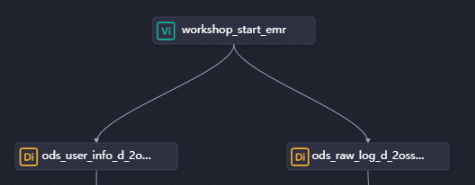
Step 3: Configure the nodes
Configure the workflow trigger node
The workshop_start_emr zero-load node triggers the workflow to run daily.
-
In the Scheduled Workflow pane, double-click the
workshop_start_emrnode. In the right-side pane of the node configuration tab, click Properties. -
Configure the scheduling properties.
Section Setting Schedule Set the scheduling time to 00:30. Set Rerun to Allow Regardless of Running Status.Scheduling dependencies Set workshop_start_emras a descendant of the workspace root node (namedWorkspace name_root). The root node triggersworkshop_start_emrto run. -
Click the
 icon to save.
Configure batch synchronization nodes
Sync MySQL user data to OSS (ods_user_info_d_2oss_emr)
-
On the DataStudio page, double-click
ods_user_info_d_2oss_emrto open the node configuration page. -
Set the source, resource group, and destination, then click Next and complete the connectivity test.
Parameter Value Source MySQL — Data Source Name: user_behavior_analysis_mysqlResource Group Your serverless resource group Destination OSS — Data Source Name: test_g -
Configure the synchronization details.
Parameter Value Source: Table ods_user_info_dSource: Split key uid(INTEGER type; use a primary key or indexed column)Destination: Text type textDestination: Object Name (Path Included) ods_user_info_d/user_${bizdate}/user_${bizdate}.txt—ods_user_info_dis the folder in the OSS bucket;${bizdate}is replaced with the previous day's date at runtime (for example,20191106when the workflow runs on November 7, 2019).Destination: Column Delimiter | -
Click Properties in the right-side pane and configure the scheduling settings.
Section Setting Scheduling Parameter Click Add Parameter. Set Parameter Name to bizdateand Parameter Value to$[yyyymmdd-1].Schedule Set Rerun to Allow Regardless of Running Status. Dependencies Confirm that the output table follows the Workspace name.Node nameformat. -
Click the
icon to save.
Sync HttpFile access logs to OSS (ods_raw_log_d_2oss_emr)
-
On the DataStudio page, double-click
ods_raw_log_d_2oss_emrto open the node configuration page. -
Set the source, resource group, and destination, then click Next and complete the connectivity test.
Parameter Value Source HttpFile — Data Source Name: user_behavior_analysis_httpfileResource Group Your serverless resource group Destination OSS — Data Source Name: test_g -
Configure the synchronization details.
Parameter Value Source: File Path /user_log.txtSource: Text type textSource: Column Delimiter |Source: Compression format None Source: Skip Header No Destination: Text type textDestination: Object Name (Path Included) ods_raw_log_d/log_${bizdate}/log_${bizdate}.txt—ods_raw_log_dis the folder in the OSS bucket;${bizdate}is replaced with the previous day's date at runtime.Destination: Column Delimiter | -
Click Properties in the right-side pane and configure the scheduling settings.
Section Setting Scheduling Parameter Click Add Parameter. Set Parameter Name to bizdateand Parameter Value to$[yyyymmdd-1].Schedule Set Rerun to Allow Regardless of Running Status. Dependencies Confirm that the output table follows the Workspace name.Node nameformat. -
Click the
icon to save.
Create EMR Hive tables
Create two EMR Hive external tables — ods_user_info_d_emr and ods_raw_log_d_emr — that point to the OSS folders where the synced data is stored.
-
In the Scheduled Workflow pane, click the
workshop_emrworkflow, right-click EMR, and choose Create Node > EMR Hive. -
Create two EMR Hive nodes:
ods_user_info_d_emrandods_raw_log_d_emr. Draw dependency lines so that both EMR Hive nodes run after the batch synchronization nodes complete.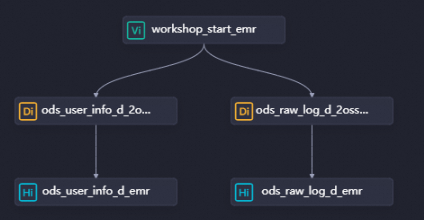
-
Configure and run each EMR Hive node. ods_user_info_d_emr — user information table Double-click the
ods_user_info_d_emrnode and enter the following SQL:NoteThe
LOCATIONpath must match the Object Name (Path Included) value set in theods_user_info_d_2oss_emrnode.dw-emr-demois the OSS bucket name you created when preparing the environment.${bizdate}is replaced with the previous day's date at runtime.NoteThe
LOCATIONpath must match the Object Name (Path Included) value set in theods_raw_log_d_2oss_emrnode.dw-emr-demois the OSS bucket name you created when preparing the environment.Section Setting Scheduling Parameter Set Parameter Name to bizdateand Parameter Value to$[yyyymmdd-1].Schedule Set Rerun to Allow Regardless of Running Status. Dependencies Confirm that the output table follows the Workspace name.Node nameformat.Resource Group Select your serverless resource group. CREATE EXTERNAL TABLE IF NOT EXISTS ods_user_info_d_emr ( `uid` STRING COMMENT 'The user ID', `gender` STRING COMMENT 'The gender', `age_range` STRING COMMENT 'The age range', `zodiac` STRING COMMENT 'The zodiac sign' ) PARTITIONED BY ( dt STRING ) ROW FORMAT delimited fields terminated by '|' LOCATION 'oss://dw-emr-demo/ods_user_info_d/'; ALTER TABLE ods_user_info_d_emr ADD IF NOT EXISTS PARTITION (dt='${bizdate}') LOCATION 'oss://dw-emr-demo/ods_user_info_d/user_${bizdate}/';Click Properties in the right-side pane and configure the scheduling settings: Click the
 icon to save and run. ods_raw_log_d_emr — access log table Double-click the
 ods_raw_log_d_emrnode and enter the following SQL:-- Create the table used to store website access logs. CREATE EXTERNAL TABLE IF NOT EXISTS ods_raw_log_d_emr ( `col` STRING ) PARTITIONED BY ( dt STRING ); ALTER TABLE ods_raw_log_d_emr ADD IF NOT EXISTS PARTITION (dt='${bizdate}') LOCATION 'oss://dw-emr-demo/ods_raw_log_d/log_${bizdate}/';Apply the same scheduling settings as above, then save and run.
Step 4: Run the workflow and verify the results
Run the workflow
-
On the DataStudio page, double-click the
workshop_emrworkflow under Business Flow. On the workflow configuration tab, click the icon in the toolbar. The workflow runs all nodes in dependency order.
 -
Check node status.
-
Nodes in the
 state are running normally.
 -
If nodes show the
 state with the error
 "java.net.ConnectException: Connection timed out (Connection timed out)", add a security group rule in the ECS console: allow port10000and set Authorization Object to the vSwitch CIDR block. To find the CIDR block, go to the Resource Groups page, find your resource group, and click Network Settings > VPC Binding. See Add a security group rule.
-
Verify the results
-
In the left-side navigation pane of the DataStudio page, click the
 icon. In the Ad Hoc Query pane, right-click Ad Hoc Query and choose Create Node > EMR Hive.
 -
Run the following queries to confirm the data was written successfully. Replace
<data_timestamp>with the previous day's date inyyyymmddformat. For example, if the workflow ran on November 7, 2019, use20191106.SELECT * FROM ods_user_info_d_emr WHERE dt=<data_timestamp>; SELECT * FROM ods_raw_log_d_emr WHERE dt=<data_timestamp>; -
To view the execution logs, right-click the
ods_user_info_d_emrorods_raw_log_d_emrnode and select View Logs. Successful synchronization looks like: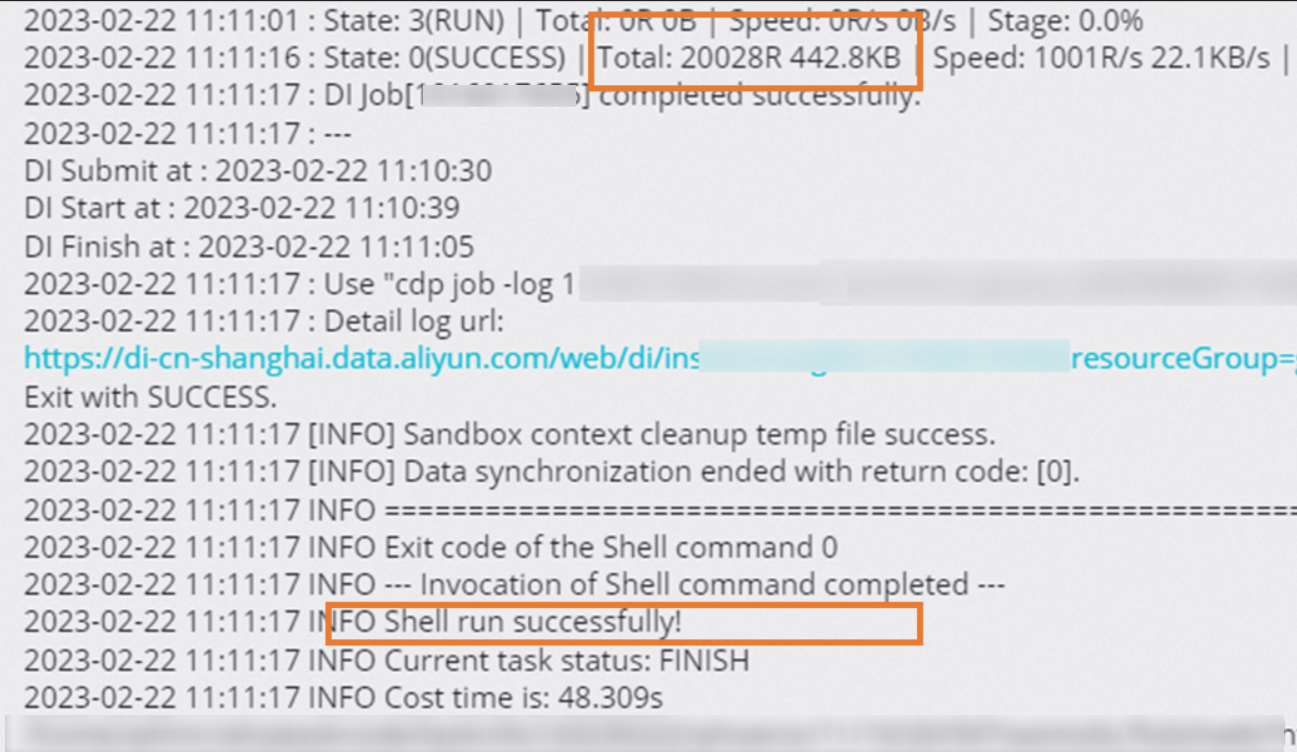
What's next
Now that you have synced data into OSS and made it queryable through EMR Hive tables, proceed to the next tutorial to compute and analyze the data. See Process data.