What should I do if ESA is under a large-scale attack?
If you are experiencing a large-scale attack (such as a DDoS or bot attack), take the following steps to mitigate it:
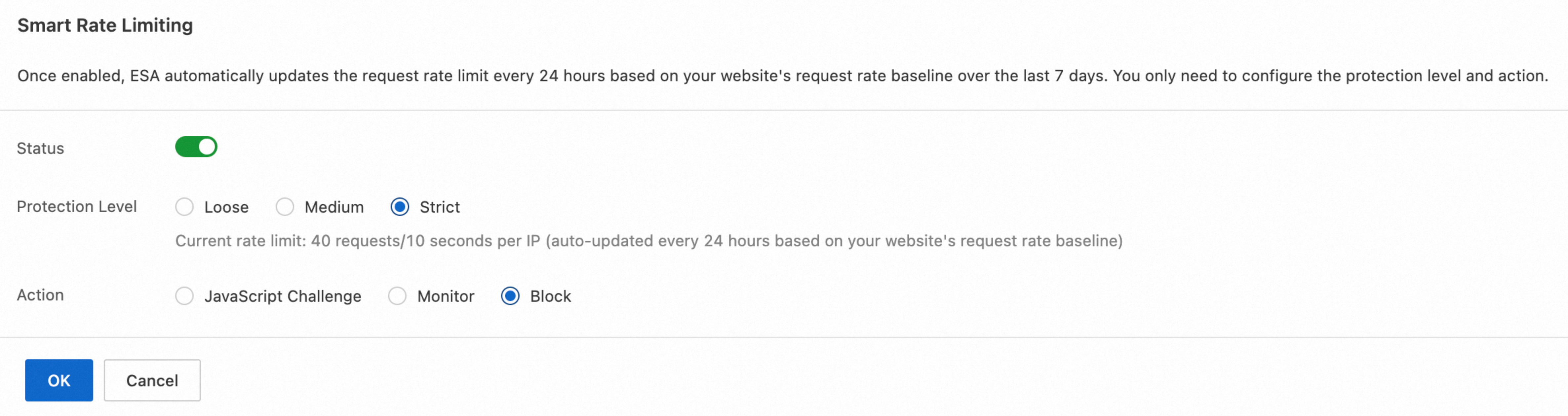
In the console, navigate to the WAF Overview tab. Set the Protection Level of smart rate limiting to Strict and the action to Block. This will automatically challenge or block traffic exhibiting bot-like behavior.
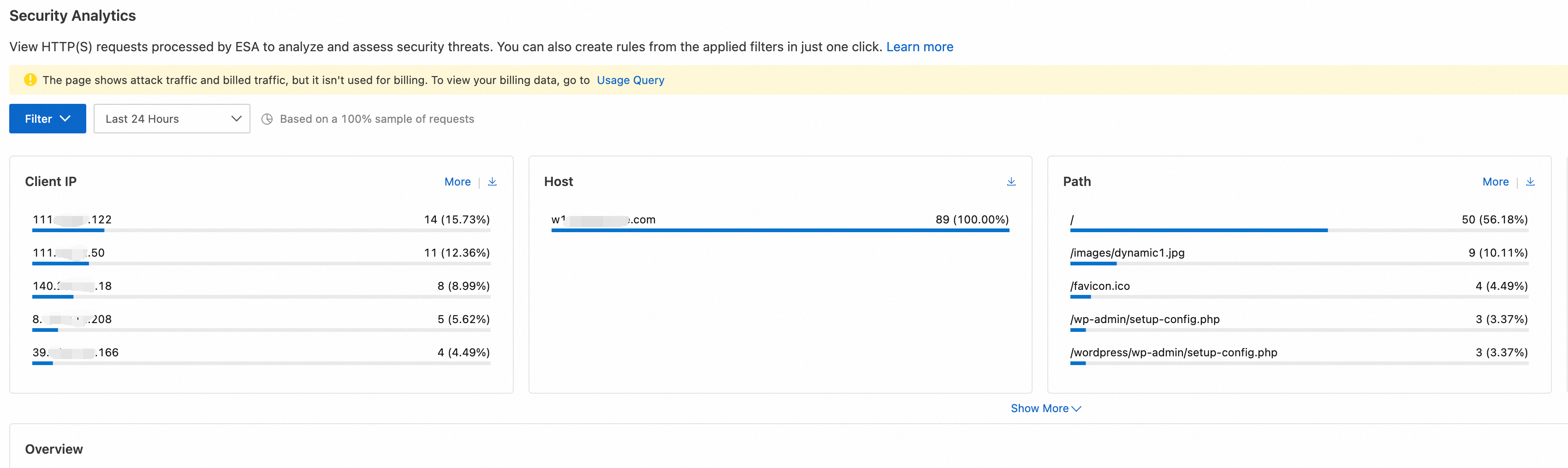
Go to the Security Analytics tab. In the Overview dashboard, identify abnormal client IP addresses that are generating high volumes of requests. Create a custom rule to block them.
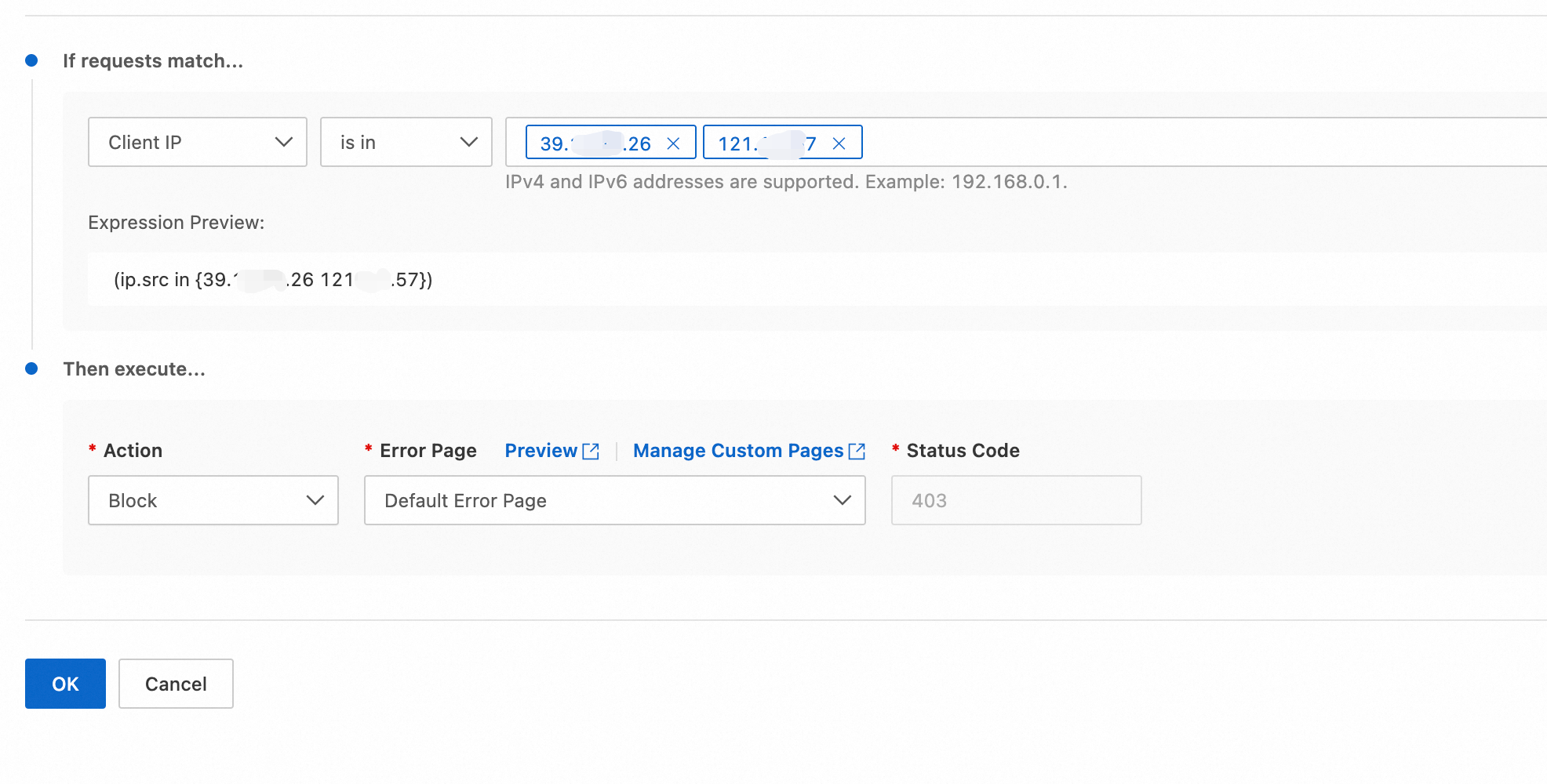
Go to the Security Analytics tab. In the Overview section, look for other common patterns in the Request Analytics. Create a custom WAF rule to block requests based on any identified abnormalities.
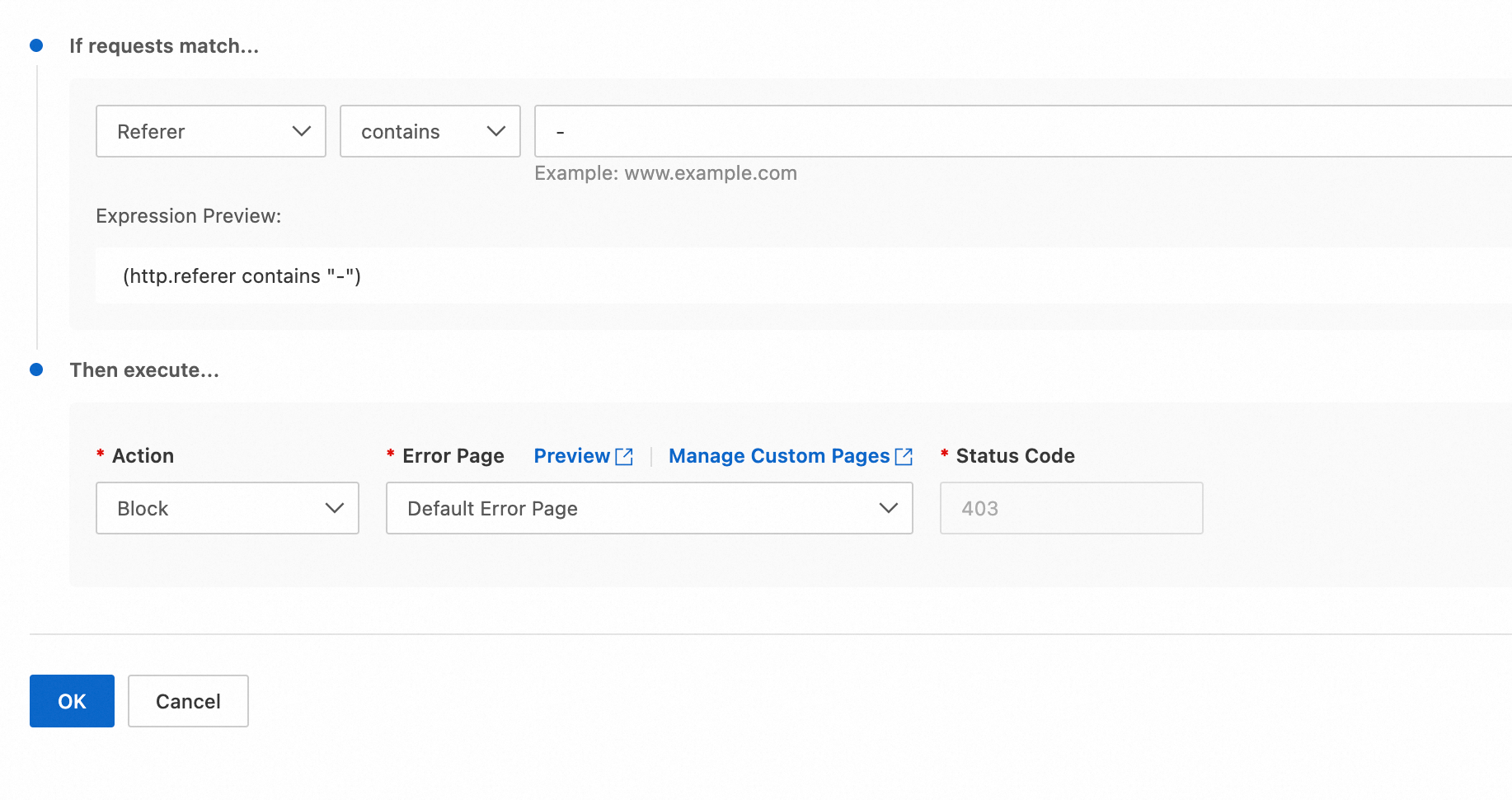
For example, if you notice that most requests have a
Referervalue of-, this is a strong sign of bot traffic. Create a rule to block requests that have an emptyReferer(aReferervalue of-).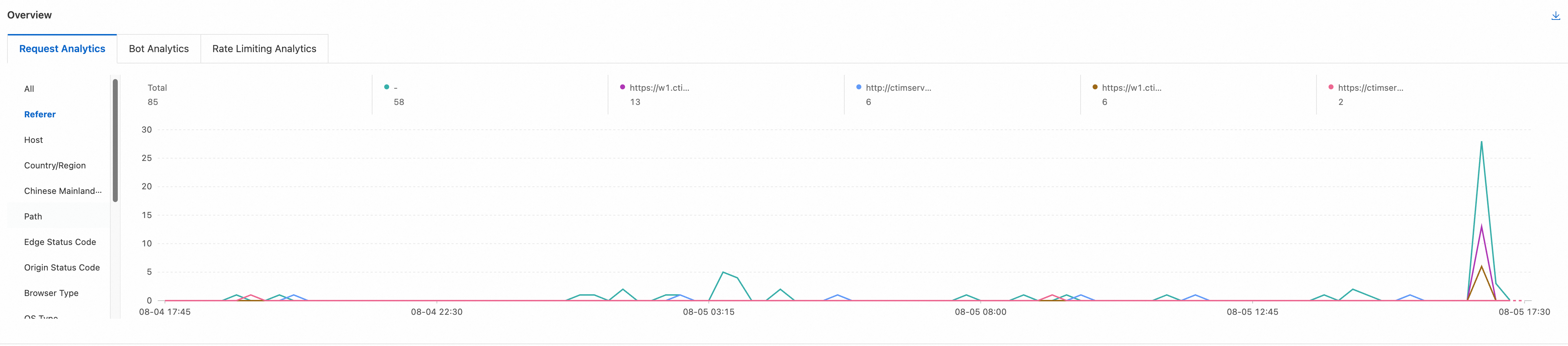
Why are my WAF configurations not taking effect?
If a WAF rule does not seem to be working, check the following potential causes:
The rule is configured incorrectly
A rule will only trigger if a request's characteristics exactly match the expression. Double-check your configuration:
Matching field: Ensure that you are using the correct matching field. For example:
When a rule condition include "URI equals
/content", and the request contains a query string such as/content?page=1234, the rule will not be triggered.
Matching operator: Confirm that the operator, such as "equals" or "contains", is appropriate for the scenario.
Matching value: Verify that the value is exactly what appears in the request logs, paying attention to case sensitivity.
Solution: Review your rule configuration. For more information, see Matching field, Matching operator, and Matching value.
The request matched a whitelist rule or IP access rule
Whitelist rules and IP access rules have a high priority. This may cause your other configurations to appear as if they are not working. To troubleshoot, follow these steps:
In the Security Analytics tab, use the filters to look for abnormal requests.
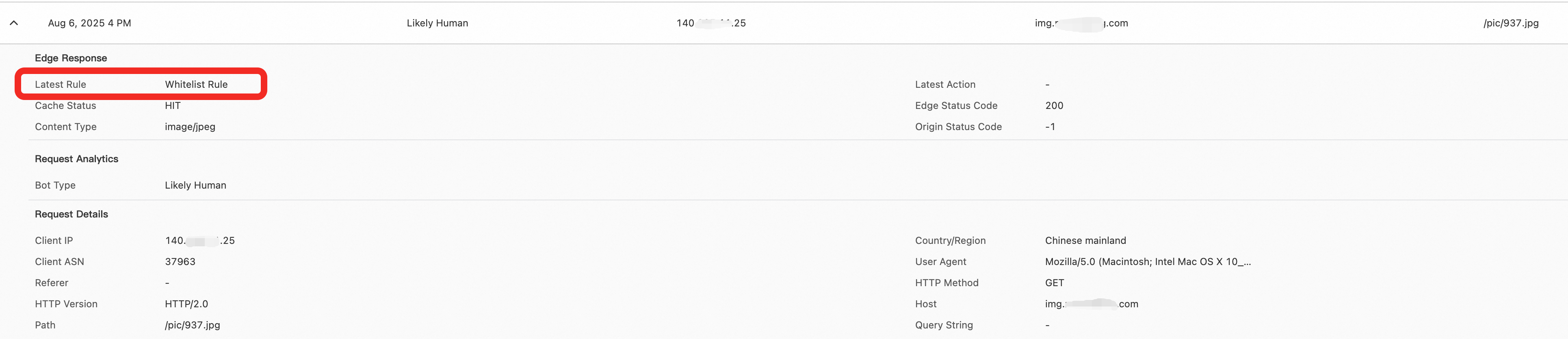
In the log details, view the rule information for the request.
If the rule executed is a whitelist rule or IP access rule, other rules were skipped.
Solution: Adjust the rule to ensure that its scope does not include requests that require protection.
Traffic is bypassing ESA and accessing your origin directly
WAF rules can only take effect if traffic is proxied through ESA. If an attacker knows your origin server's IP address, they can send requests directly to it, bypassing all WAF protections.
Solution: Enable origin protection. This involves configuring your origin server's firewall or security group to only accept traffic from ESA's official IP ranges. This ensures that all public traffic must pass through the WAF first.
Obtain the request IP address (using
Nginxas an example):Open the Nginx configuration file (default path:
/etc/nginx/nginx.conf) to check the format and location ofaccess.log.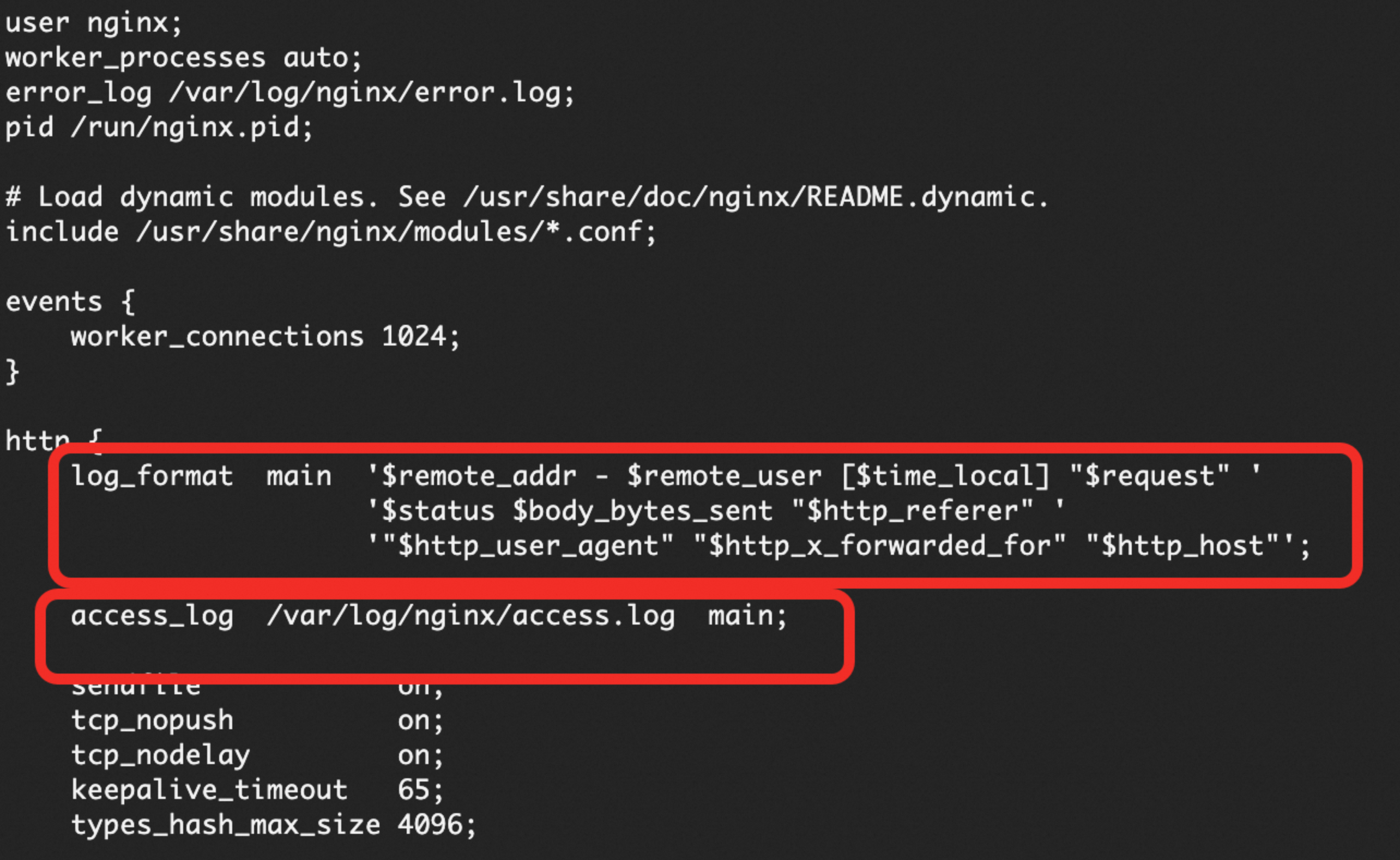
View the
access.logfile and fetch the$remote_addrvalue. The$remote_addrfield indicates the IP address of the client that connected directly toNginx.
Verify the IP source:
In the ESA console, select Websites. Click your target website.
In the navigation pane on the left, choose .
On the Origin Protection page, click Configure.

Turn on the Status switch. In the dialog box that appears, select I understand the risks and enable the feature.
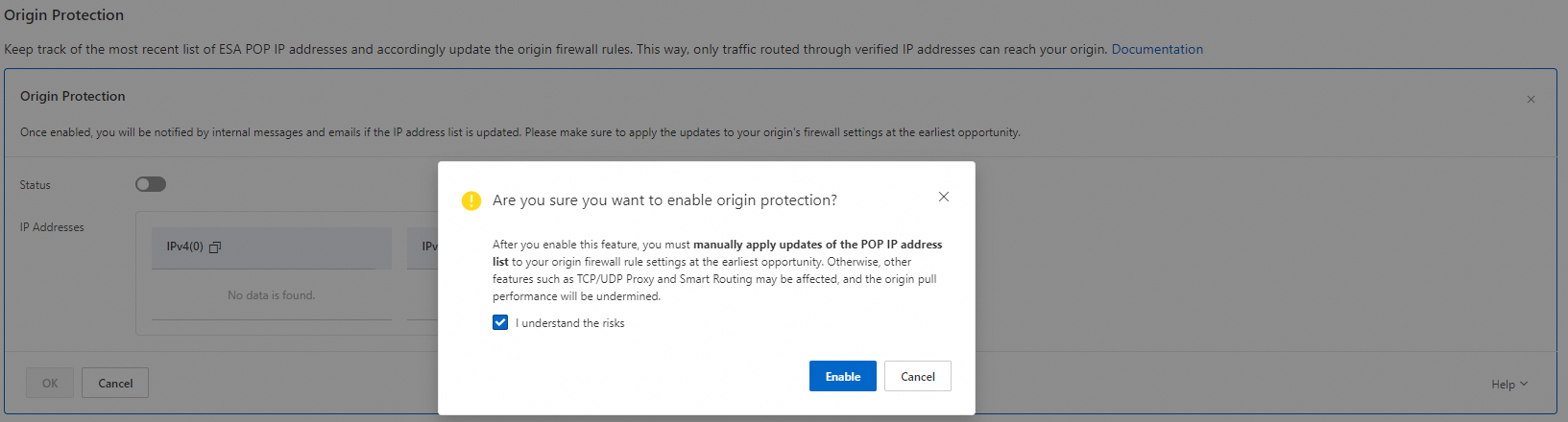
Compare the IP address from the log with the IP addresses in the
IPv4list. TheIPv4list contains IP ranges. If you've found a match, the request to the origin server was sent from ESA. Otherwise, the request was sent directly to the origin server.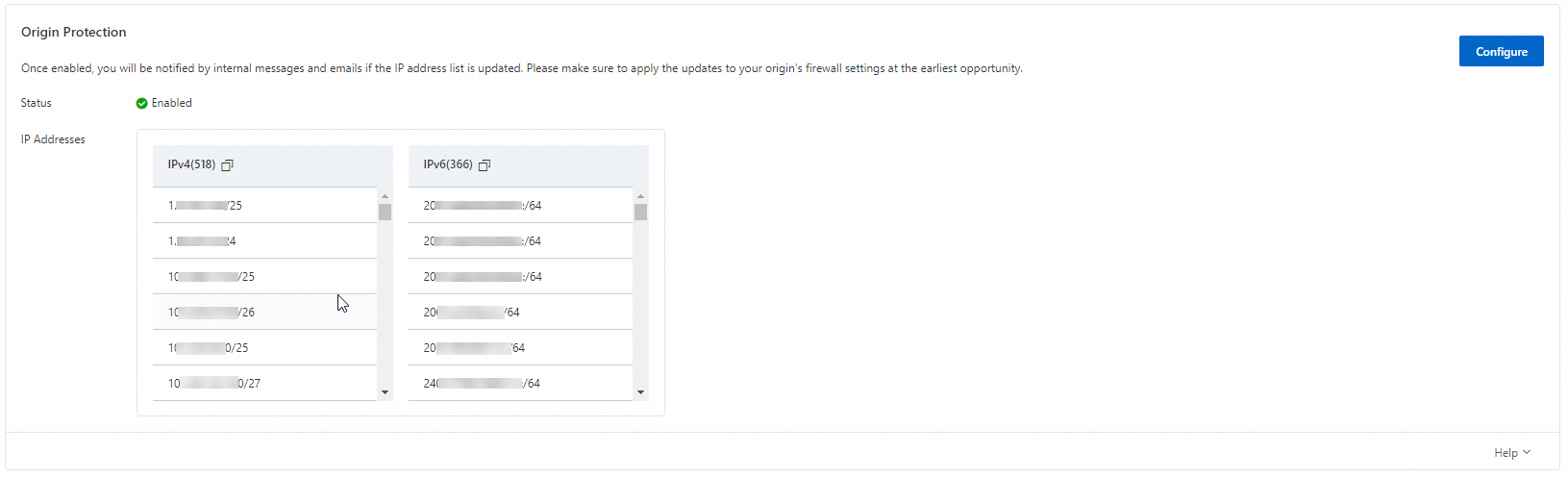
How do I block empty Referer and no-Referer requests?
Empty Referer
Definition
An empty Referer request is an HTTP request that includes a Referer header, but its value is empty (for example, Referer: ""). This behavior is often caused by certain browsers or proxy tools. In the Security Analytics dashboard, this is displayed as - in the Referer metrics.
Solution
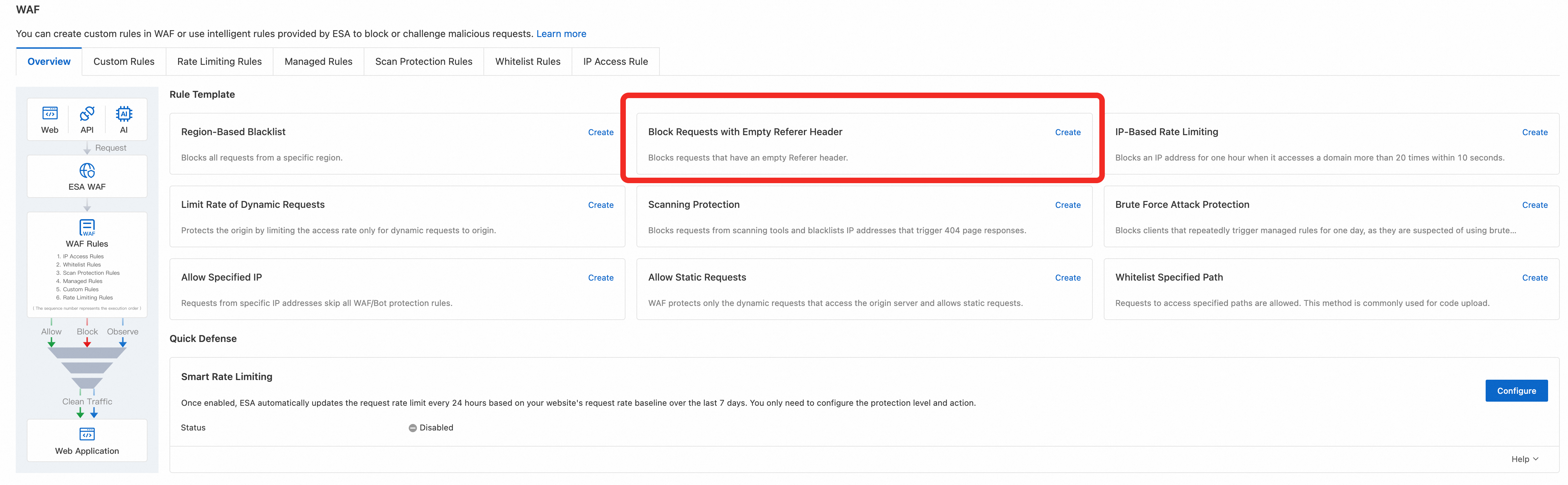
Use the Block Requests with Empty Referer template on the Overview tab to quickly create a blocking rule.
No Referer
Definition
A no-Referer request is an HTTP request that does not include a Referer header. This can be designed by attackers or result from the default behavior of some clients, such as browsers in privacy mode.
Solution
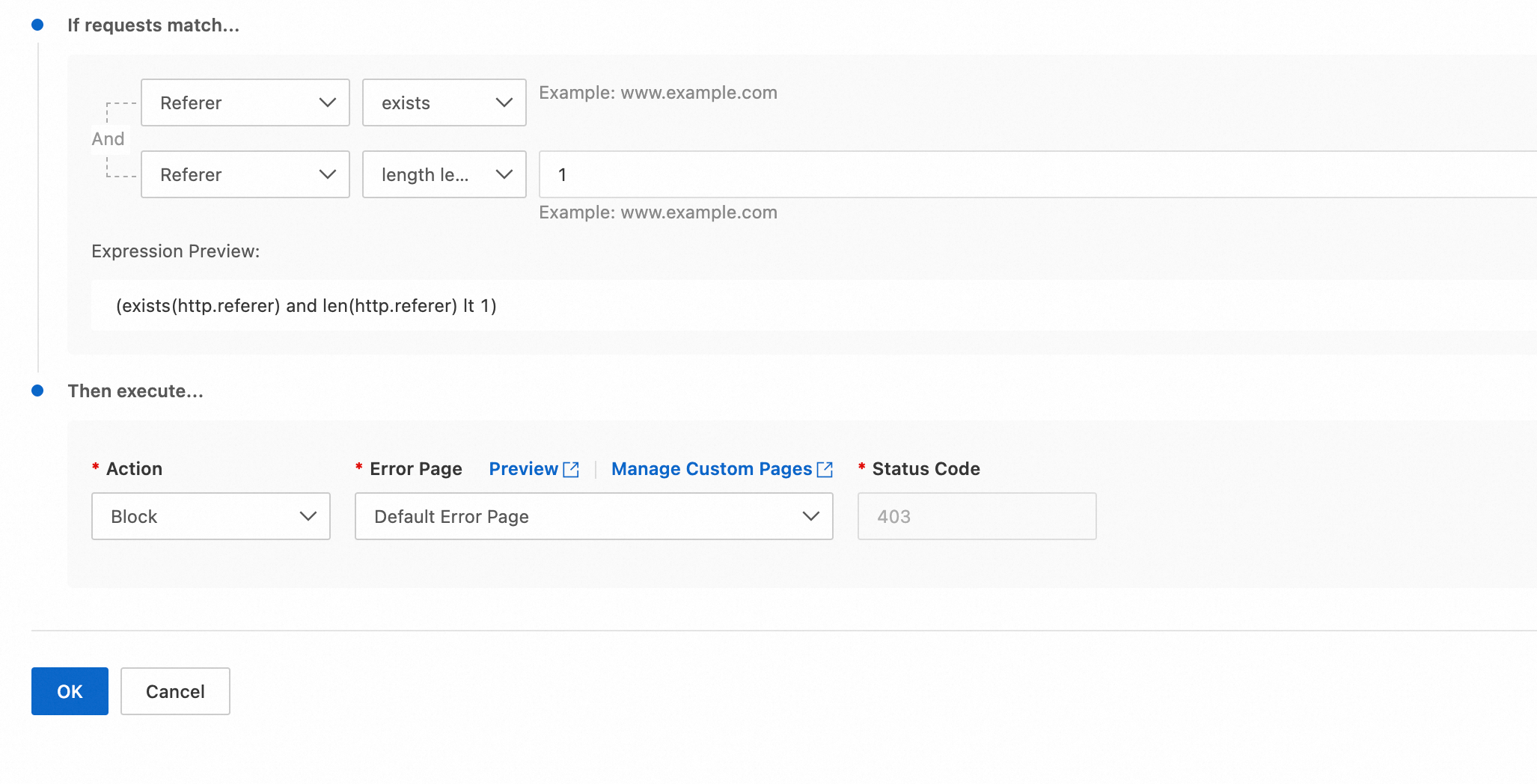
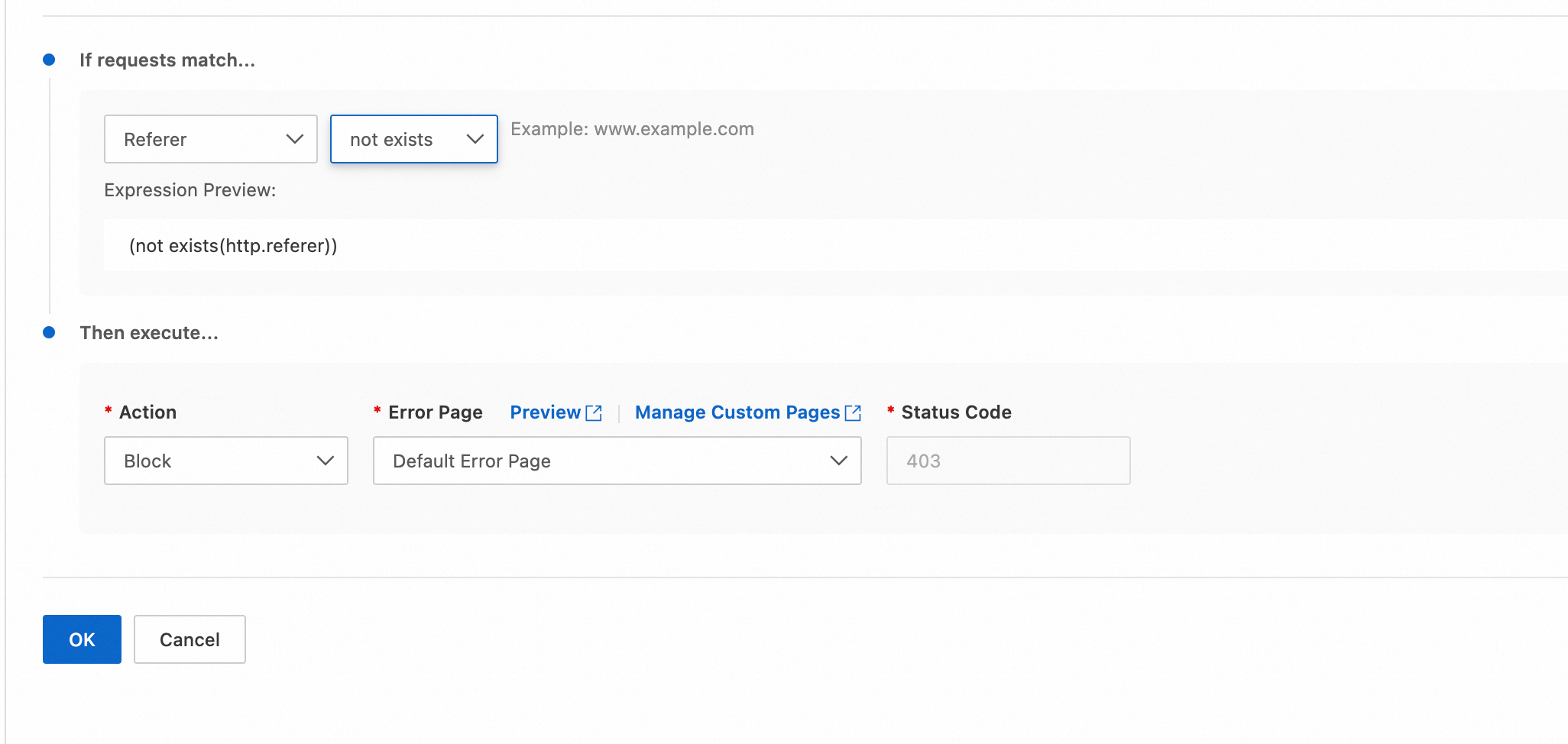
To block requests that do not have a Referer header, create a custom rule. In the rule configuration, specify that the Referer does not exist.
What is the difference between URI, URI Path, and URI Query String in rules?
How can I see which rule blocked a request?
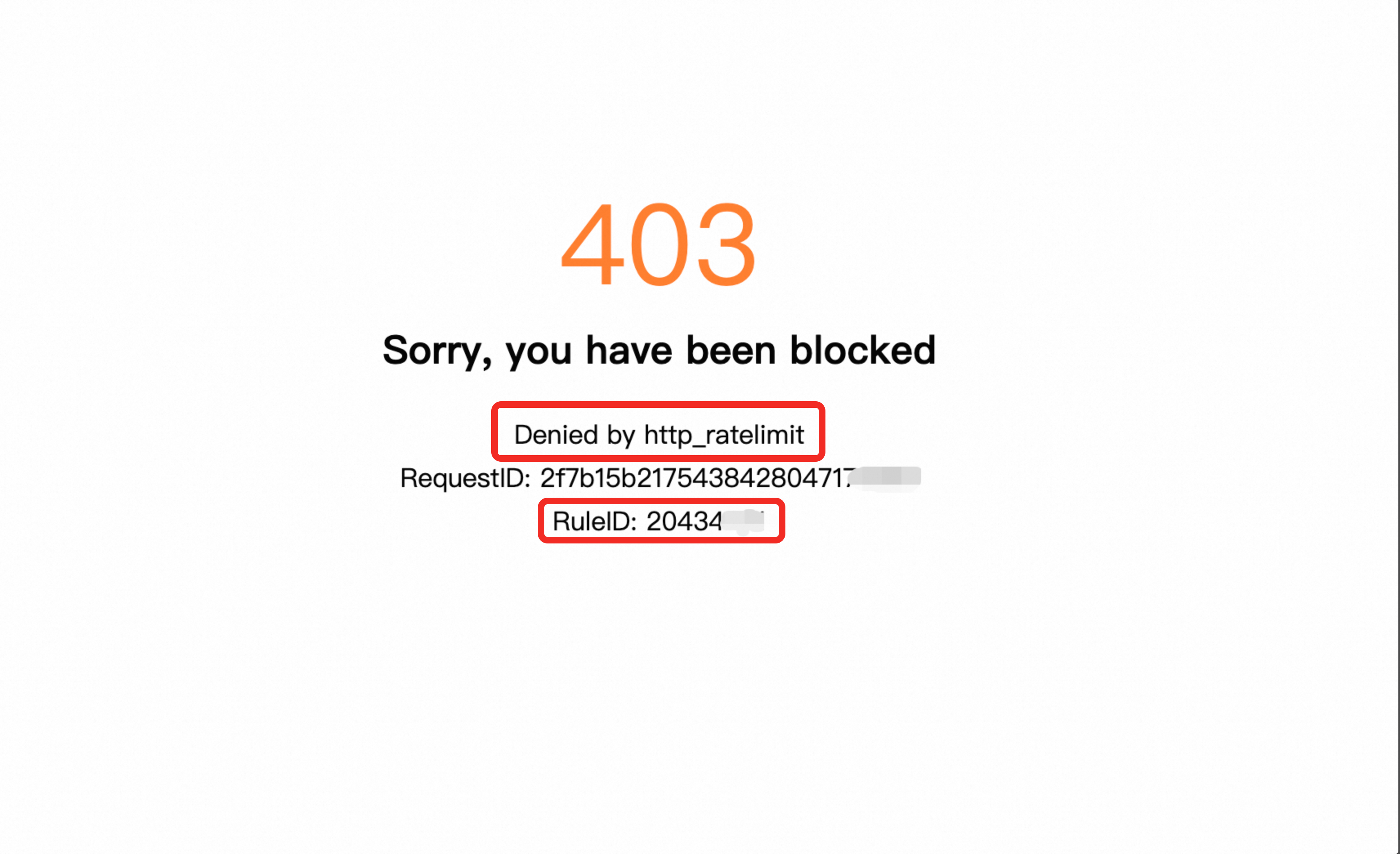
From the Block Page: When a request is blocked, the response page shown to the user typically includes the Rule ID that was triggered. You can search for this ID in the WAF console to find the exact rule.
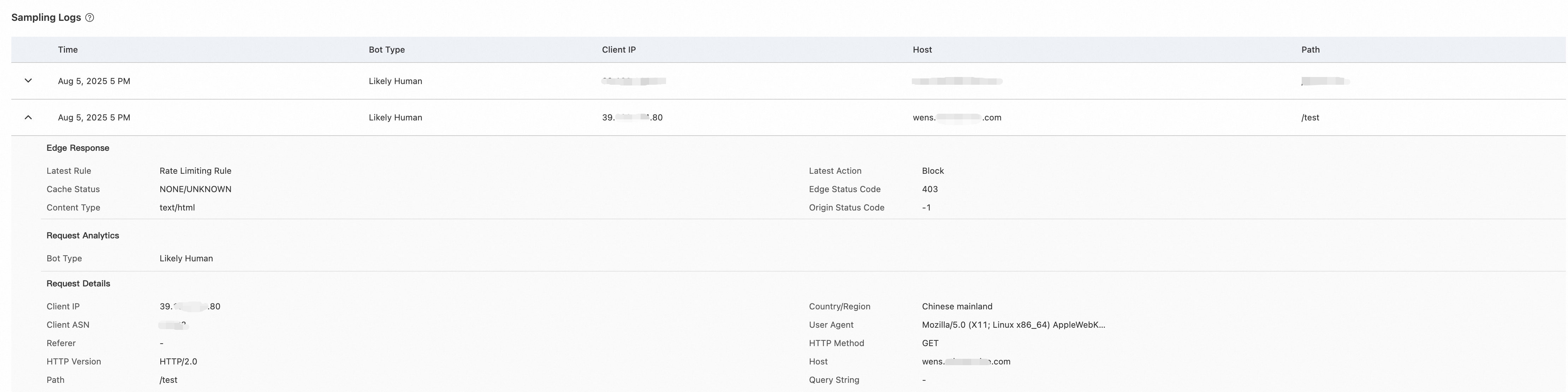
From the Logs: Go to Security Analytics and find the log for the blocked request. The log details will show the Action as Block and specify the Rule ID and Rule Type that blocked it.
How can I quickly block a large number of IP addresses?
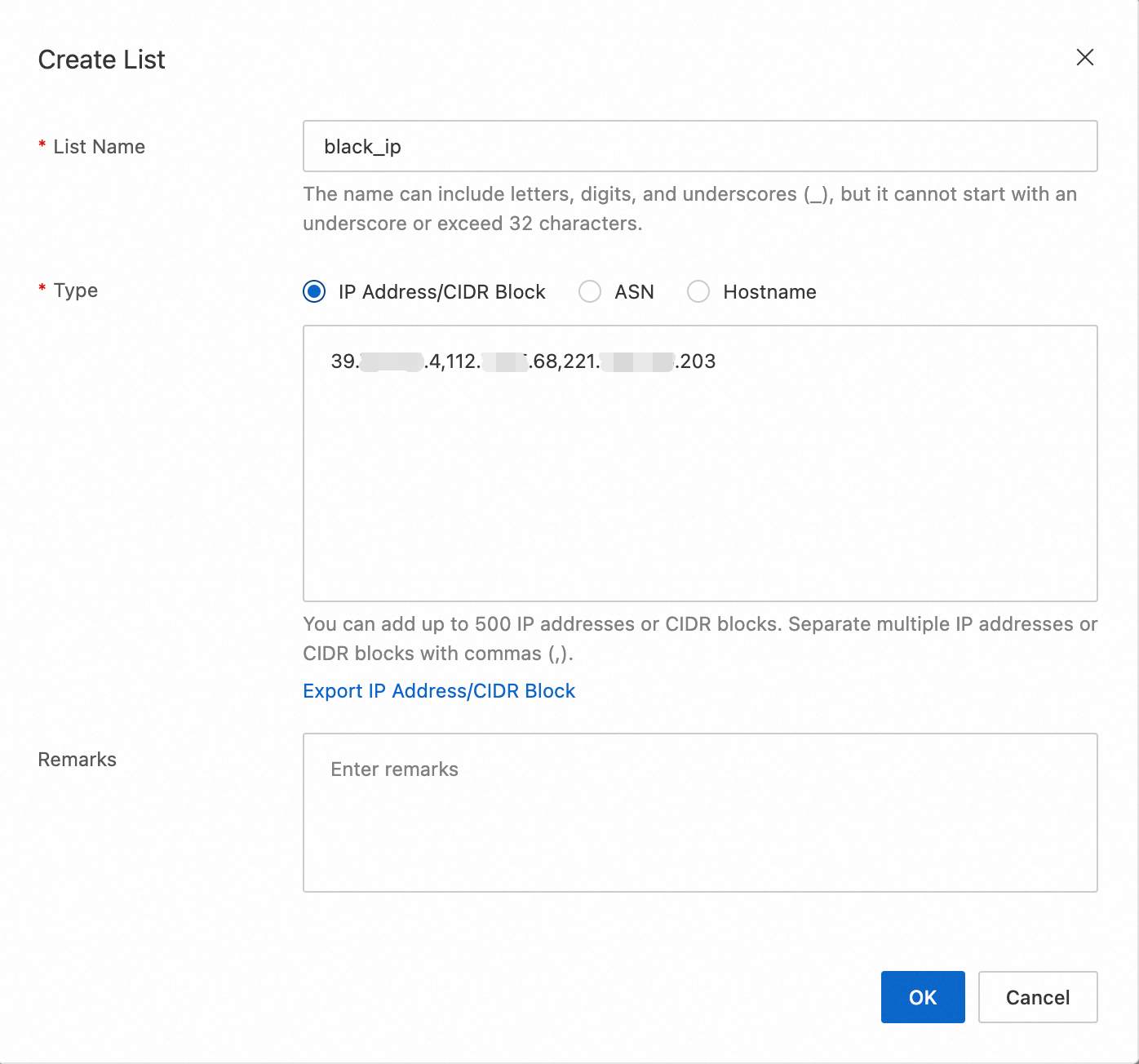
Separated your target IP addresses or IP ranges to block by commas (
,). You can obtain these IP addresses from the Security Analytics tab.Go to the Lists. Click Create List Group and enter the IP addresses.
Create a custom rule. When you configure the rule, set match field to Client IP, operator is in list, and match value to the name the IP list you created.
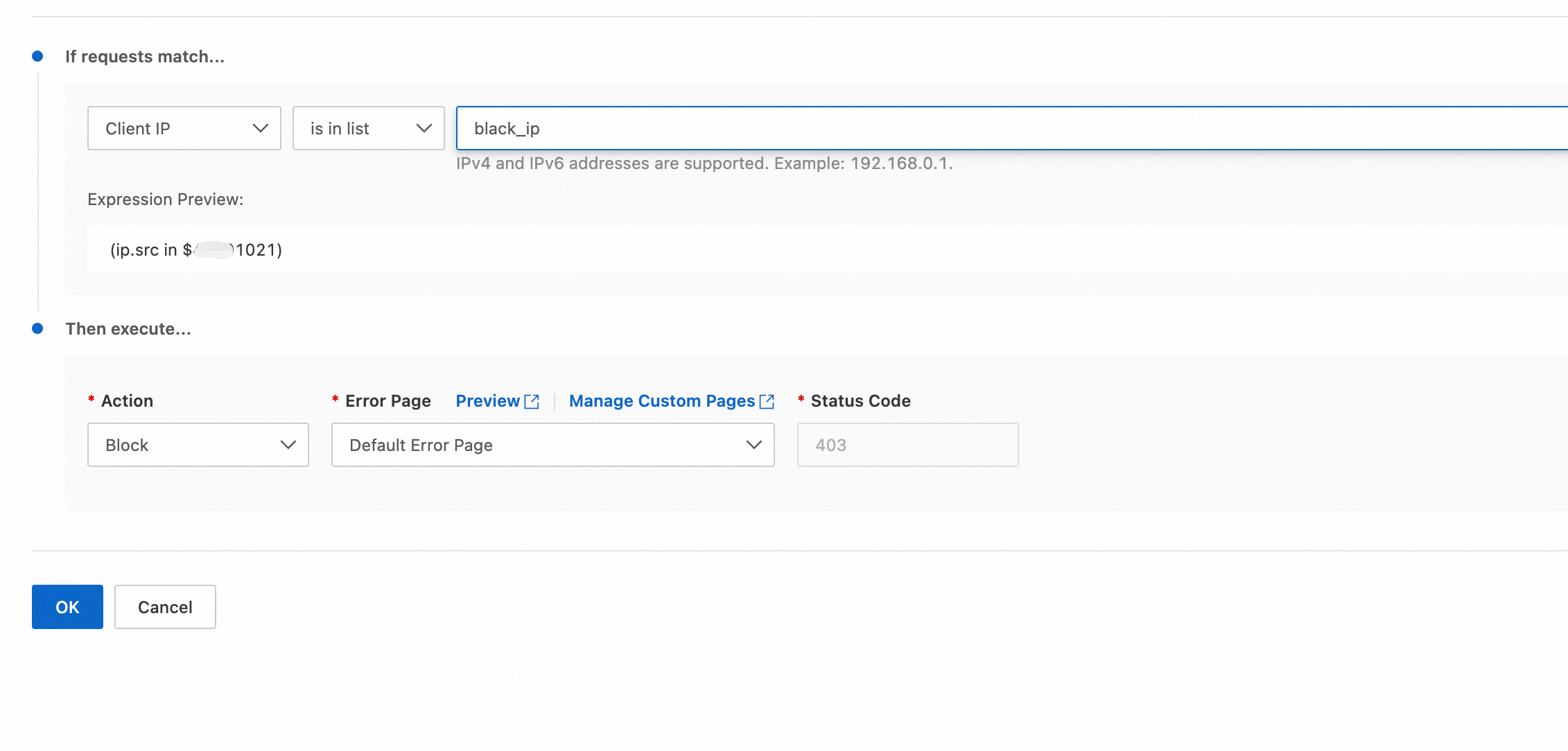
Click OK. The block rule takes effect immediately.
Which domain names are affected by a WAF rule?
If a rule includes a Hostname condition: The rule will only apply to requests sent to the specified domains.
For example, the rule in the following sample blocks only requests that are sent to www.example.com or api.example.com and do not have a Referer header.
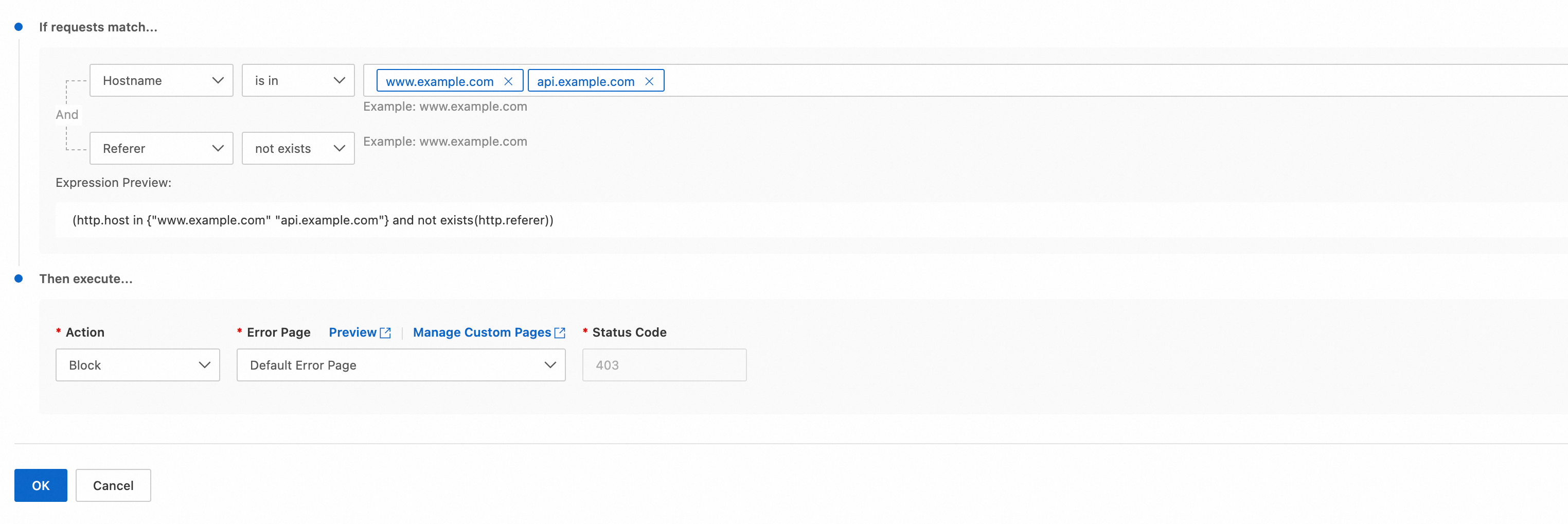
If a rule does not includes a Hostname condition: it applies to all requests that match the rule for any domain name associated with the website.