ESA continuously monitors managed APIs and helps you understand the performance and security status of APIs under your sites.
Add API information
Add an API manually
API Discovery quickly scans your site for APIs with session identifiers or those accessed frequently, but it may not detect APIs without session identifiers or those accessed infrequently. You can add APIs manually:
In the ESA console, select Websites, and in the Website column, click the target website.
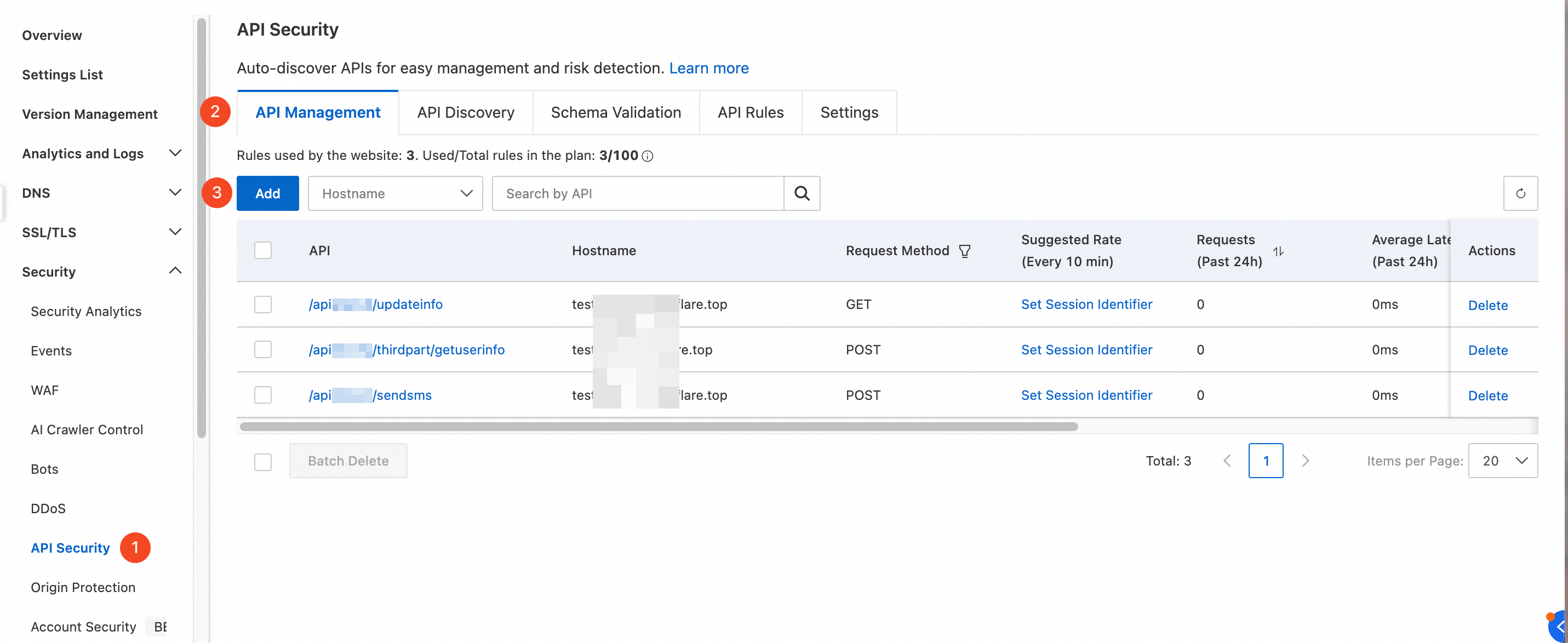
In the left navigation pane, select .
On the API Security page, select the API Management tab and click Add.
On the Add API page, select the Add Manually tab and enter the following API parameters:
Method: The HTTP method for the API. Supported values: GET, POST, PUT, HEAD, OPTIONS, DELETE, PATCH, CONNECT, TRACE.
Path: The API path corresponding to the Hostname. It must start with
/, for example/api/demo.Hostname: The hostname for the API, for example
api.example.com.
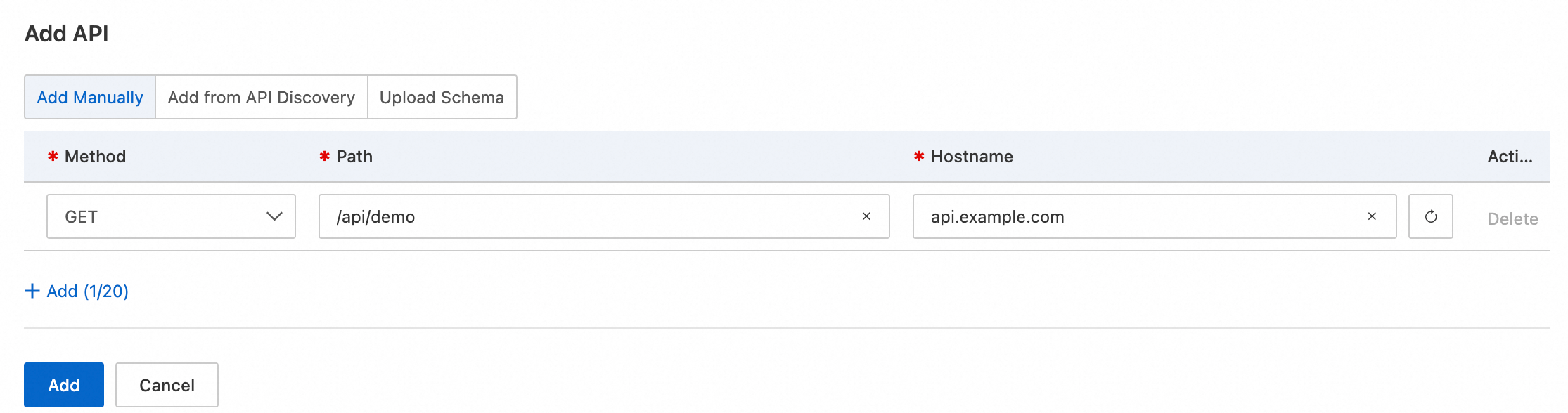
Click Add to enter additional API information. After completing all entries, click Add.
NoteYou can manually add up to 20 APIs at a time.
Import APIs from API discovery
In the ESA console, select Websites, and in the Website column, click the target website.
In the left navigation pane, select .
On the API Security page, select the API Management tab and click Add.
Select the Add from API Discovery tab. In the API list, select the APIs you want to manage and click Add.
Upload an API schema
In the ESA console, select Websites, and in the Website column, click the target website.
In the left navigation pane, select .
On the API Security page, select the API Management tab and click Add.
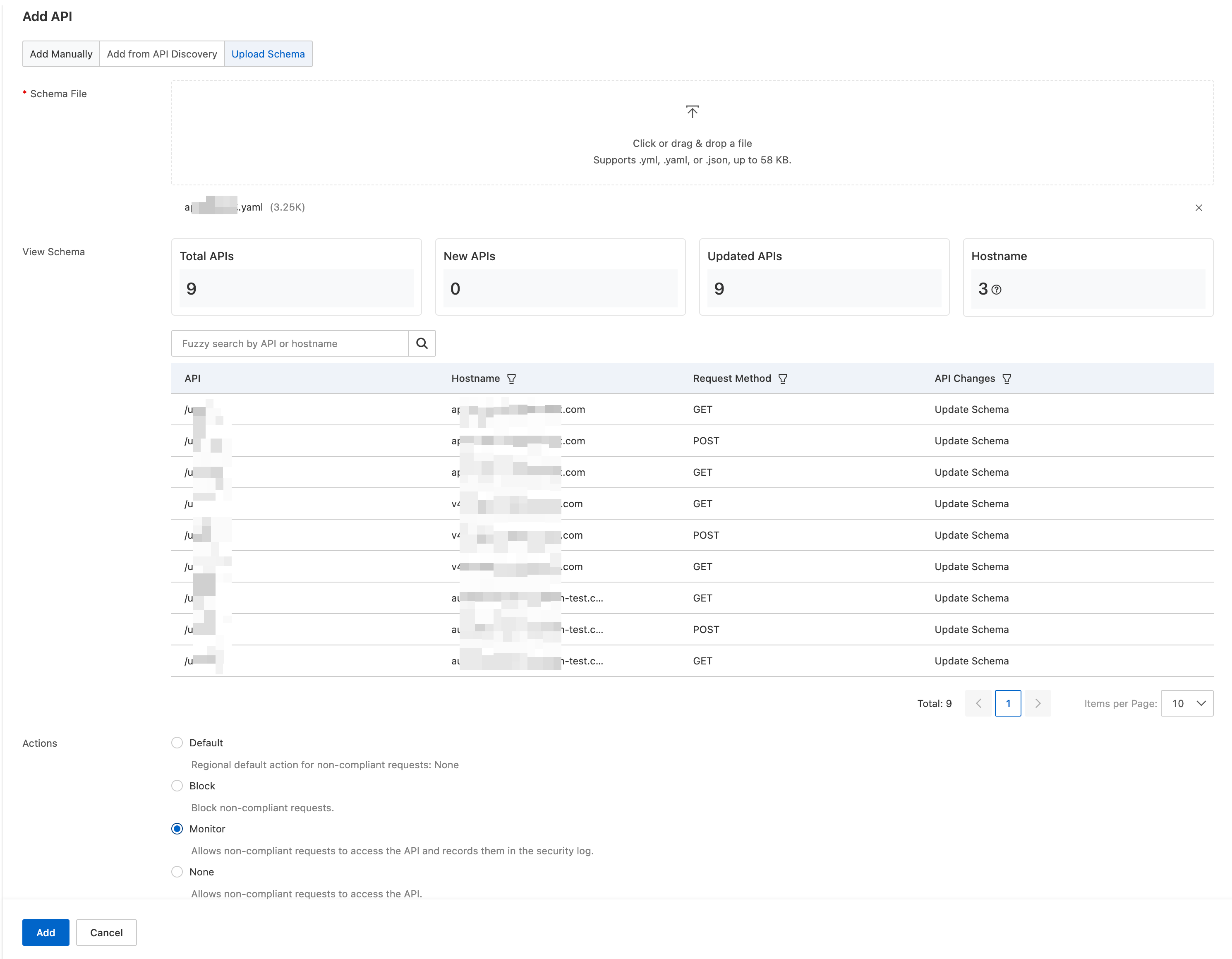
Select the Upload Schema tab and upload your custom schema file. ESA automatically matches APIs based on the schema file. After reviewing, configure the default action for non-compliant requests — Monitor is recommended — and click Add.
API rate limiting suggestions
ESA monitors managed APIs in real time, displaying request counts, average latency, and error rates over the past 24 hours. For APIs with abnormally high-frequency access, you can configure a session identifier. After configuration, ESA analyzes session data based on the identifier and provides rate limiting suggestions.
If you have not yet configured a session identifier, refer to Step 1: Configure a session identifier.
In the ESA console, select Websites, and in the Website column, click the target website.
In the left navigation pane, select .
On the API Security page, select the API Management tab. In the Suggested Rate column on the right side of the target API, click Set Session Identifier.
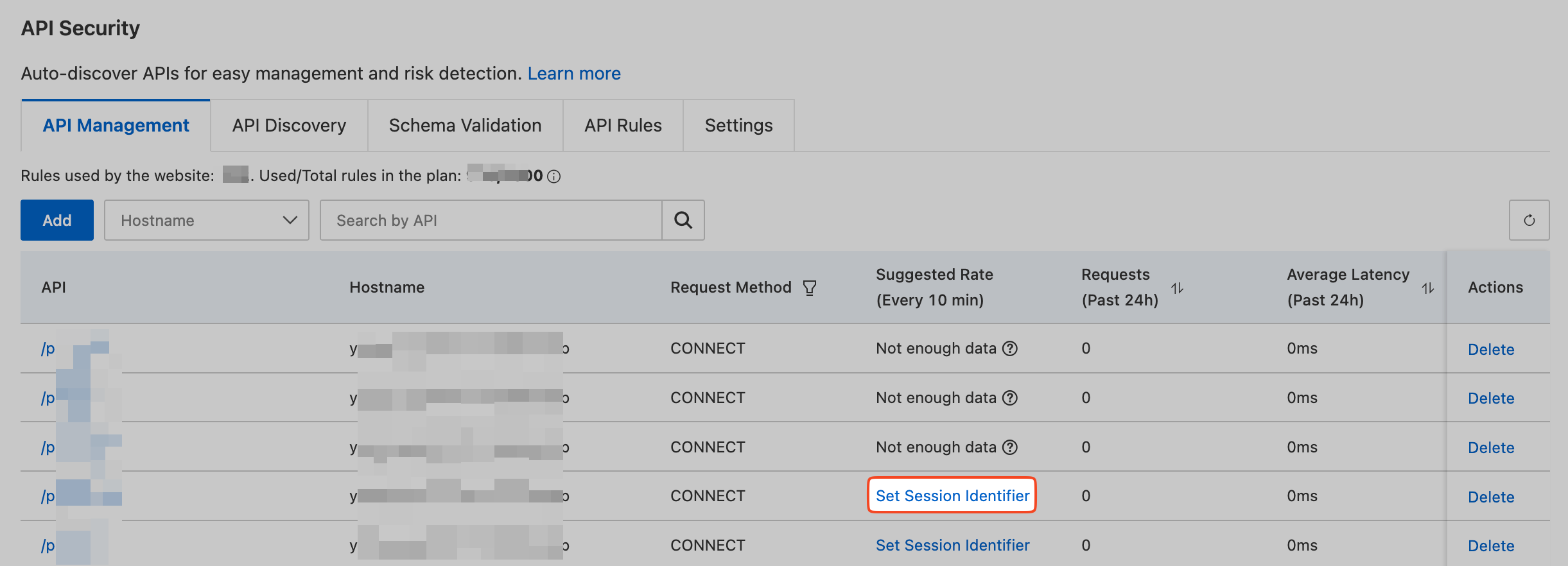
Select the corresponding Session ID and click OK.
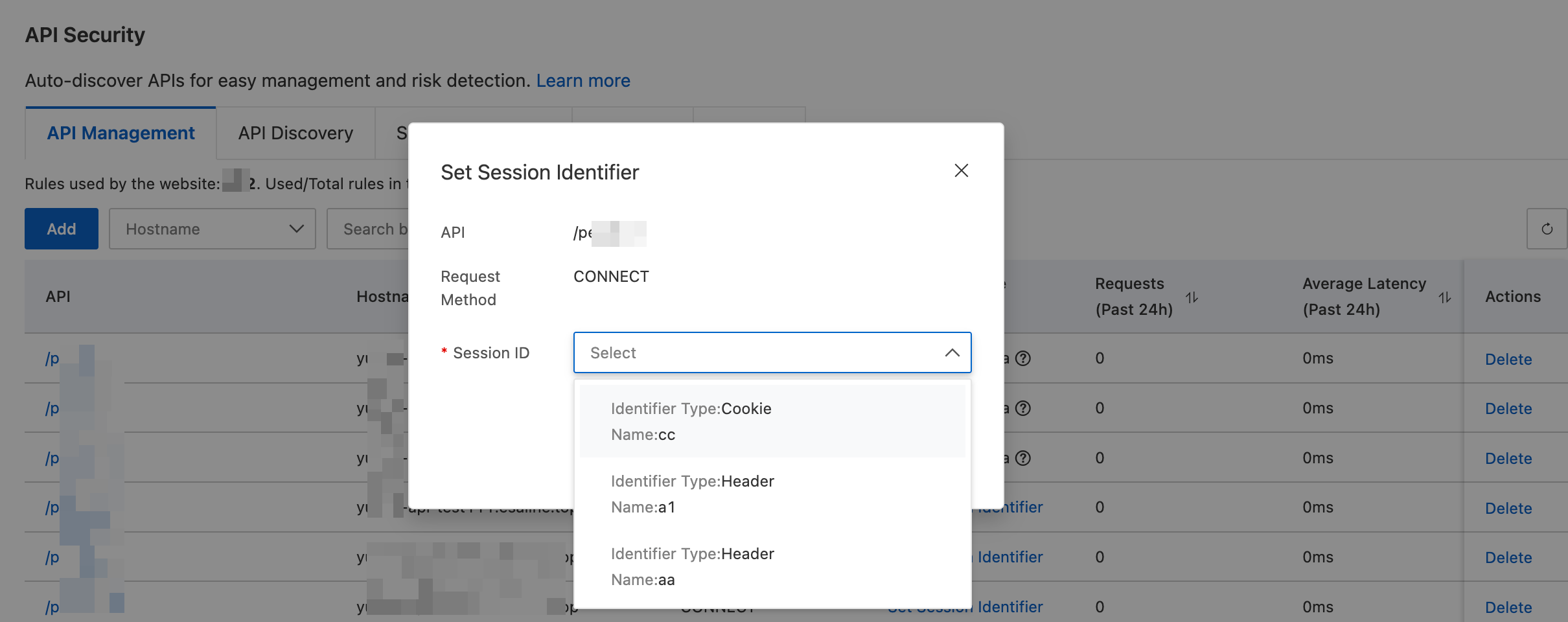
After configuration, ESA collects 24 hours of session data and generates appropriate rate limiting suggestions for the API.