You can use Terraform to quickly configure a waiting room, which protects your origin from traffic surges with a queuing mechanism.
Install Terraform and configure permissions
Install and configure Terraform on your computer
For more information about how to use Terraform on your computer, see Install and configure Terraform.
Create an AccessKey pair for a RAM user. An Alibaba Cloud account has all permissions on resources. If the AccessKey pair of your Alibaba Cloud account is leaked, your resources are exposed to great risks. We recommend that you use the AccessKey pair of a RAM user. For more information, see Create an AccessKey pair.
-
Create environment variables to store identity credentials.
You can create and view your AccessKey on the AccessKey Management page.
If the environment variables are not configured, identity verification fails when you run the Terraform template.
Use an online service (no installation or permission configuration required)
If you do not want to install Terraform, you can use the online service Cloud Shell.
Alibaba Cloud Cloud Shell is a free operations and maintenance (O&M) product. It is pre-installed with Terraform components and configured with identity credentials. Therefore, you can run Terraform commands directly in Cloud Shell. For more information, see Create resources with Terraform.
When you use Terraform in Cloud Shell, its destroy feature can cause data loss. We recommend that you use Cloud Shell only for simple and quick operations, such as debugging. For more information about the limits, see Limits.
Resources
Create a site: alicloud_esa_site
Create a waiting room: alicloud_esa_waiting_room
Query ESA instances: alicloud_esa_sites
Procedure
To configure the waiting room, create a file named
main.tfand add the following code:# 1. Query for Enterprise ESA instances data "alicloud_esa_sites" "default" { plan_subscribe_type = "enterpriseplan" # Filter for Enterprise instances } # 2. Create a site resource "alicloud_esa_site" "resource_Site_example" { site_name = "{{DOMAIN}}" # Replace with your domain name, such as example.com instance_id = data.alicloud_esa_sites.default.sites.0.instance_id coverage = "overseas" # Overseas acceleration access_type = "NS" # NS access mode } # 3. Create a waiting room resource "alicloud_esa_waiting_room" "default" { site_id = alicloud_esa_site.resource_Site_example.id waiting_room_name = "waitingroom_example" # Waiting room name description = "example" status = "off" # Disabled by default. Must be enabled manually. waiting_room_type = "default" # Queuing policy configuration queuing_method = "fifo" # FIFO queuing method session_duration = "5" # Session duration (minutes) total_active_users = "300" # Maximum concurrent users new_users_per_minute = "200" # Number of new users admitted per minute # Matching rule: Conditions that trigger queuing host_name_and_path { domain = "sub_domain.com" # Hostname to match path = "/example" # Path to match subdomain = "example_sub_domain.com." # Subdomain to match } # Page display configuration language = "zhcn" # Queuing page language: Simplified Chinese custom_page_html = "" # An empty value uses the default queuing page queuing_status_code = "200" # HTTP status code returned during queuing cookie_name = "__aliwaitingroom_example" # Cookie name # Advanced options queue_all_enable = "off" # Specifies whether to queue all users disable_session_renewal_enable = "off" # Specifies whether to disable session renewal json_response_enable = "off" # Specifies whether to return a JSON response }NoteReplace the placeholders in the code with your actual values. Replace
DOMAINwith your domain name, and update the domain and path in thehost_name_and_pathblock to match your queuing conditions. For a description of the parameters, see the References section.Navigate to the directory that contains the configuration files. Then, run the following command to initialize the Terraform environment.
terraform init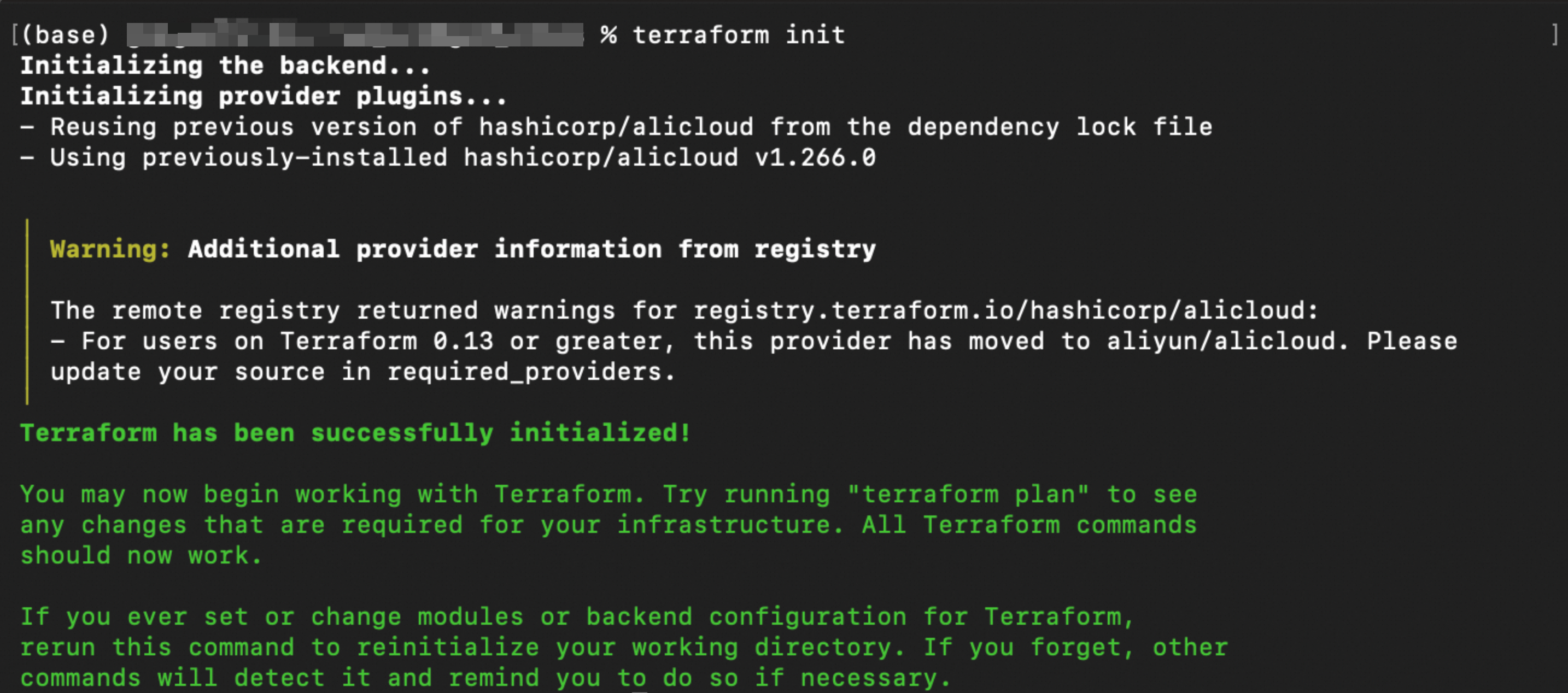
Run the following command to validate the syntax and configuration of the Terraform files.
terraform validateIf the output is similar to the following figure, the validation is successful.

Run the following command to preview the changes that will be applied.
terraform planRun the following command to execute the Terraform script.
terraform applyWhen prompted, enter
yesto confirm the operation.
Verify the results
Terraform show command
After terraform apply completes, run the following command in your working directory to check the resource status before you clean up the resources:
terraform showConsole verification
In the ESA console, select Site Management, and in the Website column, click the target site.
In the navigation pane on the left, choose .
On the waiting room page, view the new waiting room rule and its configuration details, such as waiting room name, status, queuing method, session duration, and concurrency limits.
References
The following table describes the key parameters used in the code example.
Parameter | Example value | Description |
|
| Filters for Enterprise ESA instances to obtain an available instance ID. |
|
| The domain name for the site. Replace the placeholder with your domain name, such as |
|
| The name of the waiting room, which is displayed on the console. |
|
| The status of the waiting room. Valid values are |
|
| The queuing method. |
|
| The duration of a user's session in minutes after being admitted from the queue. During this time, the user can refresh the page without queuing again. |
|
| The maximum number of concurrent users allowed, including those queuing and those already admitted. When this limit is reached, new users are placed in the queue. |
|
| The maximum number of new users admitted from the queue to the origin per minute. This setting acts as a traffic shaping rate to prevent overloading your origin. |
|
| The hostname to match. Requests to this hostname trigger the waiting room. |
|
| The path to match. Requests to this path trigger the waiting room. |
|
| The subdomain to match. This is an optional parameter for more specific matching. |
|
| The language of the queuing page. |
|
| The HTML for a custom queuing page. If left empty, the default page is used. |
|
| The HTTP status code returned when a user is in the queue. Set this to |
|
| The name of the cookie used to identify a user's position in the queue and session status. |
|
| Specifies whether to queue all users. |
|
| Specifies whether to disable session renewal. |
|
| Specifies whether to enable a JSON response. |
For more details on the parameters, see alicloud_esa_waiting_room.
Availability
The waiting room feature is available on the Premium and Enterprise plans. Some features require Waiting Room Pro, which is available for the Enterprise plan. To enable it, contact us.
Feature | Premium | Enterprise |
Basic waiting room features | ||
Number of waiting rooms | 1 | 1 by default. Up to 10 with Waiting Room Pro. |
Multiple hostnames and paths | 1 by default. Up to 50 with Waiting Room Pro. | |
Custom templates | Available with Waiting Room Pro. | |
Disable session renewal | Available with Waiting Room Pro. | |
JSON-friendly response | Available with Waiting Room Pro. | |
Custom queue status code | ||
Queuing method | Only FIFO is supported. | FIFO is supported by default. All queuing methods are available with Waiting Room Pro. |
Waiting room rules | Up to 5 rules with Waiting Room Pro. | |
Waiting room events | Up to 5 events with Waiting Room Pro. | |
SEO crawler bypass |