Terraform lets you quickly enable network optimization features for a site, such as smart routing, HTTP/2 origin, WebSocket, gRPC, and upload size limits.
Install Terraform and configure permissions
Install and configure Terraform on your computer
For more information about how to use Terraform on your computer, see Install and configure Terraform.
Create an AccessKey pair for a RAM user. An Alibaba Cloud account has all permissions on resources. If the AccessKey pair of your Alibaba Cloud account is leaked, your resources are exposed to great risks. We recommend that you use the AccessKey pair of a RAM user. For more information, see 创建AccessKey.
-
Create environment variables to store identity credentials.
You can create and view your AccessKey on the AccessKey Management page.
If the environment variables are not configured, identity verification fails when you run the Terraform template.
Use an online service (no installation or permission configuration required)
If you do not want to install Terraform, you can use the online service Cloud Shell.
Alibaba Cloud Cloud Shell is a free operations and maintenance (O&M) product. It is pre-installed with Terraform components and configured with identity credentials. Therefore, you can run Terraform commands directly in Cloud Shell. For more information, see Create resources with Terraform.
When you use Terraform in Cloud Shell, its destroy feature can cause data loss. We recommend that you use Cloud Shell only for simple and quick operations, such as debugging. For more information about the limits, see Limits.
Resources
Query site information: alicloud_esa_sites (a data source to reference an existing site)
Configure a network optimization rule: alicloud_esa_network_optimization
Configure a network optimization rule
Create a file named
main.tfand add the following code to define a network optimization rule for your site.# 1. Specify the name of the site to configure. data "alicloud_esa_sites" "default" { site_name = "DOMAIN" # Replace DOMAIN with an ESA-connected site, such as example.com. } # 2. Configure a network optimization rule. resource "alicloud_esa_network_optimization" "default" { site_id = data.alicloud_esa_sites.default.sites[0].site_id # The ID of the site to configure. rule_name = "example2" # The name of the rule. rule_enable = "on" # Enables the rule. rule = "true" # The matching condition. If set to true, the rule applies to all incoming requests. smart_routing = "on" # Enables smart routing, which uses real-time network probes and route optimization to deliver user requests faster and more reliably, reducing global latency and failure rates. http2_origin = "on" # Enables origin requests over HTTP/2 from ESA edge nodes. websocket = "on" # If your origin server supports ws:// or wss://, ESA proxies WebSocket origin requests by default. No additional configuration is typically needed. grpc = "on" # gRPC: A cross-language, cross-platform RPC framework based on HTTP/2 and Protobuf that reduces bandwidth and latency. upload_max_filesize = "300" # The maximum file size for a single upload request, in MB. Default: 300. Range: 100 to 500. }Navigate to the directory that contains the configuration files. Then, run the following command to initialize the Terraform environment.
terraform init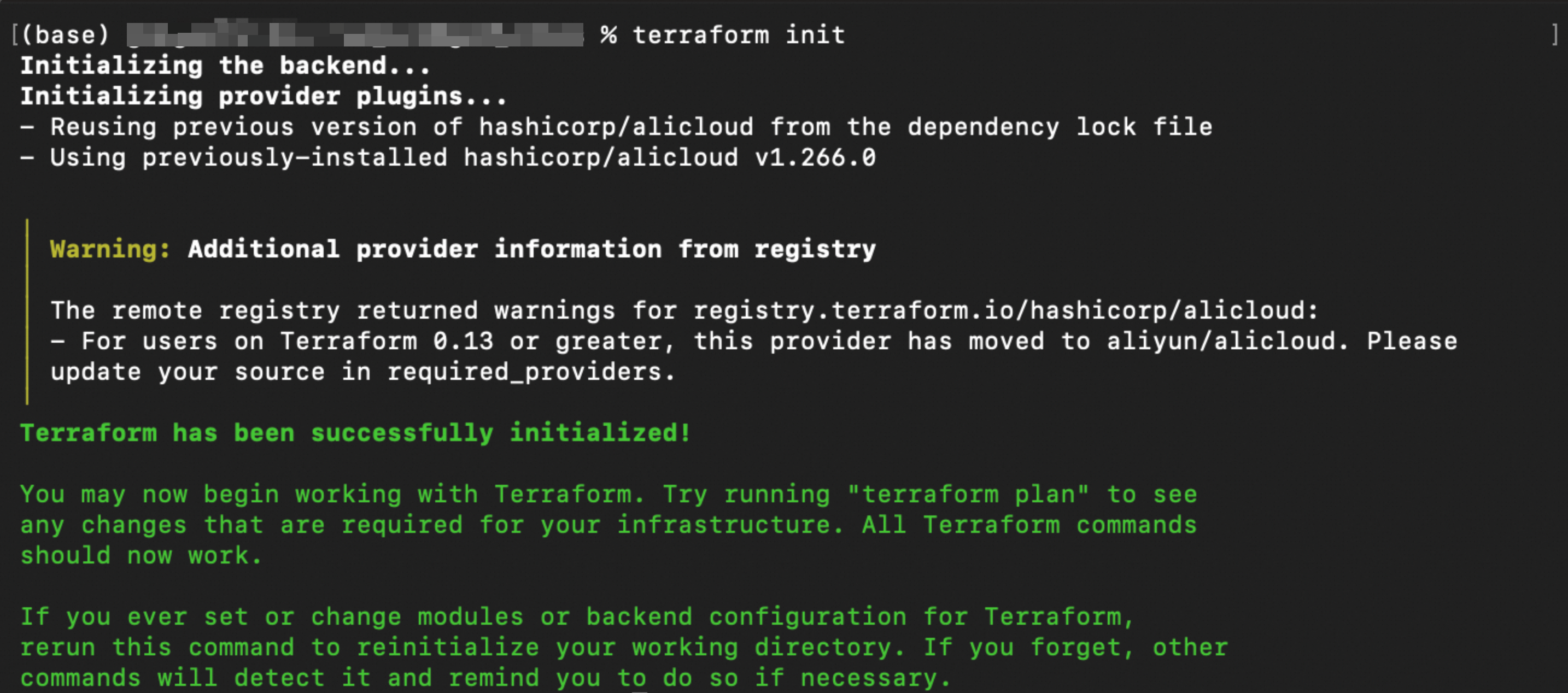
Run the following command to validate the syntax and configuration of the Terraform files.
terraform validateIf the output is similar to the following figure, the validation is successful.

Run the following command to preview the changes that will be applied.
terraform planRun the following command to execute the Terraform script.
terraform applyWhen prompted, enter
yesto confirm the operation.
Verification
Run terraform show
In your working directory, run the following command to inspect the resources created by Terraform:
terraform showVerify on the console
On the ESA console, go to Site Management. In the Website column, click your target site.
In the left navigation pane, choose and view the network optimization rule and its configuration.
(Optional) Clean up resources
If you no longer need the resources created or managed by Terraform, you can run the terraform destroy command to release the resources.
terraform destroyReferences
Parameter reference
For details about arguments, including their definitions and valid value ranges, refer to the official alicloud_esa_network_optimization documentation. In this example, the unit for upload_max_filesize is MB. The value must be within the allowed range shown on the console.