This topic describes how to upgrade from or Dynamic Content Delivery Network (DCDN) to Edge Security Acceleration (ESA).
1. Configure ESA
Description
After you add your website to Edge Security Acceleration (ESA), ESA accelerates the delivery of static and dynamic content for your website while offering security and edge computing capabilities to enhance security posture and user experience.
Add a website
Log on to the ESA console.
In the left-side navigation pane, click Websites.
Click Add Website.
In the Enter Website step, enter the domain name that you want to add to ESA, such as
example.com, and click Next.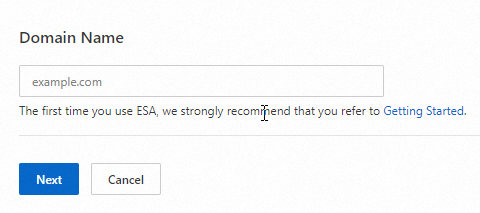
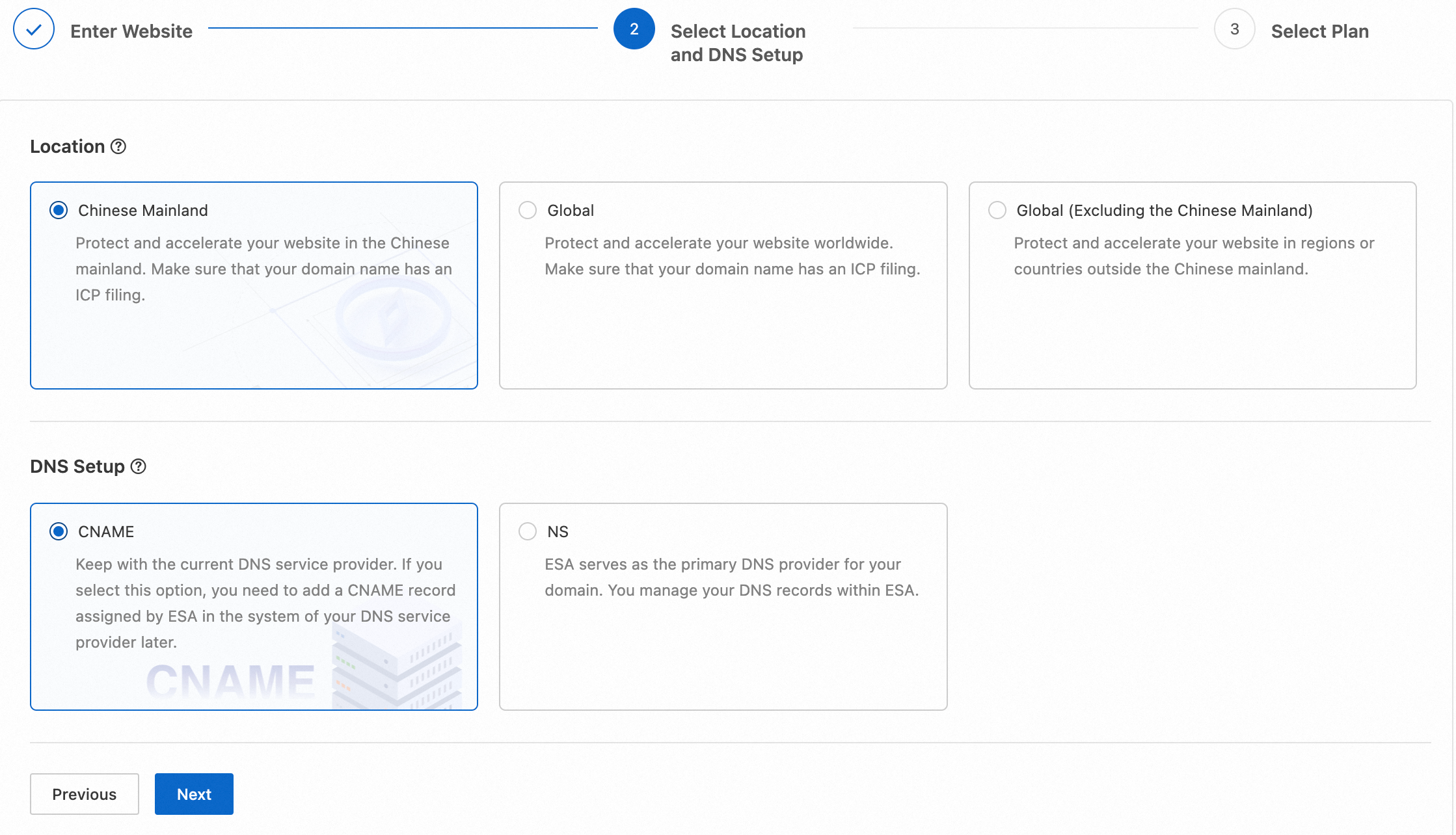
In the Select Location and DNS Setup step, set Location and DNS Setup based on your business requirements and click Next.
 Note
NoteIf you want to add subdomains such as
test.example.comandtest.test.example.com, upgrade to the Enterprise plan.In the Select Plan step, select an appropriate plan for your website on the New Plans tab, or switch to the Purchased Plans tab to associate an existing plan with your website.
New Plans: By default, the New Plans tab is displayed. Select a subscription duration and plan, select the check box to confirm that you have read and agree to the Edge Security Acceleration Service Level Agreement, and then click Buy Now.
NoteIf you want to enable auto-renewal for your plan, select Auto-renewal.
Purchased Plans: If you have purchased plans, you can switch to the Purchased Plans tab to select a plan for your website, and then click OK.
2. Configure DNS records
DNS setup | Description |
If you select NS for DNS setup when you add a website, Edge Security Acceleration (ESA) manages DNS resolution for your domain. To prevent service interruptions, you need to add all DNS records of the domain to ESA and update the nameservers to the ones assigned by ESA at your registrar. The DNS records can be imported at a time. | |
If you select CNAME for DNS setup when you add a website, you need to add a DNS record to map the domain that you want to proxy to the CNAME assigned by Edge Security Acceleration (ESA) . This way, user requests destined for your domain can be forwarded to ESA points of presence (POPs). This enables content delivery acceleration, edge computing, and enhanced protection. |
3. Verify whether a website is accelerated
After you complete the preceding configurations, you can use browser development tools, command line interface (CLI), or ESA instant logs to verify whether ESA takes effect. For more information, see Verify whether a website is accelerated.
4. (Optional) Configure performance optimization
Feature | Description |
The edge cache time-to-live (TTL) is the period of time during which origin resources are cached on Edge Security Acceleration (ESA) points of presence (POPs). When the TTL ends, resources that are cached on POPs are marked as expired. If the requested resource has expired on a POP, the POP retrieves the most recent resource from the origin server and caches it. You can configure a cache TTL for static resources based on file directories or file name extensions. | |
If your website offers pure dynamic content or a combination of dynamic and static content, such as transactions, gaming, or APIs, the origin server returns differentiated content in response to user requests for dynamic content. However, the communication between users and the origin server may experience delays or failures due to unstable network conditions across borders, regions, or Internet service providers (ISPs). To tackle with this issue, you can enable Smart Routing to monitor the quality of Alibaba Cloud's global POP network in real time and route traffic along the most efficient path. In addition, optimization technologies such as performant protocol stacks are integrated to reduce the global network latency and request failure rate. This boosts user experience and ensures business continuity. |
5. (Optional) Configure security features
Feature | Description |
Edge Security Acceleration (ESA) supports HTTPS secure acceleration. You can deploy Secure Sockets Layer (SSL) certificates on ESA and then enable the SSL/TLS feature to implement encrypted transmission between clients and ESA points of presence (POPs). ESA allows you to apply for free certificates or upload custom certificates. | |
Edge Security Acceleration (ESA) is integrated with Web Application Firewall (WAF) to identify traffic patterns and filter out malicious requests. Only trusted requests can be redirected to origin servers. WAF can protect web servers against intrusions, secure important business data, and prevent server anomalies caused by attacks. | |
If your website is under a DDoS attack, Edge Security Acceleration (ESA) will continue to accelerate and protect your website, unlike some other proxy services that may disable acceleration in such cases. ESA provides built-in DDoS protection of different levels for your website based on your associated plan. |
6. (Optional) Configure other features
Feature | Description |
If the storage path of resources on your origin server changes but you want users to use the original URL to access the resources, you can use the URL rewrite feature to rewrite the URL on Edge Security Acceleration (ESA) points of presence (POPs). ESA allows you to rewrite the URL path and query string in requests before they are redirected to origin servers. | |
HTTP request headers are additional pieces of information that are sent along with the request to the server. You can add, delete, change, and replace HTTP headers in origin requests to meet various business requirements. | |
An HTTP response header is part of an HTTP response message and carries specific response parameters to pass to clients. If you configure an HTTP response header, the response message carries the HTTP header when an Edge Security Acceleration (ESA) point of presence (POP) returns the requested content to a client. This helps implement features such as cross-origin resource sharing (CORS). | |
If the storage path of resources on your origin server changes, the storage path of resources on Dynamic Content Delivery Network (DCDN) points of presence (POPs) also changes. If the requested URL path does not change in this case, you can configure redirect rules on the DCDN POPs to rewrite the request URL and redirect the request URL to the destination URL. This helps reduce connections to the origin and improve the access performance of clients. | |
You can configure origin rules to specify different origin hosts, ports, protocols, Server Name Indications (SNI) settings, and Domain Name System (DNS) records for requests with different characteristics. | |
Edge Routine is a serverless runtime environment that allows you to write JavaScript code and deploy and execute it on Alibaba Cloud points of presence (POPs) worldwide. Edge Routine supports ES6 syntax and standard Web Service Worker APIs. With Edge Routine, user requests can be responded to and processed by the POP that is closest to users. This significantly reduces latency, accelerates response, and enhances user experience. |
7. Remove the domain name from Alibaba Cloud CDN or DCDN
Remove the domain name from Alibaba Cloud CDN
Log on to the Alibaba Cloud CDN console.
In the left-side navigation pane, click Domain Names.
On the Domain Names page, find the domain name that you want to manage and click Disable in the Actions column.
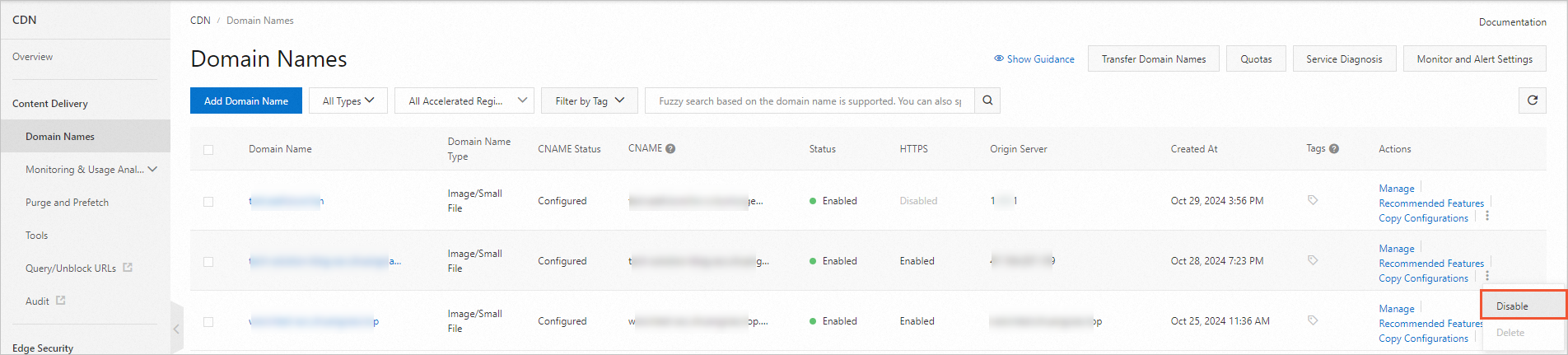
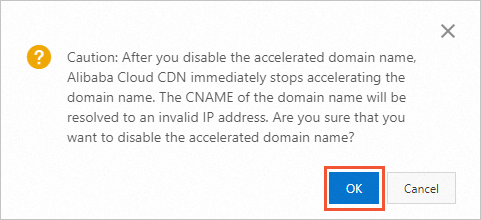
In the message that appears, click OK.
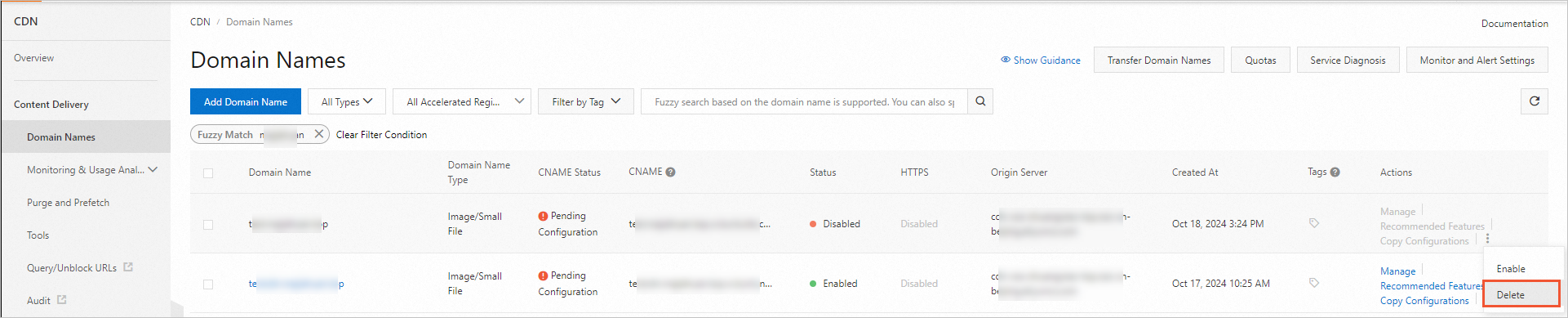
After the status of the domain name becomes Disabled, click Delete in the Actions column.
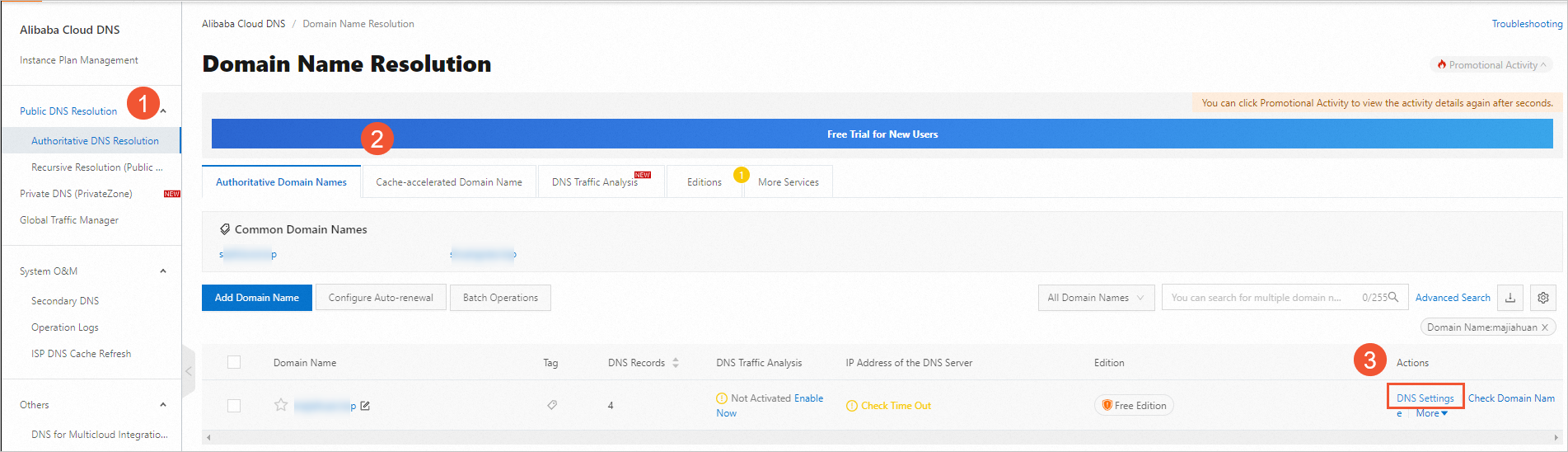
Log on to the Alibaba Cloud DNS console.
In the left-side navigation pane, click Authoritative DNS Resolution. On the Authoritative Domain Names tab, find the domain name that you want to manage and click DNS Settings in the Actions column.
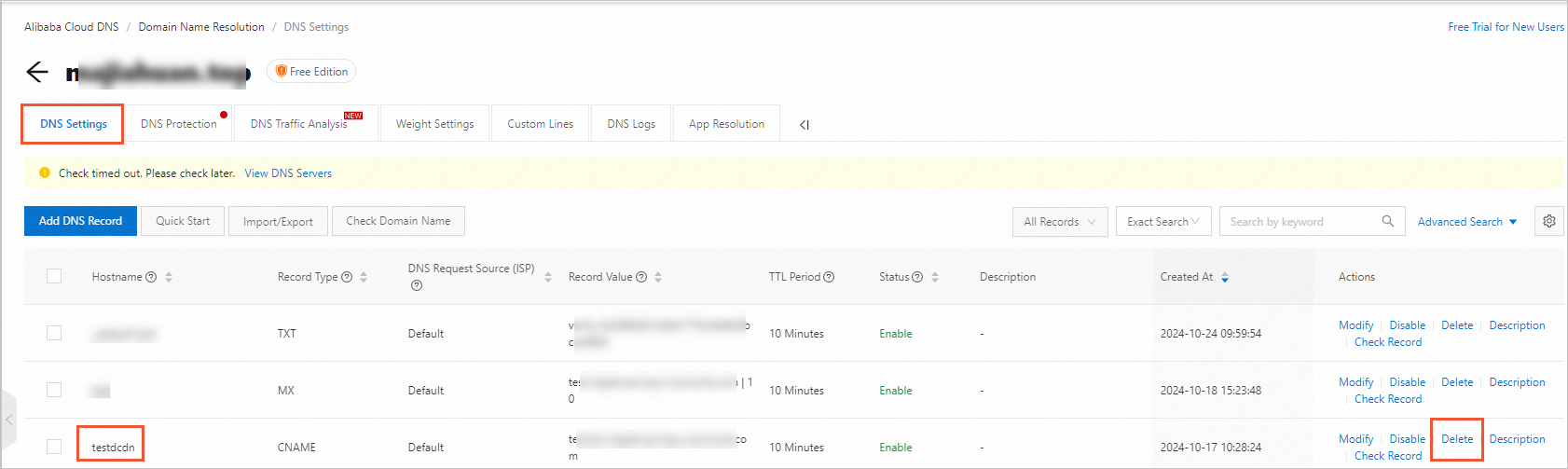
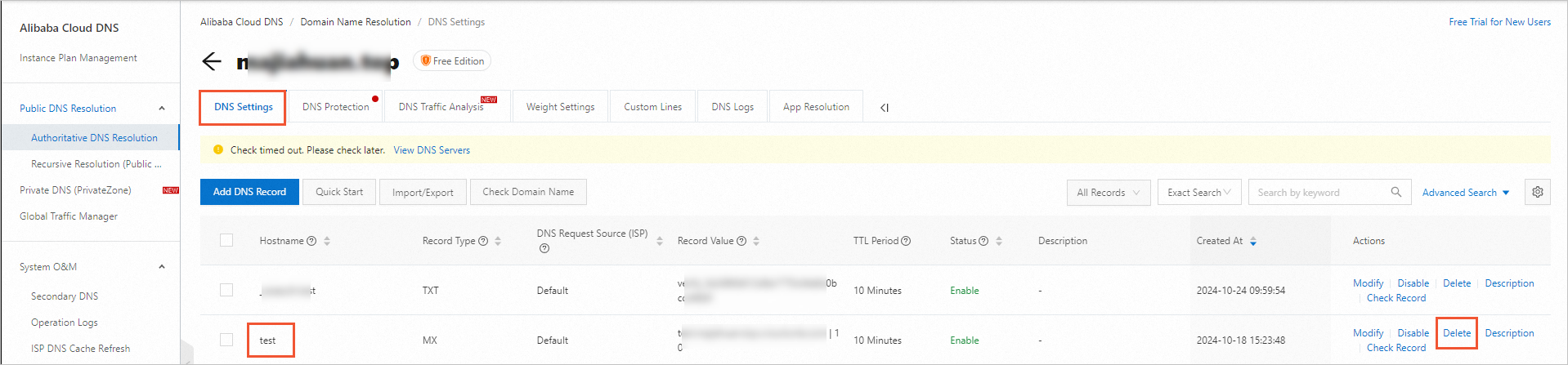
On the DNS Settings tab, find the DNS record for the Alibaba Cloud CDN-accelerated domain name and click Delete.
Remove the domain name from DCDN
Log on to the DCDN console.
In the left-side navigation pane, click Domain Names.
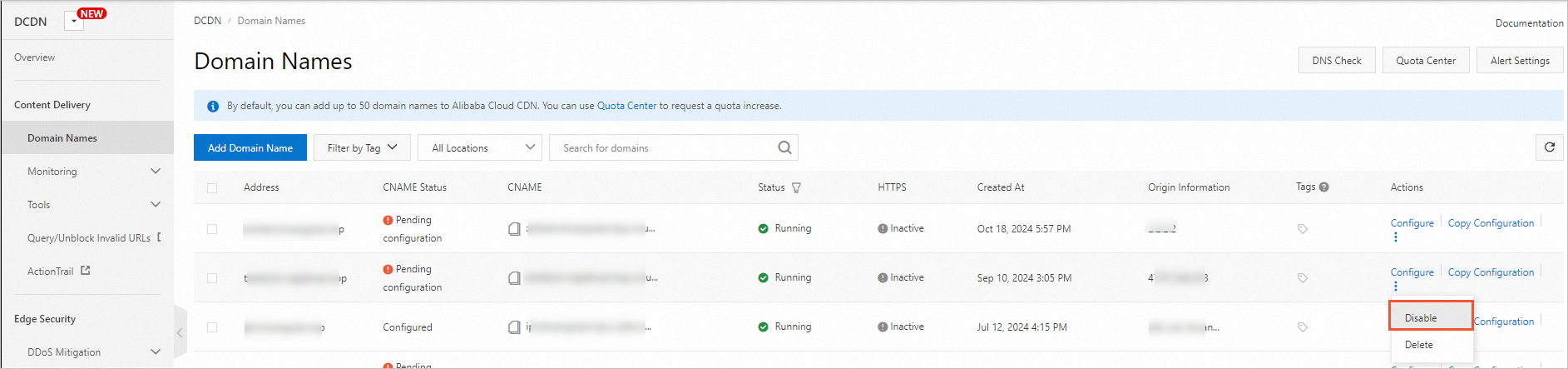
On the Domain Names page, find the domain name that you want to manage and click Disable in the Actions column.
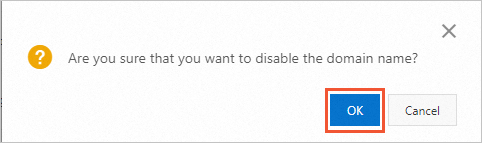
In the message that appears, click OK.
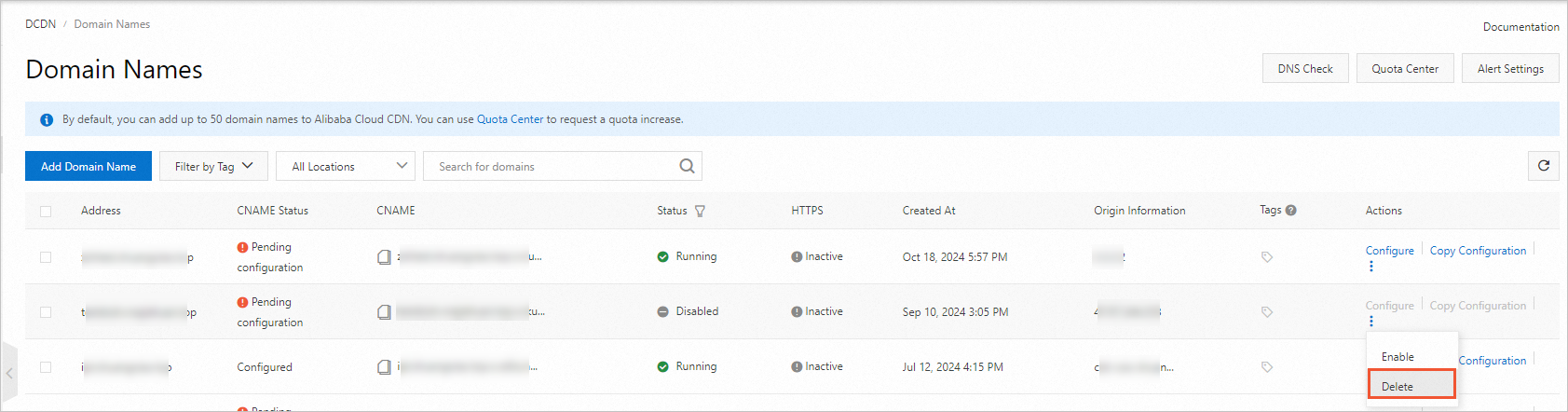
After the status of the domain name becomes Disabled, click Delete in the Actions column.
Log on to the Alibaba Cloud DNS console.
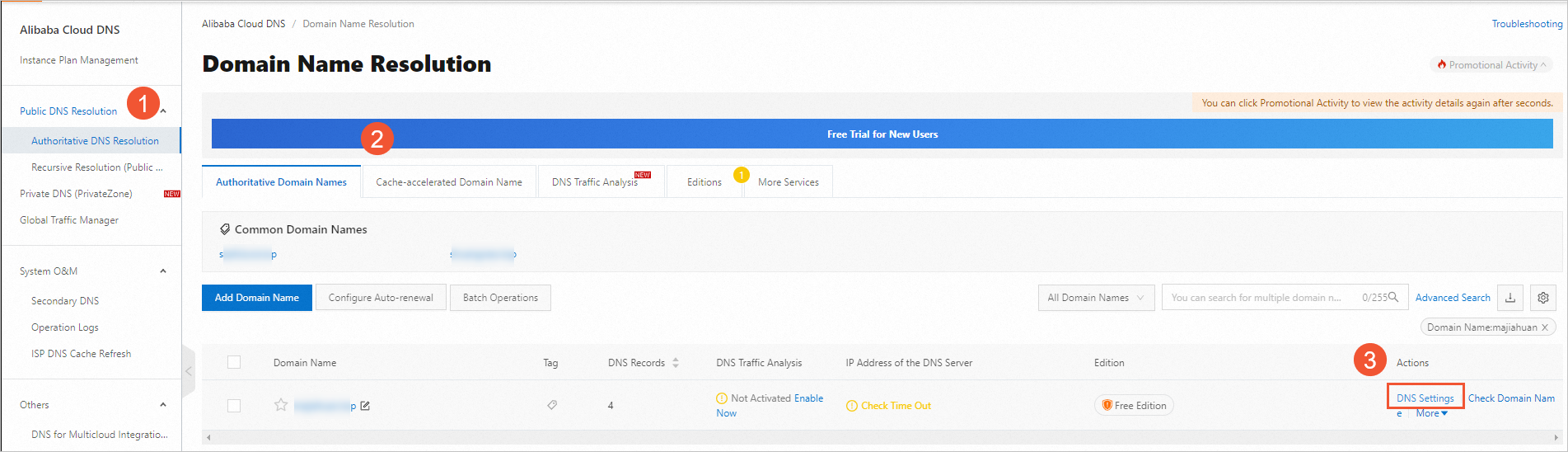
In the left-side navigation pane, click Authoritative DNS Resolution. On the Authoritative Domain Names tab, find the domain name that you want to manage and click DNS Settings in the Actions column.
On the DNS Settings tab, find the DNS record for the DCDN-accelerated domain name and click Delete.