IP Application Accelerator (IPA) is a Layer 4 acceleration feature developed by Alibaba Cloud. Based on proprietary TCP and UDP protocols, IPA accelerates network transmission, reduces service latency, and improves availability. To enable IPA for a domain name, activate the service and add the domain name as described below.
Alibaba Cloud DCDN will gradually stop allowing new users to activate the IP Application Accelerator (IPA) feature from 00:00 on May 8, 2025 to 23:00 on May 13, 2025 (UTC+8). Existing users are not affected.
If you require this feature, you can upgrade to Edge Security Accelerator (ESA). The Layer 4 proxy (IP Application Accelerator) of Edge Security Accelerator (ESA) provides network acceleration and security protection for TCP/UDP-based applications, reduces latency, and improves user experience stability. It also provides traffic analytics to help you identify network bottlenecks, abnormal traffic patterns, and the causes of service interruptions with detailed traffic data.
Prerequisites
You have activated the DCDN service. For more information, see Activate DCDN.
Step 1: Activate the IPA service
IPA cannot be activated through self-service. To request activation, you must submit a ticket to request activation.
Step 2: Add an IPA domain name
DCDN and IPA are two independent services. A domain name can be configured for only one of the services at a time. If a domain name is already configured for the DCDN DCDN but you want to use the IP Application Accelerator service, you must first delete the domain name from Domain Names and then add it again by following the steps below.
-
Log on to the DCDN console.
Add an accelerated domain name for IPA.
In the left-side navigation pane, click IP Application Accelerator.
On the Domain Names tab, click Add Domain Name.
On the Add Domain Name page, configure the following parameters.
Part 1: Basic Information

Parameter
Description
Business Type
Select IP Application Accelerator. This value cannot be changed after the domain name is configured.
Type
Select TCP or UDP based on your service protocol. This value cannot be changed after the domain name is configured.
ImportantTo enable the UDP protocol, submit a ticket.
Location
Chinese Mainland Only: Both end users and origin servers are in the Chinese mainland.
Global: End users and origin servers can be anywhere in the world.
Global (Excluding the Chinese Mainland): Both end users and origin servers are in regions outside the Chinese mainland, such as Hong Kong (China), Macao (China), Taiwan (China), and other countries and regions.
NoteEnsure that your end users and origin servers are in the same location.
If you select Global or Global (Excluding the Chinese Mainland), the resources are not enabled by default. You must submit a ticket for activation.
If your location is Chinese Mainland Only or Global, you must obtain an ICP filing for the accelerated domain name. You can log on to the Alibaba Cloud ICP Filing system to complete the filing. Due to data propagation delays in the MIIT ICP filing system, wait at least 8 hours after you obtain an ICP filing before you configure the domain name.
Pricing varies based on the selected location. For more information about pricing, see DCDN pricing.
Domain Name to Accelerate
Typically, you can enter a subdomain or a wildcard domain. Only lowercase English letters are supported. Chinese domain names are not supported. Wildcard domain names such as
*.test.comare supported.Resource Group
Select Default Resource Group or a resource group that you created. To create a new resource group, see Create a resource group.
Tag
Select a preset tag or a tag that you created. To create a new tag, see Create and bind a tag.
Part 2: Origin Information
To add multiple origin servers, add them one by one as described below.
Parameter
Description
Type
IP: You can configure one or more IP addresses for an origin server. Internal IP addresses are not supported. IPv4 addresses and IPv6 addresses are supported. At least one of the IP addresses must be an IPv4 address. If you use a public IP address of an Alibaba Cloud Elastic Compute Service (ECS) instance as the address of the origin server, the IP address is exempt from manual review. You need to obtain the permissions to configure origin fetch over IPv6 in advance. Otherwise, updates to settings about IPv6 will be ineffective. For more information, see Configure origin fetch over IPv6.
Origin Domain: You can configure one or more origin domain names.
Priority
You can configure primary and secondary origins. When a user request triggers an origin fetch, Alibaba Cloud CDN first tries the primary origin. If the primary origin fails (TCP connection between CDN node and origin fails), it falls back to the secondary origin. Priority values range from 0 to 127. The lower the number, the higher the priority. The default priority for a primary origin is 20; for a secondary origin, it is 30. To configure a priority value other than the defaults, submit a ticket.
For example, if you have two origins, A and B, with origin A set as primary and origin B as backup, user requests that perform an origin fetch through Alibaba Cloud CDN will be directed to origin A first. If origin A fails (the TCP connection between the CDN node and the origin fails), the request will be redirected to origin B. When origin A recovers, traffic will switch back from origin B to origin A.
Weight
If multiple origin servers have the same priority, Alibaba Cloud DCDN distributes origin fetch requests based on their weights for load balancing. Set the weight values based on your business requirements.
Valid values: 0 to 100. A larger value means a higher percentage of requests is forwarded to the origin server.
Default value: 10.
Example: Origins A and B both have primary priority. A has weight 80; B has weight 20. Requests are distributed in an 8:2 ratio between A and B.
Port
Specify a custom acceleration port. Valid values: 1 to 65535. Only one port can be added.
NoteThe following ports are not supported:
22, 123, 161 to 162, 179, 830, 2049, 2601, 2605, 3389, 5049, 7547, 8082, 8087, 8182, 8888, 9998, 15772, 15776, 15778 to 15779, 18053, 18098 to 18099, 18888, 19313, 19777, and 56667.
Click Next.
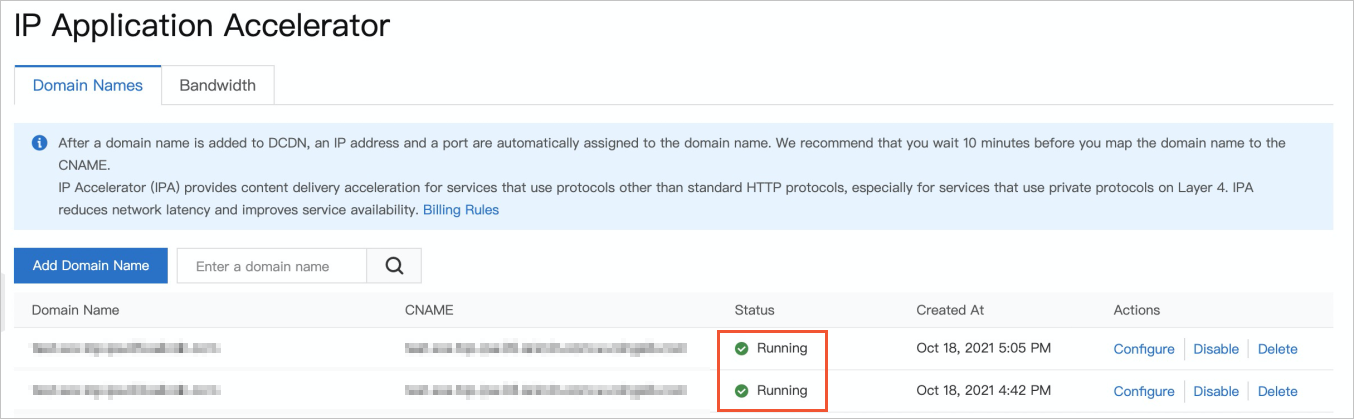
After the accelerated domain name is approved, it appears in the domain name list on the IP Application Accelerator page with a status of Running.
Step 3: Configure a CNAME record
After you add the accelerated domain name, note the CNAME value assigned to it. Then, add a CNAME record at your DNS provider to point the accelerated domain name to this CNAME value. The IPA service takes effect after the CNAME record propagates. For more information, see Configure a CNAME record.