In a microservices architecture, a single request often passes through multiple services. When you need to verify that traffic flows correctly through the entire call chain -- or isolate specific traffic for canary releases and testing -- you need visibility into how requests enter and propagate through your services.
End-to-end traffic adjustment in EDAS uses lane groups to isolate and route traffic across a microservices call chain. A lane group defines which applications participate in traffic routing, starting from an ingress application that receives inbound requests, through each downstream service. After you create a lane group and send requests to the ingress application, you can monitor queries per second (QPS) in real time to verify that traffic reaches each service as expected.
Prerequisites
Before you begin, make sure that you have:
Microservices applications created in EDAS. For more information, see Overview of creating and deploying applications
An ingress application, such as a service gateway built on Spring Cloud Gateway or Spring Cloud Netflix Zuul, associated with a microservices namespace in EDAS
NoteIf you use Spring Cloud Gateway as the ingress gateway, the version must be 2.1.x or later. For other gateway requirements, join DingTalk group 31723701.
A Server Load Balancer (SLB) instance bound to the ingress application. For more information, see Bind CLB instances or Reuse a CLB instance
Create a lane group
A lane group defines the ingress application and all downstream applications that participate in traffic routing. Each microservices namespace supports up to two lane groups.
Log on to the EDAS console.
In the left-side navigation pane, choose Traffic Management > Microservices Governance > End-to-end Traffic Adjustment.
In the top navigation bar, select a region. On the End-to-end Traffic Adjustment page, select a microservices namespace.
Click Create. If a lane group already exists in the selected microservices namespace, click Create to the right of the Select Lane Group drop-down list.
In the Create Lane Group panel, configure the following parameters and click OK.
Parameter Description Microservices Namespace The namespace selected on the End-to-end Traffic Adjustment page. Read-only. Lane Group Name A name for the lane group. The name must be 1 to 64 characters in length and can contain letters, digits, hyphens (-), and underscores (_). Ingress Type The ingress type. Default: Ingress Application (Application/Gateway Deployed in EDAS). Ingress Application The ingress application for the lane group. Applications Involved in Lane Group Click Add Application for Traffic Adjustment and select all downstream applications in the call chain that need traffic routing. 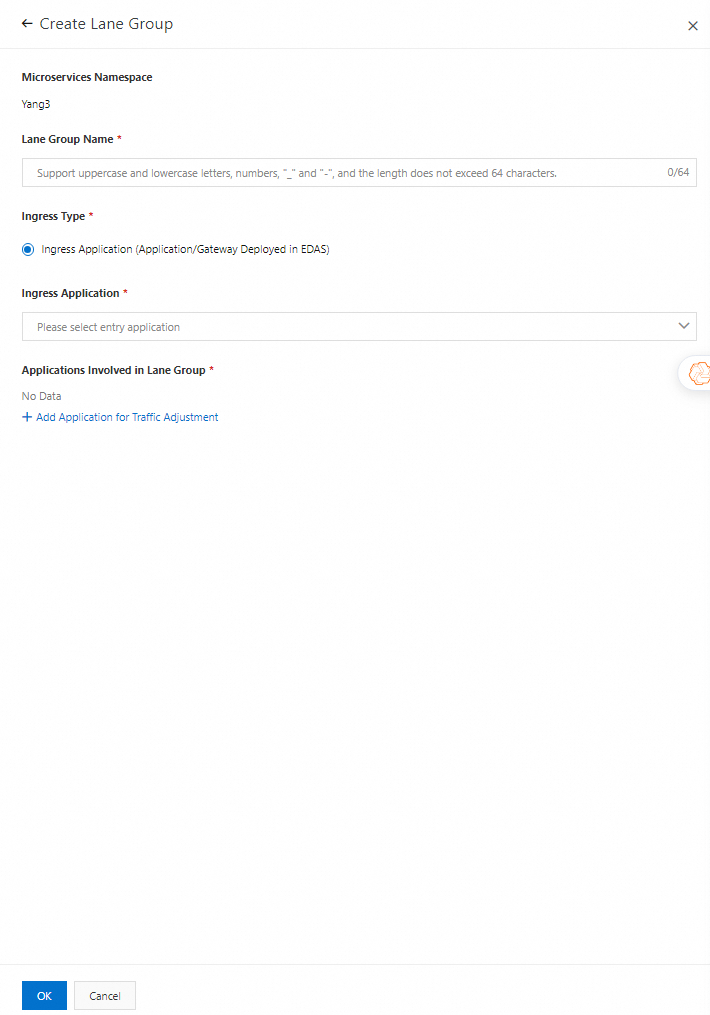
Verify the lane group. After creation, the Applications Involved in Lane Group section on the End-to-end Traffic Adjustment page lists all selected applications. Confirm that the ingress application and downstream applications are correct. To make changes, click Edit.
Monitor traffic of the ingress application
After you create a lane group, send requests to the ingress application and verify that traffic reaches the application by checking the QPS monitoring chart.
Get the SLB endpoint of the ingress application or ingress gateway.
On the Applications page, click the name of the ingress application or ingress gateway.
In the Access configuration section of the Application Overview page, copy the SLB endpoint.
Send test requests to the ingress application. Use a browser or a tool such as cURL to access an application of the lane group multiple times. In this example, the transaction center is accessed and the traffic is routed by using different methods. The following example shows typical routing patterns: Each case represents a different path through the call chain, where the request enters at application A (or A2) and passes through downstream services B (or B1) and C.
Case 1: A [172.20.**.**] -> B1 [172.20.**.**] -> C [172.20.**.**]
Case 2: A [172.20.**.**] -> B [172.20.**.**] -> C [172.20.**.**]
Case 3: A2 [172.20.**.**] -> B [172.20.**.**] -> C [172.20.**.**]
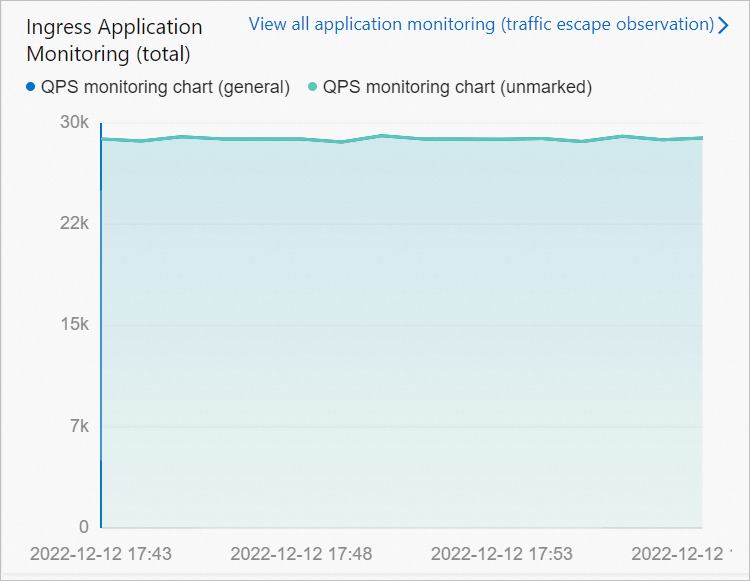
View the QPS monitoring chart. The chart displays QPS over time. If the chart shows incoming requests, traffic is reaching the ingress application as expected.
On the End-to-end Traffic Adjustment page, select the lane group from the Select Lane Group drop-down list.
Select a monitoring time range. The chart refreshes in the Ingress Application Monitoring (total) section.
What's next
After you confirm that traffic reaches the ingress application, you can set up routing rules to direct traffic to specific applications. For more information, see Use the end-to-end traffic adjustment feature to route traffic to specific applications.