Kubernetes applications often need passwords, API keys, and TLS certificates, but hardcoding these values in images or configuration files creates security and maintenance risks. Secrets in Enterprise Distributed Application Service (EDAS) let you store sensitive data separately. Secrets can be passed to containers when you create or deploy applications.
Modifying a Secret does not automatically update running applications. Redeploy each application that uses the Secret for changes to take effect.
Use cases
| Use case | Description |
|---|---|
| Environment variables | Inject Secret values as environment variables into containers. For more information, see Configure environment variables. |
| Volume mounts | Mount Secret data as files in container directories. For more information, see Configure mount directories. |
| Ingress TLS | Store HTTPS certificate and private key in a Secret and reference it in an Ingress to terminate TLS. For more information, see Create an NGINX Ingress for an application. |
Prerequisites
Before you begin, make sure that you have:
A Kubernetes cluster created in the Container Service for Kubernetes (ACK) console:
The Kubernetes cluster imported to the EDAS console
Create a Secret
Log on to the EDAS console.
In the left-side navigation pane, choose Configuration Management > Kubernetes Configurations > Secrets.
In the top navigation bar, select a region.
On the Secrets page, click Create Secrets.
In the Create Secrets panel, configure the following parameters, and then click Yes.
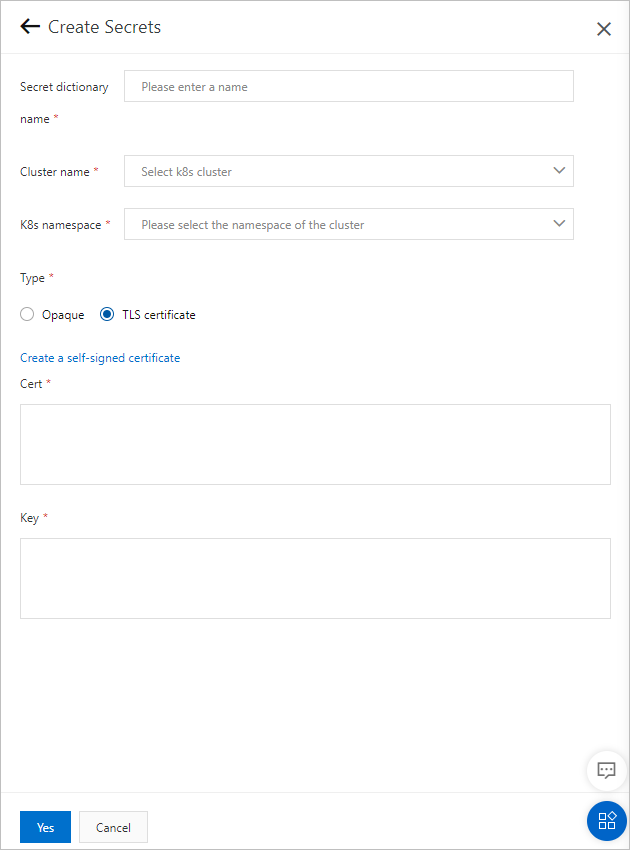
| Parameter | Description |
|---|---|
| Secret dictionary name | A unique name for the Secret. Use lowercase letters, digits, and hyphens (-). The name must start with a letter and cannot end with a hyphen. |
| Cluster name | The Kubernetes cluster where the Secret is created. Select a cluster from the drop-down list. |
| K8s namespace | The Kubernetes namespace that scopes the Secret. Valid values:
|
| Type | The Secret type. Valid values:
|
Opaque parameters
When Type is set to Opaque, configure key-value pairs for the Secret:
Click Add to add a mapping entry.
Set the Key and Value for each entry.
Key: Supports letters, digits, hyphens (-), underscores (_), and periods (.).
Value: The sensitive data associated with the key.
To import key-value pairs from a file, click Import Configuration and select a local file. Supported formats: JSON, YAML, or .properties. Maximum file size: 1,024 KB.
TLS certificate parameters
When Type is set to TLS certificate, provide the certificate and private key using one of the following methods:
Manual entry -- Set Cert to the public key and Key to the private key.
Self-signed certificate -- Click Create a self-signed certificate and configure the following fields:
Domain
The key length
Certificate start time
Certificate expiration time
View Secret details
Log on to the EDAS console.
In the left-side navigation pane, choose Configuration Management > Kubernetes Configurations > Secrets.
In the top navigation bar, select a region.
Find the target Secret and click Details.
You can search for the required Secret by Secret dictionary name, Cluster name, Cluster ID, or K8sNamespace.On the details page, review the basic information and key-value pair data. For TLS certificate Secrets, the page also displays the associated domain name, certificate status, and certificate issuer.
Modify a Secret
Log on to the EDAS console.
In the left-side navigation pane, choose Configuration Management > Kubernetes Configurations > Secrets.
In the top navigation bar, select a region.
Find the target Secret and click Edit.
You can search for the required Secret by Secret dictionary name, Cluster name, Cluster ID, or K8sNamespace.In the editing panel, update the keys and values as needed, and then click Yes.
If the Secret is used by an application, redeploy the application after saving your changes. Updated Secret values do not take effect until redeployment.
View associated Ingresses
Log on to the EDAS console.
In the left-side navigation pane, choose Configuration Management > Kubernetes Configurations > Secrets.
In the top navigation bar, select a region.
Find the target Secret and click View associated apps.
You can search for the required Secret by Secret dictionary name, Cluster name, Cluster ID, or K8sNamespace.On the page that appears, view the Ingresses associated with the Secret. Click an Ingress name to view its details.
Delete a Secret
Log on to the EDAS console.
In the left-side navigation pane, choose Configuration Management > Kubernetes Configurations > Secrets.
In the top navigation bar, select a region.
Find the target Secret and click Delete.
You can search for the required Secret by Secret dictionary name, Cluster name, Cluster ID, or K8sNamespace.In the confirmation dialog, click Yes.
If the Secret is in use by an application, disassociate the Secret from the application before deleting it.