As your microservice applications evolve, you need to update, review, and remove configuration items. Enterprise Distributed Application Service (EDAS) provides a centralized console for managing the full lifecycle of microservice configurations, including searching, editing, exporting, cloning, and deleting.
Search and filter configurations
Search for configurations by data ID, group ID, or both. You can also narrow results by application or label.
Log on to the EDAS console.
In the left-side navigation pane, choose Application Management > Microservice Configurations. By default, the Configurations page appears.
In the top navigation bar, select a region. Then select a namespace from the Microservice Namespace drop-down list.
Filter configurations by Group, Data ID, Belonging Application, and Label.
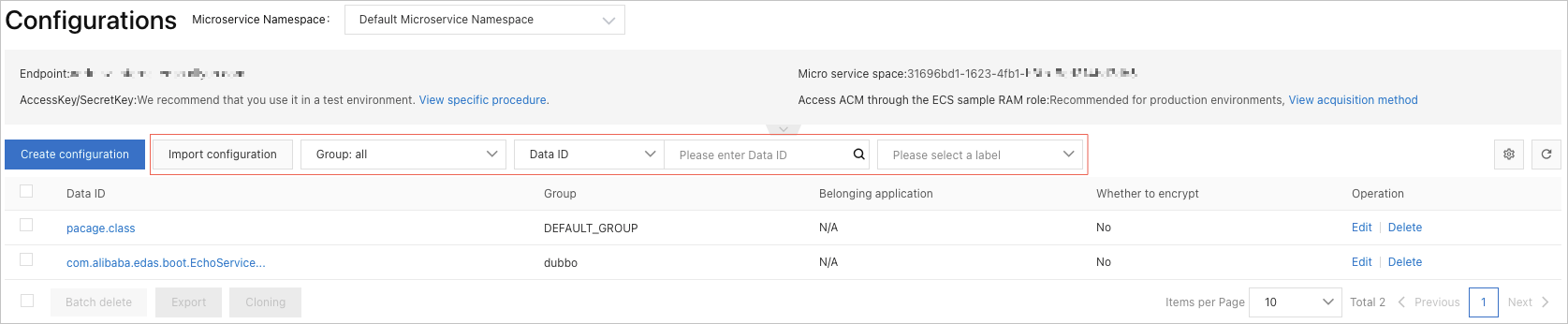
After you locate a configuration, you can perform the following operations:
| Action | Steps |
|---|---|
| View details | Click the data ID in the Data ID column. |
| Edit | Click Edit in the Operation column. |
| Delete | Click Delete in the Operation column. |
| Export | Select a configuration and click Export at the bottom of the page. |
| Clone | Select a configuration and click Clone at the bottom of the page to clone it to another microservices namespace in the same region. |
View configuration details
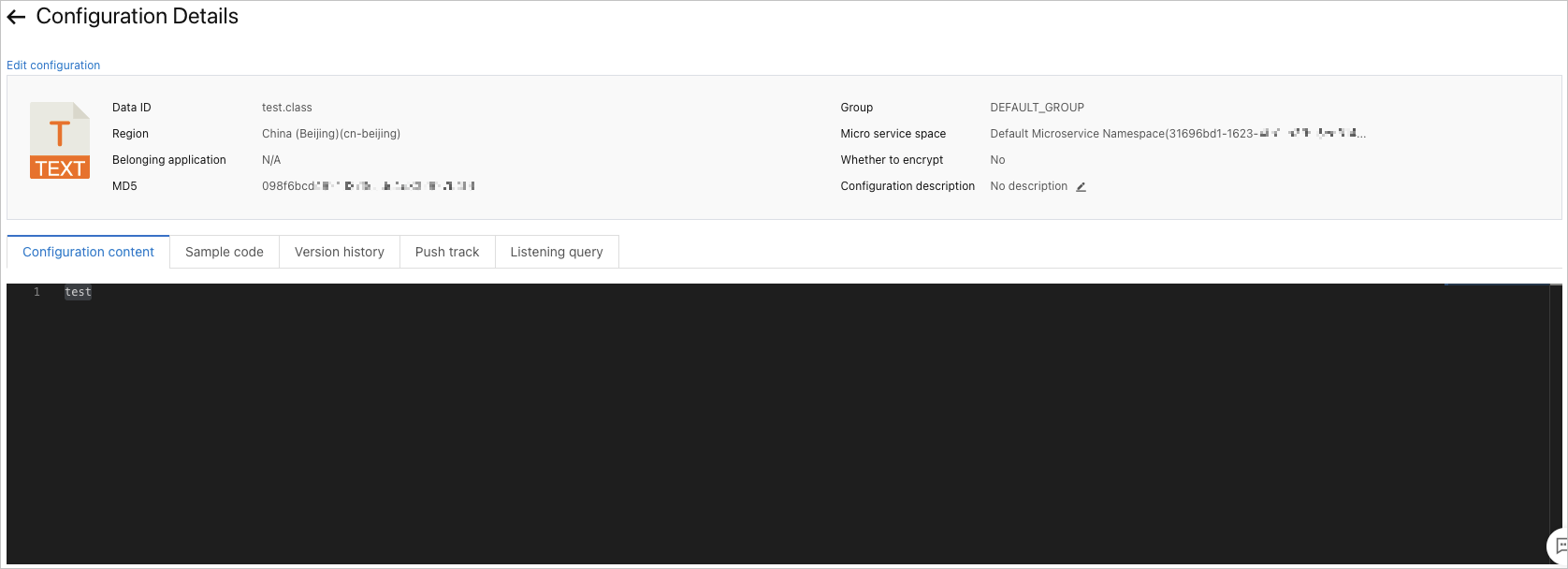
On the Configurations page, find the target configuration and click its data ID in the Data ID column.
On the Configuration Details page, you can view the information about the configuration, such as the basic information, configuration content, sample code, version history, push tracking information, and listening query information.
Edit a configuration
Modify any configuration by opening it in the editor and publishing your changes.
On the Configurations page, find the target configuration and click Edit in the Operation column.
In the Edit Configuration panel, update the configuration as needed. For parameter descriptions, see Create a configuration.
Click Publish.
Advanced features
The Edit Configuration panel provides additional features to reduce the risk of publishing errors.
| Feature | What it does | How to use it |
|---|---|---|
| Schema validator | Checks the schema of configurations written in different languages, such as JSON and XML. This reduces exceptions caused by syntax errors. | Select a schema from the Configuration Format setting before you edit. |
| Configuration comparison | Compares the configuration to be published with the current configuration after you submit the configuration changes. This reduces accidental errors. | A configuration content comparison message appears after you click Publish to submit configuration changes. |
| Beta release | Deploys the updated configuration to a subset of instances first, so you can verify the change before publishing to all instances. This minimizes the negative impacts of configuration errors. | Turn on Beta release and enter the IP addresses of the target instances. For on-premises machines, enter the public IP address. |
Delete a configuration
On the Configurations page, find the target configuration and click Delete in the Operation column.
In the Delete configuration dialog box, confirm the configuration details and click OK.