Enterprise Distributed Application Service (EDAS) applications run on two runtime containers: Ali-Tomcat and Pandora. These containers integrate core features such as service publishing, service subscription, and tracing. To build and debug EDAS applications locally, install both containers and configure your IDE.
Before you begin
Make sure that you have:
Java Development Kit (JDK) 1.7 or later installed. Run
java -versionto verify.One of the following IDEs installed:
IDE Supported editions Eclipse All editions IntelliJ IDEA Commercial release only. Community Edition is not supported.
Install Ali-Tomcat and Pandora
Ali-Tomcat and Pandora are containers on which services in EDAS depend during runtime. Applications must be published to these containers for running. Install both before configuring your IDE.
Download one of the following Ali-Tomcat packages:
Extract the package to a local directory, for example
d:\work\tomcat\.Download the Pandora package.
Extract Pandora into the
deploysubdirectory of your Ali-Tomcat installation. Using the example path above, extract it tod:\work\tomcat\deploy\.Verify the directory structure. On Linux, run the following command from your Ali-Tomcat directory: Expected output: On Windows, navigate to the
deploydirectory in File Explorer and confirm that thetaobao-hsf.sarfolder and its contents match the structure above.tree -L 2 deploy/deploy/ └── taobao-hsf.sar ├── META-INF ├── lib ├── log.properties ├── plugins ├── sharedlib └── version.properties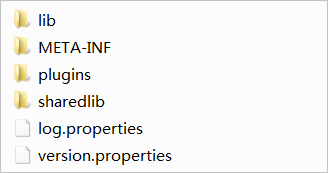
For troubleshooting, see Ali-Tomcat FAQ and Pandora issues.
Configure Eclipse
Eclipse integration requires the Tomcat4E plug-in. After installation, you can run and debug EDAS applications directly from the IDE.
Install the Tomcat4E plug-in
Download the Tomcat4E plug-in package and extract it to a local directory, for example
d:\work\tomcat4e\.Open Eclipse. In the menu bar, choose Help > Install New Software.
In the Install dialog box, click Add next to the Work with field. In the Add Repository dialog box, click Local, select the directory where you extracted the Tomcat4E package (for example,
d:\work\tomcat4e\), and click OK.In the Install dialog box, click Select All, then click Next.
Follow the remaining prompts to complete the installation, then restart Eclipse.
Create a run configuration
After Eclipse restarts, choose Run As > Run Configurations from the menu.
In the left pane, find AliTomcat Webapp and click New launch configuration.
Click the AliTomcat tab. In the taobao-hsf.sar Location section, click Browse and select the local Pandora path, for example
d:\work\tomcat\deploy\taobao-hsf.sar.Click Apply or Run. The configuration is saved. The next time you run this project, it uses the same settings automatically.
Verify the setup
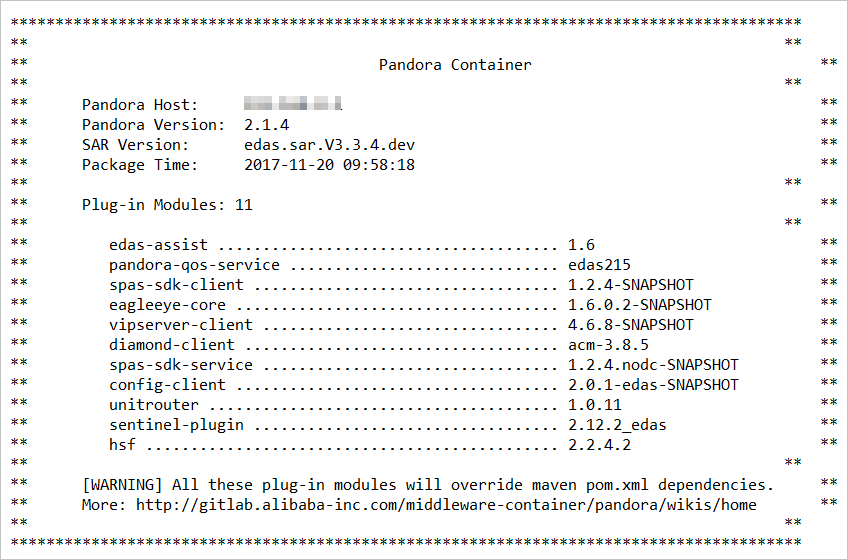
Check the console output after running your project. If Pandora container initialization messages appear, the Eclipse development environment is ready.
Configure IntelliJ IDEA
Only the commercial release of IntelliJ IDEA is supported. Community Edition is not supported.
Add Ali-Tomcat as an application server
Open IntelliJ IDEA. In the menu bar, choose Run > Edit Configurations....
In the Run/Debug Configurations dialog, navigate to Defaults > Tomcat Server > Local in the left pane.
Click the Server tab. In the Application Server section, click Configure.
On the Application Server page, click + in the upper-right corner. In the Tomcat Server dialog box, set Tomcat Home to the directory where you extracted Ali-Tomcat (for example,
d:\work\tomcat\). The Tomcat base directory field auto-populates with the same path.Click OK.
Configure the run settings
In the Run/Debug Configurations dialog, select the Ali-Tomcat server you configured from the Application Server drop-down list.
In the VM Options field, add the following JVM parameters: Replace
<path-to-pandora>with the absolute path to your Pandora installation. For example:NoteThese JVM parameters are for local development only. Do not include them when you deploy to EDAS.
Parameter Description -Dpandora.locationAbsolute path to the taobao-hsf.sardirectory in your Ali-Tomcat installation-Dvipserver.server.portPort for the local lightweight configuration and registry center. Speeds up local application startup. -Dpandora.location=<path-to-pandora> -Dvipserver.server.port=8080-Dpandora.location=d:\work\tomcat\deploy\taobao-hsf.sar -Dvipserver.server.port=8080Click Apply or OK.