Configure chrony, ntpd, or W32time on ECS instances to prevent scheduled task errors and log timestamp drift.
How it works

-
Network Time Protocol (NTP): Synchronizes clocks between a client and a server to within milliseconds by calculating network latency.
-
Alibaba Cloud NTP server: Alibaba Cloud provides NTP servers with VPC endpoints, enabling ECS instances to synchronize time with minimal network latency.
-
chrony/ntpd/W32time: NTP-based services that sync an instance's system clock with an NTP server. On Linux/Unix,
chronyoutperformsntpd. Windows uses the built-inW32timeservice.
Verify clock accuracy
Configure clock synchronization
Linux (chrony)
Alibaba Cloud public images run chrony by default. Some older images run ntpd. Run ps -C chronyd,ntpd -o comm= to check which process is running. If the output is ntpd, the instance uses ntpd by default. See Linux (ntpd).
A Linux system can run only one time synchronization daemon. Use either chronyd or ntpd. Before starting one, stop and disable the other.
To configure time synchronization across multiple instances, use Cloud Assistant batch execution.
1. Check and configure NTP server addresses
-
Edit the
chronyconfiguration file:Alibaba Cloud Linux/CentOS/RHEL
sudo vim /etc/chrony.confUbuntu/Debian
sudo vim /etc/chrony/chrony.conf -
Configure Alibaba Cloud NTP servers.
Comment out all
#-prefixed `server` lines, then add the following:ImportantConfigure multiple NTP sources for fault tolerance and accuracy. The system selects the best source automatically.
# Configuration information, including NTP server addresses, minimum polling interval, and maximum polling interval. server ntp.cloud.aliyuncs.com minpoll 4 maxpoll 10 iburst server ntp10.cloud.aliyuncs.com minpoll 4 maxpoll 10 iburst server ntp11.cloud.aliyuncs.com minpoll 4 maxpoll 10 iburst server ntp12.cloud.aliyuncs.com minpoll 4 maxpoll 10 iburst server ntp7.cloud.aliyuncs.com minpoll 4 maxpoll 10 iburst server ntp8.cloud.aliyuncs.com minpoll 4 maxpoll 10 iburst server ntp9.cloud.aliyuncs.com minpoll 4 maxpoll 10 iburst -
Save and exit. Restart
chrony:sudo systemctl restart chronyd.service
2. Verify clock synchronization
The service gradually adjusts the time after restart. Run sudo chronyc tracking to verify synchronization.
sudo chronyc trackingThe System time field shows the offset between your system clock and NTP time. For example, 0.000036150 seconds fast of NTP time indicates the system clock is ahead.
If the time offset is large (several minutes or hours) and your workload can tolerate an abrupt time jump, consider manually synchronizing time.
Reference ID    : 64643D58 (100.100.61.88)
Stratum         : 2
Ref time (UTC)  : Sat Sep 20 07:55:33 2025
System time     : 0.000036150 seconds fast of NTP time
Last offset     : +0.000031322 seconds
RMS offset      : 0.000044841 seconds
Frequency       : 43.592 ppm slow
Residual freq   : +0.000 ppm
Skew            : 0.005 ppm
Root delay      : 0.000228760 seconds
Root dispersion : 0.010518964 seconds
Update interval : 1029.1 seconds
Leap status     : Normal
Linux (ntpd)
Some older Alibaba Cloud public images (such as CentOS 6) use ntpd by default. Because the NTP project is no longer maintained, upgrade to Chrony for better performance and security.
A Linux system can run only one time synchronization daemon. Use either chronyd or ntpd. Before starting one, stop and disable the other.
To configure time synchronization across multiple instances, use Cloud Assistant batch execution.
1. Check and configure NTP server addresses
-
Edit the
NTPconfiguration file:sudo vim /etc/ntp.conf -
Configure Alibaba Cloud NTP servers.
Comment out all
#-prefixed `server` lines, then add the following:ImportantConfigure multiple NTP sources for fault tolerance and accuracy. The system selects the best source automatically.
# Configuration information, including NTP server addresses, minimum polling interval, and maximum polling interval.
server ntp10.cloud.aliyuncs.com iburst minpoll 4 maxpoll 10
server ntp11.cloud.aliyuncs.com iburst minpoll 4 maxpoll 10
server ntp12.cloud.aliyuncs.com iburst minpoll 4 maxpoll 10
server ntp7.cloud.aliyuncs.com iburst minpoll 4 maxpoll 10
server ntp8.cloud.aliyuncs.com iburst minpoll 4 maxpoll 10
server ntp9.cloud.aliyuncs.com iburst minpoll 4 maxpoll 10
-
Save and exit. Restart
ntpd:Alibaba Cloud Linux/CentOS/RHEL
sudo service ntpd restartUbuntu/Debian
service ntp restart
2. Verify time synchronization
The service gradually adjusts the time after restart. Run sudo ntpq -p to verify synchronization. The offset field shows the difference between local and server time. Key parameters:
-
offset: The difference between system time and server time, in milliseconds. The closer theoffsetvalue is to 0, the more accurate. -
jitter: The variation in time delay. Smaller values indicate higher precision.
If the time offset is large (several minutes or hours) and your workload can tolerate an abrupt time jump, consider manually synchronizing time.
sudo ntpq -p remote refid st t when poll reach delay offset jitter
==============================================================================
LOCAL(0) .LOCL. 10 l 17 64 1 0.000 0.000 0.000
+100.100.3.1 10.137.55.181 2 u 8 16 1 30.426 -307.76 0.153
*100.100.3.2 10.137.55.181 2 u 5 16 1 26.845 -309.25 0.221
+100.100.3.3 10.137.55.181 2 u 4 16 1 28.819 -309.37 0.187
-100.100.5.1 203.107.X.XX 2 u 3 16 1 50.478 -310.70 0.164
-100.100.5.2 203.107.X.XX 2 u 2 16 1 47.235 -311.89 0.246
100.100.5.3 203.107.X.XX 2 u 1 16 1 53.661 -310.50 0.119Windows
Graphical user interface
The Windows GUI supports only a single NTP server. If that server becomes unavailable, time synchronization fails.
For high availability in production environments, skip the GUI and use the command prompt to configure multiple NTP servers.
-
In the notification area of the taskbar, click the date and time, then click Date and time settings.
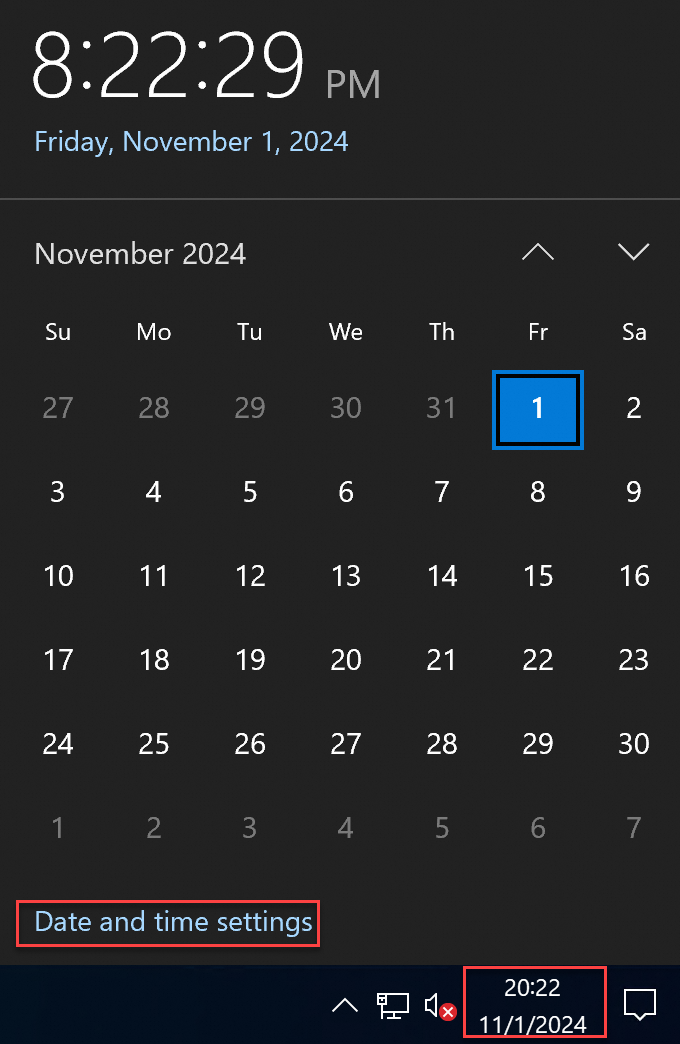
-
Click Related settings > Add clocks for different time zones.
-
Click Date and Time > Internet Time > Change settings.
-
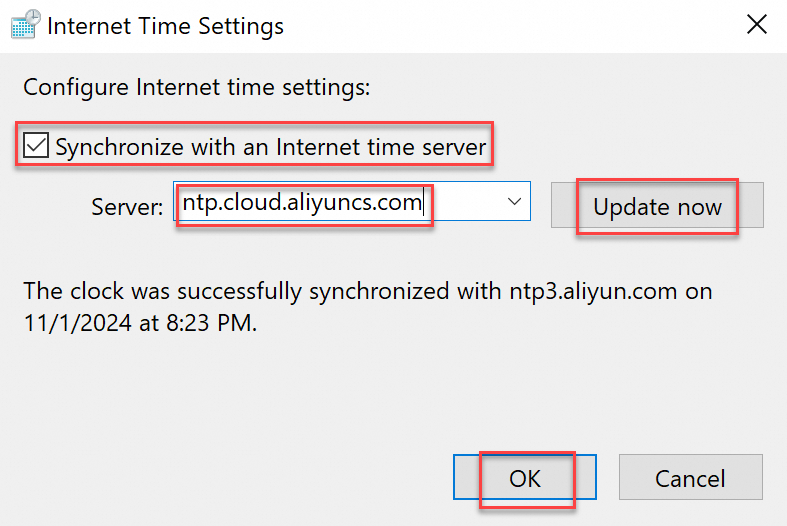
In the Internet Time Settings dialog box, select Synchronize with an Internet time server, enter
ntp.cloud.aliyuncs.com, click Update Now, then click OK. -
A success message confirms synchronization. If synchronization fails, check whether a firewall or security software blocks UDP port 123.
Command-line interface (CLI)
Unlike the GUI, CLI supports multiple time sources for automatic failover.
To configure time synchronization across multiple instances, use Cloud Assistant batch execution.
1. Configure NTP servers
Replace the default Windows NTP server (time.windows.com) with Alibaba Cloud NTP servers. The following example uses Windows Server 2022.
-
Press
Win + R, typecmd, and pressEnter. -
Set the NTP servers. For example, use
ntp.cloud.aliyuncs.com ntp7.cloud.aliyuncs.com ntp8.cloud.aliyuncs.com ntp11.cloud.aliyuncs.com:w32tm /config /manualpeerlist:"ntp.cloud.aliyuncs.com ntp7.cloud.aliyuncs.com ntp8.cloud.aliyuncs.com ntp11.cloud.aliyuncs.com" /syncfromflags:manual /reliable:YES /update -
Restart the time service:
net stop w32time net start w32time -
Synchronize time:
w32tm /resync
2. Verify time synchronization
Run w32tm /query /status. If the Source field shows Local CMOS Clock instead of your NTP server address, synchronization failed.
w32tm /query /statusLeap Indicator: 0(no warning)
Stratum: 3 (secondary reference - syncd via (S)NTP)
Precision: -23 (119.209ns per tick)
Root Delay: 0.0020371s
Root Dispersion: 0.0191713s
Reference ID: 0x64640302 (source IP: 100.100.3.2)
Last Successful Sync Time: 2025/10/28 14:37:42
Source: ntp11.cloud.aliyuncs.com
Poll Interval: 10 (1024s)FAQ
Do I need to install or configure chronyd or ntpd inside containers (Docker/Kubernetes)?
No.
Never run chronyd or ntpd inside containers. Containers share the host's time and do not need independent configuration. Running a time synchronization service inside a container causes clock resource contention with the host, compromising workload stability.
How do I force manual system clock synchronization?
Avoid manual synchronization due to the risk of abrupt time jumps. However, if the system clock deviates significantly (several minutes or hours) and your workload can tolerate a time jump, perform a manual sync.
Linux (chrony)
-
Stop
chrony:sudo systemctl stop chronyd.service -
Manually synchronize time:
ImportantBefore manual sync, confirm that you have configured multiple Alibaba Cloud NTP servers.
sudo chronyd -q -
Start
chrony:sudo systemctl start chronyd.service
Linux (ntpd)
Alibaba Cloud Linux/CentOS/RHEL
-
Stop
ntpd:sudo service ntpd stop -
Manually synchronize time:
ImportantThe NTP project is no longer maintained. Using
ntpdaterisks abrupt time jumps. Specify three or more time sources to mitigate risk. See Alibaba Cloud NTP server domains.Importantntpdateas a periodic script is not a valid replacement for an NTP daemon. NTP daemons use sophisticated algorithms to maximize accuracy while minimizing resource usage.sudo ntpdate ntp.cloud.aliyuncs.com ntp7.cloud.aliyuncs.com ntp10.cloud.aliyuncs.com ntp11.cloud.aliyuncs.com ntp12.cloud.aliyuncs.com -
Start
ntpd:sudo service ntpd start
Ubuntu/Debian
-
Stop
ntpd:sudo service ntp stop -
Manually synchronize time:
ImportantThe NTP project is no longer maintained. Using
ntpdaterisks abrupt time jumps. Specify three or more time sources to mitigate risk. See Alibaba Cloud NTP server domains.sudo ntpdate ntp.cloud.aliyuncs.com ntp7.cloud.aliyuncs.com ntp10.cloud.aliyuncs.com ntp11.cloud.aliyuncs.com ntp12.cloud.aliyuncs.com -
Start
ntpd:sudo service ntp start
What are the Alibaba Cloud NTP server domain names?
Alibaba Cloud NTP server addresses by network type (IPv4 only):
-
Alibaba Cloud ECS instances: Use VPC domains for lower latency.
-
Non-Alibaba Cloud instances: Use Internet domains.
|
VPC internal network |
Public network |
|
ntp.cloud.aliyuncs.com ntp7.cloud.aliyuncs.com ntp8.cloud.aliyuncs.com ntp9.cloud.aliyuncs.com ntp10.cloud.aliyuncs.com ntp11.cloud.aliyuncs.com ntp12.cloud.aliyuncs.com |
ntp.aliyun.com ntp1.aliyun.com ntp2.aliyun.com ntp3.aliyun.com ntp4.aliyun.com ntp5.aliyun.com ntp6.aliyun.com ntp7.aliyun.com |
Is the Alibaba Cloud NTP service free?
Free of charge. Alibaba Cloud public images include a default NTP configuration. ECS instances created from these images use Chrony or NTP to synchronize time automatically.
How do I upgrade from ntpd to chrony?
Some older Alibaba Cloud ECS images, such as CentOS 6, use `ntpd`. Because the NTP project is no longer maintained, upgrade to `chrony` if your workload does not depend on NTP.
-
Uninstall
ntp:Alibaba Cloud Linux/CentOS/RHEL
sudo yum remove ntpUbuntu/Debian
sudo apt remove ntp -
Install
Chrony:If the download fails, see How to resolve yum failures when installing chrony on CentOS 6 (EOL)?
Alibaba Cloud Linux/CentOS/RHEL
sudo yum install chronyUbuntu/Debian
sudo apt update sudo apt install chrony -
Configure
Chrony:Edit the configuration file:
Alibaba Cloud Linux/CentOS/RHEL
sudo vim /etc/chrony.confUbuntu/Debian
sudo vim /etc/chrony/chrony.confAdd NTP servers to the file. Example
chrony.conf:# NTP server settings server ntp.cloud.aliyuncs.com minpoll 4 maxpoll 10 iburst # Specify the location of the drift file driftfile /var/lib/chrony/drift # Allow chronyd to be queried from localhost allow 127.0.0.1Parameters:
Parameter
Description
server ntp.cloud.aliyuncs.comThe NTP server domain.
chronyconnects to this server for time synchronization.minpoll 4Minimum polling interval as a power of 2 in seconds.
minpoll 4= 2⁴ = 16 seconds.chronysends at least one sync request every 16 seconds.maxpoll 10Maximum polling interval as a power of 2 in seconds.
maxpoll 10= 2¹⁰ = 1024 seconds.iburstSpeeds up initial synchronization. When
chronystarts, it sends a burst of requests (typically 8) to quickly obtain accurate time. -
Start
chrony:-
Start
Chronyand enable it on boot:# Start the chrony service sudo service chronyd start # Set chrony to start automatically when the system boots sudo chkconfig chronyd on -
Check
chronystatus. Usechronycto verifychronysynchronization:# Check the service status sudo service chronyd status -
Verify time synchronization:
sudo chronyc tracking
-
How to resolve yum failures when installing chrony on CentOS 6 (EOL)?
-
Clean old
repoconfigurations:sudo mkdir -p /etc/yum.repos.d/backup && sudo mv /etc/yum.repos.d/*.repo /etc/yum.repos.d/backup/ -
Create a new
CentOS-Vault.repofile pointing to the official archive:sudo tee /etc/yum.repos.d/CentOS-Vault.repo <<'EOF' [C6.10-base] name=CentOS-6.10 - Base baseurl=http://vault.centos.org/6.10/os/$basearch/ gpgcheck=1 gpgkey=file:///etc/pki/rpm-gpg/RPM-GPG-KEY-CentOS-6 enabled=1 [C6.10-updates] name=CentOS-6.10 - Updates baseurl=http://vault.centos.org/6.10/updates/$basearch/ gpgcheck=1 gpgkey=file:///etc/pki/rpm-gpg/RPM-GPG-KEY-CentOS-6 enabled=1 [C6.10-extras] name=CentOS-6.10 - Extras baseurl=http://vault.centos.org/6.10/extras/$basearch/ gpgcheck=1 gpgkey=file:///etc/pki/rpm-gpg/RPM-GPG-KEY-CentOS-6 enabled=1 EOF -
Clean and rebuild the cache:
sudo yum clean all && sudo yum makecache -
Install chrony:
sudo yum install chrony
References
-
See Linux time and time zones for Linux time concepts and changes to time configurations in public images.
-
The Precision Time Protocol (PTP) time synchronization service uses hardware-level timestamps and dynamic path compensation to achieve sub-microsecond clock synchronization, ideal for scenarios such as high-frequency financial trading.