Use coredump to analyze instance program exceptions
If a program unexpectedly terminates or stops responding, the operating system records the content of the random access memory (RAM) that is allocated to the program and saves the content to a file for subsequent debugging and analysis. This process is called a core dump. This topic describes how to enable the coredump feature for an elastic container instance in the Elastic Container Instance console. After you enable the coredump feature, you can view and analyze a core file to identify the cause of an issue and fix the program.
Background information
By default, coredump is disabled in elastic container instances to prevent service unavailability that is caused by excessive disk usage. You can manually enable coredump. After you enable coredump, the system generates an O&M task. If a container unexpectedly terminates or exits, the system triggers coredump to generate a core file and save the core file to an Object Storage Service (OSS) bucket.
Limits
Generated O&M tasks can be executed only once. After an O&M task is executed and a core file is generated, coredump is disabled. The validity period of an O&M task is 12 hours.
You cannot manually execute coredump O&M tasks for the following regions: China (Ulanqab), China (Heyuan), China (Guangzhou), China (Nanjing - Local Region), Philippines (Manila), South Korea (Seoul), and Thailand (Bangkok).
Procedure
Log on to the Elastic Container Instance console.
Enable coredump for an instance.
In the left-side navigation pane, click Container Group. On the Container Group page, click the ID of the instance for which you want to enable coredump to go to the instance details page.
On the O&M tab, click the Core dump tab, and then click Enable.
After you enable coredump, the system generates an O&M task. Before coredump is triggered, the task is in the Pending state.
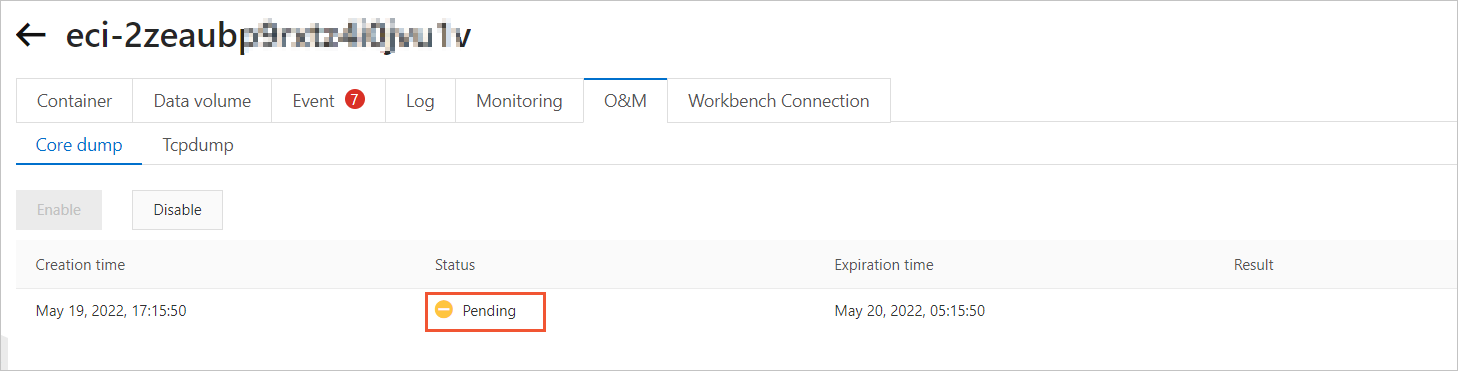
Trigger coredump.
Connect to the elastic container instance. After you run the following
sleep 100command in the container, press theCtrlkey and the\key at the same time to trigger coredump. A core file is automatically generated and saved to an OSS bucket.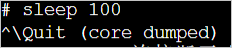
Download the core file.
After coredump is triggered and the system generates a core file, the state of the O&M task changes to Successful. Click Download in the Result column to download the core file to your on-premises machine.
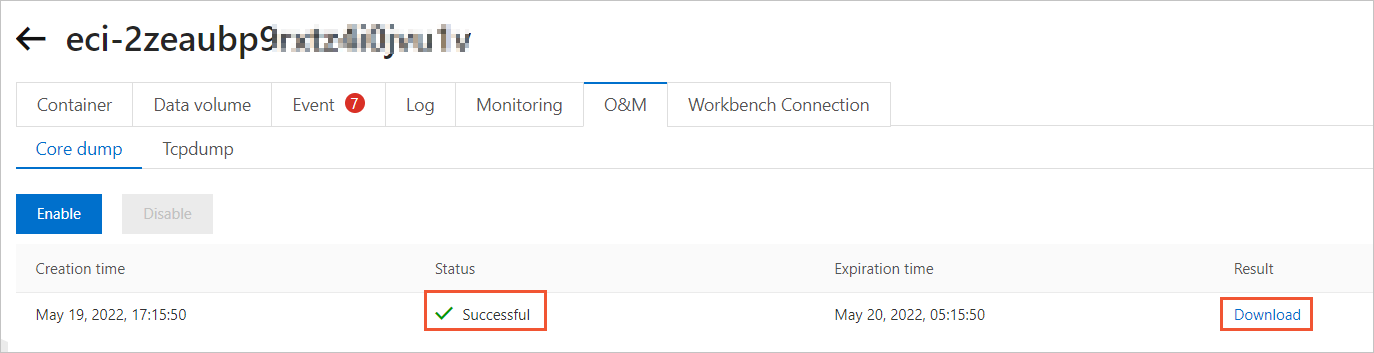 Note
NoteIf the system does not respond, check the website permission settings of your browser.
References
In addition to manually executing coredump O&M tasks, you can also specify a path to store core files to enable coredump. For more information, see the "Method 2: Specify a path to store core files" section in the Use coredump to analyze instance program exceptions topic.