Data Security Center (DSC) lets you centrally manage the data assets, data objects, and audit logs of multiple Alibaba Cloud accounts. With multi-account management, you run sensitive data identification, data classification, and security monitoring across all accounts from a single delegated administrator account—without switching between accounts.
Limitations
-
Only paid editions of DSC support multi-account management.
-
All accounts must belong to the same resource directory and the same enterprise entity. The enterprise must pass enterprise real-name verification.
-
A member that has already purchased DSC cannot be added as a DSC member by a different account.
-
Accounts added as DSC members cannot independently purchase or use DSC.
-
Data assets of DSC members do not support the traffic collection (agent) mode.
-
AnalyticDB for PostgreSQL assets of DSC members are not supported by DSC features.
Key concepts
| Term | Description | Service |
|---|---|---|
| Management account | An Alibaba Cloud account that has passed enterprise real-name verification. After you use this account to enable a resource directory, it becomes the management account and acts as the super administrator of the resource directory—with full permissions over all folders and members. Each resource directory has exactly one management account. | Resource Management |
| Root folder | The top-level folder in a resource directory. All other folders are organized in a hierarchy beneath it. | |
| Folder | An organizational unit in a resource directory, typically representing a business unit, branch, or project. A folder can contain members and subfolders, forming a tree structure. | |
| Member | An account that belongs to a resource directory. Members created within the directory are resource accounts. Existing Alibaba Cloud accounts that accept an invitation to join become cloud accounts. | |
| Delegated administrator account | A member that the management account designates to administer a trusted service (such as DSC) within the resource directory. The delegated administrator account can view the directory structure and members, and manage all service operations within the directory. | |
| Member of DSC | A member in the resource directory that the delegated administrator account adds to DSC. Once added, the delegated administrator account can access and manage the member's cloud assets in DSC. | DSC |
The management account does not belong to the resource directory itself and is not subject to its access control policies.
How it works
The following scenario illustrates a complete multi-account setup:
Scenario: Accounts A, B, C, D, and E belong to the same resource directory. Account A is the management account. Account A designates Account B as the delegated administrator account of DSC. Account B can then centrally manage the data assets of Accounts B, C, D, and E, and use DSC features such as sensitive data protection, baseline check, data auditing, and data masking. A RAM user of Account B can be configured to manage only the assets of Accounts D and E.

The setup involves three steps:
-
Use the management account to designate a member as the delegated administrator account of DSC.
-
Use the delegated administrator account to add the members you want to manage into DSC.
-
Manage the assets of those members from the DSC console.
Choose a delegated administrator account
Before you begin, decide which member account to designate as the delegated administrator account.
We recommend using an Alibaba Cloud account that has no resources as the management account when you enable a resource directory. Create a RAM (Resource Access Management) user for the management account and attach the AliyunResourceDirectoryFullAccess policy to the RAM user. Then, use the RAM user to manage the resource directory rather than using the root credentials of the management account directly.
The account you designate as the delegated administrator account must have purchased a paid edition of DSC before you can complete Step 1.
Usage notes
| Category | Detail |
|---|---|
| Multi-account verification | All accounts must be in the same resource directory and belong to the same enterprise entity, which must have completed enterprise real-name verification. |
| DSC purchase | Purchase DSC using the account designated as the delegated administrator account. Accounts added as DSC members cannot purchase or use DSC independently. |
| Member management by level | The delegated administrator account can create RAM users and assign them fine-grained permissions scoped to specific members or folders in the resource directory. See Authorize a RAM user to manage specific members. |
| Feature limitations | Data assets of DSC members do not support the traffic collection (agent) mode. AnalyticDB for PostgreSQL assets of members are not supported. |
| Member fees | When data identification and security audit features are enabled for a member's assets, that member pays the fees for data reads and audit log storage in specific database services. For details, see Additional fees for database assets connected to DSC. |
Prerequisites
Before you begin, make sure that:
-
A resource directory is enabled. For details, see Enable a resource directory.
-
At least one member exists in the resource directory—either a newly created member or an existing Alibaba Cloud account that has accepted an invitation to join. For details, see Create a member and Invite an Alibaba Cloud account to join a resource directory.
-
If you plan to use RAM users to manage members by folder, create the required resource folders first and add or invite accounts into them. For details, see Create a folder.
-
The account designated as the delegated administrator account has purchased a paid edition of DSC. For details, see Purchase DSC.
Step 1: Configure the delegated administrator account of DSC
Use the management account to designate a member as the delegated administrator account of DSC. After this, the designated member can access the resource directory structure and members, and manage all DSC operations across the directory.
-
Log on to the Resource Management console using the management account.
-
In the left-side navigation pane, choose Resource Directory > Trusted Services.
-
On the Trusted Services page, find Data Security Center (DSC) and click Manage in the Actions column.
-
In the Delegated Administrator Accounts section, click Add.
-
In the Add Delegated Administrator Account panel, select the Alibaba Cloud account that purchased DSC as the delegated administrator account, then click OK.
After you click OK, the designated member is set as the delegated administrator account of DSC. From this point, use the delegated administrator account to continue the setup.
Step 2: Add members in DSC
Authorize a RAM user to manage specific members
Skip this section if you are using the delegated administrator account directly—not a RAM user—to add and manage members.
To give a RAM user fine-grained control over specific members or folders, create a custom deny policy that restricts the RAM user's add and remove operations to the authorized scope.
-
Log on to the RAM console using the delegated administrator account and create a RAM user. For details, see Create a RAM user.
-
In the left-side navigation pane of the RAM console, choose Permissions > Policies.
-
On the Policies page, click Create Policy.
-
On the Create Policy page, click the JSON tab and enter your custom policy content. The policy controls two actions: adding members (
yundun-sddp:AddMultiAccountMembers) and removing members (yundun-sddp:DeleteMultiAccountMembers). Use theacs:RDManageScopecondition key to scope access. Choose one of the following patterns: Authorize a RAM user to manage a specific member Setacs:RDManageScopein theStringNotEqualscondition to the resource directory path (RDPath) of the folder combined with the member's UID. Find the RDPath on the Resource Directory page.{ "Version": "1", "Statement": [ { "Effect": "Deny", "Action": [ "yundun-sddp:AddMultiAccountMembers", "yundun-sddp:DeleteMultiAccountMembers" ], "Resource": "*", "Condition": { "StringNotEquals": { "acs:RDManageScope": [ "rd-BXXXXs/r-cXXXX6/163XXXXXX1494597" ] } } } ] }Authorize a RAM user to manage all members in a specific folder Set
acs:RDManageScopein theStringNotLikecondition to the RDPath of the required folder followed by/*.{ "Version": "1", "Statement": [ { "Effect": "Deny", "Action": [ "yundun-sddp:AddMultiAccountMembers", "yundun-sddp:DeleteMultiAccountMembers" ], "Resource": "*", "Condition": { "StringNotLike": { "acs:RDManageScope": [ "rd-BXXXXs/r-cXXXX6/fd-BrXXXXXXM4/*" ] } } } ] }For the full policy syntax reference, see Policy structure and syntax.
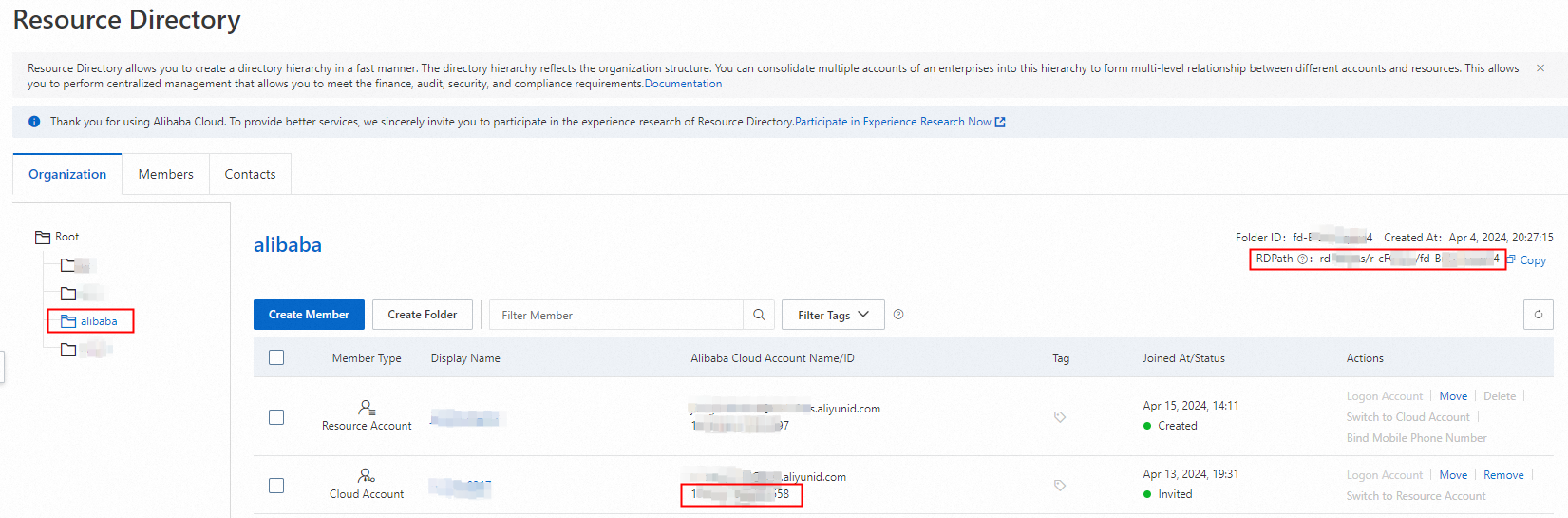
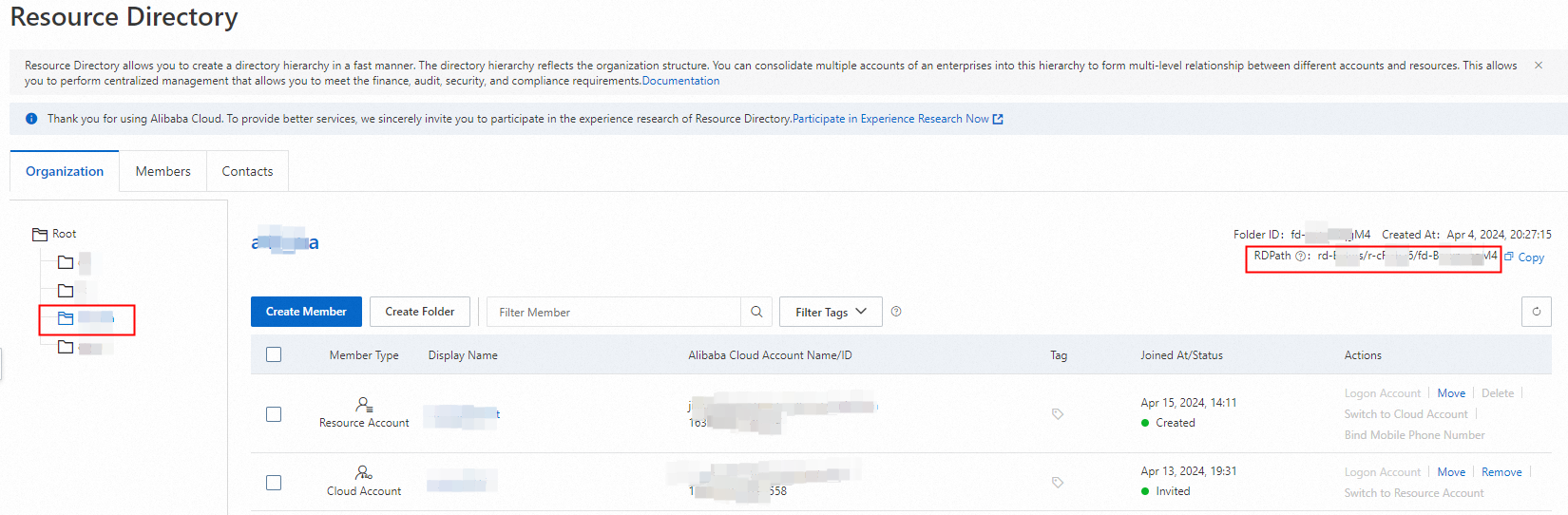
-
Click OK.
-
In the Create Policy dialog box, set the Name and Description fields, then click OK.
-
Click Grant Permission.
-
On the Grant Permission page, search for and select the RAM user, select the custom policy you created, click Grant permissions, then click Close.
Add members
-
Log on to the DSC console using the delegated administrator account or an authorized RAM user.
-
In the left-side navigation pane, click Multi-account Management.
-
If this is your first time using the feature, click Enable Multi-account Management. This operation updates the status of the trusted service DSC to Enabled.
-
Click Add Member.
-
In the Add Member dialog box, select the members to manage and click OK. If the selected members fall outside the RAM user's policy scope, the system returns a no permission message.
After members are added, the delegated administrator account can access and manage their cloud assets from the DSC console.
Step 3: Manage assets of members
After adding members, use the Asset Center page to authorize and manage assets across all member accounts.
UID-based asset management is not available on all pages—for example, the Overview page does not support this. Use the Asset Center page for member asset operations.
-
Log on to the DSC console.
-
In the left-side navigation pane, click Asset Center.
-
On the Authorization Management tab, manage assets within each Alibaba Cloud account using UIDs.

Remove a member from DSC
Removing a member from DSC permanently deletes all of that member's data from the DSC console. Before removing a member, revoke its asset authorizations to avoid losing access records unexpectedly.
This action cannot be undone. After you remove a member, all data of the member in the DSC console is automatically deleted.
-
Log on to the DSC console.
-
In the left-side navigation pane, click Asset Center.
-
Revoke the permissions from the member's assets. For details, see Revoke the permissions from an asset.
-
In the left-side navigation pane, choose System Settings > Multi-account Management.
-
On the Multi-account Management page, find the member and click Delete in the Actions column. If the member falls outside the RAM user's policy scope, the system returns a no permission message.
-
In the confirmation dialog box, click Delete.
FAQ
Multiple accounts in my organization have already purchased DSC. How do I consolidate them under one account?
If an account has already purchased DSC, it cannot be managed as a DSC member from a different account. To consolidate, unsubscribe from DSC for each account first, then use the delegated administrator account to add those accounts as DSC members. For unsubscription details, see Refund policy.
DSC cannot be activated for an account. What should I do?
If accessing the DSC console shows a message that the current account cannot activate DSC, the management account or delegated administrator account has already added this account as a DSC member. To resolve this, use one of the following approaches:
-
Use multi-account management: Log on to the DSC console using the management account or delegated administrator account and manage this account's assets through the multi-account management feature.
-
Remove the account and use DSC independently: Contact the management account or delegated administrator account to remove this account from the Multi-account ManagementMulti-account Management page. After removal, use this account to purchase and activate DSC independently.