Active Directory (AD) authentication lets enterprise users log in to your RDS PostgreSQL instance with their AD credentials — no separate database passwords required. This guide walks you through configuring an AD domain controller on an Elastic Compute Service (ECS) instance, then connecting your RDS instance to that self-managed AD domain using LDAP.
How it works
When a user connects to the RDS instance, the instance forwards the authentication request to the AD domain controller over Lightweight Directory Access Protocol (LDAP). The domain controller verifies the user's credentials and returns the result. If AD authentication is enabled for the connection, the AD domain controller manages password verification. If AD is not in use for a given connection, ApsaraDB RDS falls back to its own password verification.
The RDS instance and the AD domain controller communicate exclusively over the private network. Both must reside in the same virtual private cloud (VPC).
Prerequisites
Before you begin, ensure that you have:
-
An ApsaraDB RDS for PostgreSQL instance running PostgreSQL 10 or later, minor engine version 20210228 or later, and using cloud disks. To update the minor engine version, see Update the minor engine version of an ApsaraDB RDS for PostgreSQL instance
-
An ECS instance in the same VPC as the RDS instance, running Windows Server 2016 or later
-
The ECS security group configured to allow inbound traffic from the private IP address of the RDS instance. See Add a security group rule. If the ECS firewall is enabled, configure it to allow the same traffic (the firewall is disabled by default)
-
A domain account that belongs to the Domain Admins group
-
Access to the ApsaraDB RDS console
Step 1: Set up the AD domain controller on ECS
The AD domain controller must run Windows Server. This guide uses Windows Server 2016 as an example.
-
Log in to the ECS instance and open Server Manager.
-
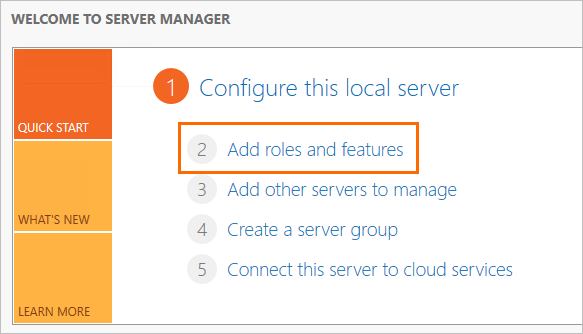
In the left-side navigation pane, click Dashboard, then click Add roles and features.
-
In the Add Roles and Features Wizard, configure each tab as follows:
The ECS instance must have a static IP address. A dynamic IP address causes the DNS server to become unavailable.
Tab Setting Before You Begin Use the default settings. Installation Type Use the default settings. Server Selection Use the default settings. Server Roles Select Active Directory Domain Services, then click Add Features in the dialog box. Select DNS Server, then click Add Features. Features Use the default settings. AD DS Use the default settings. DNS Server Use the default settings. Install Click Install. -
After installation completes, click Close.
-
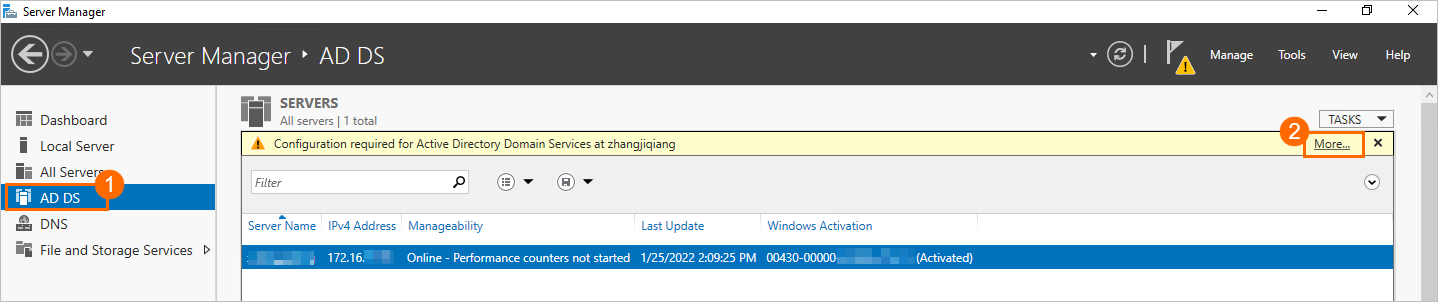
In the left-side navigation pane, click AD DS. In the upper-right corner, click More.
-
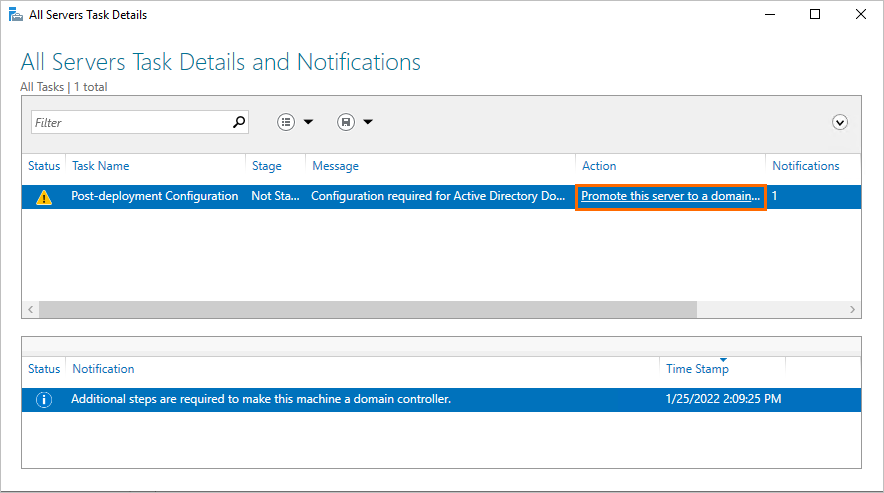
In the All Servers Task Details and Notifications panel, click Promote this server to a domain controller.
-
In the Active Directory Domain Services Configuration Wizard, configure the following:
Tab Setting Deployment Configuration Select Add a new forest and set the Root domain name. This example uses pgsqldomain.net(pgsqldomainis the prefix,netis the suffix). Use the same root domain name throughout the configuration.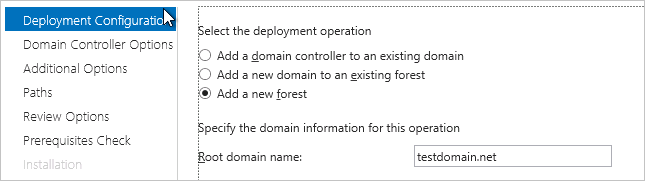
Domain Controller Options Set a Directory Services Restore Mode (DSRM) password. 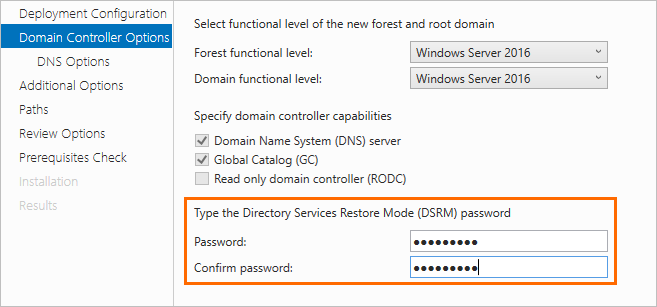
Server Selection Clear Create DNS delegation. 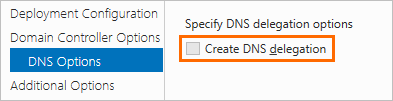
Additional Options, Paths, Review Options Use the default settings. Prerequisites Check Click Install. -
After the ECS instance restarts as an AD domain controller, log back in before proceeding to the next step.
Step 2: Add users to the AD domain controller
You need two types of AD users: an administrator user (used by LDAP to bind to the directory) and a standard user (used to log in to the RDS instance).
Add an administrator user
-
In Server Manager, click AD DS in the left-side navigation pane. Right-click the domain controller and select Active Directory Users and Computers.
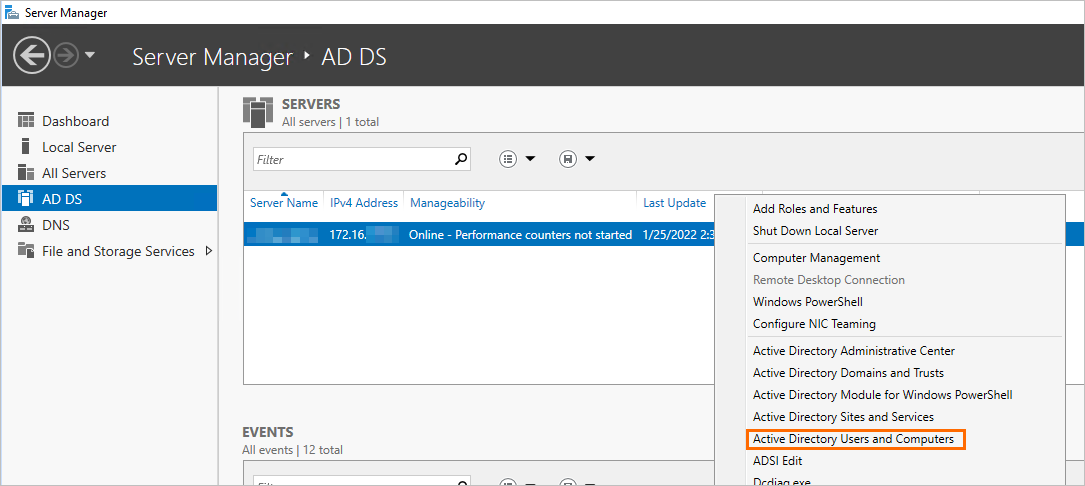
-
Expand pgsqldomain.net, right-click Users, and choose New > User.
pgsqldomain.netis the root domain name set in Step 1.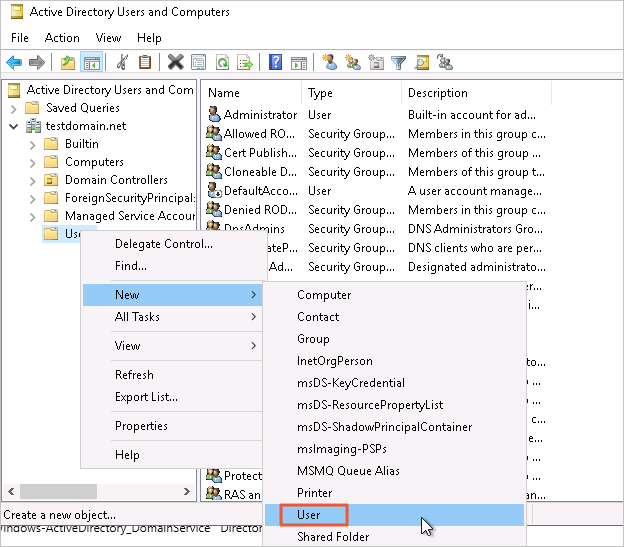
-
Enter a username and click Next.
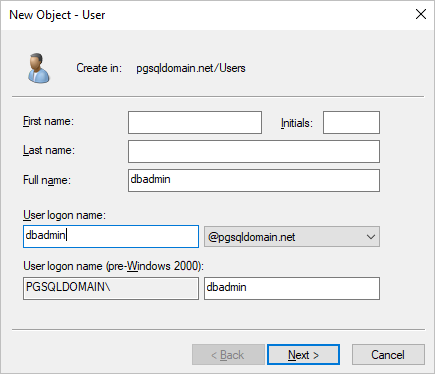
-
Enter a password, select Password never expires, then click Next and Finish.
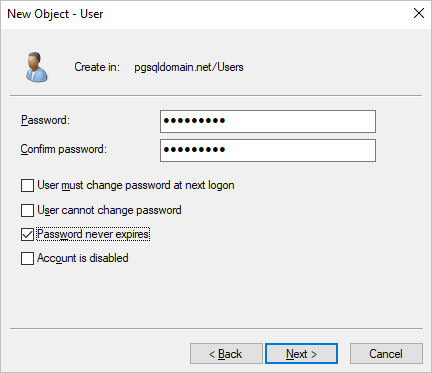
-
Double-click the new user and add them to the Domain Admins group.
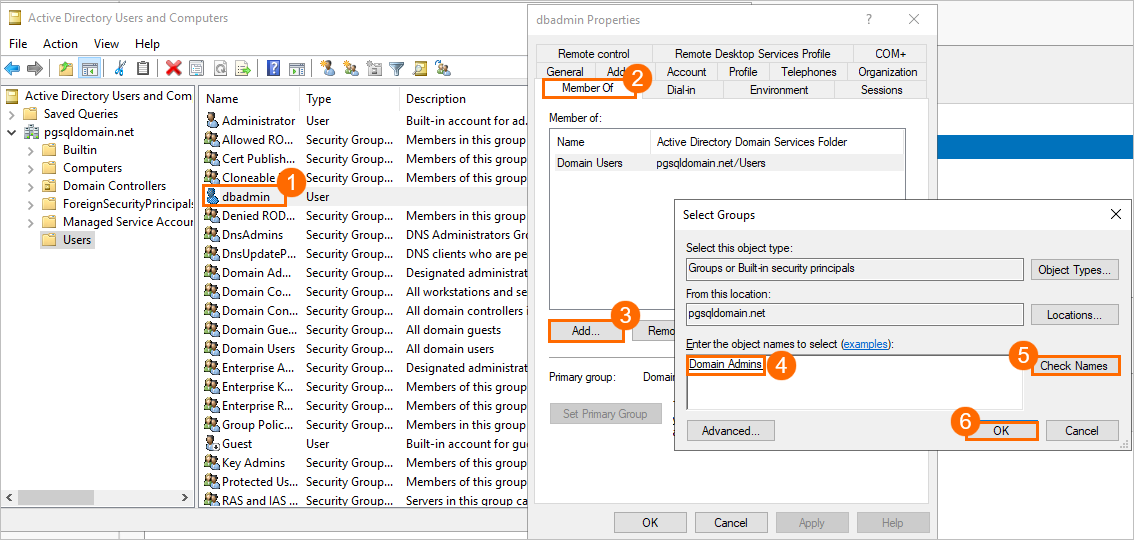
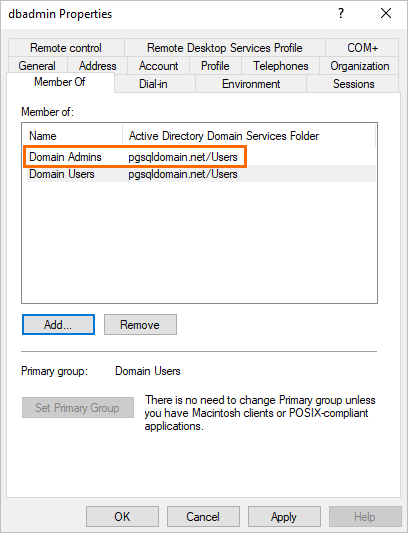
Add a standard user
Follow the same steps as above to create a standard user. Skip the step of adding the user to the Domain Admins group.
This example uses ldapuser as the standard user. This account is used to log in to the RDS instance.
Step 3: Configure security group rules for ECS
The AD domain controller requires several ports to be open. Use a dedicated security group for the domain controller rather than sharing it with other ECS instances.
-
Log in to the ECS console and go to Instances & Images > Instances.
-
In the top navigation bar, select the region of the ECS instance.
-
Click the ECS instance ID, then click Security Groups in the left-side navigation pane.
-
Click Add Rules in the Actions column.
-
On the Inbound tab, click Add Rule to allow the RDS instance to reach the ECS instance on the following ports:
Protocol Port Service TCP 88 Kerberos authentication TCP 135 RPC TCP/UDP 389 LDAP TCP 445 CIFS TCP 3268 Global Catalog TCP/UDP 53 DNS TCP 49152–65535 Default dynamic port range (enter as 49152/65535)
Step 4: Configure the RDS instance
Create a matching database account
-
In the ApsaraDB RDS console, find the RDS instance and click its ID.
-
Create an account named
ldapuser. See Create an account.The RDS account name must match the AD standard user name exactly (
ldapuserin this example). The passwords can differ. When AD authentication is active, the AD domain controller verifies the password. When it is inactive, ApsaraDB RDS uses the account password set in the console.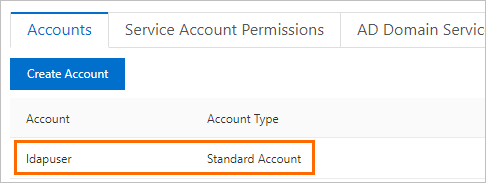
Configure the AD domain service
-
In the left-side navigation pane, click Accounts, then open the AD Domain Services tab. The first time you open this tab, the system creates two default records:
host    all            all    0.0.0.0/0    md5
host    replication    all    0.0.0.0/0    md5
You can delete or modify these records.
-
Click Edit on the first record and configure the following parameters: For the OPTION field, use the following format:
Parameter Example value Description Priority 0Record priority. 0is the highest priority and is auto-assigned to the first record.TYPE hostConnection type. hostmatches both SSL and non-SSL TCP/IP connections.hostsslmatches SSL connections only (requires SSL encryption to be enabled).hostnosslmatches non-SSL connections only.DATABASE allDatabases accessible to the specified users. Use allto allow access to all databases. Separate multiple databases with commas.USER ldapuserAD standard users allowed to connect. Separate multiple users with commas. Domain Admins accounts cannot be used here. ADDRESS 0.0.0.0/0Allowed source IP addresses. 0.0.0.0/0allows connections from any IP address.MASK (leave blank) Subnet mask for the IP address in ADDRESS. Leave blank when using CIDR notation. METHOD ldapAuthentication method. Must be lowercase. Valid values: trust,reject,scram-sha-256,md5,password,gss,sspi,ldap,radius,cert,pam.OPTION See below LDAP options required when METHOD is ldap.ldapserver=<Private IP address of the ECS instance> ldapbasedn="CN=Users,DC=<domain prefix>,DC=<domain suffix>" ldapbinddn="CN=<AD administrator username>,CN=Users,DC=<domain prefix>,DC=<domain suffix>" ldapbindpasswd="<AD administrator password>" ldapsearchattribute="sAMAccountName"For the example domain
pgsqldomain.netwith administrator useradminuser:ldapserver=<ECS private IP> ldapbasedn="CN=Users,DC=pgsqldomain,DC=net" ldapbinddn="CN=adminuser,CN=Users,DC=pgsqldomain,DC=net" ldapbindpasswd="<adminuser password>" ldapsearchattribute="sAMAccountName"For the complete list of OPTION parameters, see the PostgreSQL authentication methods documentation.
-
Click add to the right of the AD domain service record to add a fallback record with the following values:
host all all 0.0.0.0/0 md5 -
Click OK, then click Submit.
After you click Submit, the RDS instance enters Maintaining Instance status for about one minute. New configurations take effect for new connections only. Close existing connections and reconnect for the changes to apply.
Step 5: Test the connection
Connect to the RDS instance using the psql command-line tool. Use the AD standard user's credentials, not the RDS account password.
psql -h <RDS instance endpoint> -U ldapuser -p 5432 -d postgresWhen prompted for a password, enter the AD password for ldapuser (not the RDS account password).
Install the PostgreSQL client before using psql. For other connection methods, see Connect to an ApsaraDB RDS for PostgreSQL instance.
Import AD domain service records in bulk (optional)
To configure multiple AD domain service records at once, use the bulk import feature.
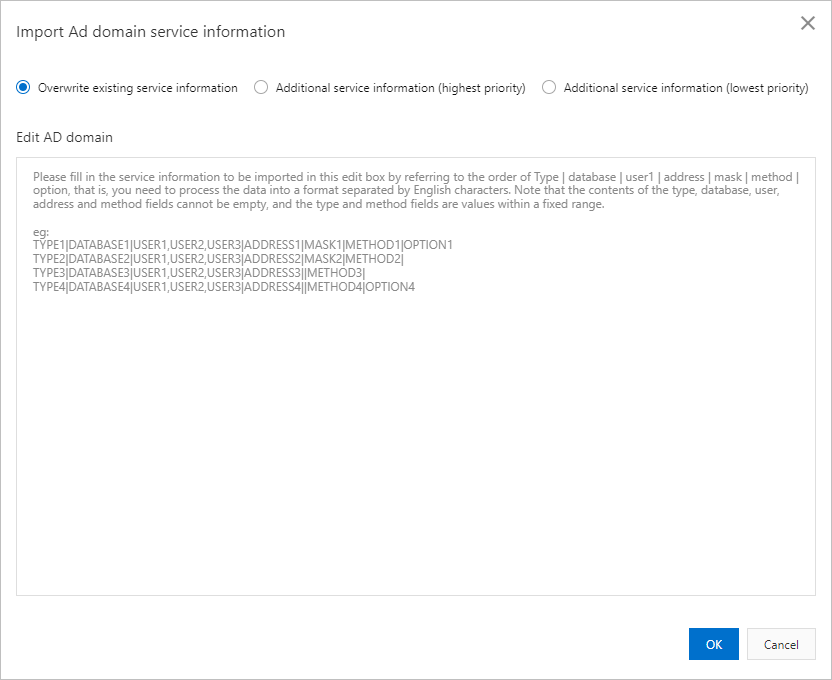
Import modes:
-
Overwrite existing service information — replaces all current records.
-
Additional service information (highest priority) — inserts the new records at the beginning, giving them higher priority than existing records.
-
Additional service information (lowest priority) — appends the new records at the end, giving them lower priority than existing records.
Required format:
TYPE|DATABASE|USER1|ADDRESS|MASK|METHOD|OPTIONSample record:
host|all|ldapuser|0.0.0.0/0||ldap|ldapserver=<ECS private IP> ldapbasedn="CN=Users,DC=pgsqldomain,DC=net" ldapbinddn="CN=<AD administrator username>,CN=Users,DC=pgsqldomain,DC=net" ldapbindpasswd="<AD administrator password>" ldapsearchattribute="sAMAccountName"Enter the records in the Edit AD domain text box, then select an import mode and submit.
View AD domain service edit history
-
In the RDS console, click the instance ID, then go to Accounts > AD Domain Services Edit History.
-
Click changedetails in the Actions column to view the change details. If a modification failed, the status shows Not Taking Effect. Click Change log to see the error message.
