Hologres SQL is an SQL editor in DataStudio that you can use to develop applications for Hologres. This topic describes how to use the Hologres SQL editor for Hologres development.
Prerequisites
A Hologres instance is activated and attached to a DataWorks workspace. For more information, see Attach a Hologres instance.
Procedure
-
Create a business flow
-
Log on to the DataWorks console with your Alibaba Cloud account. Select the region where your Hologres instance resides. In the navigation pane on the left, click Workspaces.
-
On the Workspace List page, find the target workspace. In the Actions column, click Quick Access > Data Development to open the DataStudio page.
-
In the navigation pane on the left, click the
 icon to open the Data Development page.
 -
In the top menu bar, hover over Create and click Create Business Flow.
-
In the Create Business Flow dialog box, configure the following parameters.
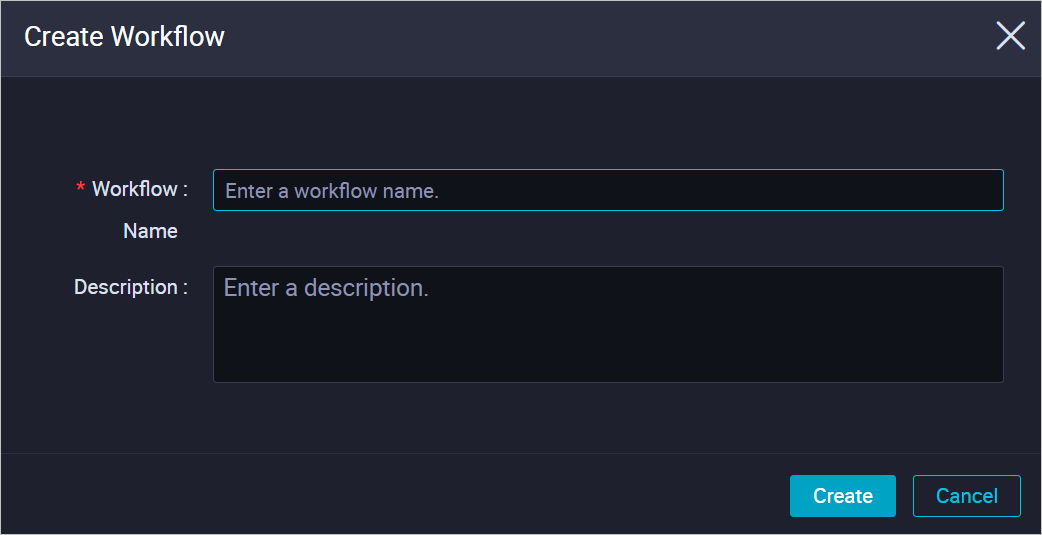
Parameter
Description
Business Name
Customize the service name.
Description
Enter a custom description for the business flow.
-
To create a new business flow, click Create.
-
-
Create a Hologres SQL node
-
On the Data Development page, hover over Create in the top menu bar and choose Create Node > Hologres > Hologres SQL.
NoteYou can create a Hologres SQL node only after a Hologres data source is attached to the current DataWorks workspace. For more information, see Attach a Hologres instance.
-
In the Create Node dialog box, select an Engine Instance, enter a Name, and select a Path.
-
Click OK.
-
-
Perform Hologres development
Open the Hologres SQL node that you created. Enter the following sample PostgreSQL statements to perform development and click the Run
 icon.
icon.The following statements create a table named supplier_holo, insert data into the table, and then query the data. These statements provide a simple example of a complete development flow in Hologres.
BEGIN;
CREATE TABLE supplier_holo (
 s_suppkey bigint NOT NULL,
 s_name text NOT NULL,
 s_address text NOT NULL,
 s_nationkey bigint NOT NULL,
 s_phone text NOT NULL,
 s_acctbal bigint NOT NULL,
 s_comment text NOT NULL,
PRIMARY KEY (s_suppkey)
);
CALL SET_TABLE_PROPERTY('supplier_holo', 'bitmap_columns', 's_suppkey,s_nationkey,s_acctbal,s_name');
CALL SET_TABLE_PROPERTY('supplier_holo', 'dictionary_encoding_columns', 's_name,s_address');
CALL SET_TABLE_PROPERTY('supplier_holo', 'time_to_live_in_seconds', '31536000');
COMMIT;

INSERT INTO supplier_holo VALUES
(1, 'Supplier01', 'New York', 17, '27-918-335-1736',  575594, 'careful'),
(6, 'Supplier06', 'London', 14, '24-696-997-4969',  136579, 'final accounts '),
(10, 'Supplier03',  'Beijing', 24, '34-852-489-8585', 389191, 'ing waters'),
(18, 'Supplier04', 'Paris', 16, '26-729-551-1115', 704082, 'accounts snooze'),
(39, 'Supplier05', 'Shanghai',  8, '18-851-856-5633 611565', 88990, 'special packages'),
(48, 'Supplier06',  'Canada', 14, '24-722-551-9498',563062, 'xpress instructions affix');

SELECT * FROM supplier_holo;
FAQ
-
Engine information does not appear in the SQL editor window
-
Symptom
When you select an engine instance for Hologres development, the engine information does not appear in the SQL editor window.
-
Cause
The engine instance information is hidden.
-
Solution
In the upper-left corner of the Data Development page, click the
 icon and deselect Hide Engine Instance.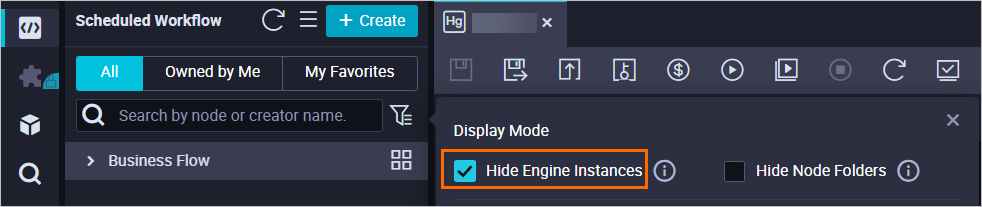
-
-
Which Hologres instance does Hologres Engine Instance in the SQL editor window correspond to?

Hologres Engine Instance is the display name of the Hologres instance. In the upper-right corner, click the
 icon to open the Workspace Management page. On this page, you can find the information about the corresponding Hologres instance in the Hologres attachment list.
 -
When I right-click a Hologres > Table node on the DataWorks Data Development page and choose Associate Table from Engine, the names of the created Hologres tables do not appear.
Collect the Hologres metadata in Data Map and then perform the association. For more information about how to collect metadata, see Data Map.