DataWorks Data Map is a data catalog module that lets you discover, understand, and govern Hologres data assets, including viewing metadata details, data lineage, and data category management. After you configure a metadata crawler, Hologres table metadata syncs automatically into Data Map, where you can search tables, inspect metadata details, and trace data lineage.
Limitations
Data Map requires Hologres V1.1 or later. If your instance runs an earlier version, see Common upgrade preparation errors for troubleshooting, or join the Hologres DingTalk group for feedback. For more information, see How do I get more online support?.
Data lineage is available in the following regions only: China (Hangzhou), China (Shanghai), China (Beijing), China (Shenzhen), China (Hong Kong), and Singapore.
After you configure the crawler, data lineage information becomes available within one hour.
Prerequisites
Before you begin, make sure that you have:
A Hologres instance running V1.1 or later
A DataWorks workspace with the Hologres instance associated as a compute engine instance
A Hologres data source configured in DataWorks. If none exists, click Create to create one. For more information, see Add a Hologres data source
Collect metadata
Configure a metadata crawler to sync Hologres table metadata into Data Map.
Go to the Data Map page. Log on to the DataWorks console. In the top navigation bar, select your region. In the left-side navigation pane, choose Data Governance > Data Map, then click Go to Data Map.
In the top navigation bar, click Data Discovery.
In the left-side navigation pane, choose Metadata Collection > Hologres.
On the Hologres Metadata Crawler page, click Create Crawler.
In the Create Crawler dialog box, complete the following steps. Step 1: Basic information Set the following parameters, then click Next. Step 2: Select a data source Step 3: Configure an execution plan Select how often the crawler collects metadata. The Cron Expression field updates automatically based on your selections. Click Next. Step 4: Confirm settings Review all settings in the Confirm Information step, then click Confirm.
From the Data Source drop-down list, select your Hologres data source. Only Hologres instances associated with your workspace as compute engine instances appear in this list. If no data source is available, click Create to create one.
Click Start Testing next to Test Crawler Connectivity. Wait for the The connectivity test is successful message. > Note: If the test fails, find and resolve the connection error before proceeding.
Click Next.
ImportantIf you select a Monthly schedule, avoid selecting the 29th, 30th, or 31st as the collection date. Some months do not have these dates, and the crawler skips collection on those days.
Parameter Description Crawler Name Required. Enter a unique name for the crawler. Crawler Description Optional. Add a description for the crawler. Workspace Select the workspace that contains the Hologres data source. Data Source Type Defaults to Hologres and cannot be changed. Execution plan Behavior Example schedule On-demand Execution Runs only when you trigger it manually. — Hourly Runs once per hour at a minute value that is a multiple of 5. At the 5th and 10th minutes of each hour. Daily Runs once per day at a specified time. At 01:00 each day. Weekly Runs once per week on specified days at a specified time. If no time is set, defaults to 00:00:00. At 03:00 on Sunday and Monday. Monthly Runs once per month on specified dates at a specified time. At 09:00 on the 1st, 11th, and 21st of each month. 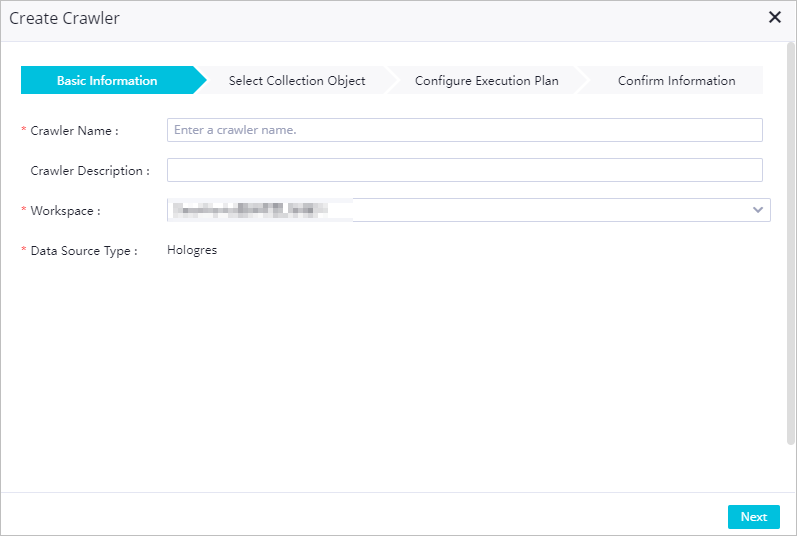
View crawler status
After the crawler is created, it appears on the Hologres Metadata Crawler page. For each crawler, you can view:
| Field | Description |
|---|---|
| Status | Current state of the crawler (for example, Pending). |
| Execution plan | The configured schedule. |
| Start time | When the last run started. |
| Duration | How long the last run took, and the average duration across all runs. |
| Tables updated | Number of tables updated in the last run. |
| Tables created | Number of tables created in the last run. |
Manage crawlers
In the Actions column, use the following operations to manage your crawlers:
| Operation | Description |
|---|---|
| Details | View the crawler name, data source, and execution plan. |
| Edit | Modify the crawler configuration. |
| Run | Trigger an immediate metadata collection run. Available only when Execution Plan is set to On-demand Execution. |
| Stop | Stop the crawler. Visible only when the crawler is in Pending state. |
| Delete | Delete the crawler. |
Explore data assets
After metadata is collected, use the following Data Map features to explore your Hologres data assets.
Data overview
On the Data Overview page, view statistics and table information for all Hologres databases that have a crawler configured in the current region. For more information, see Data overview.

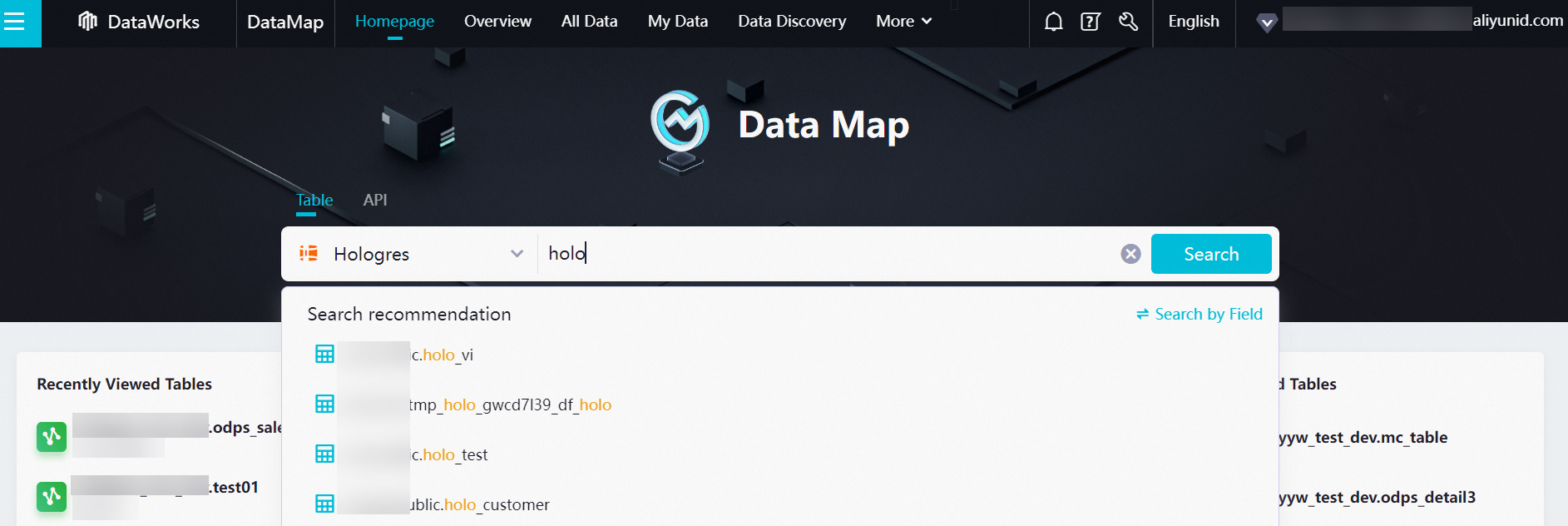
Search for tables
Search for tables in Data Map by table name, table description, field name, or field description. Filter results by category, project, or database. For more information, see Find tables.
View table details
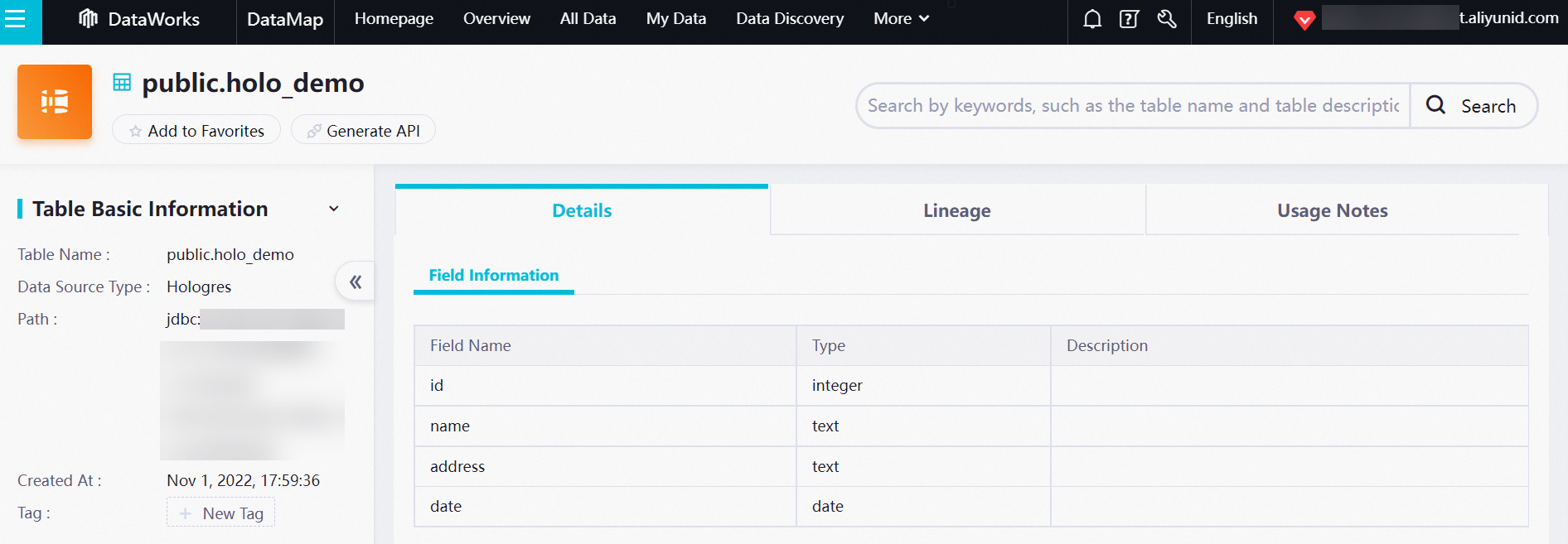
Click a table name to open its details page. The details page shows:
Metadata: Basic information and output information for the table.
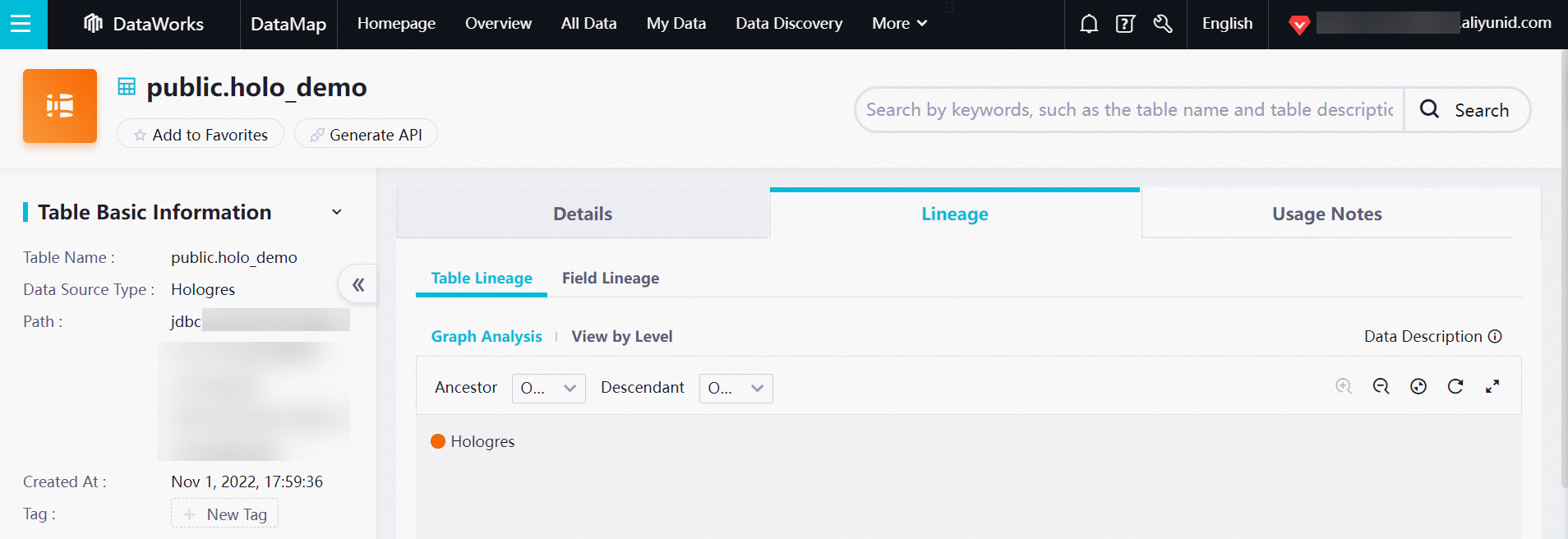
Data lineage: Table-level and field-level lineage, showing where data originates and how it flows across tables and fields.
For more information, see View table details.