Upgrade Dify on DMS from v0.15.3 or earlier to v1.1.3 to access the latest plugin ecosystem. This is a major version upgrade.
Important notes
This feature is in preview. To use this feature,contact DMS technical support.
Prerequisites
Before you upgrade, back up all Dify resources and create a dify_plugin database in your target ApsaraDB RDS for PostgreSQL instance. The dify_plugin database in the ApsaraDB RDS for PostgreSQL instance stores metadata for installed plugins.
Back up data
Back up the ApsaraDB RDS for PostgreSQL and vector database resources used by Dify.
Back up RDS for PostgreSQL data
Go to the Instances page. In the top navigation bar, select the region in which the RDS instance resides. Then, find the RDS instance and click the ID of the instance.
-
In the upper-right corner of the page, click the Backup Instance button. In the dialog box, click OK.
For Backup Method, select Full Backup. For Backup Policy, select Instance Backup. Avoid DDL operations during backup to prevent table locks and backup failures. Back up during off-peak hours. Large datasets may take longer.
-
Click Tasks in the upper-right corner to check the backup status.
The backup is complete when the task progress reaches 100%.
Back up vector database
The following steps use an AnalyticDB for PostgreSQL instance as an example.
-
Log on to the AnalyticDB for PostgreSQL console.
-
In the upper-left corner, select the region of the instance.
-
Click the target instance ID. In the left-side navigation pane, click Backup and Restoration.
-
In the upper-right corner of the page, click Create Backup, and then click OK.
The backup is complete when the task status shows Success.
Prepare the database
In the Tair console, update the dify_user account password to match the default account password, then create a dify_plugin database in the target ApsaraDB RDS for PostgreSQL instance.
DMS automatically creates the dify_user account when you deploy Dify.
Verify database account password
Go to the Instance List page, select the region at the top, and then click the ID of the target instance. Verify that the default account password matches the dify_user password. If not, modify the dify_user password.
If you change the dify_user password, update it on the instance editing page in DMS.
Log in to DMS 5.0.
-
In the database instance list on the left, find the target instance. Right-click the instance name and select Edit Instance.
-
Re-enter the Database Password. Ensure that Access Method is set to Security hosting - Manual, Database Account is dify_user, and then click Save.
Create the dify_plugin database in an ApsaraDB RDS for PostgreSQL instance
-
Go to the RDS Instance List page, select the region, and click the target instance ID.
-
In the left-side navigation pane, click Database Management, and then click Create Database.
For Database Name, enter
dify_plugin. For Authorized Account, selectdify_user.For Character Set, select UTF8. For Collate, select C. For Ctype, select en_US.utf8.
-
Click Create.
Upgrade Dify on DMS
Log in to DMS 5.0.
-
Move the pointer over the
 icon in the upper-left corner and choose . Note
If you do not use the DMS console in Simple mode, choose in the top navigation bar.
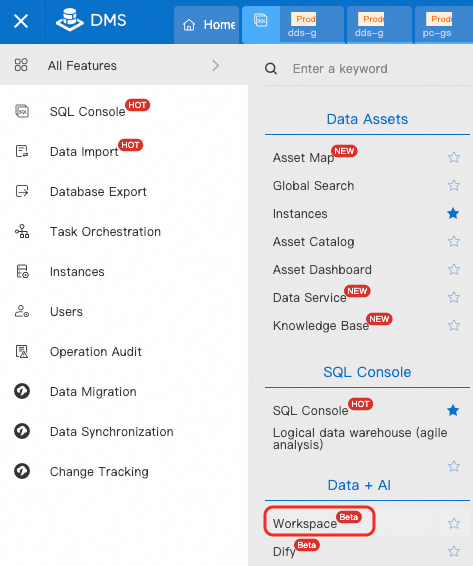
-
In the left-side navigation pane, choose
 > Dify, and then click Upgrade to Latest Version.Note
The upgrade takes about 10 minutes. During this time, Dify services including models and Studio applications are unavailable.
-
After the upgrade, you can use the latest Dify version.
To verify, click your avatar in the Dify workspace and check the version under About Dify. Version 1.1.3 confirms a successful upgrade.
Install Dify plugins
-
In the left-side navigation pane, click
 > Studio.
 -
In the upper-right corner, click Plugins, and then click Install Plugin.
Plugin sources: Marketplace, GitHub, and local plugins.
-
Install the plugins you need, such as model, tool, and agent strategy plugins.
NoteIf your Dify application uses model services or a knowledge base, reconfigure them after plugin installation.
For example, to install the latest version of the Tongyi Qianwen plugin from the Marketplace:
Click the Model tab, find the Tongyi Qianwen plugin, and click Install.
-
Continue building your LLM applications with the Dify documentation.