This topic describes how to create a Notebook workspace, add resources, and configure a code storage space.
Step 1: Create and go to a workspace
Log in to DMS 5.0.
-
Move the pointer over the
 icon in the upper-left corner and choose . Note
If you use the DMS console in normal mode, choose in the top navigation bar.
Click Create Workspace. In the dialog box that appears, enter a Workspace Name, select a Region, and click OK.
NoteA workspace name can contain only letters, digits, and underscores (_).
You can select only the Singapore region.
In the Actions column of the target workspace, click Go to Workspace.
NoteBy default, only the creator of a workspace can access it. For collaborative development, the workspace creator must grant development permissions to other users.
Step 2: Add project members
If multiple users collaborate in a workspace, you must assign roles to them.
Users must be added to DMS before you can assign them roles. For more information, see User management.
Click the settings icon at the bottom of the navigation pane on the left and choose Member Management. Then, click Add Members. In the dialog box that appears, select the members to add and assign roles to them. Available roles include Administrator, Developer, and Read-only User.
Step 3: Configure the code storage space
In the workspace, go to the Project Settings
 tab and click Storage Management.
On the Storage Management page, click the
 icon to the right of Code Space.
In the Select OSS Directory dialog box, select the target Bucket.
The selected bucket must be in the same region as the current workspace, and its storage class must be Standard.
NoteIf no buckets are available in the current region, go to the Object Storage Service (OSS) console to create one. For more information, see Create buckets.
Click OK.
Step 4: Add resources
To query and analyze data with Notebook, you must first add and start a resource.
In the workspace, go to the Project Settings
tab and click Resource Configuration.Click Add Resource and configure the resource information.
Parameter
Description
Resource name
Enter a descriptive name.
Resource description
Describe the purpose of this resource.
Image
Spark 3.5+Python 3.9
Spark 3.3+Python 3.9
Python 3.9
ADB instance
Select an AnalyticDB for MySQL instance.
NoteIf you select an image with Spark 3.3 or 3.5, you must also select an AnalyticDB for MySQL cluster.
If the target cluster cannot be found, check whether it has been registered in DMS. For more information, see Register a cloud database instance.
ADB resource group
Select a resource group.
Executor spec
The resource specifications for the Spark executor. Different models have different specifications. For more information, see the Model column in Spark application configuration parameters.
Executor count
The number of Spark executors.
NoteDuring the public preview of Notebook, the total number of executors across all resources in a workspace cannot exceed six. To increase the executor limit, contact DMS technical support.
Driver spec
The resource specifications for the Spark driver.
General_XSmall_v1 (2 vCores, 8 GB)
General_Small_v1 (4 vCores, 16 GB)
General_Medium_v1 (8 vCores, 32 GB)
General_Large_v1 (16 vCores, 64 GB)
Notebook specification
This parameter is available only when you select an image with Python 3.9.
General_XSmall_v1 (2 vCores, 8 GB)
General_Small_v1 (4 vCores, 16 GB)
General_Medium_v1 (8 vCores, 32 GB)
General_Large_v1 (16 vCores, 64 GB)
VPC ID
Select an available Virtual Private Cloud (VPC).
Zone ID
Select a zone in the VPC.
vSwitch ID
Select a vSwitch in the VPC.
Security group ID
Select an available security group.
Click Save.
Start the resource.
In the Actions column of the resource, click Start, and click OK.
NoteThe resource takes about one minute to start. After the resource starts, the Resource Status changes to Running.
Step 5: Configure a user storage space
To read data from external sources with Notebook, you can configure paths to multiple OSS buckets.
In the workspace, go to the Settings
tab and click Storage Management.In the User Storage Space area, configure the OSS path.
NoteThe mount path must start with
/mnt/.Click the Save
 icon.
icon.
Step 6: View data
In the workspace, go to the Data
 tab.
tab.In the SQL Console, you can perform the following operations:
Query data
You can use Copilot to generate SQL queries or write them manually. The SQL syntax must be consistent with that of the logical data warehouse.
NoteYou can use standard MySQL syntax to query tables regardless of their source database, such as AnalyticDB for MySQL or RDS for MySQL. DMS automatically handles the conversion and optimization.
When Copilot generates SQL, it automatically learns business knowledge from your feedback and from table and column metadata. If the learned knowledge is inaccurate, you can edit it to improve its accuracy. Copilot will then reference this corrected knowledge to provide more accurate answers to similar questions in the future.
If you are satisfied with the SQL generated by Copilot and it meets your business requirements, you can "like" the generated SQL. This feedback helps improve future SQL generation.
View table usage notes
The system automatically generates a table description based on the table and column metadata. You can expand a database, double-click a table name, and then view or edit the description on the Usage Notes tab.
What to do next
Manage Notebook resources
You can manage added resources on the Resource Configuration page. For instructions on how to go to this page, see Step 4: Add resources.
Manually stop a resource.
Edit resource information.
NoteYou can edit resource information only when the resource is stopped.
Manually start a stopped resource.
Automatically release Notebook resources.
A resource becomes idle when all its associated notebook kernels are terminated. The resource is automatically released if it remains idle for a specified period.
View historical Spark jobs for a Notebook resource.
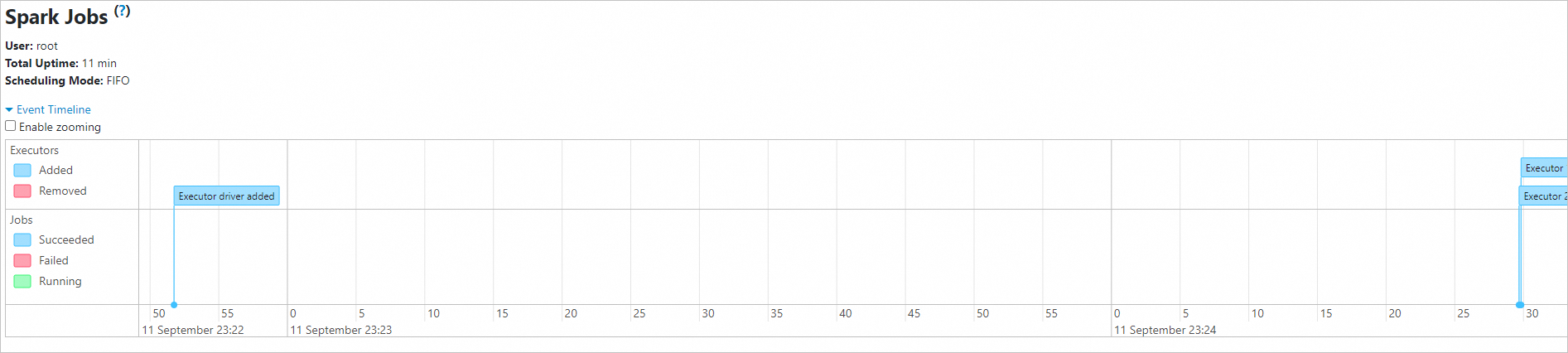
On the Resource Configuration page, click SparkUI to the right of the resource to go to the job list page.
The job list page (Spark History Server) displays a table of completed Spark application records. The table includes columns such as Version, App ID, App Name, Started, Completed, Duration, Spark User, and Last Updated. Each entry has a Download button to download its event log.
Click an App ID to view details about the Spark execution.