Configure automatic download of backup sets
Data Disaster Recovery uses backup gateways to automatically download new backup sets to your on-premises storage as they are generated. This eliminates manual downloads and keeps your local storage up to date for compliance archiving or offline recovery.
Prerequisites
Before you begin, ensure that you have:
A backup gateway added to your environment. Data Disaster Recovery connects to on-premises devices through the backup gateway. For more information, see Add a backup gateway.
Billing
Downloading backup sets does not incur network traffic charges when you manually download a backup set.
Limits
Before downloading a backup set, check its validity period. If the backup set is close to expiring, extend its retention period first to prevent automatic deletion during the download. After the download completes, you can reset the retention period to its original value. For more information, see Modify the lifecycle of a backup schedule.
Backup destination: Both logical and physical backup downloads require Data Disaster Recovery built-in storage as the backup destination. Object Storage Service (OSS) buckets are not supported.
Supported databases and formats:
| Database | Logical backup (full) | Logical backup (incremental) | Physical backup (full) | Physical backup (incremental) |
|---|---|---|---|---|
| MySQL | CSV | Native MySQL format | Percona XtraBackup format (compressed) | Same as full |
| SQL Server | CSV | — | Native backup command format (compressed) | Same as full |
| MariaDB | CSV | — | — | — |
| PostgreSQL | CSV | — | — | — |
| Oracle | CSV | — | — | — |
| MongoDB | JSON | — | — | — |
Configure automatic download
Log on to Data Management (DMS) V5.0.
In the top navigation bar, choose Security and Specifications (DBS) > Data Disaster Recovery (DBS) > Backup Plan.
If you use DMS in simple mode, move the pointer over the
 icon in the upper-left corner and choose All Features > Security and Specifications (DBS) > Data Disaster Recovery (DBS) > Backup Plan.
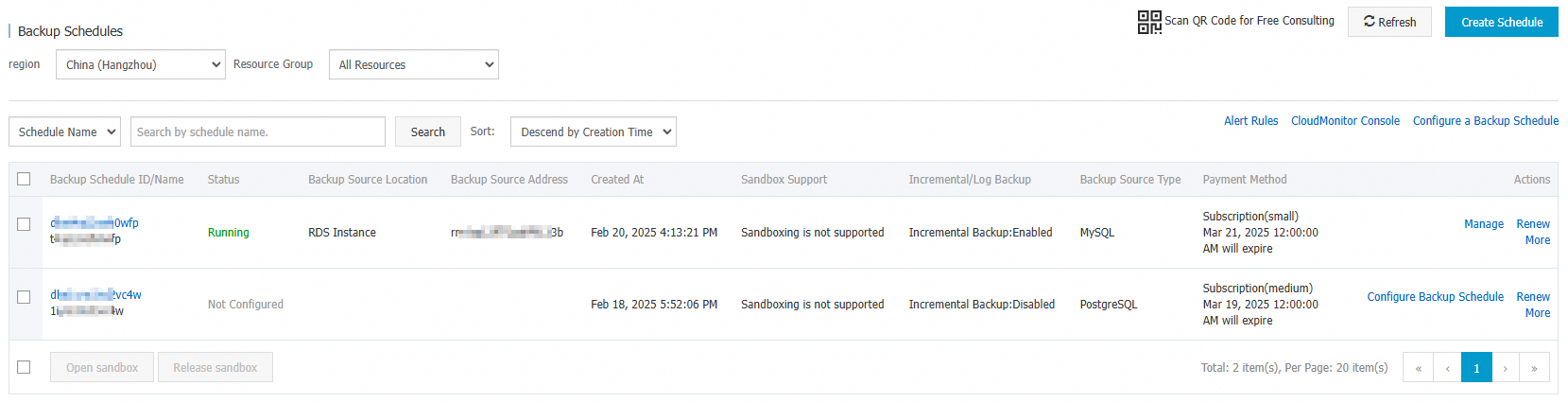
Find the backup schedule and click its schedule ID or click Manage in the Actions column.
On the Configure Task page, click Set backup set download rules in the Backup set download section.
The Set backup set download rules button is unavailable if the database engine does not support backup set downloads, or if the backup destination storage type is not Data Disaster Recovery built-in storage.
In the Set backup set download rules panel, configure the following parameters:
Click OK.
After the rule is saved, automatic download applies only to newly generated full and incremental backup data. Historical backup sets are not downloaded retroactively.
(Optional) Decompress downloaded backup files
After a backup set is downloaded, decompress it based on its file format.
zip files
Run the following command to extract the archive:
unzip <Download task ID>.zipOn Windows, you can directly decompress the file. If the database contains a large volume of duplicate data, you may see this error:
error: invalid zip file with overlapped components (possible zip bomb)To resolve this, set the environment variable before running
unzip:UNZIP_DISABLE_ZIPBOMB_DETECTION=TRUE unzip <Download task ID>.zipIf an XB file remains after extraction, proceed to Decompress XB files.
tar.gz files
Run the following command to decompress the archive. This produces a
<Download task ID>.tarfile.gzip -d <Download task ID>.tar.gzOn Windows, you can directly decompress the file.
Check the format of the
.tarfile:If the format is
POSIX tar archive: ``bash tar xvf <Download task ID>.tar``If the format is
Zip archive data, at least v2.0 to extractordata: ``bash unzip <Download task ID>.tar``
file <Download task ID>.tarThen extract based on the output:
If an XB file remains after extraction, proceed to Decompress XB files.
Decompress XB files
XB files use the Percona XtraBackup format. Use the xbunpack tool to decompress them.
Download xbunpack:
Windows: xbunpack.exe
Linux: xbunpack
On Linux, grant the tool executable permission before running it:
chmod +x xbunpackDecompress the XB file:
Windows:
xbunpack.exe -file=<Download task ID>.xb -dir=/<Destination storage directory>Linux (Method 1):
xbunpack -file=<Download task ID>.xb -dir=/<Destination storage directory>Linux (Method 2, using a pipe):
cat <Download task ID>.xb | ./xbunpack -dir=/<Destination storage directory>
FAQ
Does automatic download apply to historical backup sets?
No. After you configure the rule, Data Disaster Recovery triggers automatic download only when new full or incremental backup data is generated. Existing historical backup sets are not downloaded retroactively.
What happens if the backup set expires during download?
If a backup set expires while downloading, it may be automatically deleted, which can interrupt or corrupt the download. Before starting a download, check the backup set's validity period and extend the retention period if needed. For more information, see Modify the lifecycle of a backup schedule.
Can I use the same backup gateway for multiple backup schedules?
This is not recommended. Automatic backup set download is not yet generally available and does not guarantee stable performance. Using the same gateway for multiple schedules can cause data accumulation and other issues.
What's next
View the download progress of backup sets: Monitor the status of active and completed downloads in the console.