This topic explains how to configure an EMR on ECS cluster to access the Paimon Virtual File System (PVFS) in Data Lake Formation (DLF), so you can read and write data stored in DLF Object Tables using pvfs:// paths.
By the end of this topic, your EMR cluster will be able to access DLF Object Table data from Hadoop shell, Hive, and Spark using pvfs:// paths.
Prerequisites
Before you begin, make sure you have:
-
An EMR cluster of version 5.12.0 or later, with Spark3 and Paimon components installed. For other versions, contact DLF developers by joining the DingTalk group (ID: 106575000021).
-
A DLF Catalog.
-
The EMR cluster and DLF in the same region, with the EMR cluster's VPC added to the DLF whitelist.
Grant DLF permissions to the EMR role
The EMR cluster accesses DLF using the AliyunECSInstanceForEMRRole role. You need to grant this role both RAM-level and catalog-level permissions.
Step 1: Grant RAM permissions to the EMR role
Skip this step after EMR productization integration is complete.
-
Log on to the Resource Access Management (RAM) console as an Alibaba Cloud account or RAM administrator.
-
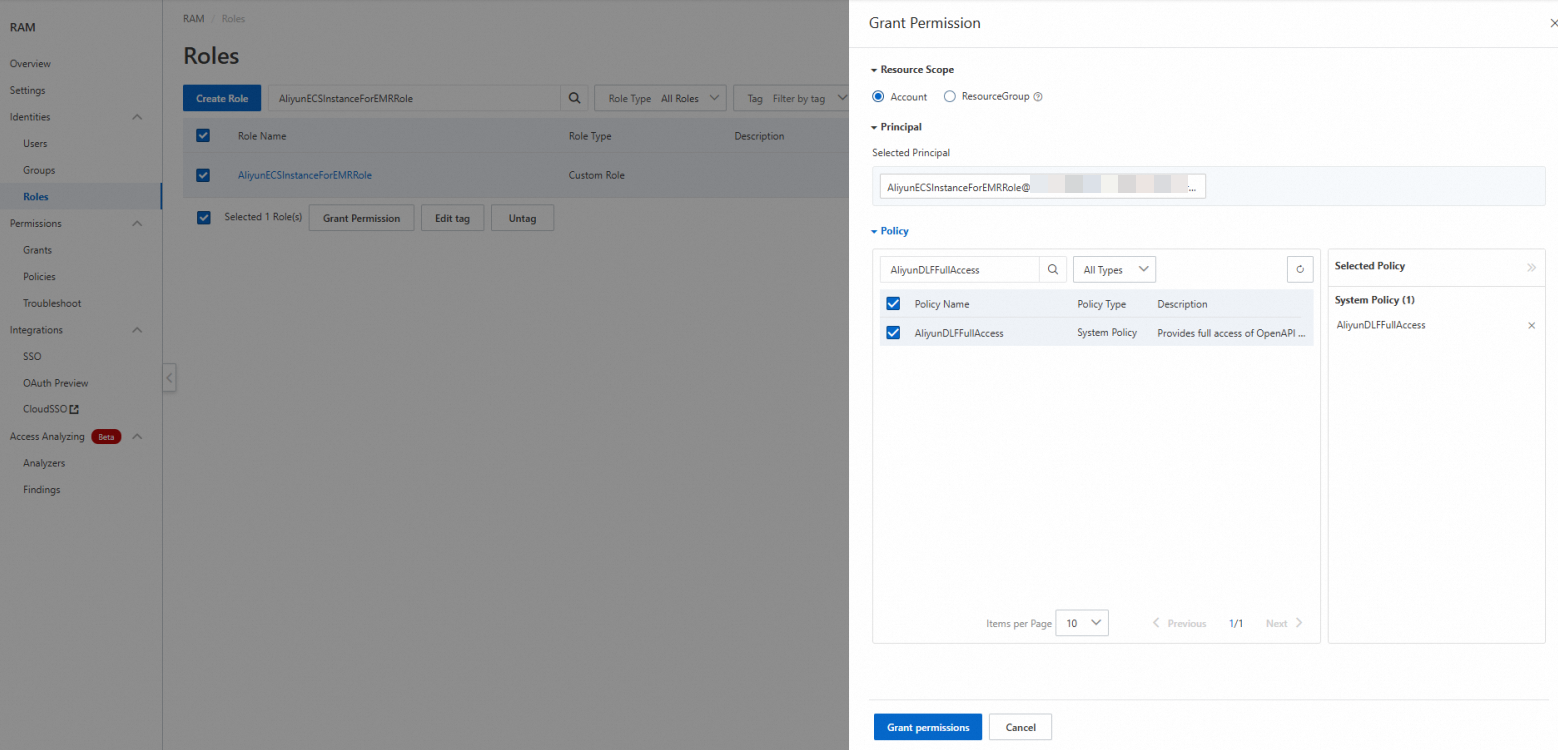
Click Identity Management > Roles. Find the AliyunECSInstanceForEMRRole role.
-
In the Actions column, click Add Authorization.
-
In the Access Policy field, search for and select AliyunDLFFullAccess, then click Confirm Authorization.
Step 2: Grant catalog permissions to the EMR role
-
Log on to the Data Lake Formation console.
-
On the Catalog list page, click the catalog name to open the catalog details page.
-
Click the Permissions tab, then click Authorize.
-
On the Authorize page, configure the following parameters and click OK.
If AliyunECSInstanceForEMRRole is not in the drop-down list, go to the user management page and click Synchronize.
Parameter Value Principal Select RAM-User/RAM-Role Select Principal Select AliyunECSInstanceForEMRRole from the drop-down list Preset Permission Type Select Data Editor
Upgrade cluster Paimon dependencies
Upgrade the following Paimon packages to version 1.3 or later:
| Package | Maven repository |
|---|---|
| paimon-jindo | paimon-jindo |
| paimon-bundle | paimon-bundle |
| paimon-vfs-hadoop | paimon-vfs-hadoop |
Also select the paimon-spark package that matches your Spark version and upgrade it to version 1.3 or later. Find the artifact in the Paimon Maven repository. For example, if you use Spark 3.2, select paimon-spark-3.2-1.3.0 or a later version.
Step 1: Upload packages to OSS
Upload the four JAR files to an OSS bucket and set the file permissions to public-read. For details, see Simple upload.
Step 2: Create and upload the installation script
Create a shell script with the following content and upload it to OSS.
#!/bin/bash

echo 'prepare paimon-vfs in hadoop classpath'
cd /opt/apps/JINDOSDK/jindosdk-current/lib
rm -rf paimon-*
wget ${paimon_vfs_jar}
wget ${paimon_jindo_jar}
wget ${paimon_bundle_jar}

echo 'prepare paimon-spark in spark classpath'
rm -rf /opt/apps/PAIMON/paimon-dlf
rm -rf /opt/apps/PAIMON/paimon-dlf.tar.gz.*
mkdir -p /opt/apps/PAIMON/paimon-dlf/lib/spark3
cd /opt/apps/PAIMON/paimon-dlf/lib/spark3
wget ${paimon_spark_jar}
rm -f /opt/apps/PAIMON/paimon-current
ln -sf /opt/apps/PAIMON/paimon-dlf /opt/apps/PAIMON/paimon-currentReplace the placeholders ${paimon_vfs_jar}, ${paimon_jindo_jar}, ${paimon_bundle_jar}, and ${paimon_spark_jar} in the script with the download paths of the corresponding OSS objects. By default, EMR on ECS clusters cannot access the Internet. Examples:
-
Internal endpoint:
https://{bucket}.oss-cn-hangzhou-internal.aliyuncs.com/jars/paimon-jindo-1.3.0.jar -
Public endpoint:
https://{bucket}.oss-cn-hangzhou.aliyuncs.com/jars/paimon-jindo-1.3.0.jar
Step 3: Run the script as a bootstrap action on the cluster
Run the script as a bootstrap action of the EMR cluster. For details, see Manually run a script.
-
In the EMR console, go to your cluster page and choose Script Operations > Manual Execution. Click Create and Execute.
-
Configure the following parameters and click OK.
Parameter Value Name Enter a custom name for the script Script Location Select the script you uploaded to OSS. The path must follow the oss://**/**.shformatExecution Scope Select Cluster
Step 4: Restart Spark and Hive
After the script finishes, restart the Spark and Hive services for the changes to take effect.
Update EMR cluster configuration
-
In the EMR console, go to your cluster page and choose Cluster Services > Hadoop-Common > Configuration.
-
On the core-site.xml tab, click Add Configuration Item and add the following entries:
Key Value Description fs.AbstractFileSystem.pvfs.implorg.apache.paimon.vfs.hadoop.PvfsRegisters PVFS as an AbstractFileSystem implementation fs.pvfs.implorg.apache.paimon.vfs.hadoop.PaimonVirtualFileSystemMaps the pvfs://scheme to the Paimon VFS implementationfs.pvfs.uricn-hangzhou-vpc.dlf.aliyuncs.comDLF endpoint for your region. Replace with the endpoint for your region. See Endpoints fs.pvfs.token.providerdlfSpecifies DLF as the token provider fs.pvfs.dlf.token-loaderecsLoads credentials from the ECS instance metadata
Access files in DLF
First, create an Object Table. After the Object Table is created, access its data using the pvfs:// path scheme from Hadoop shell, Hive, or Spark.
All examples use the path format pvfs://{catalog_name}/{database}/{object_table}/ to reference data in the Object Table.
Access using Hadoop shell
Upload a CSV file to the Object Table and verify the upload.
# Upload the CSV file
echo "James,Sales,3000" >> employee.csv
hadoop fs -put employee.csv pvfs://catalog_name/default/object_table/

# Query all files in the object_table
hadoop fs -ls pvfs://catalog_name/default/object_table/

# View the CSV file
hadoop fs -cat pvfs://catalog_name/default/object_table/employee.csv
Access using Hive
Create a temporary table mapped to the Object Table path and query it.
-- Connect to Hive
beeline -u jdbc:hive2://localhost:10000

-- Create a temporary table to map the CSV file
CREATE TEMPORARY TABLE temp_table (
    employee_name STRING,
    department STRING,
    salary INT
)
ROW FORMAT DELIMITED
FIELDS TERMINATED BY ','
STORED AS TEXTFILE
LOCATION 'pvfs://catalog_name/default/object_table/';

-- Query the temporary table
SELECT * FROM temp_table;
Access using Spark
Create a temporary view mapped to the Object Table path and query it.
-- Start spark-sql
spark-sql

-- Create a temporary view to map the CSV file
CREATE TEMPORARY VIEW temp_table
USING csv
OPTIONS (
path 'pvfs://catalog_name/default/object_table',
inferSchema 'false',
schema 'employee_name STRING, department STRING, salary INT'
);

-- Query the temporary view
SELECT * FROM temp_table;